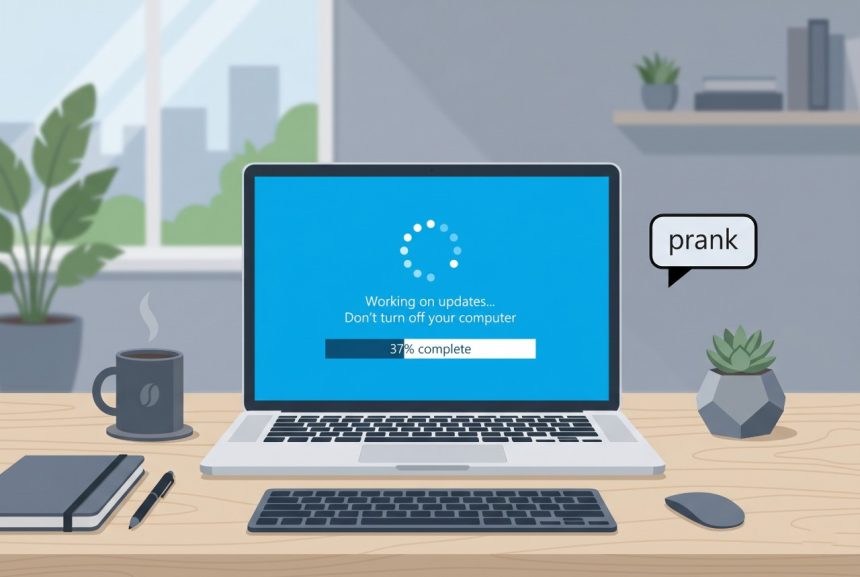
A fake Windows update prank is the classic two-minute office gag: you leave a coworker’s laptop showing a very convincing “Working on updates… Don’t turn off your computer” screen, they come back to what looks like a forty-minute Windows install, and the whole floor gets a laugh. Pulled off right it’s completely harmless — no files touched, no settings changed, the “update” is just a fullscreen webpage. Here’s exactly how I set it up without leaving anything behind and without getting anyone fired.
TL;DR
Open how7o’s fake Windows 11 update generator in your coworker’s browser, press F11 to go fullscreen, and walk away. The animated update screen takes over the whole display. Pressing Esc or F11 ends it instantly — no install, no reboot, no damage.
Why the fake-update prank works so well
Every Windows user has seen the real update screen a hundred times. The blue background, the rotating dots, the “Working on updates… Don’t turn off your computer” caption, the percentage counter that never quite matches how long it actually takes. Our brains have learned not to fight it: when you see it, you close the lid and go for coffee. That learned helplessness is what makes the prank land. The victim doesn’t investigate because investigating a real Windows update is pointless — you just wait.
The prank only needs three ingredients to feel real: pixel-accurate visuals, a progress number that advances on the same slow curve as a genuine update, and no visible browser chrome to give away that it’s a webpage. Modern prank tools handle all three in one click.
Step-by-step: how to set up the prank
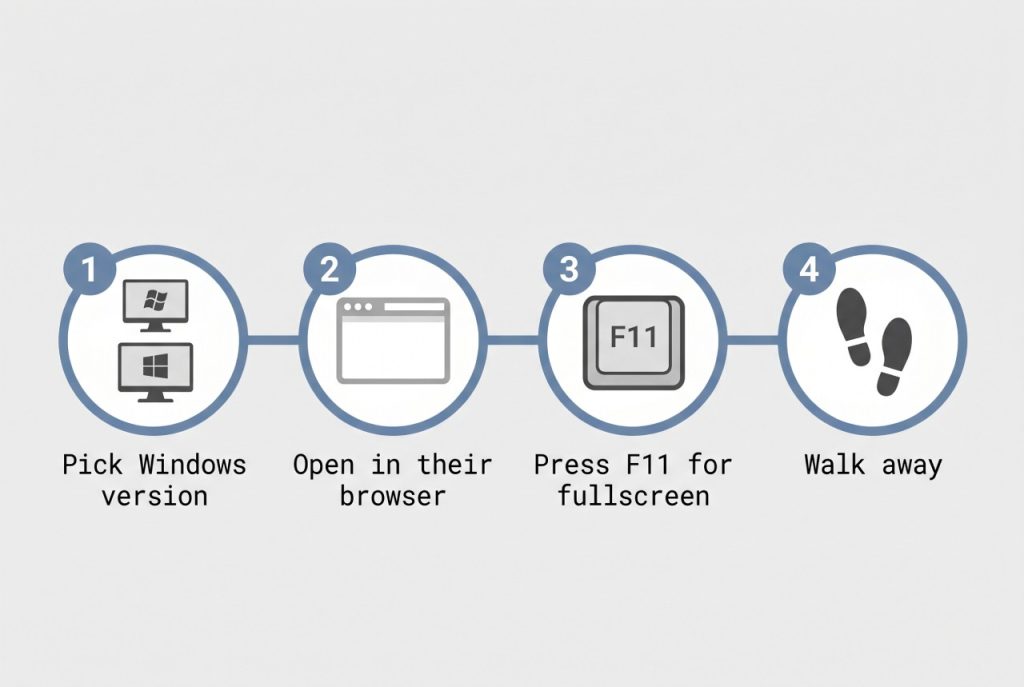
1. Pick the right Windows version for the target
Match the fake screen to what the coworker actually runs. If they’re on Windows 11, use the Windows 11 update screen; on Windows 10, swap in the Windows 10 update screen; for a vintage-laptop gag there’s even a Windows XP update screen. Picking the wrong version is the fastest way to blow the prank — a Windows 10 user seeing a Windows 11 update UI smells the trick immediately.
2. Open the page in their default browser
When the coworker steps away from an unlocked laptop, open a new tab in whatever browser they already use (Chrome, Edge, Firefox — all handle fullscreen the same). Browse to the how7o fake-update page, let it finish loading, then close any other tabs so accidentally alt-tabbing doesn’t break the illusion.
3. Press F11 to go fullscreen
F11 is the universal browser shortcut for fullscreen mode and it’s the single most important step. Without it, the browser’s address bar and tab strip give the prank away in the first two seconds. With it, the webpage takes over every pixel — including the area where the Windows taskbar normally lives — and the screen is indistinguishable from a real update.
4. Walk away and wait
That’s it. The page keeps animating on its own. Don’t hover around looking at it — nothing sells a prank worse than the person who set it up refusing to leave the victim’s desk. Go back to your own computer and enjoy the panicked Slack message when they return.
Pranks that pair well with the fake update
If your office culture can handle it, the fake Windows update is even better as part of a combo. A few that work together:
- Fake Blue Screen of Death: start with the fake BSOD generator, “crash” the machine for ten seconds, then transition into the fake update. The narrative becomes “Windows crashed and is repairing itself.”
- Hacker-typer fullscreen: the hacker typer tool paired with fullscreen looks like a hostile remote session. Works especially well on sysadmins who’ll immediately start troubleshooting.
- Mac equivalent for the Apple crowd: the fake macOS update screen runs the same play on a Mac. Most prank-tool sites ignore macOS — this one doesn’t.
Pranks to avoid (don’t get fired over a joke)
- Don’t run it on a machine with unsaved work. A surprise “update” on a doc that hasn’t been saved for two hours stops being funny the moment the victim force-reboots.
- Don’t trigger it during a live meeting or demo. If the coworker’s screen is being shared, the prank is no longer between you and them — it’s in front of a client.
- Don’t disable the keyboard or mouse. A fullscreen webpage is a harmless visual gag. Anything that locks out input, mashes system shortcuts, or requires elevation crosses into “this violates acceptable-use policy” territory fast.
- Don’t do it to someone you don’t know well. The prank only works if you trust each other enough that the victim will laugh afterwards. New hires, clients, and people going through a stressful week are not the target.
Frequently asked questions
No. The fake update is a static HTML page running in a fullscreen browser tab — it doesn’t touch Windows itself, doesn’t write any files, and leaves nothing behind once the tab closes. Hitting Esc or F11 exits fullscreen and the prank is over.
Press Esc or F11 to leave the browser’s fullscreen mode. If the keyboard is being ignored because of a stuck key or a Windows game-bar overlay, Alt + F4 closes the tab and Ctrl + Alt + Del always works as a hard escape.
Not at first glance. The page mimics the Working on updates / Don't turn off your computer screen pixel-for-pixel, and the progress percentage advances on a realistic curve. The giveaway is the browser chrome at the top — fullscreen mode (F11) hides it, which is the whole trick.
In most workplaces a harmless visual prank on an unlocked laptop is fine, but anything that touches a colleague’s keyboard/mouse, destroys in-progress work, or delays a deadline can violate acceptable-use policies. When in doubt, don’t run the prank on a machine with unsaved work or during a busy sprint.
Once the page has loaded in the browser, the progress animation keeps running even if the laptop goes offline — the update screen is just CSS and JavaScript in the browser, no server calls. You do need an initial connection to open the tool page.
Related tools and pranks on how7o
- Fake Windows 11 update screen — the tool this whole guide uses.
- Fake Windows 10 update screen — same prank, older OS.
- Fake Windows XP update screen — vintage-laptop variant.
- Fake Blue Screen of Death — great opener before the update “recovery.”
- Hacker typer — pairs well on sysadmin-heavy teams.
- Fake macOS update — the Apple equivalent.
Wrapping up
A good fake-update prank takes less than a minute to set up, leaves zero trace on the victim’s computer, and ends the moment someone taps a key. Spend thirty seconds picking the right Windows version, press F11, and walk away — the how7o fake Windows 11 update does the rest.
Fullscreen API behavior the prank relies on is documented on MDN: developer.mozilla.org/en-US/docs/Web/API/Fullscreen_API.