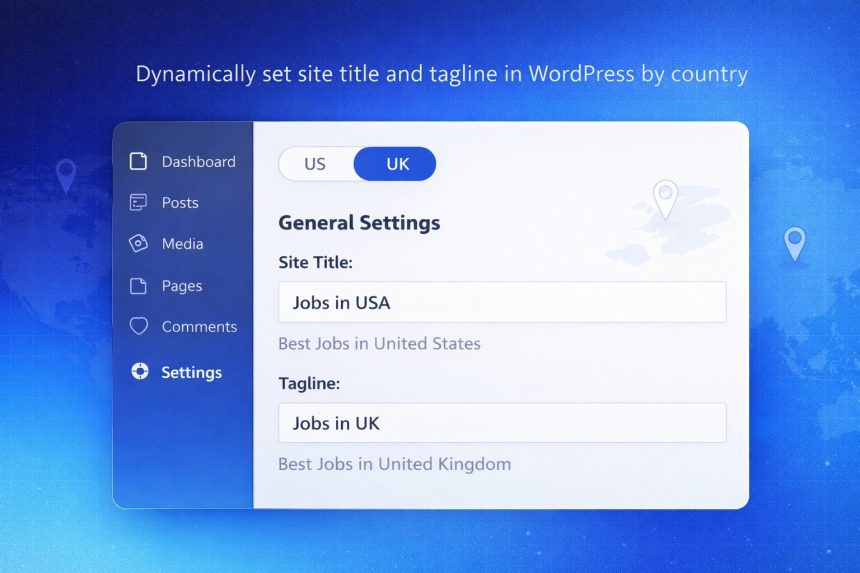
I recently faced a problem where I needed to dynamically set site title and tagline in WordPress based on the visitor’s country. The default Site Title and Tagline in Settings → General are global, but my site served different regions (USA, UK, etc.), and I wanted the branding to change automatically on every page load.
- What we’re actually changing (and what we’re not)
- My solution: filter blogname and blogdescription by country
- Step-by-step: add the code to WordPress
- Step 1: Add the filters
- Step 2: Detect the country
- Step 3: Dynamically set the Site Title
- Step 4: Dynamically set the Tagline
- Optional: support more countries (cleaner mapping)
- Important notes (SEO + caching)
- Troubleshooting
After digging into how WordPress stores and outputs these values, I found a clean solution: hook into the option_blogname and option_blogdescription filters and return a country-specific version of the text.
What we’re actually changing (and what we’re not)
WordPress stores the Site Title and Tagline in the database as options: blogname and blogdescription. If you change them in the admin area, you’re updating the saved values.
But in many cases, you don’t want to overwrite your database values per visitor. You just want WordPress to output a different title/tagline depending on conditions (country, language, subdomain, etc.). That’s exactly what these filters do: they let you intercept the option value right before WordPress uses it.
My solution: filter blogname and blogdescription by country
The approach is simple:
- Detect the visitor’s country (however you prefer).
- Hook into
option_blognameandoption_blogdescription. - Return custom text when the country matches your rules.
Step-by-step: add the code to WordPress
You can place this in your theme’s functions.php file. If you want a safer, update-proof option, add it using the Code Snippets plugin or a small custom plugin. (Same code either way.)
Step 1: Add the filters
add_filter( 'option_blogname', 'my_change_blogname_by_country' );
add_filter( 'option_blogdescription', 'my_change_blogdescription_by_country' );
Step 2: Detect the country
You’ll need to define how you determine $country. The most common options are:
- Cloudflare (recommended): use the
CF-IPCountryheader if your site is behind Cloudflare. - Server-side GeoIP (like MaxMind GeoLite2): more work, but very reliable when configured correctly.
- User-selected country stored in a cookie/session (best if you allow manual switching).
Below is an example that supports both Cloudflare and a fallback cookie. Adjust to match your setup.
function my_get_visitor_country_code() {
    // 1) Cloudflare country code (e.g., "US", "GB")
    if ( ! empty( $_SERVER['HTTP_CF_IPCOUNTRY'] ) ) {
        return strtoupper( sanitize_text_field( $_SERVER['HTTP_CF_IPCOUNTRY'] ) );
    }

    // 2) Optional: country stored in a cookie (e.g., "US", "GB")
    if ( ! empty( $_COOKIE['site_country'] ) ) {
        return strtoupper( sanitize_text_field( $_COOKIE['site_country'] ) );
    }

    // 3) Default fallback
    return 'US';
}
Step 3: Dynamically set the Site Title
function my_change_blogname_by_country( $text ) {
    $country = my_get_visitor_country_code();

    if ( $country === 'US' ) {
        $text = 'Jobs in USA';
    } elseif ( $country === 'GB' ) {
        $text = 'Jobs in UK';
    }

    return $text;
}
Step 4: Dynamically set the Tagline
function my_change_blogdescription_by_country( $text ) {
    $country = my_get_visitor_country_code();

    if ( $country === 'US' ) {
        $text = 'Best Jobs in United States';
    } elseif ( $country === 'GB' ) {
        $text = 'Best Jobs in United Kingdom';
    }

    return $text;
}
That’s it. Now your WordPress site will output different Site Title and Tagline values based on country—without changing anything in Settings → General.
Optional: support more countries (cleaner mapping)
If you plan to support many regions, a mapping array is easier to manage than a long list of elseif statements.
function my_site_branding_map() {
    return array(
        'US' => array(
            'name' => 'Jobs in USA',
            'desc' => 'Best Jobs in United States',
        ),
        'GB' => array(
            'name' => 'Jobs in UK',
            'desc' => 'Best Jobs in United Kingdom',
        ),
        // Add more: 'CA', 'AU', 'DE', etc.
    );
}

function my_change_blogname_by_country( $text ) {
    $country = my_get_visitor_country_code();
    $map     = my_site_branding_map();

    if ( isset( $map[ $country ]['name'] ) ) {
        $text = $map[ $country ]['name'];
    }

    return $text;
}

function my_change_blogdescription_by_country( $text ) {
    $country = my_get_visitor_country_code();
    $map     = my_site_branding_map();

    if ( isset( $map[ $country ]['desc'] ) ) {
        $text = $map[ $country ]['desc'];
    }

    return $text;
}
Important notes (SEO + caching)
- Page caching: If you use a full-page cache (plugin, host cache, Cloudflare cache), it may serve the same cached HTML to everyone. In that case, your dynamic title/tagline might look “stuck.” You’ll need cache variation by country (or disable caching for pages where it matters).
- Search engines: If search bots see different titles based on location, results may vary by region. That can be fine for local targeting, but make sure it’s intentional.
- Theme usage: Most themes display the Site Title/Tagline in the header and use them in various template parts. With these filters, you’re changing what WordPress returns everywhere it calls those options.
Troubleshooting
The Site Title or Tagline doesn’t change
- Temporarily disable caching (plugin/server/CDN) and refresh.
- If you’re using Cloudflare, co