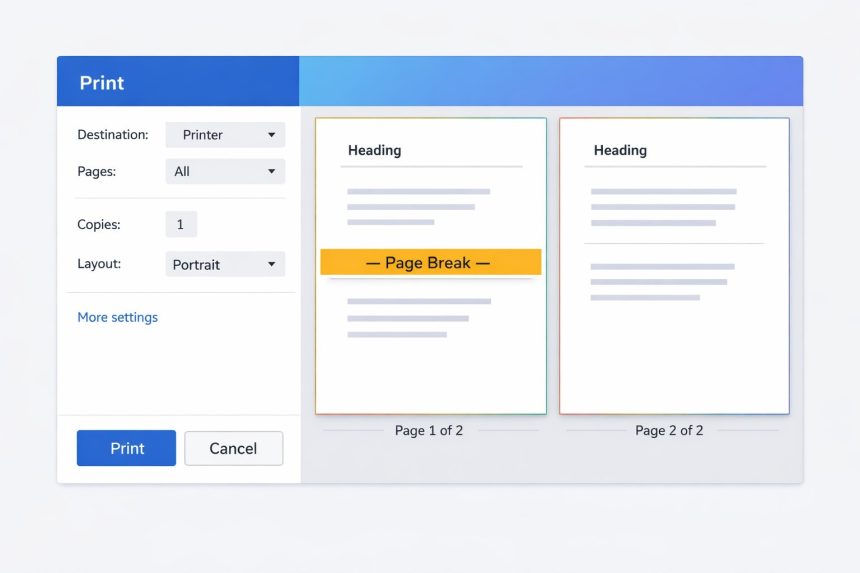
I ran into this exact problem when I tried to print a web page for a client: everything came out on a single printed page, even though the content clearly needed to be split. If you’re searching for a CSS page break for printing, the fix is simple—you just need to tell the browser where a new printed page should start.
- Why page breaks don’t happen automatically
- The simplest solution: add a page-break element for printing
- Modern CSS alternative: break-before / break-after (recommended)
- Step-by-step: common ways to split printed pages
- Option A: Force a break before a section
- Option B: Force a break after a section
- Option C: Prevent ugly splits inside a section
- Troubleshooting: when CSS page breaks don’t work
- Quick copy-paste snippet (most practical)
- Official references
- Related guides
- Final notes
In this guide, I’ll show you the cleanest way to force page breaks when printing, using print-only CSS. I’ll also include modern CSS properties (the newer “break-*” rules) and a quick troubleshooting checklist for when the browser ignores your page breaks.
Why page breaks don’t happen automatically
When you print a website, the browser tries to fit everything continuously—like a long document—then it decides page boundaries on its own. That’s why your layout can look fine on screen but print as one long flow with awkward splits.
To split the print output into multiple pages, you add a “break point” in your HTML (or target an element) and apply print-specific CSS that forces a new printed page.
The simplest solution: add a page-break element for printing
The most reliable approach is to add a dedicated “page break” element in your markup wherever you want the next printed page to begin, and then apply the print CSS rule to it.
Step 1: Add a page-break marker in HTML
<!-- Page Break Marker -->
<div class="page-break"></div>
Place that div between sections—right where you want the next printed page to start.
Step 2: Add print-only CSS
@media print {
  .page-break {
    page-break-before: always;
  }
}
Now, when you print the page, anything after .page-break will start on a new printed page.
Modern CSS alternative: break-before / break-after (recommended)
Browsers still support page-break-before and page-break-after, but the modern standard is the break-* family. If you want the most future-friendly option, use these.
@media print {
  .page-break {
    break-before: page;
  }
}
You can also break after a specific element instead of adding an extra marker:
@media print {
  .section-end {
    break-after: page;
  }
}
This is handy if your HTML is structured in sections already (like invoices, reports, or long tutorials).
Step-by-step: common ways to split printed pages
Here are the patterns I use most often depending on the layout.
Option A: Force a break before a section
@media print {
  .print-new-page {
    break-before: page;
  }
}
Use it like this:
<div class="print-new-page">
  <h2>Page 2 begins here</h2>
  ...
</div>
Option B: Force a break after a section
@media print {
  .print-break-after {
    break-after: page;
  }
}
Great for “one section per page” layouts.
Option C: Prevent ugly splits inside a section
Sometimes the issue isn’t adding a page break—it’s that the browser breaks in the middle of a table, a card, or a block of content. To reduce that, use break-inside (or the older page-break-inside).
@media print {
  .no-break {
    break-inside: avoid;
    page-break-inside: avoid; /* older fallback */
  }
}
Apply .no-break to things like receipts, cards, or important blocks you don’t want split across pages.
Troubleshooting: when CSS page breaks don’t work
If your CSS page break for printing is being ignored, it’s usually one of these reasons:
- You didn’t wrap it in print media: Make sure your rules are inside
@media print { ... }so they apply only to printing. - The element is hidden in print: If you have print rules like
display:noneon parents, your break marker may never exist in the print layout. - Flex/Grid layouts can be tricky: Some browsers struggle with page breaks inside complex flex or grid containers. Try applying the break to a parent block or simplifying the print layout.
- Tables may break unexpectedly: Use
break-inside: avoidwhere possible, or print-friendly table styling. - Margins/headers/footers affect pagination: Browser print settings (like margins) change where pages cut off. Test with default settings first.
Quick copy-paste snippet (most practical)
If you just want a practical solution you can drop in quickly, this combo works well:
<!-- Put this wherever you want a new printed page -->
<div class="page-break"></div>

<style>
@media print {
  .page-break {
    break-before: page;
  }
}
</style>
Note: Page breaks won’t show visually on the screen (and that’s normal). They only affect printing.
Official references
Related guides
(Add your internal links here when you have them.)
- How to create a print-friendly CSS stylesheet in WordPress
- How to print a specific section of a web page
- How to stop tables from breaking across printed pages
Final notes
Once I started using a dedicated print stylesheet and adding intentional break points, printing web pages became predictable. Start with break-before: page inside @media print, and use break-inside: avoid to keep important blocks from splitting awkwardly.