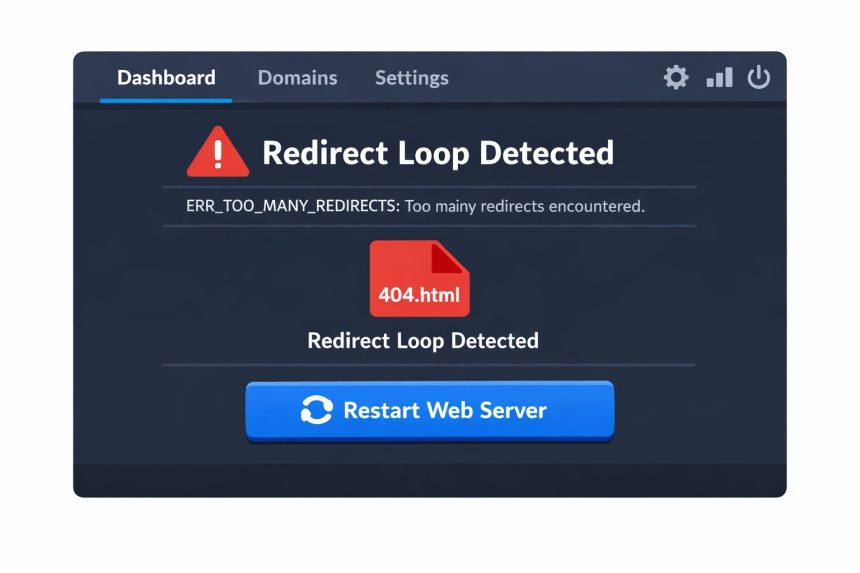
I hit a weird issue while setting up a Laravel subdomain on CyberPanel: the site kept jumping to a 404.html page and Chrome showed ERR_TOO_MANY_REDIRECTS. If you’re seeing the same thing, this guide will walk you through fixing CyberPanel too many redirects Laravel problems—starting with the fastest solution I used, and then the deeper checks if it comes back.
- What happened (symptoms you’ll usually see)
- The quick fix that solved it for me: restart LiteSpeed
- If restarting didn’t fix it: common causes and step-by-step checks
- Step 1: Confirm the document root points to Laravel’s public directory
- Step 2: Check .htaccess for bad redirect rules
- Step 3: Verify Laravel APP_URL and trusted proxy/HTTPS handling
- Troubleshooting checklist (when it still says “too many redirects”)
- Why a LiteSpeed restart fixes this so often
- Official docs (helpful references)
- Related guides
- Final result
What happened (symptoms you’ll usually see)
After creating a subdomain in CyberPanel and deploying a Laravel app, opening the URL didn’t load the application at all. Instead:
- The browser landed on a 404.html page (often a server-level error page).
- Chrome showed ERR_TOO_MANY_REDIRECTS.
- Refreshing didn’t help. Incognito mode didn’t help either.
- Sometimes it only happened on the new subdomain, while other sites on the VPS were fine.
- Log in to CyberPanel.
- Go to Server Status → LiteSpeed Status (or similar menu depending on version).
- Click Restart LiteSpeed.
- Wait 10–20 seconds and reload your Laravel subdomain in the browser.
This usually points to a redirect loop between the web server (LiteSpeed/OpenLiteSpeed), CyberPanel’s virtual host config, and/or Laravel’s own URL/HTTPS handling.
The quick fix that solved it for me: restart LiteSpeed
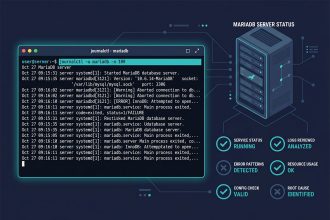
In my case, the issue was resolved immediately after restarting the LiteSpeed web server. CyberPanel sometimes needs a restart to properly apply changes to virtual hosts, rewrite rules, and SSL settings—especially after creating a new subdomain and installing an app.
Restart LiteSpeed from CyberPanel
Try this first because it’s fast and harmless:
Restart LiteSpeed from SSH (optional)
If you prefer SSH or the panel restart doesn’t respond, try one of these (depending on whether you’re using LiteSpeed Enterprise or OpenLiteSpeed):
sudo systemctl restart lswsOr if your system uses the init script:
sudo service lsws restartAfter restarting, open the site again. If it loads normally, you’re done. That’s exactly what fixed my CyberPanel too many redirects Laravel problem.
If restarting didn’t fix it: common causes and step-by-step checks
If the redirect loop continues after a restart, the next most likely cause is a mismatch between server rewrite rules and your Laravel/public directory setup—or a conflicting redirect in .htaccess.
Step 1: Confirm the document root points to Laravel’s public directory
Laravel should be served from the public folder. If CyberPanel’s vHost document root points to the project root (instead of /public), you can end up with odd 404 handling and redirects.
- In CyberPanel, open Websites → select your subdomain site.
- Look for Document Root or vHost Configuration.
- Make sure it ends with
/public.
Example (what you want):
/home/example.com/subdomains/app/publicIf you change the document root, restart LiteSpeed again afterward.
Step 2: Check .htaccess for bad redirect rules
A redirect loop often comes from a rule that forces HTTP → HTTPS (or the reverse) repeatedly, or redirects the same URL to itself with a slightly different format (www vs non-www, trailing slash vs no trailing slash).
Laravel’s typical public/.htaccess should look close to this:
<IfModule mod_rewrite.c>
    <IfModule mod_negotiation.c>
        Options -MultiViews -Indexes
    </IfModule>

    RewriteEngine On

    # Handle Authorization Header
    RewriteCond %{HTTP:Authorization} .
    RewriteRule .* - [E=HTTP_AUTHORIZATION:%{HTTP:Authorization}]

    # Redirect Trailing Slashes If Not A Folder...
    RewriteCond %{REQUEST_FILENAME} !-d
    RewriteCond %{REQUEST_URI} (.+)/$
    RewriteRule ^ %1 [L,R=301]

    # Send Requests To Front Controller...
    RewriteCond %{REQUEST_FILENAME} !-d
    RewriteCond %{REQUEST_FILENAME} !-f
    RewriteRule ^ index.php [L]
</IfModule>
If you see extra rules like these below, temporarily comment them out and test again:
- Force HTTPS redirects that depend on headers like
X-Forwarded-Proto(can break if your proxy/SSL setup is different). - www/non-www redirects applied twice (one in CyberPanel, one in .htaccess).
- Redirecting everything to
/404.htmlor a custom error document that itself triggers another redirect.
After any changes, restart LiteSpeed and test again to ensure the rewrite rules are being applied cleanly.
Step 3: Verify Laravel APP_URL and trusted proxy/HTTPS handling
Laravel generates URLs based on APP_URL in your .env. If the app thinks it should be on HTTPS but the server is delivering HTTP (or vice versa), you can get stuck in a redirect loop.
Check your .env:
APP_URL=https://sub.example.comIf you changed .env, clear Laravel’s config cache:
php artisan config:clear
php artisan cache:clear
Also, if you’re behind a reverse proxy or using CyberPanel SSL settings, Laravel may need trusted proxy configuration (depending on your stack and version). A mismatch here can cause HTTPS detection issues.
Troubleshooting checklist (when it still says “too many redirects”)
- Clear cookies for the domain: redirect loops can be cached. Clear site data for the subdomain and retry.
- Test without extensions: open an Incognito window or disable redirect/security extensions temporarily.
- Check if CyberPanel has forced redirects enabled: if CyberPanel is forcing HTTPS and your .htaccess also forces HTTPS, remove one.
- Confirm SSL is issued and active: a broken/partial SSL setup can create a loop between HTTP and HTTPS.
- Make sure the subdomain points to the correct vHost: wrong vHost can serve a default 404 handler and bounce around.
- Restart LiteSpeed again after config changes: CyberPanel changes aren’t always fully applied until the service restarts.
Why a LiteSpeed restart fixes this so often
CyberPanel manages sites by generating and updating LiteSpeed/OpenLiteSpeed virtual host configuration. When you create a new subdomain, install SSL, or change rewrite rules, the running web server may still be holding onto an older version of the config until it reloads. Restarting LiteSpeed forces it to re-read the updated vHost settings—often instantly resolving the CyberPanel too many redirects Laravel issue.
Official docs (helpful references)
Related guides
- How to Deploy Laravel on CyberPanel (Step-by-Step)
- Fix 404 Errors After Moving a Site to a Subdomain
- How to Configure SSL for CyberPanel Subdomains
Final result
For me, the fix was simple: restart LiteSpeed, and the Laravel subdomain immediately stopped redirecting to 404.html. If restarting doesn’t solve it on your server, the next place to look is the document root (must be /public) and any redirect rules in .htaccess or CyberPanel’s forced HTTPS settings.