I hit a common beginner snag in Laravel: I needed to set a variable in Laravel Blade and I wasn’t sure what the “right” way was. Most of the time you’ll pass values from a controller into a view (which is best practice), but sometimes you just need a quick variable inside the Blade template itself.
- Why Blade variables can feel confusing at first
- The best practice: pass variables from a controller
- How to set a variable directly in a Blade template
- Step-by-step: a practical example you’ll actually use
- Troubleshooting: common Blade variable problems
- 1) “Undefined variable” error
- 2) Variable not available inside an included view
- 3) Output looks wrong (HTML shows up as text)
- When should you set a variable in Blade vs. the controller?
- Official references
- Related guides
In this post, I’ll show you both approaches—passing variables from controllers and defining them directly in Blade—plus when each one makes sense, common mistakes, and troubleshooting tips.
Why Blade variables can feel confusing at first
Laravel uses the Blade template engine to generate HTML. Blade makes it easy to mix HTML with PHP expressions, but that can also create a “where should this logic live?” question.
Here’s the rule of thumb I follow:
- Business logic and data fetching belongs in controllers/services.
- Simple display logic (formatting, small conditional output) can live in Blade.
- Temporary or one-off variables can be set in Blade—but keep it minimal.
The best practice: pass variables from a controller
Most of the time, you’ll pass variables from your controller to your Blade view. This keeps templates clean and makes things easier to test and maintain.
Step 1: Return a view with data
return view('home', ['name' => 'Jonny']);This returns the home.blade.php view and passes a $name variable into it.
Step 2: Use the variable in Blade
<p>Welcome {{ $name }}!</p>Blade’s {{ ... }} syntax echoes the value and automatically escapes it for safety (so it’s great for user-facing content).
How to set a variable directly in a Blade template
Sometimes you don’t want to touch the controller just to define a small value (like a page title, a CSS class, or a reused snippet). In those cases, you can set a variable in Laravel Blade using a Blade PHP block.
Option A: Use the Blade PHP block (recommended)
This is the cleanest way to define PHP variables directly inside a Blade view:
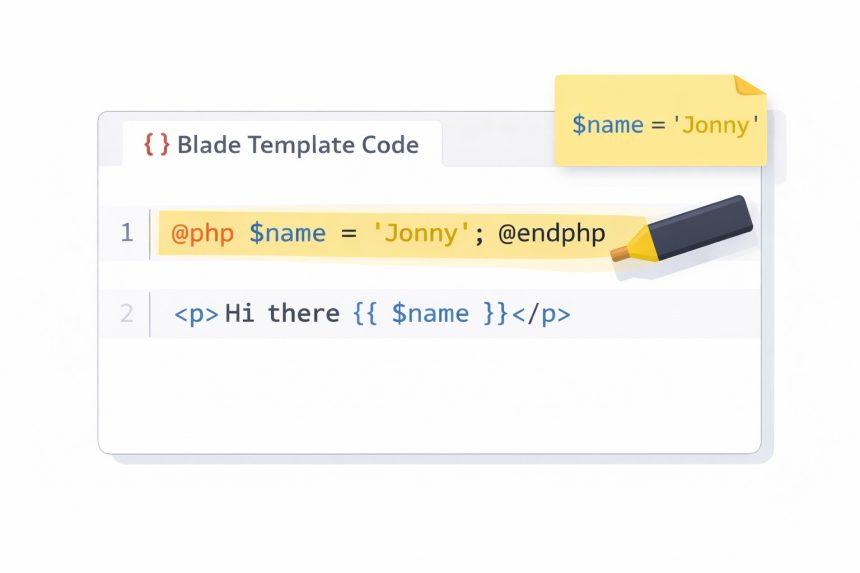
@php
    $name = "Jonny";
@endphp
Then use it anywhere below in the same view:
<p>Hi there {{ $name }}</p>If your goal is to set a variable in Laravel Blade quickly, this is the approach I’d use 99% of the time.
Option B: Raw PHP tags (works, but not ideal)
You can use plain PHP tags in a Blade file, like this:
<?php
    $name = "Jonny";
?>
But I generally avoid it in Blade templates because it mixes styles and makes templates harder to scan. If you’re already in Blade, it’s better to stick to Blade conventions and use @php ... @endphp.
Step-by-step: a practical example you’ll actually use
Here’s a scenario I run into a lot: I want a reusable page title variable and a conditional CSS class, without touching the controller.
Step 1: Define variables at the top of the view
@php
    $pageTitle = "Home";
    $isHighlighted = true;
    $cardClass = $isHighlighted ? "card card--highlight" : "card";
@endphp
Step 2: Use them in your HTML
<h1>{{ $pageTitle }}</h1>

<div class="{{ $cardClass }}">
    <p>Welcome back!</p>
</div>
This is a clean, readable way to keep tiny bits of presentation logic inside the template without turning the Blade view into a mini-controller.
Troubleshooting: common Blade variable problems
1) “Undefined variable” error
If you see an error like Undefined variable: name, it usually means one of these:
- You didn’t pass the variable from the controller.
- You defined it in Blade but tried to use it above the
@phpblock. - You’re in a different included/partial view and the variable isn’t available there.
Fix: define the variable before using it, or pass it explicitly to partials when needed.
2) Variable not available inside an included view
When using @include, variables from the parent view are usually accessible, but if you want to be explicit (or override values), pass them in:
@include('partials.profile', ['name' => $name])3) Output looks wrong (HTML shows up as text)
Blade escapes output inside {{ ... }}. If you’re intentionally outputting safe HTML, use the unescaped syntax:
{!! $html !!}Be careful: only use this with trusted HTML (not raw user input).
When should you set a variable in Blade vs. the controller?
If you’re unsure, here’s the quick decision guide I use:
- Use the controller when the value comes from the database, request, auth, config, or any business rule.
- Use Blade when the value is purely presentational (labels, CSS classes, tiny formatting helpers).
- Refactor later if your Blade PHP block grows beyond a few lines—at that point it probably belongs elsewhere.
Official references
If you want to dig deeper, these official docs are worth bookmarking:
Related guides
(Add your internal links here when you have them.)
- How to pass data to Blade views in Laravel
- Blade conditionals: if, isset, empty, and loops
- Escaping vs unescaped output in Blade ({{ }} vs {!! !!})
If you’re migrating content from a forum to WordPress like I was, posts like this are perfect “quick win” tutorials: clear problem, quick fix, and a couple of best-practice notes so readers don’t pick up bad habits.