I noticed something that was quietly killing my store’s first impression: my homepage product sections were full of Out of stock items. It looked messy, and honestly, it felt like I was advertising products people couldn’t buy.
I already knew WooCommerce has a setting to hide out-of-stock products globally (WooCommerce → Settings → Products → Inventory). But that wasn’t what I wanted. I still wanted out-of-stock items to remain visible on category pages and search (for SEO, browsing, and “notify me” type shoppers). I only wanted the homepage to stay clean.
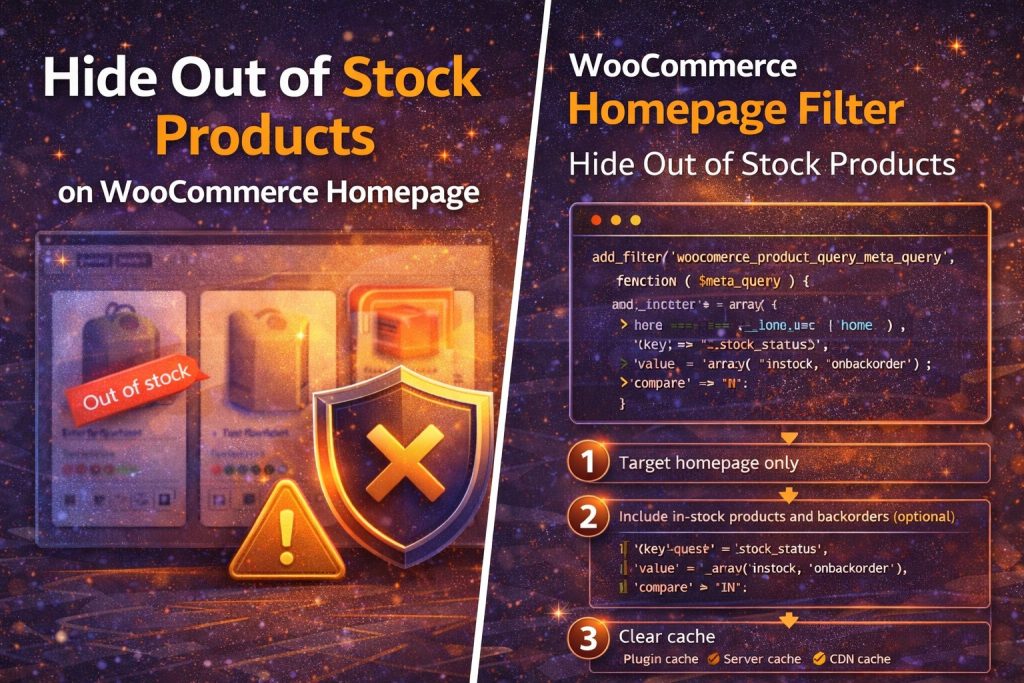
Here’s what worked for me: I filtered WooCommerce product queries only on the homepage so anything with _stock_status = outofstock disappears from homepage grids, while everything stays visible everywhere else.
Best solution: hide out-of-stock products only on the homepage (code method)
This method is perfect if your homepage shows products using WooCommerce blocks, shortcodes, or theme sections that use WooCommerce’s product query system.
Before you edit anything: If you can, use a child theme (or a Code Snippets plugin) so theme updates don’t overwrite your changes.
Step 1: Add this code to your site
Add the following code to functions.php in your child theme, or paste it into a snippets plugin:
add_filter( 'woocommerce_product_query_meta_query', function ( $meta_query ) {

    // Run only on the homepage/front page
    if ( is_front_page() || is_home() ) {

        // Show ONLY in-stock products on homepage
        $meta_query[] = array(
            'key'     => '_stock_status',
            'value'   => 'instock',
            'compare' => '='
        );

        /**
         * OPTIONAL:
         * If you want to show backorders too, replace the block above with:
         *
         * $meta_query[] = array(
         *     'key'     => '_stock_status',
         *     'value'   => array( 'instock', 'onbackorder' ),
         *     'compare' => 'IN'
         * );
         */
    }

    return $meta_query;

}, 20 );
That’s it. This tells WooCommerce: “When we’re on the homepage, only fetch products that are in stock.” On category pages, search results, and product pages, nothing changes.
Step 2: Clear cache (if you use caching)
If your homepage is cached (very common), you won’t see changes immediately. Clear your cache from:
- Your caching plugin (LiteSpeed Cache / WP Rocket / etc.)
- Server cache (if your host provides one)
- CDN cache (Cloudflare, etc.)
Step 3: Test it properly
- Pick a product that appears on the homepage
- Mark it Out of stock in WooCommerce
- Refresh the homepage — it should disappear
- Open its category page or search — it should still be visible there
If you’re using WooCommerce Blocks (no code option)
If your homepage is built with the WooCommerce “Products” block (or a similar product grid block), some setups let you filter by Stock status directly in the block settings. If you see an option like “Stock status” or “In stock only,” enable it for homepage blocks.
This is the easiest method when available — but not every theme/block combination exposes the setting. If you can’t find it, the code method above is the most reliable.
Why I didn’t use the global “Hide out of stock items” setting
WooCommerce has a built-in setting to hide out-of-stock products from the entire catalog. That’s fine for some stores, but in my case it caused problems:
- I still wanted out-of-stock items visible in categories (for SEO + browsing)
- I didn’t want old product links to feel “missing”
- I wanted customers to see the product page (and maybe join a waitlist)
So filtering only the homepage gave me the best of both worlds: clean storefront + full catalog visibility.
Common issues (quick fixes)
It doesn’t work on my homepage
- Your homepage may be using a custom query that doesn’t use WooCommerce’s product query system.
- Try switching the homepage section to a WooCommerce Products block/shortcode, or tell me what theme/page builder you’re using and I’ll tailor the fix.
Changes don’t show up
- Clear cache (plugin + server + CDN)
- Try a private/incognito window
- Temporarily disable homepage cache to confirm the logic works
Final thoughts
Hiding out-of-stock products from the homepage made my store look instantly cleaner. Customers stop seeing “Out of stock” everywhere, and my homepage feels like a curated selection again — while my categories and search still show the full catalog.