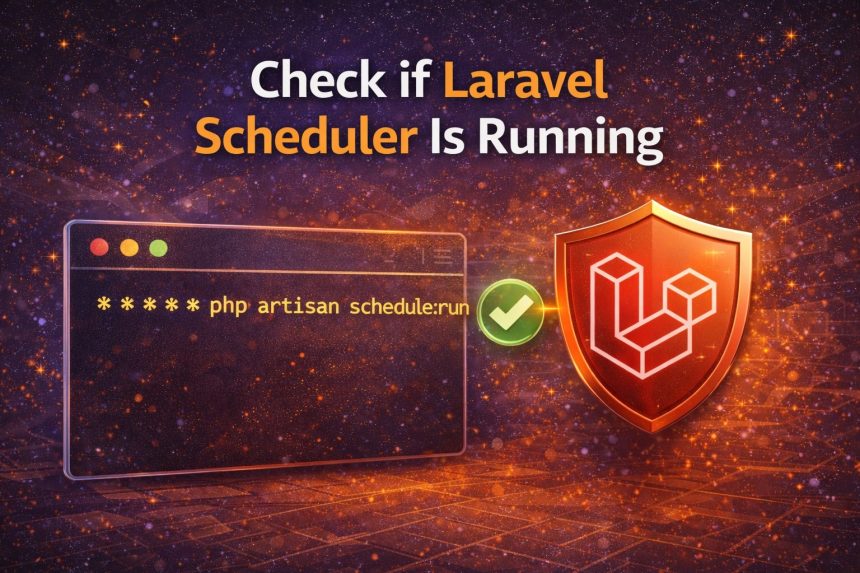
I ran into this when a scheduled job (email + cleanup) simply stopped running on one of my Laravel sites. The weird part was: I had already added a cron job in cPanel, so I assumed the scheduler was fine. But the tasks still didn’t fire.
- How the Laravel scheduler works (simple explanation)
- Step 1: Verify your cron job is correct (cPanel + Linux examples)
- Step 2: Run the scheduler manually (quickest confirmation)
- Step 3: Check what Laravel thinks is scheduled (optional but helpful)
- Step 4: Add a “heartbeat” log to prove the scheduler is executing
- Step 5: If manual works but cron doesn’t — here are the usual fixes
- If the scheduler runs but your real task still doesn’t
- Final checklist
If you’re in the same situation and want to check if Laravel scheduler is running, the fastest approach is to test it from two angles:
- Server side: is cron actually triggering Laravel every minute?
- App side: when Laravel runs, does it execute anything and write logs?
How the Laravel scheduler works (simple explanation)
Laravel’s scheduler does not “run by itself”. Your server needs a cron job that runs once per minute. That cron triggers Laravel, and Laravel checks which scheduled tasks are due at that moment.
So if scheduled tasks aren’t firing, it’s almost always one of these:
- The cron job isn’t running (or is running under the wrong user).
- The cron runs, but it doesn’t reach your Laravel project (wrong path / wrong PHP binary).
- Laravel runs, but nothing is due / tasks fail / logs aren’t being written.
Step 1: Verify your cron job is correct (cPanel + Linux examples)
The correct idea is: run php artisan schedule:run every minute from the project directory.
Example cron (recommended format)
* * * * * cd /path/to/your/laravel && php artisan schedule:run >> /dev/null 2>&1On cPanel/shared hosting, I always switch to full paths (this avoids 90% of “it works in terminal but not in cron” problems). Example:
* * * * * cd /home/USERNAME/public_html/yourapp && /usr/local/bin/php artisan schedule:run >> /dev/null 2>&1If you don’t know your PHP path, run this inside the same account/user:
which php
php -v
Then use that full PHP path in the cron entry.
Step 2: Run the scheduler manually (quickest confirmation)
This is the fastest way to confirm Laravel can execute your scheduled tasks at all. From your Laravel project root:
php artisan schedule:runIf you want more detail (what ran, what didn’t), run it in verbose mode:
php artisan schedule:run -vIf this manual command triggers your tasks, your Laravel side is mostly fine — the problem is usually cron (wrong path, wrong user, wrong PHP).
Step 3: Check what Laravel thinks is scheduled (optional but helpful)
On newer Laravel versions, you can list scheduled tasks and see the next due time:
php artisan schedule:listIf you don’t have that command on your version, don’t worry — you can still verify execution using logs (next step).
Step 4: Add a “heartbeat” log to prove the scheduler is executing
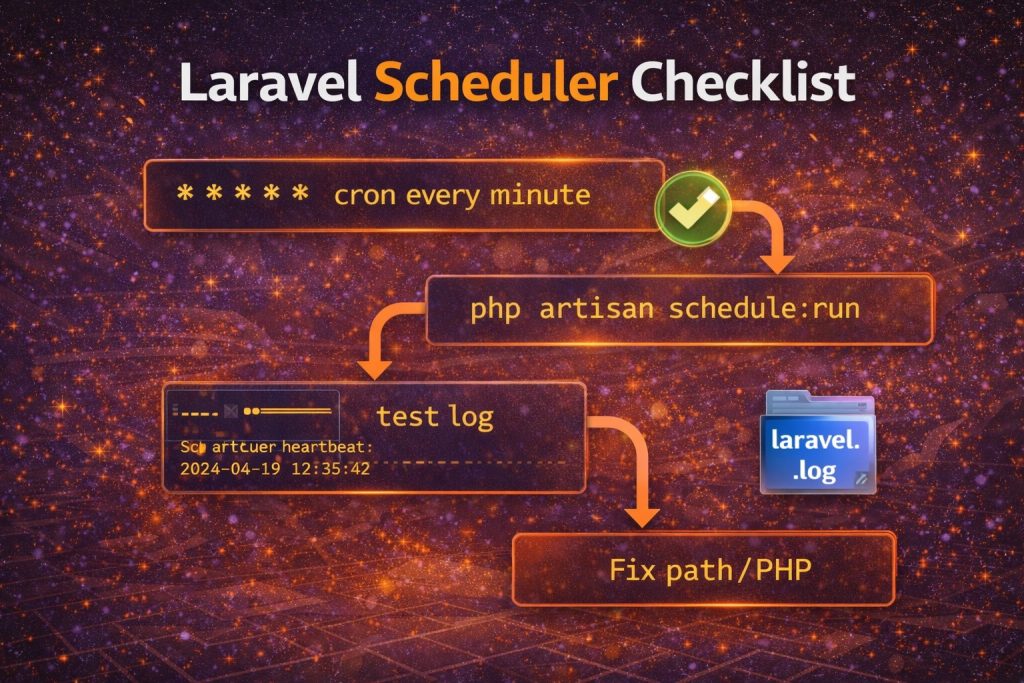
This is the method that finally removed my confusion. I added a temporary scheduled task that logs a line every minute. If the log appears, I know the scheduler is running — and if it doesn’t, the cron setup is wrong.
Open your scheduler file (commonly app/Console/Kernel.php) and add this inside the schedule() method:
protected function schedule(\Illuminate\Console\Scheduling\Schedule $schedule)
{
    $schedule->call(function () {
        \Log::info('Scheduler heartbeat: ' . now());
    })->everyMinute();
}
Now wait 1–2 minutes and check the log file:
tail -n 50 storage/logs/laravel.logIf you see “Scheduler heartbeat”, your scheduler is running correctly.
Important: Remove this heartbeat after testing. It’s only meant for debugging.
Step 5: If manual works but cron doesn’t — here are the usual fixes
- Wrong directory: cron must
cdinto your Laravel project before running Artisan. - Wrong PHP version: cPanel often has multiple PHP binaries. Use the correct full path.
- Wrong user: cron must run as the same user that owns the project files.
- Permissions: Laravel must be able to write to
storage/andbootstrap/cache. - Environment issues: if your cron uses a different
.envcontext, it may fail silently.
If the scheduler runs but your real task still doesn’t
Once you’ve confirmed the scheduler itself is firing (heartbeat logs appear), then the issue is inside the task:
- If the task queues jobs, make sure the queue worker is running.
- Check
storage/logs/laravel.logfor exceptions. - Confirm the task schedule matches your timezone expectations.
Final checklist
- ✅ Cron runs every minute
- ✅ Manual
php artisan schedule:runworks - ✅ Heartbeat log appears in
laravel.log - ✅ Real tasks run (or logs show why they fail)
That’s the exact process I use now whenever a Laravel scheduled task “mysteriously stops”. It quickly tells you whether the problem is cron or the application logic — and saves a lot of guessing.