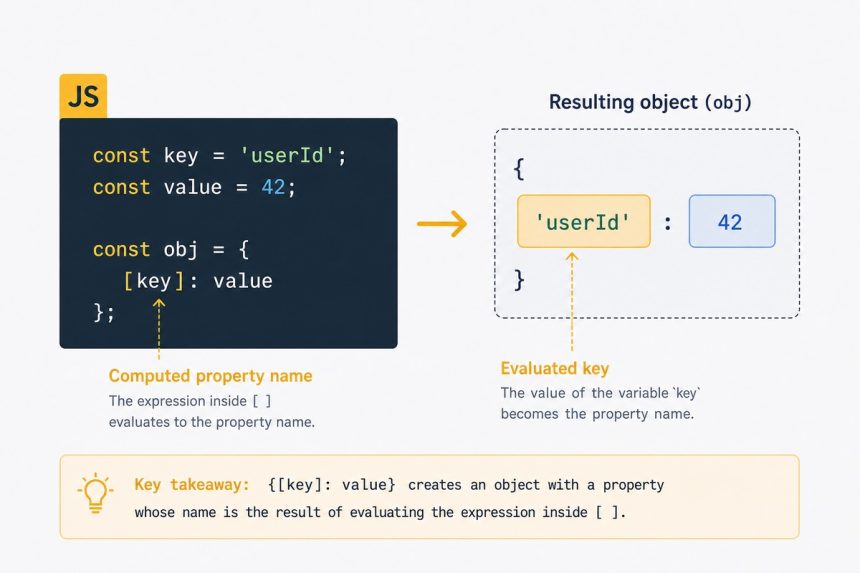
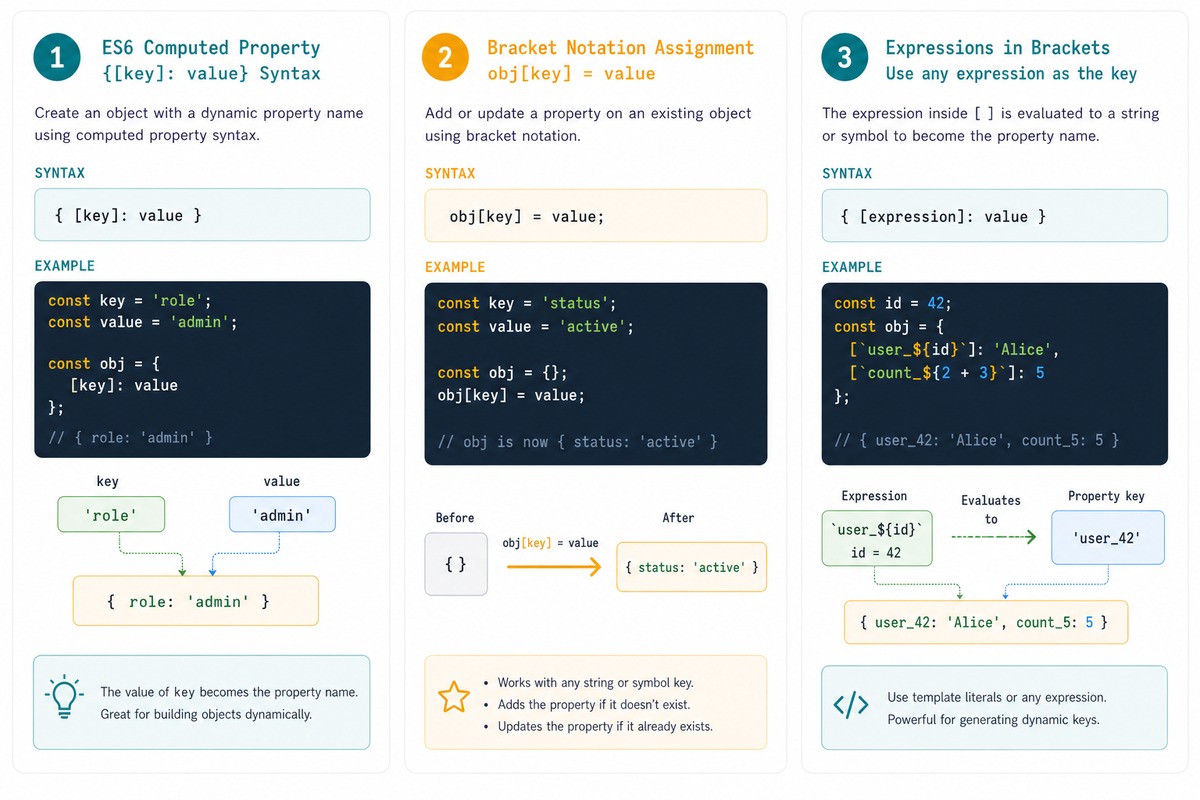
To use a variable as an object key in JavaScript, wrap the variable in square brackets inside the object literal: { [variable]: value }. This is ES6’s computed property names syntax — the expression in brackets is evaluated and the result becomes the key.
Last verified: 2026-05-17 on modern browsers and Node 20+. Originally published 2022-09-15, rewritten and updated 2026-05-17.
The problem
function setStorageValue(objectKey, objectValue) {
    // BUG: the literal string "objectKey" becomes the key,
    // not the value of the variable
    chrome.storage.local.set({ objectKey: JSON.stringify(objectValue || {}) });
}
In an object literal, a bare identifier is treated as a string. { objectKey: x } always produces { "objectKey": x }, regardless of what’s stored in the objectKey variable.
The fix — computed property names
function setStorageValue(objectKey, objectValue) {
    chrome.storage.local.set({
        [objectKey]: JSON.stringify(objectValue || {})
    });
}
The [objectKey] wrapper says “evaluate this and use the result as the key.” Calling setStorageValue('userDetails', { ... }) now produces { userDetails: '...' } as expected.
Pre-ES6 alternative — build and assign
function setStorageValue(objectKey, objectValue) {
    const data = {};
    data[objectKey] = JSON.stringify(objectValue || {});
    chrome.storage.local.set(data);
}
Build an empty object, assign the property with bracket notation, then pass the object. Functionally identical to the computed-property form, just two lines longer.
Computed keys with expressions
const id     = 42;
const prefix = 'user';

const obj = {
    [`${prefix}_${id}`]: { name: 'Alice' },
    ['count_' + id]:     1,
    [getKey()]:          'computed at call time',
};

// obj is { user_42: {...}, count_42: 1, ...whatever getKey() returned }
Any expression that returns a string (or Symbol) can go in the brackets — template literals, concatenations, function calls. Useful for building objects whose shape depends on runtime state.
Multiple computed keys at once
function makeUser(id, name, role) {
    return {
        [`user_${id}_name`]: name,
        [`user_${id}_role`]: role,
    };
}

makeUser(42, 'Alice', 'admin');
// { user_42_name: 'Alice', user_42_role: 'admin' }
Combine with spread / rest
function updateField(obj, fieldName, newValue) {
    // Non-mutating: return a new object with one field changed
    return { ...obj, [fieldName]: newValue };
}

const user        = { name: 'Alice', role: 'user' };
const promoted    = updateField(user, 'role', 'admin');
// promoted: { name: 'Alice', role: 'admin' }
// user:     unchanged
Common React/state-management pattern: spread the existing object, then override one or more keys with computed names. The original object stays untouched (handy for immutable updates).
Frequently asked questions
{ key: value } use key as a literal string instead of the variable’s value? JavaScript treats bare identifiers in object literals as string keys by convention — { key: 1 } is shorthand for { 'key': 1 }. To say “use the variable’s value as the key,” wrap the variable in square brackets: { [key]: 1 }. That’s the ES6 computed-property syntax.
Yes — the brackets can contain any expression: { ['user_' + id]: data }, { [`${prefix}-${id}`]: data }, { [getKey()]: data }. The expression is evaluated and its result (coerced to string or symbol) becomes the key.
obj[key] = value? obj[key] = value mutates an existing object — adds or overwrites a property. The computed-property syntax { [key]: value } is used inside an object literal to construct a new object with that key. Both produce the same shape; pick by whether you’re building or modifying.
Almost — keys are strings or Symbols. Numbers, booleans, and other primitives are coerced to strings when used as keys (obj[1] and obj['1'] reach the same property). Symbols are the exception: they remain Symbols and aren’t enumerable in for...in loops or Object.keys(). Use Symbols when you want “private” properties that won’t show up in standard iteration.
Related guides
- How to Get N Elements from an Array in JavaScript
- How to Get the First Character of a String in JavaScript
- How to Check if a JavaScript String Is a Valid URL
References
MDN computed property names: developer.mozilla.org/en-US/docs/Web/JavaScript/Reference/Operators/Object_initializer#computed_property_names.