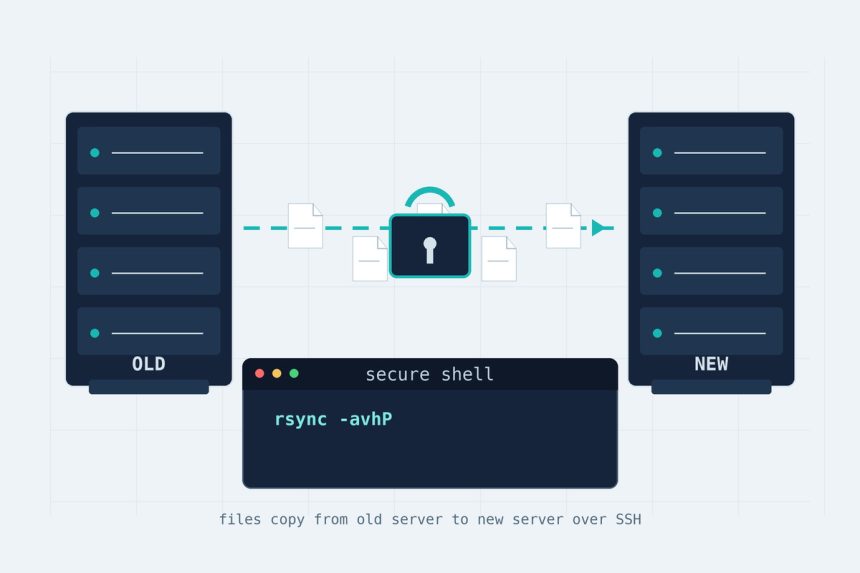
Moving a website to a new server by hand — copy a folder, wait, type the password, copy the next one — wastes days and breaks the moment your SSH session drops. The fix is rsync: one command that copies every site in the background, resumes exactly where it stopped if the connection dies, and skips files it already moved on a re-run. This guide shows the full setup I use to migrate an aaPanel server — passwordless SSH, a pull-based copy script, running it so it survives a disconnect, and confirming the copy actually finished.
- TL;DR
- Pull, don’t push: run rsync on the new server
- Step 1 — Passwordless SSH (new → old)
- Step 2 — Build the site list
- Step 3 — The migration script
- Step 4 — Run it so it survives a disconnect
- Step 5 — Confirm it actually finished
- The cutover sequence (going live)
- Frequently asked questions
- Related guides and tools
- Wrapping up
Last verified: 2026-06-07 on Ubuntu 24.04 with aaPanel and rsync 3.2.
TL;DR
Set up a passwordless SSH key from the new server to the old one, then pull each site with rsync and run it in the background so it survives a disconnect:
rsync -avhP -e "ssh -p PORT" --chown=www:www \
  root@OLD_SERVER_IP:/www/wwwroot/SITE/ /www/wwwroot/SITE/
Re-run it any time — rsync skips what’s already copied and only moves new or changed files. The database is separate; move it with mysqldump.
Pull, don’t push: run rsync on the new server
You run everything on the new server and reach out to the old one. This “pull” model keeps the work on the machine you’re building, needs only one SSH key, and makes the new server’s disk the natural bottleneck instead of the old box. The real speed cap is the old server’s upload bandwidth — you’re pulling from it, so a slow upstream there slows the whole job no matter how fast the new server is.
Step 1 — Passwordless SSH (new → old)
rsync logs into the old server once per site. Without a key it stops to ask for a password every time, which means the job can’t run unattended. Create a key on the new server and copy it over once:
# on the NEW server
[ -f ~/.ssh/id_ed25519 ] || ssh-keygen -t ed25519 -N "" -f ~/.ssh/id_ed25519
ssh-copy-id -p PORT root@OLD_SERVER_IP        # asks for old password ONCE
ssh -p PORT root@OLD_SERVER_IP "echo CONNECTED_OK"   # must print with no password
The key proves the new server’s identity without sending a password, and password login from everywhere else keeps working — nothing is locked out. While you’re hardening the new box, generate a long unique root and database password with a strong password generator rather than reusing the old server’s credentials.
Step 2 — Build the site list
mkdir -p /root/rsync
ssh -p PORT root@OLD_SERVER_IP "ls -1 /www/wwwroot" > /root/rsync/sites.txt
Open /root/rsync/sites.txt and delete any line that isn’t a site to move — the aaPanel default placeholder, stray files like .user.ini or index.html. Keep one domain per line.
Step 3 — The migration script
Loop over the site list and pull each one. The important detail most tutorials get wrong is capturing rsync’s real exit code with ${PIPESTATUS[0]} — because rsync | tee otherwise reports tee‘s exit code (always 0) and the script will happily claim success even when a site failed:
#!/bin/bash
OLD="root@OLD_SERVER_IP"          # change to old server IP
PORT="22"                         # change to old SSH port
SRC="/www/wwwroot"
LOG="/root/rsync/migrate.log"
SITES="/root/rsync/sites.txt"

FAILED=()
while read -r SITE; do
  [ -z "$SITE" ] && continue
  echo "===== START $SITE  $(date) =====" | tee -a "$LOG"

  rsync -avhP -e "ssh -p $PORT" --chown=www:www \
        "$OLD:$SRC/$SITE/" "/www/wwwroot/$SITE/" 2>&1 | tee -a "$LOG"
  RC=${PIPESTATUS[0]}             # rsync's REAL exit code, not tee's

  chown -R www:www "/www/wwwroot/$SITE"

  if [ "$RC" -ne 0 ]; then
    echo "===== FAILED $SITE (rsync code $RC) =====" | tee -a "$LOG"
    FAILED+=("$SITE")
  else
    echo "===== DONE  $SITE =====" | tee -a "$LOG"
  fi
done < "$SITES"

if [ ${#FAILED[@]} -eq 0 ]; then
  echo "===== ALL DONE (no errors) =====" | tee -a "$LOG"
else
  echo "===== FINISHED WITH ${#FAILED[@]} FAILED: ${FAILED[*]} =====" | tee -a "$LOG"
fi
What the flags do: -a preserves permissions and timestamps, -v is verbose, -h prints human-readable sizes, and -P shows live progress and resumes a partial file if the run is interrupted. --chown=www:www makes every file owned by aaPanel’s web user so the site doesn’t throw permission errors. Don’t add -z for video or images — they’re already compressed, so compression only wastes CPU.
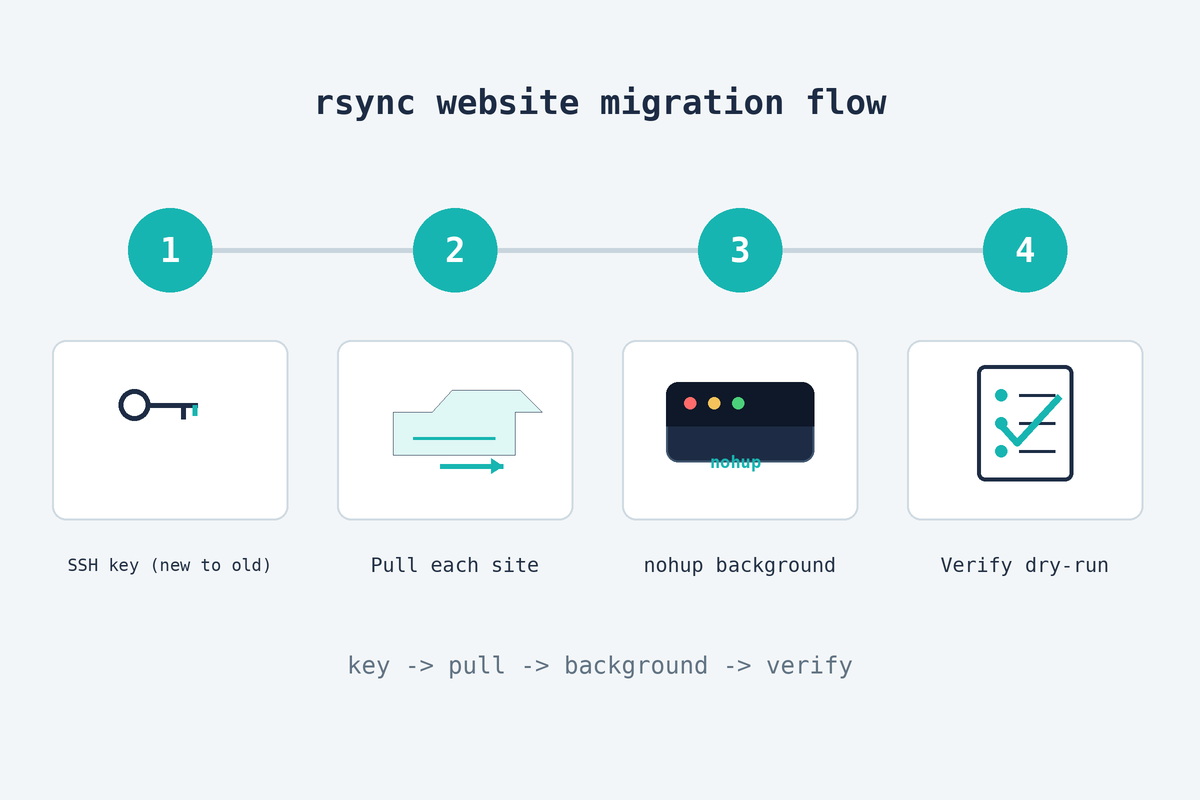
Step 4 — Run it so it survives a disconnect
nohup bash /root/rsync/migrate.sh >/dev/null 2>&1 &
tail -f /root/rsync/migrate.log     # watch live; Ctrl+C stops watching, NOT the job
nohup keeps the job alive after you close the terminal or browser, and & hands your prompt back. You can shut your laptop — the copy keeps running on the server. If it ever stops (reboot, power cut), run the exact same line again: finished sites re-check in seconds and the half-done one continues where it left off.
Step 5 — Confirm it actually finished
Don’t trust “the script ended” as proof. The honest check is a dry run that reports what’s still pending without copying anything:
rsync -anvi --chown=www:www -e "ssh -p PORT" \
  root@OLD_SERVER_IP:/www/wwwroot/SITE/ /www/wwwroot/SITE/
If it lists nothing (or only today’s logs and .user.ini) and the end-of-run speedup is huge, the site is in sync. For a paranoid content check on a critical file, compare a checksum on both servers with a hash generator — matching MD5/SHA values prove the bytes are identical, not just the size and date. rsync’s “ALL DONE” can lie in a few specific ways, so it’s worth knowing how to read its output: see rsync says “ALL DONE” but files are missing for the exact traps and how to verify around them.
The cutover sequence (going live)
- Freeze the old site — maintenance mode / stop uploads, so the file set stops changing.
- Create each site in aaPanel on the new server (vhost, PHP version, SSL) so the document root exists.
- Final rsync — run the script once more and wait for
ALL DONE (no errors). - Verify with the dry-run check above — every site clean.
- Move the database with
mysqldump(or point the new sites at the existing DB host). - Switch DNS to the new server’s IP and spot-check a site loads.
Frequently asked questions
Run it on the new server and pull the files. Pulling keeps the heavy job on the machine you’re setting up, only needs one outbound SSH key, and the new server’s disk is the limiting factor anyway. Pushing from the old server works too, but you’d have to install the key the other direction and the old box is usually the one you want to touch least.
No. rsync compares each file’s size and modification time first and skips anything that already matches, so a second run only moves files that are new or changed. Re-running is the normal way to catch last-minute uploads — finished files re-check in seconds, nothing is duplicated.
Start it with nohup ... &: nohup bash /root/rsync/migrate.sh >/dev/null 2>&1 &. nohup detaches it from your session so it survives a disconnect, and & backgrounds it. Progress goes to a log file you can tail -f any time.
Not for the bulk copy — rsync can run while the old site is live. But for the final cutover you should freeze the old site (maintenance mode / stop uploads) and run one last sync, otherwise files uploaded after your last pass never make it across.
No. rsync copies files only. Databases live separately (in MySQL’s data directory or on a different server) and must be moved with mysqldump on the old server and an import on the new one. Keep the two steps distinct so neither is half-done at cutover.
-avhP (archive, verbose, human sizes, progress + resume), -e "ssh -p PORT" for a custom SSH port, and on aaPanel --chown=www:www so files land owned by the web user. Skip -z compression when moving already-compressed media (video/images) — it just burns CPU for no gain.
Related guides and tools
- rsync says “ALL DONE” but files are missing — the verification traps that bite during exactly this migration.
- Password generator — strong root and database credentials for the new server.
- Hash generator — checksum a transferred file to prove the content matches.
Wrapping up
One SSH key, one loop script, and nohup turn a multi-day manual slog into a background job you can walk away from — then freeze, final-sync, verify, and flip DNS. Set it up once and the next server move is a copy-paste away.
rsync options reference: download.samba.org/pub/rsync/rsync.1.