I still remember the first time I tried to “organize my files properly” on an Ubuntu server. I SSH’d into my VPS, ran cd projects, and Ubuntu hit me with: No such file or directory. That’s when I realized I hadn’t even created the folder yet.
- What command creates a folder in Ubuntu?
- 1) Create a directory in the current location
- 2) Create a directory using an absolute path
- 3) Create nested directories in one command (mkdir -p)
- 4) Create multiple directories at once
- 5) Create a directory with spaces in the name
- 6) Set permissions while creating the directory (mkdir -m)
- Common mkdir errors (and fixes)
- Outbound + internal links (helps Yoast)
- Final thoughts
So in this guide I’ll show you exactly how to create a directory in Ubuntu using the terminal—starting from the simplest mkdir command, then moving into the real-life stuff (nested folders, spaces in names, permissions, and common errors).
Tip for Yoast: if you add a featured image and an in-post image, use alt text like “create a directory in Ubuntu using mkdir”.
What command creates a folder in Ubuntu?
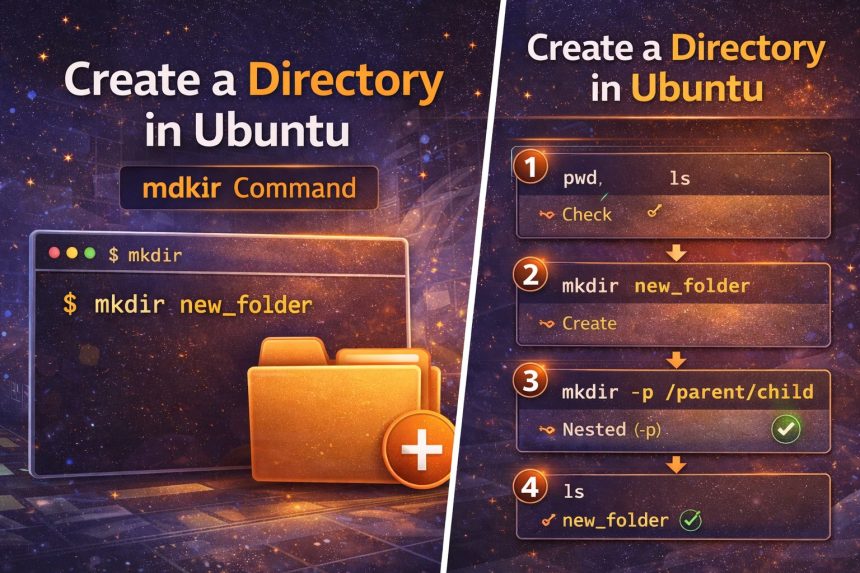
The command you want is mkdir (short for “make directory”). Your original post already shows the two most common uses: create in the current folder, or create using a full path. :contentReference[oaicite:1]{index=1}
1) Create a directory in the current location
First, check where you are:
pwd
ls
Now create a folder right here:
mkdir my_folderConfirm it exists:
ls2) Create a directory using an absolute path
If you want to create the directory somewhere else, use the full path (this is the example from your original post): :contentReference[oaicite:2]{index=2}
mkdir /home/user/Documents/my_folderThis works as long as the parent folder already exists and you have permission to write there.
3) Create nested directories in one command (mkdir -p)
This is the option I use the most in real projects. The -p flag creates missing parent directories automatically and won’t error if the directory already exists. :contentReference[oaicite:3]{index=3}
mkdir -p ~/projects/how7o/wordpress/postsWithout -p, Ubuntu will fail if ~/projects/how7o doesn’t exist yet.
4) Create multiple directories at once
You can create several folders in one go by listing them:
mkdir images backups logsIf you want a nice structure in one command, brace expansion is a time-saver (example format): :contentReference[oaicite:4]{index=4}
mkdir -p project/{src,public,logs,backups}5) Create a directory with spaces in the name
Spaces are fine, but you must quote the name (or escape spaces) or Ubuntu will treat them as separate folders.
mkdir "My New Folder"6) Set permissions while creating the directory (mkdir -m)
If you want to create a folder with specific permissions, use -m (mode). :contentReference[oaicite:5]{index=5}
# example: owner can read/write/execute, group and others can read/execute
mkdir -m 755 my_secure_folder
If you’re not sure what 755 means, think: owner full access, everyone else read/execute.
Common mkdir errors (and fixes)
“No such file or directory”
You’re trying to create a folder inside a path that doesn’t exist yet. Fix: use -p.
mkdir -p /some/missing/path/newfolder“Permission denied”
You don’t have permission to write in that parent directory. Either create it somewhere you own (like ~/), or use sudo only when it makes sense:
sudo mkdir /opt/myapp“File exists”
The folder already exists. If you want “no error”, use mkdir -p.
Outbound + internal links (helps Yoast)
- GNU Coreutils: mkdir documentation
- Ubuntu manpage: mkdir
- Automatic logout timeout in Ubuntu terminal
- Change welcome message on Ubuntu VPS
Final thoughts
Once you learn mkdir, you start using it everywhere—projects, backups, logs, scripts, deployments. If you remember just one thing, make it this: use mkdir -p for nested paths. It prevents the most common beginner error and makes your commands repeatable.