A while ago I left an SSH session open on my Ubuntu VPS while I went to do something “for two minutes”… and of course it turned into a long break. When I came back, the terminal was still logged in. No password, no screen lock, nothing. That was the moment I decided to set an automatic logout timeout for command line in Ubuntu — not because I don’t trust myself, but because “future me” is always busy and forgetful.
- What TMOUT actually does (so you don’t get surprised)
- Best way: set a global timeout for all users (recommended)
- Quick method: add it to /etc/profile (works, but less clean)
- Optional: exclude a specific user (like root or a service account)
- What if users try to bypass it?
- Bonus: enforce an idle disconnect at the SSH level (different thing)
- Related guides (internal links)
- Final thoughts
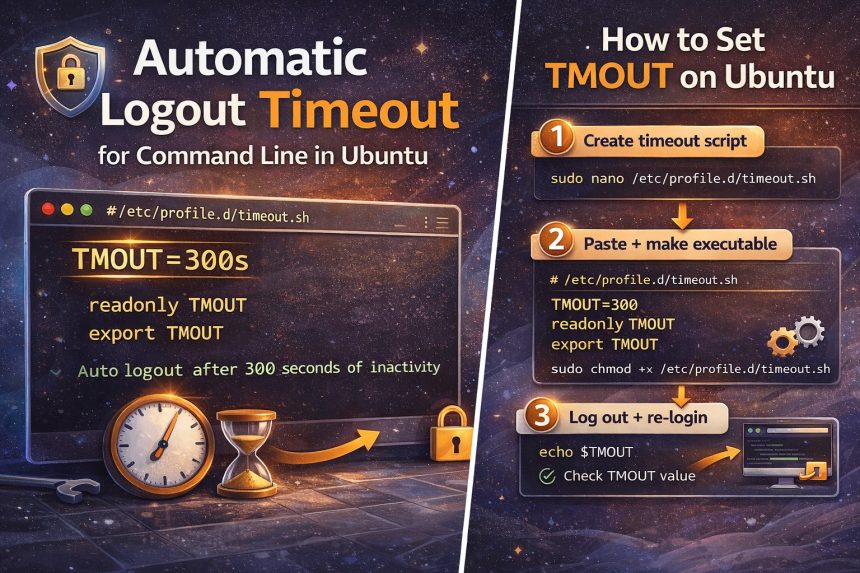
The good news: Ubuntu (and Bash) already has a simple built-in option for this. You can force inactive terminals to auto-logout after a set time (like 300 seconds / 5 minutes) using a Bash variable called TMOUT. The trick is setting it globally for all users, and locking it so users can’t bypass it.
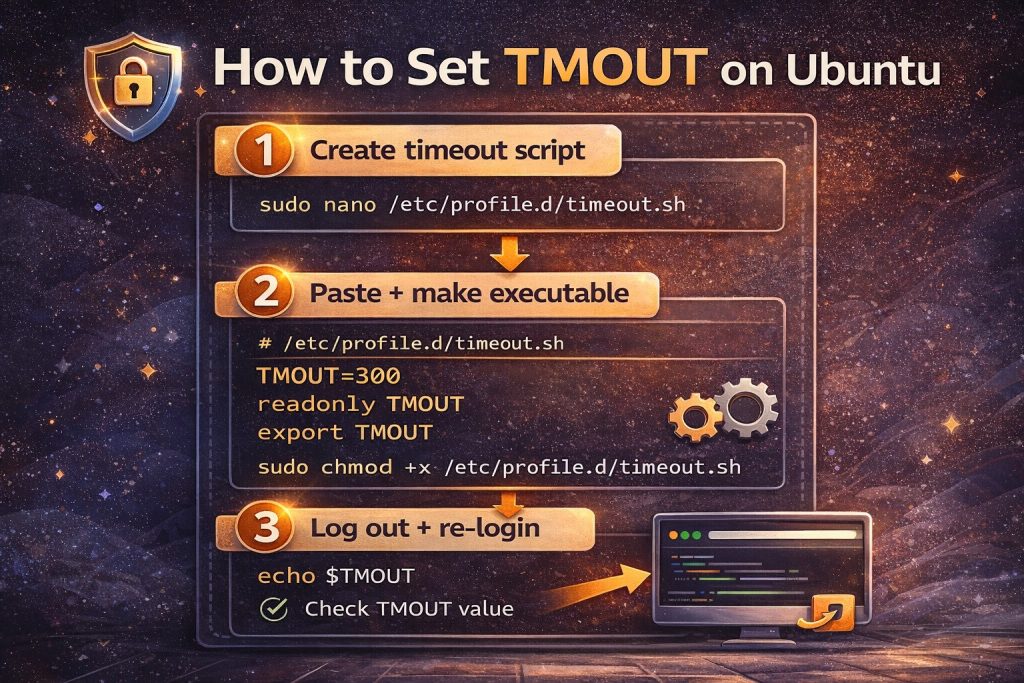
What TMOUT actually does (so you don’t get surprised)
TMOUT is a Bash timeout value (in seconds). When it’s set, Bash will exit an interactive shell after waiting at the prompt with no input for that amount of time. In other words: it kicks you out when you’re idle at the command prompt — not in the middle of running a long command. :contentReference[oaicite:0]{index=0}
Best way: set a global timeout for all users (recommended)
You can put the setting into /etc/profile (and that’s what many quick answers suggest), but I prefer using a dedicated file in /etc/profile.d/. It’s cleaner and easier to manage later.
Step 1: create a global timeout script
sudo nano /etc/profile.d/timeout.shPaste this (5 minutes = 300 seconds):
# Apply only to interactive shells
case $- in
  *i*) ;;
  *) return ;;
esac

TMOUT=300
readonly TMOUT
export TMOUT
Make it executable:
sudo chmod +x /etc/profile.d/timeout.shStep 2: log out and log back in (or reconnect via SSH)
Because this is loaded at login time, you need a fresh session to test it. Bash reads /etc/profile (and files like /etc/profile.d/*.sh) when it starts as a login shell. :contentReference[oaicite:1]{index=1}
Test the value:
echo $TMOUTNow just stop typing at the prompt and wait 5 minutes — it should automatically log you out.
Quick method: add it to /etc/profile (works, but less clean)
If you want the simplest “do exactly what the forum answer says” approach, edit /etc/profile and add these lines at the end:
sudo nano /etc/profile

# Add at the bottom:
TMOUT=300
readonly TMOUT
export TMOUT
This is the same solution from your original How7o thread (set TMOUT=300, make it readonly, export it, then re-login). :contentReference[oaicite:2]{index=2}
Optional: exclude a specific user (like root or a service account)
On some servers I prefer not to enforce auto-logout for a specific automation user (or sometimes root during maintenance). You can add a simple skip rule before setting TMOUT:
# Example: skip root
if [ "$(id -u)" -eq 0 ]; then
  return
fi
Add that near the top of /etc/profile.d/timeout.sh, above the TMOUT lines.
What if users try to bypass it?
That’s why I always include:
readonly TMOUT→ prevents users from changing it inside their shellexport TMOUT→ ensures it applies consistently
Bonus: enforce an idle disconnect at the SSH level (different thing)
TMOUT is a Bash behavior. If you also want SSH itself to drop idle connections (even if someone isn’t sitting at a Bash prompt), look at SSH server keepalive options like ClientAliveInterval and ClientAliveCountMax in /etc/ssh/sshd_config. :contentReference[oaicite:3]{index=3}
Related guides (internal links)
Final thoughts
If you manage a VPS (or even a shared server), setting an automatic logout timeout for command line in Ubuntu is one of those small hardening steps that pays off forever. I went with 5 minutes (TMOUT=300) because it’s enough time to think, but short enough to protect me from leaving sessions open by accident.