How I Migrated Website Files from cPanel to aaPanel Using rsync (and Kept Correct www Permissions)
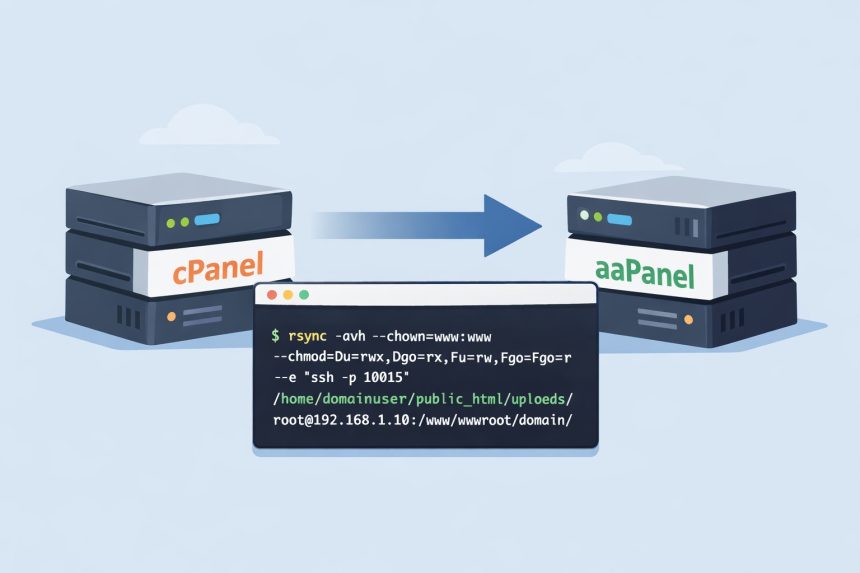
I’m in the middle of moving my website content from Discourse to WordPress, which means I’ve been rebuilding and rewriting posts on the new setup. But before any of that could happen, I had to solve a more “boring but critical” problem: moving the actual website files from a cPanel server to an aaPanel server without breaking permissions.
- What I Wanted (and What Usually Goes Wrong)
- Step 1: Confirm rsync Exists (Both Servers)
- Step 2: Use screen So the Transfer Doesn’t Die
- Step 3: The rsync Command I Used (cPanel → aaPanel)
- Step 4: The “Connection Refused” Problem (It Was CSF)
- Optional: Do a Safe Dry Run First
- Quick Checks After the Copy (aaPanel Side)
- FAQ / Common Tweaks
- Final Notes
I decided to use rsync over SSH because it’s fast, reliable, and perfect for incremental transfers. I also wanted the files on aaPanel to have clean, standard permissions and the correct ownership (typically www:www), so the site would work immediately.
What I Wanted (and What Usually Goes Wrong)
- Copy files from cPanel → aaPanel quickly
- Keep permissions sane (folders 755, files 644)
- Ensure correct ownership on aaPanel (web user like
www) - Avoid disconnect issues during long transfers
The most common issues I ran into (and you might too):
- SSH works from your PC, but fails from the cPanel server (hello, firewall rules)
- “Connection refused” because you’re using the wrong SSH port or the port is blocked
- Files copy, but the site breaks because ownership/permissions don’t match what aaPanel expects
Step 1: Confirm rsync Exists (Both Servers)
On both servers, I ran:
rsync --version
which rsync
If rsync wasn’t installed, here’s what I used:
CentOS / AlmaLinux / Rocky
dnf install -y rsync
# or
yum install -y rsync
Ubuntu / Debian
apt update && apt install -y rsyncStep 2: Use screen So the Transfer Doesn’t Die
Big transfers can take time. If your SSH session drops, your rsync command dies too—unless you run it inside screen (or tmux). I used screen.
screen -S rsyncTo detach (leave it running): Ctrl + A, then press D (not Ctrl+D).
To reattach later:
screen -r rsyncStep 3: The rsync Command I Used (cPanel → aaPanel)
This is the exact pattern I used for my uploads folder migration:
rsync -avh --chown=www:www --chmod=Du=rwx,Dgo=rx,Fu=rw,Fgo=r -e "ssh -p 10015" /home/domainuser/public_html/uploads/ root@AA_PANEL_IP:/www/wwwroot/domain/uploads/What these flags actually do (in plain English)
-a= “archive mode” (keeps structure, times, symlinks, etc.)-v= verbose output (shows what’s happening)-h= human-readable sizes--chown=www:www= on the aaPanel side, set owner/group towww:wwwso the web server can work with the files--chmod=Du=rwx,Dgo=rx,Fu=rw,Fgo=r= enforce standard permissions:- Folders: 755
- Files: 644
-e "ssh -p 10015"= use SSH on port 10015
Important: aaPanel setups vary. Some servers use www-data instead of www. If your web user is www-data, change --chown=www:www to --chown=www-data:www-data.
Step 4: The “Connection Refused” Problem (It Was CSF)
Here’s the part that wasted my time: I could SSH to my aaPanel server from my laptop just fine, but from the cPanel server I got:
ssh: connect to host IP port 10015: Connection refused
rsync: connection unexpectedly closed (0 bytes received so far)
At first I assumed the aaPanel server was the issue, but the clue was: “works from my PC, fails from the server.” That usually points to a firewall rule. In my case, CSF was installed on the cPanel server and it was blocking the outgoing connection.
How I confirmed it
From the cPanel server, I tested the port:
nc -vz AA_PANEL_IP 10015Then I checked CSF for blocks:
csf -g AA_PANEL_IPHow I fixed it
I whitelisted the aaPanel IP in CSF. After that, the connection worked and rsync ran normally.
If you use non-standard SSH ports, also make sure your outbound ports are allowed in CSF (TCP_OUT) so you don’t hit this again later.
Optional: Do a Safe Dry Run First
If you’re syncing into a folder that already has content, a dry-run is a lifesaver. It shows what would change without copying anything.
rsync -avhn --itemize-changes --chown=www:www --chmod=Du=rwx,Dgo=rx,Fu=rw,Fgo=r -e "ssh -p 10015" /home/domainuser/public_html/uploads/ root@AA_PANEL_IP:/www/wwwroot/domain/uploads/Quick Checks After the Copy (aaPanel Side)
On the aaPanel server, I verified ownership and permissions:
ls -ld /www/wwwroot/domain/uploads
ls -l /www/wwwroot/domain/uploads | head
What I wanted to see:
- Owner/group:
www www(or whatever your web user is) - Folders like:
drwxr-xr-x(755) - Files like:
-rw-r--r--(644)
FAQ / Common Tweaks
Should I add --delete?
Only if you want the destination to match the source exactly. --delete will remove files on aaPanel that don’t exist on cPanel. I usually avoid it until final cutover.
Do I need to keep cPanel permissions?
Not really. In most migrations, I prefer “known good” web permissions on the new server (755/644) plus correct ownership. That’s why I used --chmod and --chown.
How do I close/remove screen when done?
If rsync finished and you’re inside screen:
exitOr kill it directly:
screen -S rsync -X quitFinal Notes
Once this file migration was stable, finishing the Discourse → WordPress move became much easier—because now the WordPress site had everything it needed (uploads, assets, theme files, etc.) on the new aaPanel server.
If you’re doing the same migration, my biggest advice is: use screen, do a dry run, and handle ownership/permissions intentionally. Those three steps save hours of “why is this broken?” later.