


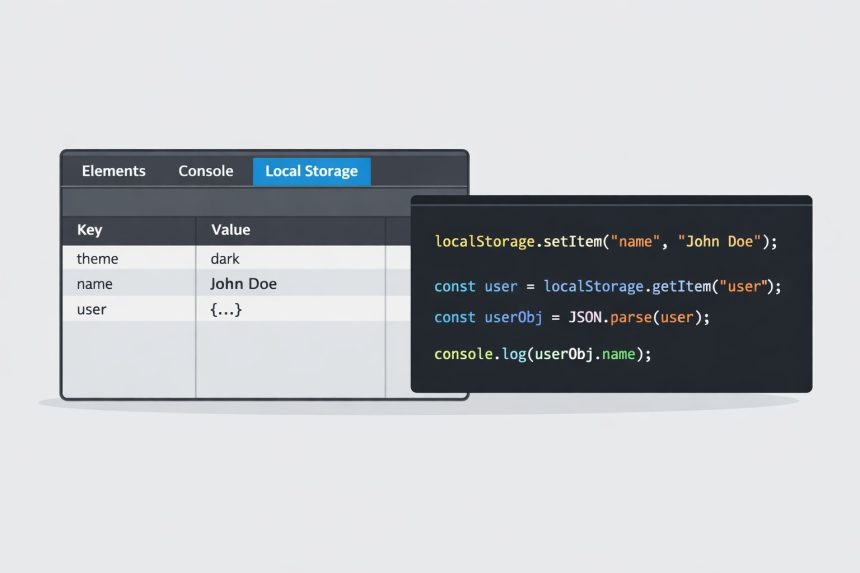
I recently needed a simple way to remember user preferences on the client side—without a database, cookies, or building a full login system. That’s when I revisited how to use localStorage in JavaScript. It’s surprisingly powerful for small pieces of data like theme choice, dismissed banners, form drafts, and basic app state.
- What is localStorage?
- Before you start: check if localStorage is supported
- How to use localStorage in JavaScript (step-by-step)
- Step 1: Store a simple value (string)
- Step 2: Read the stored value
- Step 3: Store an object (the “real world” case)
- Step 4: Retrieve the object and convert it back
- Step 5: Remove a single item or clear everything
- A practical example: saving a theme preference
- Troubleshooting localStorage issues
- 1) “I stored an object but got ”
- 2) JSON.parse throws an error
- 3) localStorage throws “SecurityError” or “Access is denied”
- 4) “It worked yesterday, now it’s empty”
- 5) Storage quota issues
- localStorage vs sessionStorage (quick comparison)
- Official references (recommended)
- Related guides
- Wrap-up
In this post, I’ll walk you through what I learned the practical way: I hit a few common issues (like storing objects and handling missing support), then I built a clean, repeatable pattern. You’ll get examples you can copy/paste, plus troubleshooting tips that will save you time later.
What is localStorage?
localStorage is part of the Web Storage API (HTML5). It lets your browser store key/value pairs that persist even after you close the tab or restart the browser. Unlike cookies, localStorage data isn’t automatically sent to the server on every request. It stays on the client side, which makes it fast and easy for small bits of data.
Key points to remember:
- Data is stored as strings (even if you “set” a number or object).
- Storage is scoped per origin (domain + protocol + port).
- It persists until you remove it (or the user clears site data).
- It’s great for preferences and lightweight state—not for sensitive data.
Before you start: check if localStorage is supported
Most modern browsers support localStorage, but it’s still smart to check—especially if you’re building something that might run in older environments or locked-down browser settings.
if (typeof(Storage) !== "undefined") {
  // localStorage is supported
} else {
  // localStorage is not supported
}
In real projects, I prefer checking the actual object and wrapping access in try/catch (because some private modes or strict settings can throw errors).
function storageAvailable() {
  try {
    const testKey = "__storage_test__";
    window.localStorage.setItem(testKey, "1");
    window.localStorage.removeItem(testKey);
    return true;
  } catch (e) {
    return false;
  }
}
How to use localStorage in JavaScript (step-by-step)
localStorage works with simple operations: setItem, getItem, removeItem, and clear. Here’s how I use it in a clean, predictable way.
Step 1: Store a simple value (string)
localStorage.setItem("name", "John Doe");This saves a key named name with the value John Doe. If the key already exists, it will be overwritten.
Step 2: Read the stored value
const name = localStorage.getItem("name");
console.log(name); // "John Doe"
If the key doesn’t exist, getItem() returns null. That’s important for avoiding runtime errors.
Step 3: Store an object (the “real world” case)
This is where many people get tripped up (I did too). localStorage only stores strings, so you must convert objects to JSON before saving.
const person = {
  name: "John Doe",
  location: "New York"
};

window.localStorage.setItem("user", JSON.stringify(person));
Now the stored value is a JSON string that looks like this:
{"name":"John Doe","location":"New York"}Step 4: Retrieve the object and convert it back
const userString = localStorage.getItem("user");
const userObject = JSON.parse(userString);

console.log(userObject.name); // "John Doe"
If there’s a chance the key might not exist, handle null safely:
const userString = localStorage.getItem("user");
const userObject = userString ? JSON.parse(userString) : null;

if (userObject) {
  console.log("User:", userObject);
} else {
  console.log("No user found in localStorage.");
}
Step 5: Remove a single item or clear everything
When you want to reset just one value:
localStorage.removeItem("user");When you want to wipe all storage for the current site/origin:
localStorage.clear();A practical example: saving a theme preference
Here’s a pattern I often use in real projects: store a user preference like dark or light mode, then apply it on page load. This is one of the cleanest ways to demonstrate how to use localStorage in JavaScript without overcomplicating things.
// Save
function setTheme(theme) {
  localStorage.setItem("theme", theme);
  document.documentElement.dataset.theme = theme;
}

// Load
function loadTheme() {
  const saved = localStorage.getItem("theme") || "light";
  document.documentElement.dataset.theme = saved;
}

loadTheme();
This makes your UI feel “sticky” in a good way: the user sets a preference once, and your site remembers it.
Troubleshooting localStorage issues
When localStorage “doesn’t work,” it’s usually one of these problems. Here’s what to check before you lose an hour like I did.
1) “I stored an object but got [object Object]”
This happens when you try to store an object directly. Always use JSON.stringify() before saving and JSON.parse() after reading.
2) JSON.parse throws an error
If the stored value is not valid JSON (or the key is missing and returns null), parsing can fail. Use a safe helper:
function getJSON(key, fallback = null) {
  const raw = localStorage.getItem(key);
  if (!raw) return fallback;

  try {
    return JSON.parse(raw);
  } catch (e) {
    return fallback;
  }
}
3) localStorage throws “SecurityError” or “Access is denied”
This can happen in private browsing modes, embedded contexts (some iframes), or strict browser settings. Wrap your storage access in try/catch and fallback to in-memory variables if needed.
4) “It worked yesterday, now it’s empty”
The user may have cleared site data, switched browsers/devices, or you changed domain/protocol (for example from http to https). localStorage is tied to origin, so even small URL changes can isolate storage.
5) Storage quota issues
localStorage has limits (varies by browser). Don’t store big data, images, or large arrays. If you need that, look into IndexedDB instead.
localStorage vs sessionStorage (quick comparison)
If you’re deciding between them, here’s the simple rule I follow:
- localStorage: persists until explicitly cleared.
- sessionStorage: cleared when the tab/window closes (still per-origin, but tab-scoped).
For most “remember this preference” situations, localStorage wins.
Official references (recommended)
Related guides
More WordPress-friendly guides you can link internally (replace these with your internal URLs when you have them):
- How to use sessionStorage in JavaScript (with examples)
- JavaScript JSON.stringify vs JSON.parse (common mistakes)
- How to debug front-end issues using Chrome DevTools
Wrap-up
Once you understand that localStorage stores everything as strings, the rest clicks into place. If you remember only one thing from this guide on how to use localStorage in JavaScript, make it this: stringify objects when saving, parse them when reading, and always handle missing keys safely.
If you paste your next forum post, I’ll rewrite it into the same WordPress-ready format.