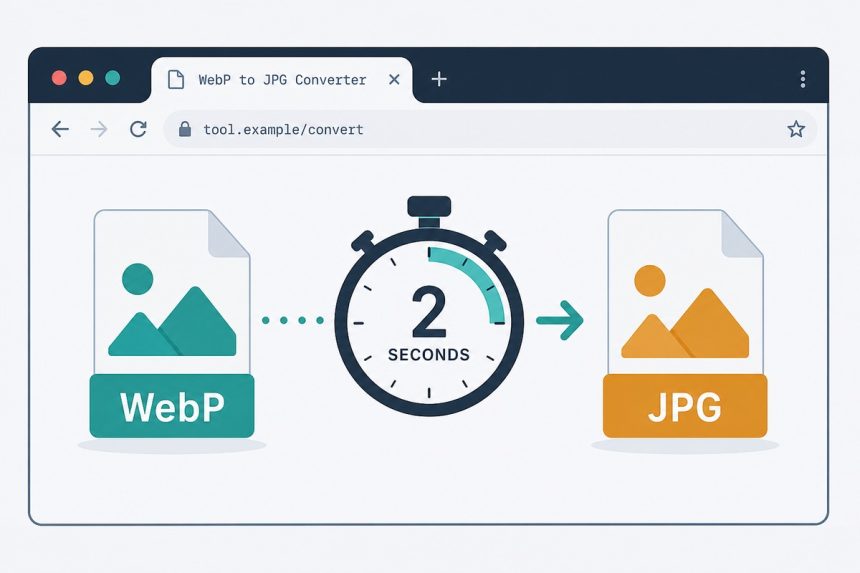
You right-clicked an image on a site, hit “Save Image As”, and the file lands as photo.webp. Now you can’t open it in WhatsApp, can’t upload it to your old WordPress install, and Microsoft Paint pretends it doesn’t exist. Here’s how to convert WebP to JPG in 2 seconds — no software, no upload, browser-only.
TL;DR
Open how7o’s WebP to JPG converter, drop the file, download the JPG. Conversion happens in your browser via WebAssembly — file never leaves your device. Free, batch-capable, no signup.
What WebP is and why everyone uses it
WebP is Google’s image format, public since 2010. It compresses 25–35% smaller than JPEG at equivalent visual quality, supports transparency (like PNG), and animation (like GIF). For website owners chasing PageSpeed scores it’s a free 30% win on every image, which is why basically every CMS, CDN, and image-hosting service serves WebP by default in 2026.
The downside: every place that’s not a browser was slower to support it. Email clients, document editors, mobile messaging apps, and older WordPress installs still choke on WebP today. So you convert.
Convert in 2 seconds — step by step
- Go to /webp-to-jpg.
- Drag the
.webpfile onto the dropzone — or pick multiple files at once. - The tool defaults to JPEG quality 85, which is visually lossless. Slide lower if you want a smaller file.
- Click Convert, then download. Multiple files come back as a ZIP.
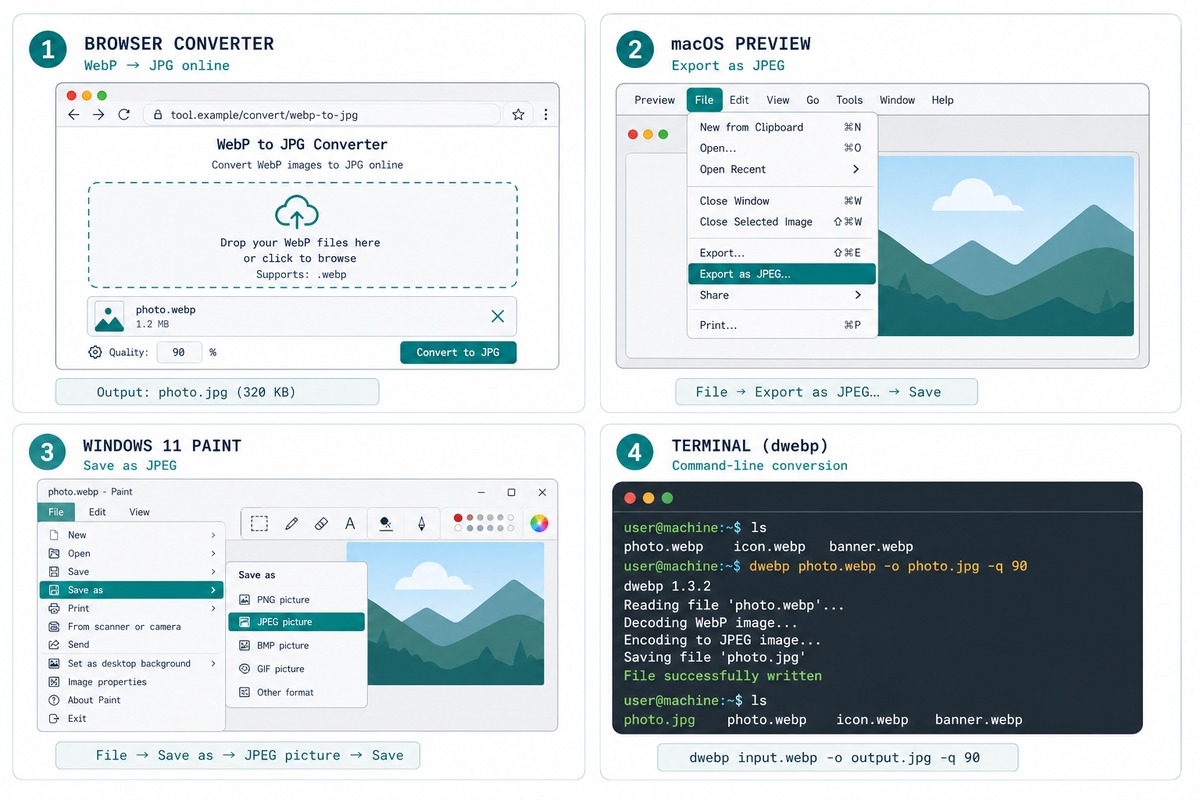
Alternative methods (when the browser tool isn’t an option)
macOS Preview
Double-click the WebP, then File → Export… in Preview and pick JPEG. Built in since macOS Big Sur, no plugin needed.
Windows 11 Paint
Open the WebP in Paint, then File → Save as → JPEG. The 2023 Paint rewrite added WebP support; older Windows 10 Paint can’t read it — use the browser tool or Photos instead.
Command line (Linux/Mac)
The libwebp tools ship a dwebp decoder. Convert with dwebp input.webp -o output.png, then use ImageMagick convert output.png output.jpg for the final hop. Two commands for one file, but scriptable across a thousand.
Troubleshooting
“The file extension says .webp but it’s actually a JPEG”
Some browsers save the cached-rendered version with the wrong extension. Run the file through the converter anyway — the tool reads the actual file magic bytes, not the name. If it’s already a JPEG, you get the original back unchanged.
“The animated WebP only converted the first frame”
JPEG doesn’t support animation. The converter takes frame 1 and discards the rest. For an animated output, convert to GIF or APNG instead — both supported in any modern browser.
“Transparency went to a black background”
JPEG has no alpha channel, so transparency has to fill with something. Our tool defaults to white — change it in the converter settings to match your destination, or use PNG instead if you need to keep transparency.
WebP files are 25–35% smaller than equivalent JPEGs, which is huge for page-load speed and SEO. Google ranks faster sites higher, so anyone serious about traffic switched to WebP between 2020 and 2023. Right-clicking and saving from those sites gives you the WebP file the browser cached.
A small amount. The original WebP was already compressed once. Re-encoding as JPEG adds a second pass. At default quality (85) the loss is invisible to the eye, but if you re-edit and re-save several times the cumulative damage shows. Convert once, work from that.
Yes — our converter accepts multiple files in one drop and zips the output. For folder-level conversion on Linux/Mac, dwebp file.webp -o file.png in the libwebp tools is the canonical CLI.
WordPress added WebP support in 5.8 (2021), but some themes and older WP installs still reject it. If your upload fails, convert to JPG first. For your own site, enable WebP support by adding add_filter('upload_mimes', fn($m) => $m + ['webp' => 'image/webp']); to your theme’s functions.php.
Related guides
- WebP to JPG converter — the tool used above.
- JPG to WebP — for going the other direction on your own site.
- JPEG compressor — if the converted JPG is too big.
- HEIC to JPG — Apple’s modern format with similar compat issues.
- Convert HEIC to JPG — Apple’s modern format with the same upload-rejection problem.
- Open AVIF files on Windows, Mac, and iPhone — the format you’ll meet next as WebP plateaus.
The official WebP specification and reference implementation live at Google’s WebP documentation.