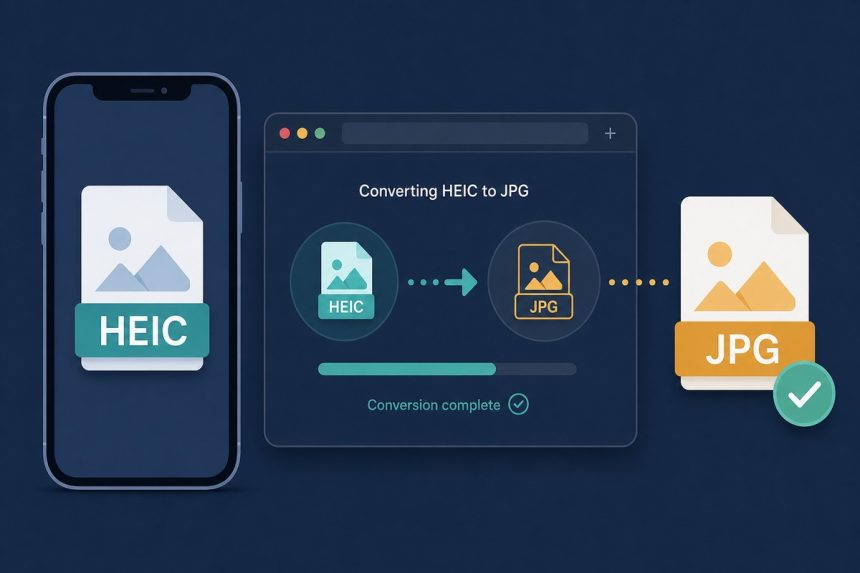
Anyone who’s needed to convert HEIC to JPG knows the moment: AirDrop a photo from an iPhone to a Windows laptop or an older MacBook, the file lands as IMG_0421.HEIC, and nothing on the receiving end will open it. The 2026 fix is a browser-only converter — drag, click, download, no upload, no signup. Below: that path plus the OS-built-in tricks for when you’d rather skip the web tool entirely.
TL;DR
Open how7o’s HEIC to JPG converter in any modern browser, drop your .heic file onto the page, and download the JPG five seconds later. The conversion happens in your browser via WebAssembly — your photo is never uploaded to a server. Free, no signup, no watermark, batch-capable.
Why iPhones still ship HEIC in 2026
Apple switched the iPhone’s default camera format from JPG to HEIC in iOS 11 (2017). HEIC files are roughly half the size of JPGs at matched visual quality, and they support 10-bit colour, transparency, image sequences, and depth maps that JPG never could. For a photo library that lives entirely inside Photos.app, HEIC is the clear winner.
The trouble starts the moment a HEIC photo leaves the Apple ecosystem. Windows 10 needs a paid codec extension (Microsoft pulled the free one years ago), most Android phones can’t preview it, web forms reject it, and plenty of older WordPress installs refuse to upload it. Even in 2026 — nine years after the switch — JPG is still the safe-everywhere format. So you convert.
Option 1: Convert in your browser (recommended)
This is the fastest and most private path. Three steps:
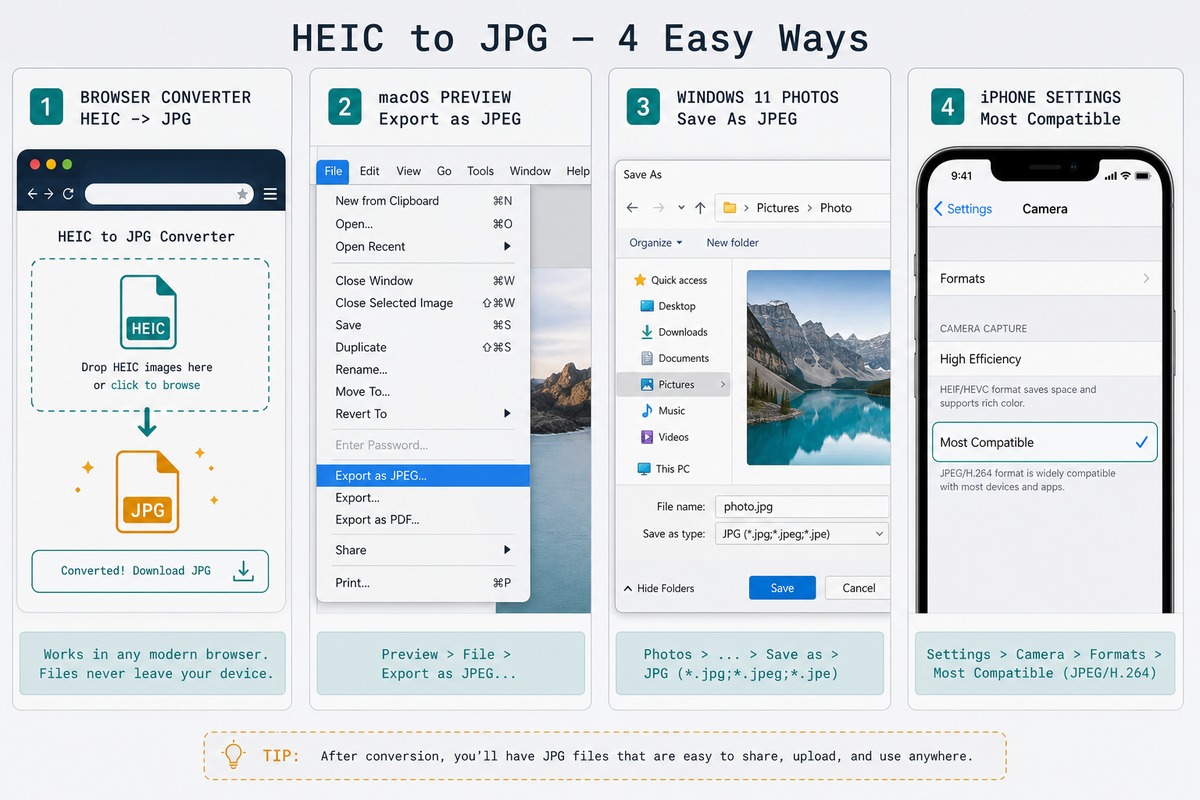
- Open /heic-to-jpg in Chrome, Edge, Safari 16+, or Firefox.
- Drag your
.heicfile onto the dropzone — or pick multiple files at once. - Click Convert, then download the JPG (or a ZIP if you converted several).
Under the hood it’s libheif compiled to WebAssembly. The decoder runs locally in your browser tab — the photo never crosses the network. That matters if the picture is a screenshot of a bank statement, a medical scan, or anything else you wouldn’t want sitting on someone else’s server.
Option 2: macOS Preview (no internet)
If you’re already on a Mac, you don’t need a tool at all. Open the HEIC in Preview, then File → Export… and pick JPEG in the format dropdown. Drag the quality slider to about 85% — anything higher is wasted bytes for human eyes. Hit save.
For batch conversion on a Mac, select multiple HEICs in Finder, right-click → Quick Actions → Convert Image, choose JPEG. macOS converts the whole selection in place.
Option 3: Windows 11 Photos app
Windows 11 ships with HEIF decoding built in (Windows 10 still needs the paid HEIF extension from the Microsoft Store). Double-click the HEIC, the Photos app opens it, then File → Save as and pick JPEG. It works, but the Photos app is slow with large batches — for more than five files at a time, the browser tool is faster.
Option 4: Stop your iPhone from making HEIC in the first place
If you constantly share photos with non-Apple devices, just turn HEIC off at the source. On the iPhone: Settings → Camera → Formats → Most Compatible. The camera will start shooting JPG and H.264 video. Your photos will be roughly twice the size on disk, but every device on earth — old Android, Windows 10, your friend’s 2018 Chromebook — will open them without help.
This setting only affects new photos. Anything already in your library stays HEIC.
Troubleshooting
“The file won’t open in my browser”
Safari versions older than 16 can’t decode HEIC in WebAssembly contexts. Update Safari, or use Chrome / Edge / Firefox — they all work. On iPhone the browser HEIC support has been native since iOS 11, so any current iOS Safari will read its own HEIC files fine.
“The JPG file is much bigger than the HEIC”
That’s expected — HEIC uses HEVC compression, which is a generation newer than JPG’s algorithm. A 2 MB HEIC turning into a 4 MB JPG is normal. If file size matters, run the JPG through how7o’s JPEG compressor after conversion. Most photos can lose 60–80% of their JPG weight with no visible quality drop.
“I need to convert hundreds of files at once”
The browser tool handles batches of dozens cleanly, though the browser tab has to keep up — converting 200 HEICs at 12 MP each will spike your laptop’s fan. For very large batches the Mac Finder Quick Action is faster, or run heif-convert from the libheif command-line tools on Linux.
Yes, effectively. HEIF is the container format; HEIC is the specific subtype Apple uses with HEVC compression. Apple writes HEIC; the wider ecosystem usually says HEIF. For day-to-day conversion they behave the same way.
A tiny bit, yes — JPG uses an older compression algorithm, so the re-encoded file is usually 1.5–2× larger than the original HEIC at matched visual quality. For sharing, email, and web upload that’s a fair trade. For long-term archival, keep the HEIC original.
On iOS 17 or newer: open Settings → Camera → Formats and pick Most Compatible. The phone will shoot JPG and H.264 from then on. File sizes roughly double, but every device on earth can open them.
Yes — our HEIC to JPG converter runs entirely in your browser using libheif compiled to WebAssembly. The file never leaves your device. That matters if the photo is personal, medical, or work-confidential.
Related guides
- HEIC to JPG converter — the browser-based tool referenced throughout this post.
- Compress JPEG online — if the converted JPGs are too big.
- JPG to WebP converter — for the web, WebP usually beats JPG by 25–35%.
- JPG to PNG converter — for screenshots and images that need transparency.
- Compress JPEG to under 100KB — for shrinking the converted JPG before email or upload.
- Open AVIF files on Windows, Mac, and iPhone — for the other modern image format with similar OS-compat issues.
For the official explainer on what HEIC actually is, Apple’s documentation is here: About High Efficiency Image File Format (HEIF) on iPhone and iPad.