You shot 8 minutes of phone video to capture the 12-second moment you actually wanted. Now you need to cut out the boring start, the boring end, and send just the good part. The fast 2026 answer is to do it in your browser — no software install, no cloud upload, no file leaving your laptop. Here’s how to trim a video online the privacy-first way.
TL;DR
Open how7o’s video trimmer, load your file, drag the in/out handles on the timeline, click Trim, download. The whole thing runs locally via FFmpeg.wasm. A 1GB file trims in about 3 seconds because we don’t re-encode — we slice at keyframes.
Why “online video trimmer” usually means “we upload your video”
Most “online” video tools work by uploading your file to their server, running FFmpeg there, and serving the result back. That’s slow (you’re network-bound), expensive for them (so most cap file size or add a watermark), and a privacy gap (your video sits on someone else’s disk). If the clip is anything personal — a kid’s birthday, a medical recording, a confidential meeting — you really don’t want it on a third-party server.
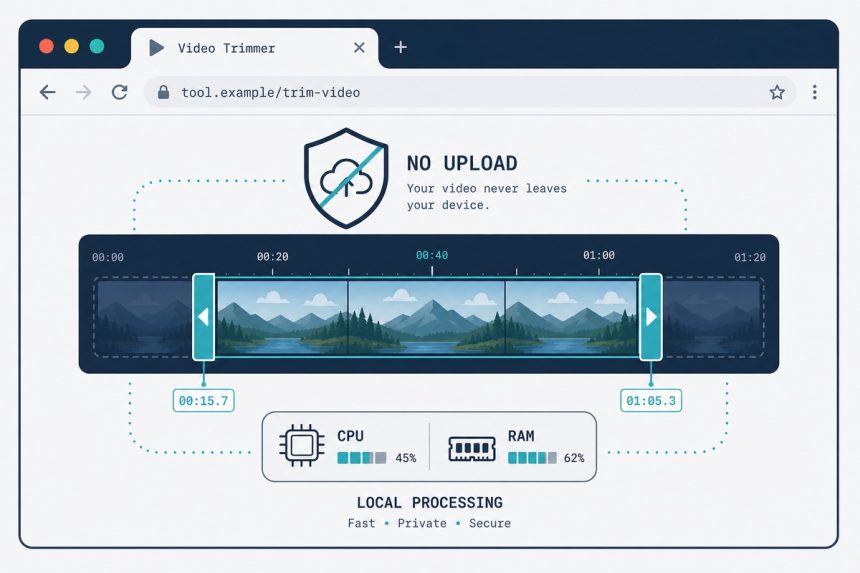
FFmpeg.wasm changes that. The same FFmpeg binary that powers desktop tools is compiled to WebAssembly and runs in your browser tab. The file never crosses the network. Speed is within 10% of native FFmpeg on modern hardware.
Step-by-step
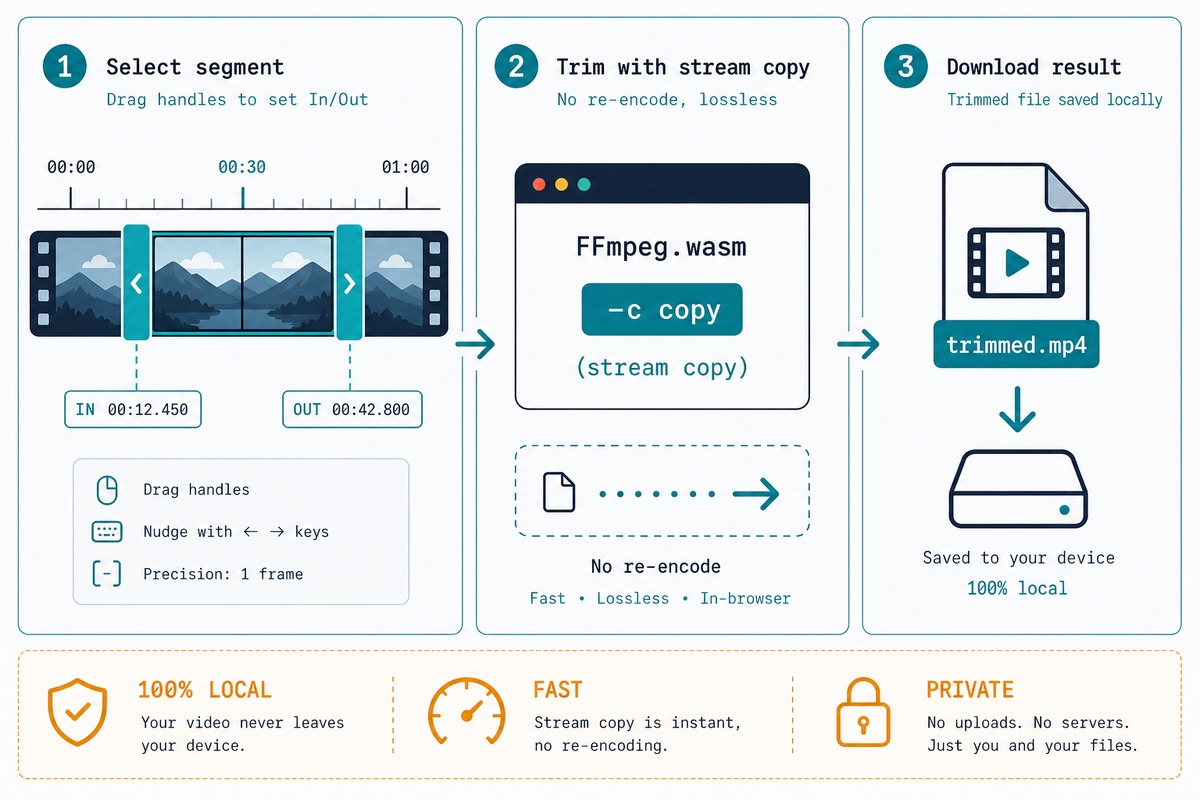
- Open /video-trimmer in Chrome, Edge, Firefox, or Safari 16.4+.
- Drop your video file onto the page. MP4, MOV, MKV, WebM, AVI all work.
- The timeline appears. Drag the left handle to your start point, the right handle to your end point. Use the keyboard arrows for frame-by-frame precision.
- Click Trim. The tool slices at the nearest keyframes — no re-encoding, lossless, instant.
- Download. File name preserves the original with
-trimmedappended.
When you need frame-accurate trimming
Stream-copy mode (the default, lossless) cuts at the nearest keyframe — usually every 1–4 seconds depending on the encoder. For exact-second trimming, toggle Re-encode on. The tool then decodes and re-encodes the trimmed portion, which gives you frame-accurate cuts at the cost of speed (3–10× slower) and a small quality loss.
For most use cases — clipping a moment from phone video, cutting silence from a recording, posting to social — keyframe-accurate is plenty. Reach for re-encode only when timing matters.
Troubleshooting
“The browser tab is using a lot of RAM”
FFmpeg.wasm allocates memory equal to roughly 2× the input file size. A 1GB video uses about 2GB of tab memory while processing, freed when the trim finishes. Close other tabs if you’re tight on RAM, especially on a 4GB or 8GB laptop.
“Audio is out of sync after trimming”
Some MP4s have audio that starts a fraction of a second before video (called PTS offset). Stream-copy preserves the offset. If sync looks off, re-encode the trimmed portion — that re-aligns audio and video to the same timeline.
“The browser said the file is too big”
Modern browsers cap WebAssembly memory around 4GB total. A 4K video over 2GB will hit that ceiling. For those, desktop FFmpeg is the right tool — install it, run ffmpeg -i in.mp4 -ss 00:00:30 -to 00:01:00 -c copy out.mp4, done.
Common trim scenarios and the right settings
Cutting silence from a Zoom or screen recording
The first 30 seconds and last 60 seconds of every meeting recording are usually waste — people joining, side-chat, wrap-up. Drop the file in, drag the left handle past the joining clutter, drag the right handle in to where the substance ends, trim. Stream-copy is fine here; nobody hears a keyframe-accuracy issue on webcam audio.
Clipping a moment from phone video
For the “kid blew out the birthday candles” shot buried in 4 minutes of phone footage, drag the handles in tight. iPhones write keyframes every 1 second by default, so the worst-case offset from stream-copy is 0.5 seconds. For an edit that has to start on an exact frame, enable re-encode and pay the speed cost.
Extracting a clip for a presentation slide
Presentation tools (Keynote, PowerPoint, Google Slides) all play MP4 with H.264. Pull the slice you need, keep H.264, drop the file onto the slide. If the source is HEVC or VP9 and your slide tool refuses to play it, toggle re-encode and pick H.264 as the output codec — adds 30 seconds of processing, fixes the playback issue permanently.
Yes — the tool uses FFmpeg.wasm, a WebAssembly build of the same FFmpeg library that’s been the standard for video processing for 20 years. It runs entirely in your browser tab. Your video never goes anywhere except the local download folder when you’re done.
MP4, MOV, MKV, WebM, AVI for input — anything FFmpeg understands, which is nearly everything. Output defaults to MP4 with H.264 for maximum compatibility, but you can pick WebM if the destination supports it.
For trimming (no re-encoding), within 10%. The tool uses FFmpeg’s stream-copy mode — it slices the file at keyframes without decoding any video. That’s why trimming a 1GB file finishes in 3 seconds. Re-encoding (which we avoid by default) would be slower.
There’s no hard limit, but browser memory caps practical use around 4–5GB. A 90-minute 1080p MP4 typically lands at 1–2GB and works fine. For longer or higher-bitrate files, desktop FFmpeg is the right answer.
Related guides
- Browser video trimmer — the tool used above.
- Video merger — to stitch the trimmed clips back together.
- Video speed changer — to fast-forward through long sections instead of cutting them.
- Video to MP3 — if you just want the audio out of the trimmed clip.
- Merge videos online (no watermark) — for stitching trimmed clips back together.
- Speed up or slow down a video — to compress long sections instead of cutting them.
The FFmpeg.wasm project and its documentation live at ffmpegwasm.netlify.app — the same library powering this and most other browser-based video tools.