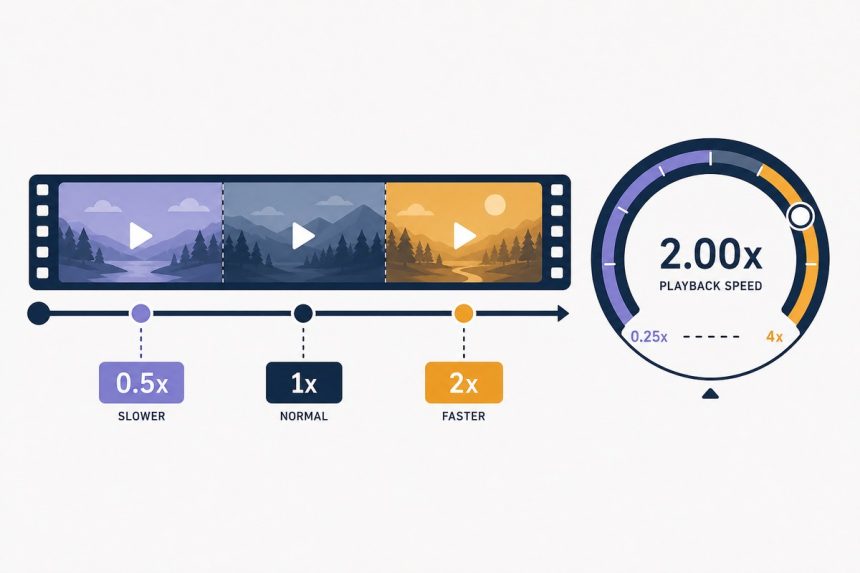
You recorded a 30-minute tutorial and need it in 15. You filmed a sunset that should be a timelapse. You want to watch a lecture at 1.5× without the chipmunk voice. Speeding up or slowing down a video online takes three clicks in 2026 — no software, no cloud upload, runs in your browser.
TL;DR
Open how7o’s video speed changer, load your file, pick a multiplier (0.25× to 4×), download. The tool keeps audio pitch correct by default, so a 2× speed-up sounds like a normal person talking faster, not like a chipmunk. FFmpeg.wasm, all local.
When you actually want each direction
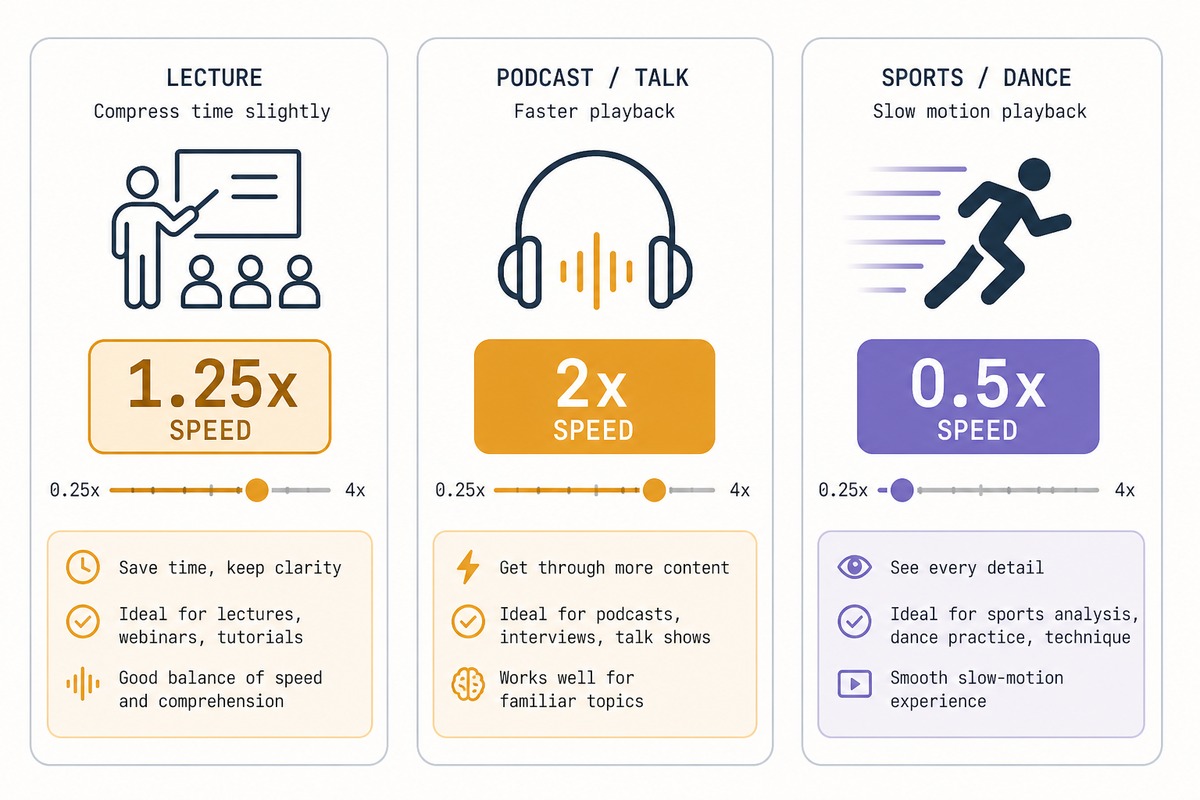
- 1.25–1.5× speed-up: compressing a tutorial or lecture without making it incomprehensible.
- 2×: classic podcast-listener pace. Most spoken-word holds up.
- 4× and above: turning a continuous video into a quasi-timelapse. Good for the boring 20 minutes of a 25-minute video.
- 0.5× slow-down: studying a complex motion (sports, dance, machinery).
- 0.25×: frame-by-frame analysis. The video stutters but the detail is there.
Step-by-step
- Open /speed-changer.
- Drop your video onto the page. MP4, MOV, MKV, WebM all work.
- Pick a multiplier with the slider — or type an exact value like
1.35for fine control. - Leave Preserve audio pitch checked (default). Uncheck only if you want the chipmunk effect.
- Click Process. Output finishes in roughly the same time as the source duration ÷ multiplier on modern hardware.
How pitch-preserving speed actually works
Naive speed-up plays the audio samples faster, which raises pitch — the chipmunk effect. Pitch-preserving speed uses a time-stretching algorithm (WSOLA or phase vocoder, typically) that breaks the audio into overlapping windows and resamples them, so the total duration changes but the perceived frequency stays put.
It’s not magic. Pushed past about 2.5× speed, you’ll start hearing slight smearing on sharp consonants. Below 0.5× slow-down, voices acquire a hollow “metallic” quality. For most use cases between 0.5× and 2× the artefacts are inaudible.
Troubleshooting
“My slow-motion footage looks the same after slowing it down”
If the source was already shot at high framerate (60, 120, or 240 fps), our slow-down just plays the existing frames more slowly — that already looks smooth. If it was shot at 30fps, slowing to 0.25× shows individual frames lingering, which looks juddery. There’s no way to recover frames that weren’t recorded.
“Audio dropped out after a 3× speed-up”
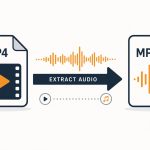
At very high speeds the time-stretching algorithm sometimes drops short bursts of audio rather than producing bad-sounding output. If audio matters, stay under 2.5× speed-up. For genuinely high-speed video (timelapses), strip the audio first with our video to audio tool, then re-add the soundtrack to the sped-up video.
“The output file is bigger than the input”
Slow-downs do this — runtime increases, total bytes increase. To keep the file smaller, drop the output quality one notch in the tool’s options. The visual difference is usually invisible.
By default no — the tool uses time-stretching, which speeds up audio without raising pitch (so the speaker doesn’t sound like a chipmunk at 2×). If you want the old-school chipmunk effect, toggle Pitch-shift with speed in the options.
The slider goes from 0.25× (quarter speed) to 4× (four times faster). Beyond 4× the audio breaks down even with good time-stretching, and at extreme slow-downs video starts looking like a slideshow.
Yes — a 2× speed-up halves the runtime, so the file is roughly half the size. Slow-downs make the file bigger. The tool re-encodes to keep audio sync correct, so output bitrate matches your input by default.
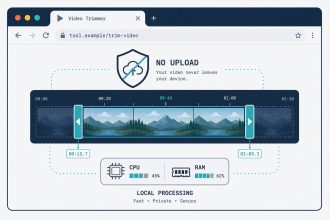
Not directly — speed-up applies to the whole file. To speed up one section, trim the video into three parts (before, middle, after) using our video trimmer, speed-change the middle, then merge them back with the video merger.
Related guides
- Video speed changer — the tool above.
- Video trimmer — cut a section before speeding it up.
- Video merger — recombine speed-adjusted clips with normal-speed ones.
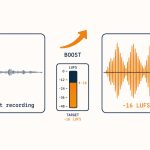
- Audio booster — fix volume on the sped-up output if it dropped.
- Trim a video online — for cutting filler instead of speeding through it.
- Convert MP4 to MP3 free in your browser — for stripping audio out of the sped-up file.
For the algorithm detail on pitch-preserving time-stretch, the Wikipedia article on audio time-stretching covers WSOLA, phase vocoder, and PSOLA in plain terms.