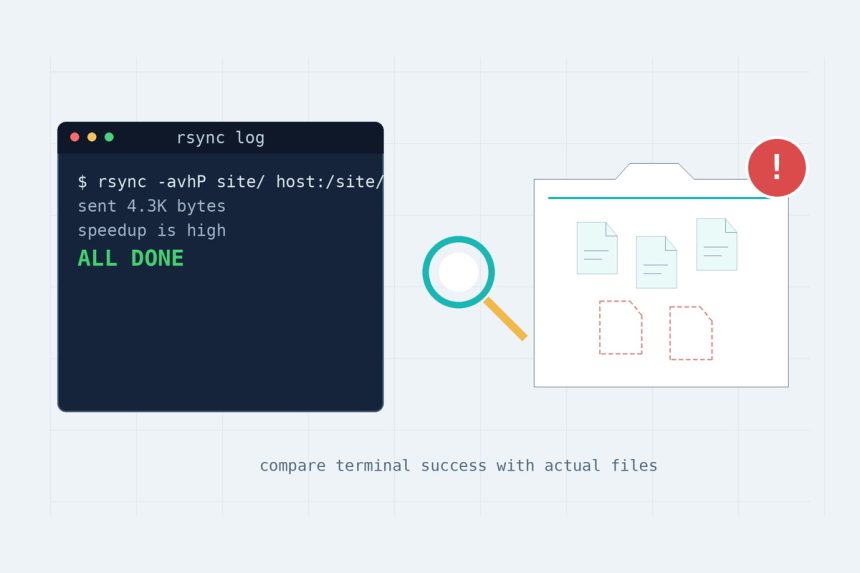
You ran the migration, the log said ALL DONE, and then you found a folder full of files that never made it across. I’ve hit this exact trap during a server move, and the cause is rarely rsync itself — it’s the wrapper script lying about success, or a verify check hiding its own errors. This post explains why rsync reports a finished job that isn’t, how to read its output so you can tell a real copy from a skipped one, and the verification commands that actually prove a site is in sync.
Last verified: 2026-06-07 with rsync 3.2 on Ubuntu 24.04.
TL;DR
“ALL DONE” usually comes from a script that read tee‘s exit code instead of rsync’s. Fix the script with RC=${PIPESTATUS[0]}, then verify the real state with a dry run — not the log:
rsync -anvi -e "ssh -p PORT" \
  root@OLD_SERVER_IP:/www/wwwroot/SITE/ /www/wwwroot/SITE/
Anything it lists is still pending. Nothing listed (plus a huge speedup) means the site is in sync.
Trap 1 — “ALL DONE” from a piped exit code
This is the big one. A typical migration loop pipes rsync into tee to log progress:
rsync -avhP ... | tee -a "$LOG"
if [ $? -ne 0 ]; then echo "FAILED"; fi      # WRONG
In a pipeline, $? is the exit code of the last command — tee — which succeeds even when rsync dies mid-transfer. So the check never fires, the loop moves on, and the final line prints ALL DONE over a site that’s half-copied. Capture rsync’s real code instead:
rsync -avhP ... | tee -a "$LOG"
RC=${PIPESTATUS[0]}                           # rsync's real exit code
if [ "$RC" -ne 0 ]; then echo "FAILED (code $RC)"; fi
${PIPESTATUS[0]} is a Bash array holding each piped command’s exit status; index 0 is rsync. With it, your script can collect failed sites and only say “done” when every one truly succeeded.
Trap 2 — a verify check that hides its own errors
The “fix” people reach for is a dry-run check that counts pending files. But this version is worse than no check:
N=$(rsync -an ... 2>/dev/null | wc -l)       # WRONG: hides errors
echo "$SITE: $N pending"
If the SSH connection drops, rsync writes its error to stderr — which 2>/dev/null throws away — and prints nothing to stdout. wc -l counts zero lines, so the broken site reports 0 pending: a fake “all clear.” Capture stderr and check the exit code so a failure can’t masquerade as success:
OUT=$(rsync -ani --chown=www:www -e "ssh -p $PORT" \
      "$OLD:$SRC/$SITE/" "/www/wwwroot/$SITE/" 2>&1)
RC=$?
if [ "$RC" -ne 0 ]; then
  echo "$SITE: ERROR (code $RC)"
else
  echo "$SITE: $(echo "$OUT" | grep -cE '^[<>]') pending"
fi
The --chown matches what your migration used so owner/group differences don’t inflate the count, and grepping for lines starting with < or > counts only real data transfers.
How to read rsync’s itemize output
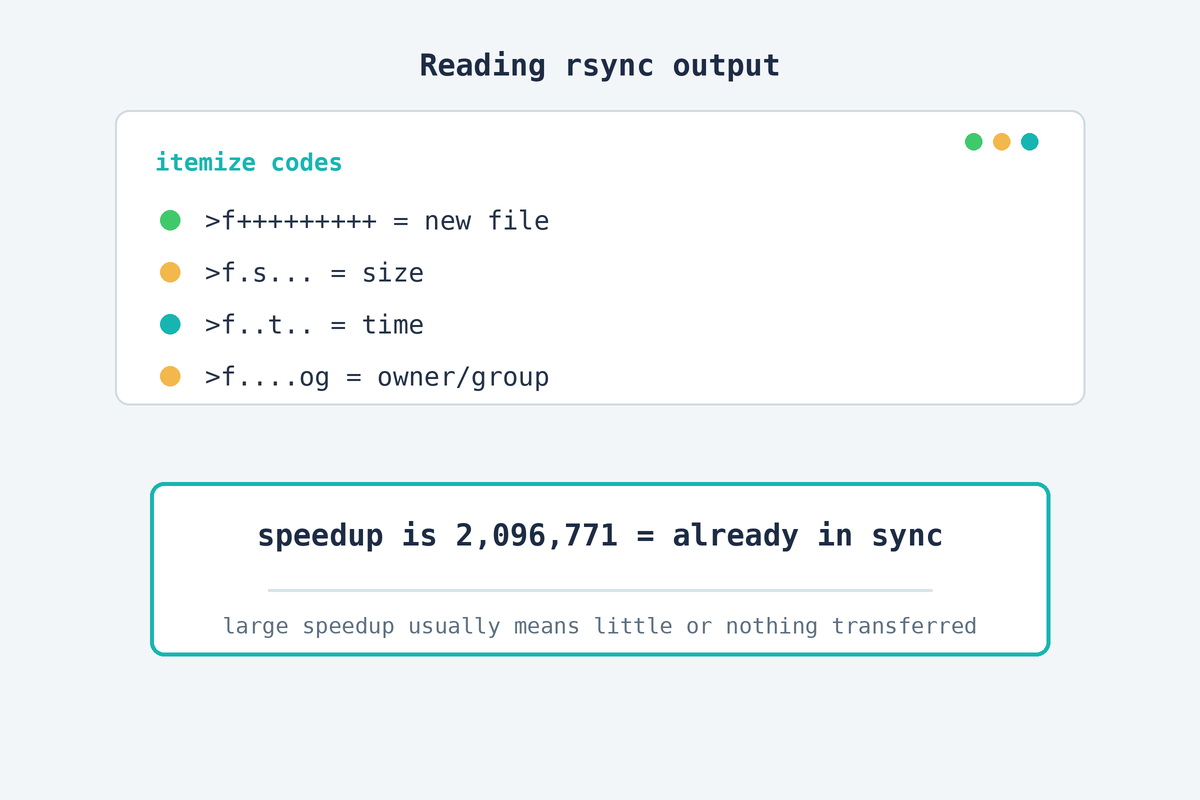
Run with -i (itemize) and each pending line starts with a code like >f.st....... Read the characters after >f:
Code after >f | Meaning | Verdict |
|---|---|---|
+++++++++ | brand-new file, not on the destination at all | Real miss — copy it |
.s....... | size differs | changed file — copy it |
..t...... | only modified-time differs | usually harmless |
....og... | only owner/group differs | metadata only — no data moves |
So a wall of ....og... lines is not a re-download — it’s ownership being normalized, with zero bytes transferred. The line that means a genuine gap is >f+++++++++ on real content (uploads, media, database dumps). Files like .user.ini or today’s logs/ wiggling on time alone are normal churn on a live server.
The “it’s re-copying everything!” false alarm
A re-run can look like it’s starting over because one big file fills the screen with a progress bar. It usually isn’t. Read two numbers:
xfr#N— the count of files actually transferred. If this stays low while the run churns, almost nothing is moving.ir-chk=N/TOTAL— files left to check out of the total. A small remaining count means rsync already scanned and skipped the rest.
And at the end of each site, the summary tells the truth: speedup is 2,096,771 on a 1.1 TB site means rsync moved a few hundred kilobytes and skipped everything else. High speedup = already in sync. A speedup near 1 = it really is re-copying, and then you investigate.
Proving content, not just size
rsync’s default check trusts size and modification time. That’s fast and almost always right, but if you need to prove a critical file’s contents match — a database dump, a release archive — compare a checksum on both servers. Generate one locally with a hash generator and run sha256sum FILE (or md5sum) on each box; identical hashes mean identical bytes. For a whole-tree content verify, rsync’s -c flag forces checksum comparison, at the cost of re-reading every file. This whole verification dance comes up the moment you do a real move — the full walkthrough is in how to migrate a website to a new server with rsync.
Frequently asked questions
Almost always because a wrapper script piped rsync into tee and read $? — which is tee‘s exit code (nearly always 0), not rsync’s. So an interrupted or failed transfer still logs as success. Capture rsync’s real code with RC=${PIPESTATUS[0]} instead and the script can tell a failed site from a finished one.
Run a dry run with the itemize flag and copy nothing: rsync -anvi SRC/ DST/. Any line it prints is something still pending. Pair it with a file-count comparison (find DIR -type f | wc -l on both ends) and, for critical files, a checksum match. “The script finished” is not verification — the dry run is.
It’s total data size divided by bytes actually transferred. A speedup near 1 means rsync moved almost everything (little was already there); a speedup in the thousands or millions means nearly all files were skipped because they already matched. On a re-run of a synced site you want to see a very high speedup.
The characters after >f describe the change. +++++++++ means a brand-new file not on the destination at all (a real miss). s = size differs, t = time differs, o/g = owner/group differs (metadata only, no data moves). So >f+++++++++ is the one to worry about; >f....og... is just an ownership tweak.
A hidden error. If the check runs rsync ... 2>/dev/null and the SSH connection fails, rsync prints nothing, the count of “pending” lines is 0, and the script reports the broken site as done. Drop 2>/dev/null, capture 2>&1, and check the exit code so a failure shows as an error, never a fake zero.
By default rsync’s quick check only compares size and modification time, not content. It runs a rolling checksum during transfer to assemble each file correctly, but it won’t re-read existing files unless you pass -c (checksum mode), which is slow on large trees. For spot-checking specific files, compare an MD5/SHA hash on both servers instead.
Related guides and tools
- How to migrate a website to a new server with rsync — the full migration this post verifies.
- Hash generator — compare checksums to prove a transferred file’s content matches.
- Password generator — strong credentials when you stand up the new server.
Wrapping up
rsync rarely loses files on its own — scripts lose them by trusting tee‘s exit code or hiding errors with 2>/dev/null. Capture ${PIPESTATUS[0]}, verify with a real dry run, and read the speedup line, and “ALL DONE” finally means done.
rsync exit codes and itemize format are documented in the manual: download.samba.org/pub/rsync/rsync.1.