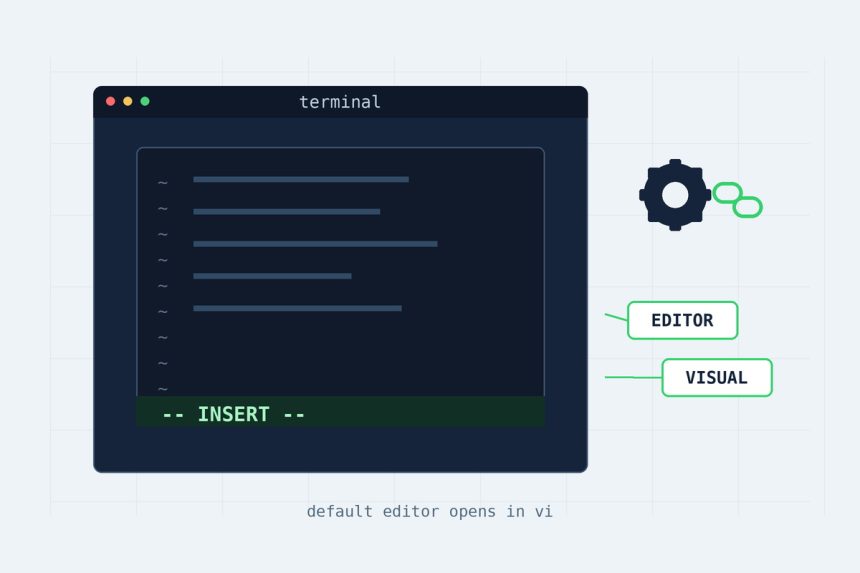
By default a fresh Ubuntu install opens nano whenever a tool needs an editor — git commit, crontab -e, visudo. If your muscle memory is vi, that’s a small papercut every single time. Making vi (or vim) the default editor takes two layers of config, and people usually set only one and wonder why git still pops open nano. Here’s the complete fix — the system default and the environment variables — so everything in your terminal uses vi.
Last verified: 2026-06-07 on Ubuntu 24.04 LTS.
TL;DR
echo 'export EDITOR=vi' >> ~/.bashrc
echo 'export VISUAL=vi' >> ~/.bashrc
source ~/.bashrc
That covers git, crontab, and most CLI tools. For the system-wide default too, run sudo update-alternatives --set editor /usr/bin/vim.basic. Check it with echo $EDITOR → vi.
Why two settings, not one
Ubuntu decides which editor to launch in two independent ways, and different programs read different ones:
- The system-wide
editoralternative — a managed symlink at/usr/bin/editorthat tools likesudoeditfall back to. - The
$EDITORand$VISUALenvironment variables — what git,crontab -e, and most interactive CLI tools actually check first.
Set only the symlink and git still opens nano (it ignores the alternative). Set only the variables and a few system utilities still use the old default. Set both and everything lines up — which is the whole point of doing it once, properly.
Step 1 — Set the system default editor
Ubuntu manages the generic editor command through update-alternatives. Point it at vi/vim interactively:
sudo update-alternatives --config editorIt prints a numbered list; type the number next to /usr/bin/vim.basic (or /usr/bin/vi) and press Enter. Prefer no menu? Set it in one line:
sudo update-alternatives --set editor /usr/bin/vim.basicNot sure which vi binaries you have? List them first:
which vi vim vim.basic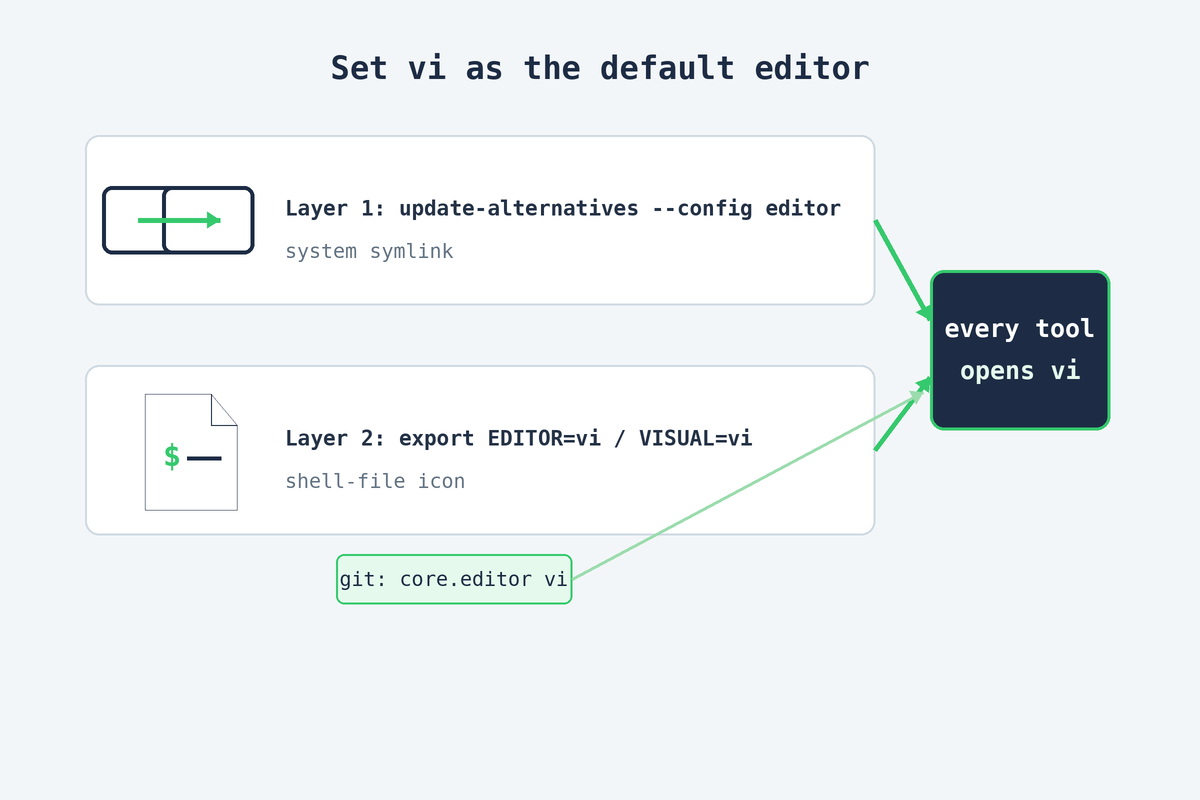
Step 2 — Set EDITOR and VISUAL
This is the layer most CLI tools actually read. Add both variables to your shell startup so they’re set in every new session:
echo 'export EDITOR=vi' >> ~/.bashrc
echo 'export VISUAL=vi' >> ~/.bashrc
source ~/.bashrc
Programs that distinguish the two prefer $VISUAL for full-screen editors like vi and fall back to $EDITOR for line editors — setting both to vi means it doesn’t matter which one a tool checks. If your login shell is zsh, append the same lines to ~/.zshrc instead.
Step 3 — Don’t forget root
Environment variables are per-user, so setting them for your account does nothing when you’re acting as root. On a server where you run crontab -e or visudo as root, add the same lines to root’s startup file:
echo 'export EDITOR=vi' >> /root/.bashrc
echo 'export VISUAL=vi' >> /root/.bashrc
Make git use vi explicitly
Git reads its own core.editor setting before the environment variables. If you want to be certain — or you set a different editor in git earlier — pin it directly:
git config --global core.editor viNow git commit (without -m), interactive rebases, and merge-message edits all open vi.
Verify it worked
echo "$EDITOR"                                  # -> vi
update-alternatives --query editor | grep Value # -> the vi/vim path
crontab -e                                       # should open vi (q! to quit)
If echo $EDITOR prints vi and crontab -e drops you into a modal editor, you’re done. To switch back to nano later, re-run update-alternatives --config editor and change the export EDITOR lines — nothing here is permanent.
Frequently asked questions
vi is the classic editor; vim (“vi improved”) is the modern drop-in with syntax highlighting, undo, and more. On Ubuntu, vi is usually a symlink to a vim build (vim.basic or vim.tiny). Setting either as your default editor gives you the same modal editing — pick vim.basic if it’s installed for the fuller feature set.
sudo update-alternatives --config editor sets the system-wide generic editor that many tools fall back to. Pick the number next to vim.basic (or /usr/bin/vi). To skip the menu: sudo update-alternatives --set editor /usr/bin/vim.basic.
Git reads its own core.editor first, then the $VISUAL and $EDITOR environment variables — it doesn’t use Ubuntu’s update-alternatives setting. Set it explicitly with git config --global core.editor vi, or export EDITOR=vi so git (and crontab, and others) pick it up.
Environment variables are per-user, so add the same two lines to root’s shell startup: echo 'export EDITOR=vi' >> /root/.bashrc and the same for VISUAL. On servers where you mostly work as root, this is the one that actually matters for crontab -e and visudo.
Programs that distinguish them prefer $VISUAL for full-screen editors (like vi/vim) and fall back to $EDITOR for line editors. In practice you set both to the same value so it doesn’t matter — that’s why the setup below exports EDITOR and VISUAL together.
Reverse the same two steps: run sudo update-alternatives --config editor and pick nano, and change (or remove) the export EDITOR=... lines in ~/.bashrc, then source ~/.bashrc. Nothing is permanent — the editor default is just a symlink and two environment variables.
Related guides
- How to migrate a website to a new server with rsync — another Ubuntu server task you’ll do from the terminal.
- rsync says “ALL DONE” but files are missing — reading command-line output the way you read editor config.
Wrapping up
Two layers — the editor alternative and the EDITOR/VISUAL variables — and every tool in your terminal opens vi. Set both (plus root, plus git) once and you’ll never fight nano again.
Debian’s reference on the editor alternative: debian.org/doc/manuals/debian-reference.