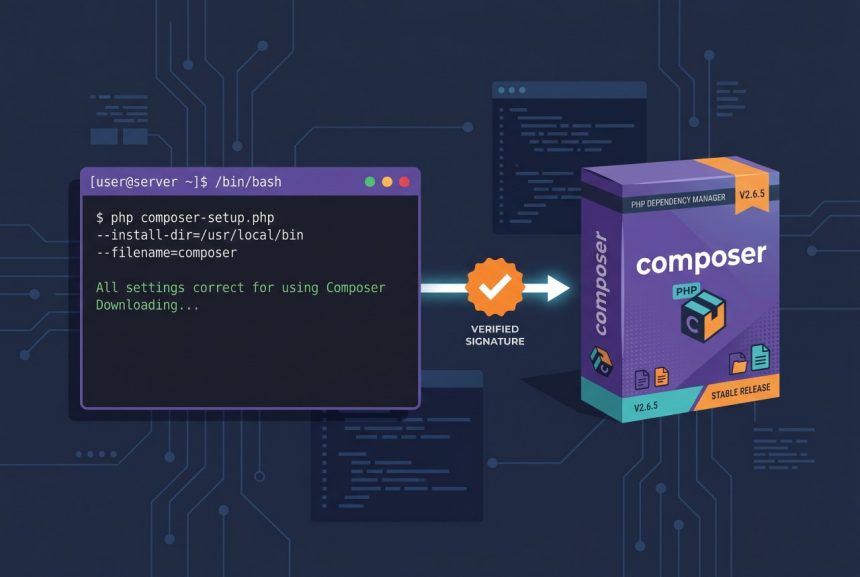
If you’re about to install Composer on Ubuntu, this guide walks through the exact steps I run on a fresh Ubuntu 22.04 or 24.04 box: installing the PHP CLI and extensions Composer needs, downloading the official installer, verifying its signature against getcomposer.org’s live hash, and placing composer as a system-wide command in /usr/local/bin. By the end you’ll have a working Composer install that can bootstrap Laravel, Symfony, or any PHP project on the same machine.
- TL;DR
- Prerequisites
- Step 1 — Install PHP and required extensions
- Step 2 — Download the Composer installer
- Step 3 — Verify the installer signature
- Step 4 — Run the installer system-wide
- Step 5 — Clean up and verify
- Troubleshooting
- “Installer corrupt” on a freshly downloaded installer
- “command not found: composer” after install
- PHP extension errors like “ext-mbstring missing”
- Frequently asked questions
- Related guides
- References
Last verified: 2026-04-16 on Ubuntu 22.04 LTS with PHP 8.1 from the default repos. Originally published 2023-02-24, rewritten and updated 2026-04-16.
TL;DR
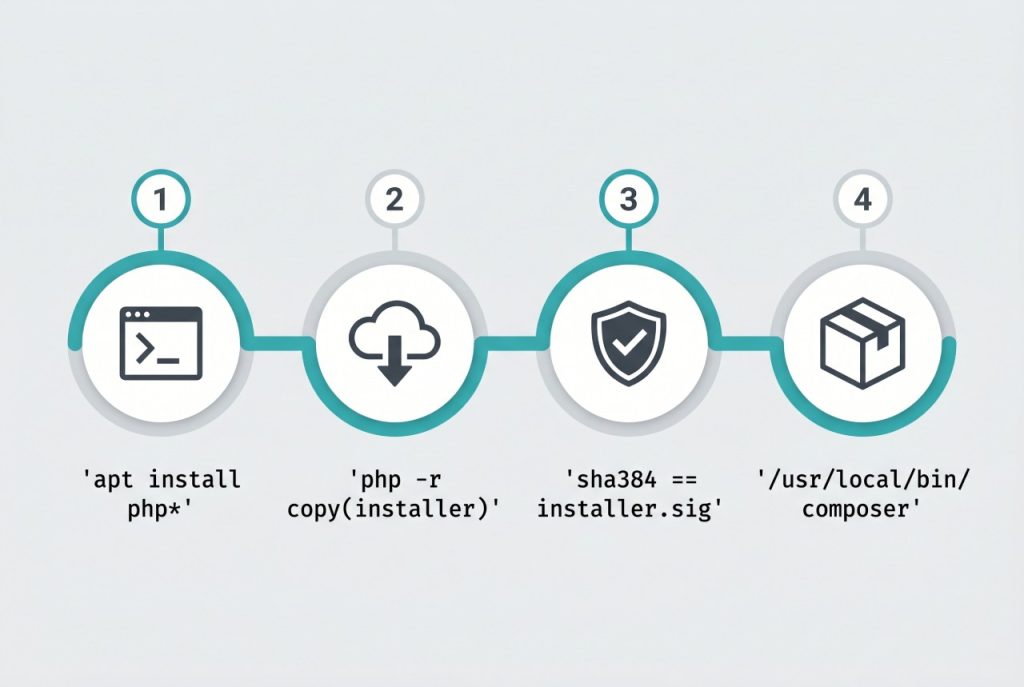
Install PHP and the extensions Composer needs (cli, mbstring, xml, curl, zip), download the installer with php -r "copy(...)", verify it against the hash at https://composer.github.io/installer.sig, then run php composer-setup.php --install-dir=/usr/local/bin --filename=composer. Don’t hard-code the SHA-384 hash — fetch it live every time, because the Composer team rotates it with every installer release.
Prerequisites
- An Ubuntu 22.04 or 24.04 system (22.04.2 was the tested baseline; 20.04 works with the same commands).
- A user with
sudoprivileges. - Internet access to
getcomposer.organdcomposer.github.io.
Step 1 — Install PHP and required extensions
Composer is a PHP script, so PHP itself plus a handful of extensions must be in place first. Skip this section if you already have PHP installed.
Open a terminal and refresh the package index:
sudo apt updateInstall PHP 8.1 along with the extensions Composer and most modern PHP apps depend on:
sudo apt install -y php8.1-cli php8.1-common php8.1-mysql php8.1-zip php8.1-gd php8.1-mbstring php8.1-curl php8.1-xml php8.1-bcmath unzip curlOn Ubuntu 24.04 the default PHP is 8.3 — swap php8.1-* for php8.3-* above. The extension names are the ones Composer strictly needs (mbstring, xml, curl, zip) plus the MySQL and GD extras most application projects pull in later, so you don’t have to re-apt later in the project.
Step 2 — Download the Composer installer
Composer’s official installer is a PHP script hosted at https://getcomposer.org/installer. Pull it into your current working directory:
php -r "copy('https://getcomposer.org/installer', 'composer-setup.php');"You now have a file named composer-setup.php in the current directory. Don’t run it yet — verify it first.
Step 3 — Verify the installer signature
The Composer team publishes the SHA-384 hash of the current installer at https://composer.github.io/installer.sig. Fetch the hash live — don’t copy one from a blog post, including this one. The hash changes with every installer release, and an out-of-date hash will always report “Installer corrupt” even when your download is fine.
HASH="$(curl -sS https://composer.github.io/installer.sig)"
php -r "if (hash_file('sha384', 'composer-setup.php') === '$HASH') { echo 'Installer verified'.PHP_EOL; } else { echo 'Installer corrupt'.PHP_EOL; unlink('composer-setup.php'); }"
If the verification succeeds you’ll see:
Installer verifiedIf you see Installer corrupt, the script deletes the download automatically — re-run Step 2 and try again. If it fails a second time, skip ahead to the Troubleshooting section.
Step 4 — Run the installer system-wide
Install Composer as a system-wide command called composer, living in /usr/local/bin so every user on the machine can run it:
sudo php composer-setup.php --install-dir=/usr/local/bin --filename=composerThe --install-dir flag controls where the final binary lands, and --filename=composer names it so you don’t have to type composer.phar forever. sudo is required because /usr/local/bin is root-owned.
Step 5 — Clean up and verify
Delete the installer script now that Composer itself is installed:
php -r "unlink('composer-setup.php');"Confirm Composer is on your PATH and runs:
composer --versionYou should see something like Composer version 2.x.x YYYY-MM-DD. Running composer with no arguments prints the full command list — the same “screen similar to this” the original guide showed.
Troubleshooting
“Installer corrupt” on a freshly downloaded installer
Nine times out of ten this means the SHA-384 hash you’re comparing against is stale. Use the live-fetch command in Step 3 rather than pasting a hash from another guide. If the live fetch also fails, check that curl can reach composer.github.io from your server — captive portals, corporate proxies, and firewalled VPS images occasionally block it.
“command not found: composer” after install
/usr/local/bin is on PATH for interactive shells by default on Ubuntu, but not always for non-interactive ones (cron, some CI runners). If you hit this in an automated script, invoke Composer by full path: /usr/local/bin/composer.
PHP extension errors like “ext-mbstring missing”
Re-run the apt install from Step 1 — every extension on that line is a regular Composer requirement. If you’re on a non-default PHP version, make sure the extension package names match it (e.g. php8.3-mbstring for PHP 8.3).
Frequently asked questions
The Composer team rotates the installer and publishes a new SHA-384 at https://composer.github.io/installer.sig with each release. A hard-coded hash starts failing as soon as the installer is rebuilt, producing misleading “Installer corrupt” errors on perfectly clean downloads.
Ubuntu’s composer apt package is almost always behind upstream. The official installer gives you the current 2.x release and lets Composer self-update in place, which Laravel and most framework docs assume.
Following this guide gives you a global composer binary in /usr/local/bin. Project dependencies it installs live inside each project’s vendor/ directory and are defined by that project’s composer.json. The Composer binary is shared; project dependencies are not.
Run sudo composer self-update. Composer downloads the current stable release, verifies it, and atomically replaces the binary at /usr/local/bin/composer. Use sudo composer self-update --rollback to revert.
Only the Step 4 install command needs sudo, because it’s writing into /usr/local/bin. The download, verify, and cleanup steps all run as your normal user. After install, run composer as your normal user — never as root inside a project.
Related guides
- How to Install MySQL on Ubuntu 22.04 — the database half of a typical LAMP stack, same server.
References
Official Composer download and signature page: getcomposer.org/download. Ubuntu server documentation: ubuntu.com/server/docs.