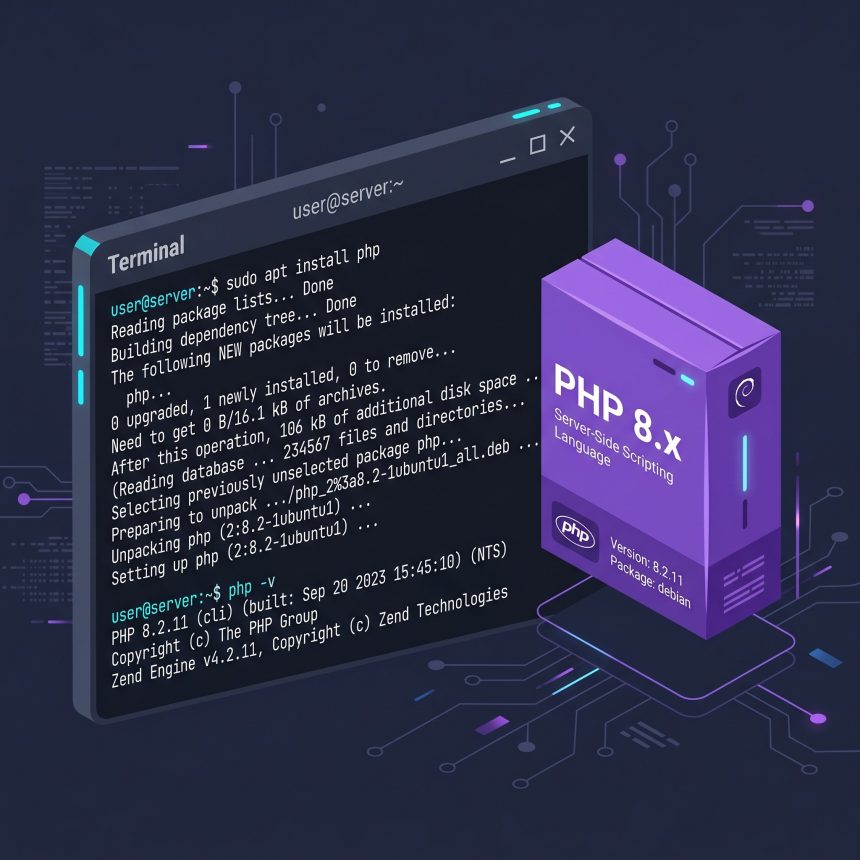
This guide walks through how to install PHP on Ubuntu — both the 22.04 LTS default (PHP 8.1) and the 24.04 LTS default (PHP 8.3) — then layers on the extensions a typical web application needs, and finishes with a hello.php test so you can confirm the CLI works end-to-end. If you need to run multiple PHP versions side-by-side, I cover that too via the community-maintained Ondřej Surý PPA.
- TL;DR
- Prerequisites
- Step 1 — Update the package index
- Step 2 — Install PHP
- Step 3 — Verify the installation
- Step 4 — Install the extensions your application needs
- Step 5 — Set up the rest of the stack
- Step 6 — Test with a hello.php script
- Troubleshooting
- php: command not found after install
- apt complains about conflicting PHP versions
- Extension shows installed but php -m doesn’t list it
- Frequently asked questions
- Related guides
- References
Last verified: 2026-04-16 on Ubuntu 22.04 LTS (PHP 8.1) and 24.04 LTS (PHP 8.3). Originally published 2023-02-25, rewritten and updated 2026-04-16.
TL;DR
Run sudo apt update && sudo apt install php to install the distro-default PHP (8.1 on 22.04, 8.3 on 24.04). Add extensions for common web apps with sudo apt install php-cli php-common php-mysql php-zip php-gd php-mbstring php-curl php-xml php-bcmath. Confirm with php -v and php -m. For a specific version, add the Ondřej Surý PPA before installing.
Prerequisites
- An Ubuntu 22.04 or 24.04 system.
- A user with
sudoprivileges. - Outbound access to
archive.ubuntu.com(andppa.launchpad.netif you’ll use the Ondřej PPA).
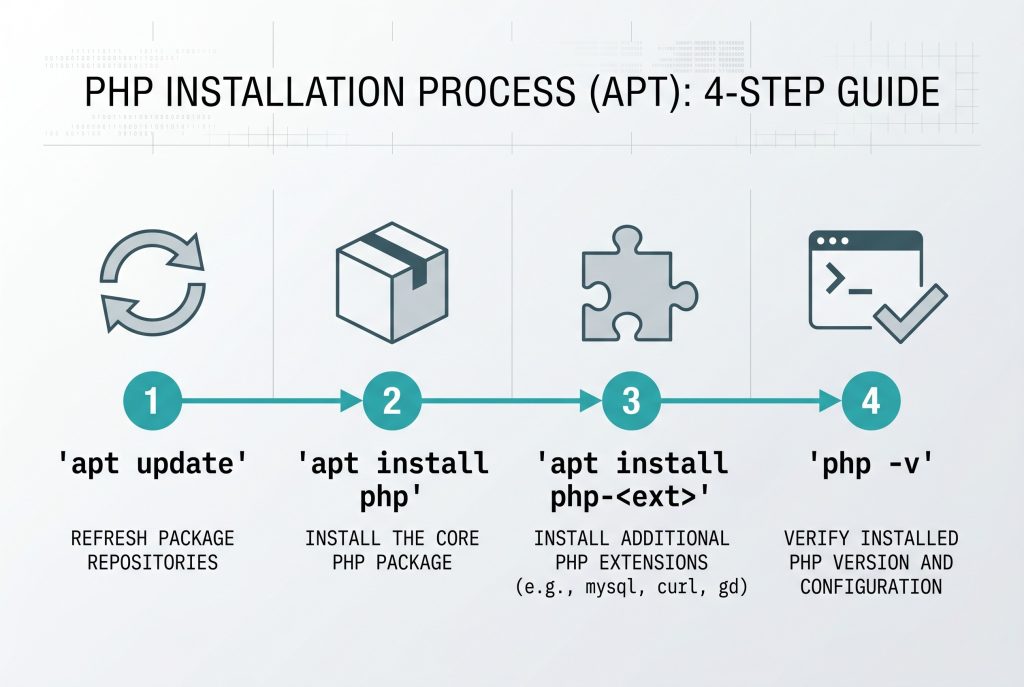
Step 1 — Update the package index
Pull the latest package lists so apt knows about the current PHP builds in the Ubuntu repositories:
sudo apt updateStep 2 — Install PHP
The simplest install uses the distro-default PHP meta-package:
sudo apt install phpThis gives you PHP 8.1 on Ubuntu 22.04 and PHP 8.3 on Ubuntu 24.04, along with Apache and libapache2-mod-php as recommended dependencies. If you’re running nginx + PHP-FPM and don’t want Apache pulled in, install without recommends:
sudo apt install --no-install-recommends php php-fpmTo pin a specific version (say, PHP 8.2 on 22.04 where the default is 8.1), first add the community-maintained Ondřej Surý PPA, which packages every supported PHP version:
sudo apt install -y software-properties-common
sudo add-apt-repository -y ppa:ondrej/php
sudo apt update
sudo apt install php8.2
About older versions: PHP 7.4 (EOL November 2022) and PHP 8.0 (EOL November 2023) no longer receive security updates. Install them only for maintaining legacy applications in a sandbox — never for anything reachable from the public internet.
Step 3 — Verify the installation
php -vYou should see output like this:
PHP 8.1.2-1ubuntu2.x (cli) (built: ...) (NTS)
Copyright (c) The PHP Group
Zend Engine v4.1.2, Copyright (c) Zend Technologies
If php -v returns command not found, the binary isn’t on your PATH — skip to the Troubleshooting section.
Step 4 — Install the extensions your application needs
Each PHP extension is a separate apt package following the pattern php{VERSION}-{EXTENSION}. You can omit the version to let apt pick the default:
sudo apt install php-PACKAGE_NAMEMost web applications (Laravel, WordPress, modern CMSs) need these together:
sudo apt install -y php-cli php-common php-mysql php-zip php-gd php-mbstring php-curl php-xml php-bcmathphp-cli— command-line interpreter for running scripts from a shell.php-common— shared documentation, examples, and common modules.php-mysql— MySQL/MariaDB driver (PDO and mysqli).php-zip— zip and unzip archives from PHP.php-gd— image manipulation (resizing, watermarks, thumbnails).php-mbstring— multibyte string handling for non-ASCII characters.php-curl— outbound HTTP requests.php-xml— XML parsing and DOM, required by a lot of frameworks.php-bcmath— arbitrary-precision arithmetic, required by several e-commerce and crypto libraries.
To see every extension currently loaded by the CLI:
php -mStep 5 — Set up the rest of the stack
A working PHP CLI is enough for scripting, but most projects also need a database and a way to manage dependencies. The two pieces I’d install next:
- MySQL for data storage. Follow How to Install MySQL on Ubuntu 22.04 — same Ubuntu server, secure setup included.
- Composer for dependency management. Follow How to Install Composer on Ubuntu — the official installer flow, with live hash verification.
If you need the Apache web server in front of PHP, install it with sudo apt install apache2 libapache2-mod-php. For nginx + PHP-FPM, use sudo apt install nginx php-fpm instead.
Step 6 — Test with a hello.php script
Create a simple script to confirm the interpreter runs end-to-end:
nano hello.phpPaste the following — modern PHP style drops the closing ?> tag for scripts that only contain PHP code:
<?php
echo 'Hello World!' . PHP_EOL;
Save and exit (Ctrl+O, Enter, then Ctrl+X in nano; :wq in vi). Then run it:
php hello.phpIf you see Hello World! on the next line, your PHP environment is ready.
Troubleshooting
php: command not found after install
Confirm the binary actually landed: ls /usr/bin/php*. If you only see /usr/bin/php8.1 (no bare /usr/bin/php), the meta-package didn’t install the alternative. Fix it with sudo update-alternatives --install /usr/bin/php php /usr/bin/php8.1 100.
apt complains about conflicting PHP versions
Installing multiple versions via Ondřej’s PPA is supported, but some packages (like libapache2-mod-php) can only be the active one at a time. Use sudo update-alternatives --config php to switch the CLI, and configure each PHP-FPM pool to listen on its own socket.
Extension shows installed but php -m doesn’t list it
Some extensions are enabled per SAPI (CLI vs FPM vs Apache). If it’s only missing in one, enable it there: sudo phpenmod -s cli extension_name. Then re-run php -m to confirm.
Frequently asked questions
apt install php give me on Ubuntu? On Ubuntu 22.04 LTS the php meta-package currently resolves to PHP 8.1, and on 24.04 LTS it resolves to PHP 8.3. If you need a specific version that isn’t the distro default — for example 8.2 on 22.04 — add the Ondřej Surý PPA first (ppa:ondrej/php) and install php8.2 explicitly.
No. PHP 7.4 reached end-of-life in November 2022 and PHP 8.0 in November 2023 — no more security patches are published. Install them only for maintaining legacy applications in a sandbox. For anything touching the public internet, use PHP 8.1 or newer.
apt install php8.1 pull in Apache? The php8.1 meta-package recommends the libapache2-mod-php8.1 module, which in turn pulls in apache2. If you don’t want Apache — for example you’re using nginx + PHP-FPM — install with sudo apt install --no-install-recommends php8.1 and add php8.1-fpm instead.
Run php -m. The output groups compiled modules and Zend extensions separately. Use php -i | grep -i extension_dir to see where additional .so extensions are loaded from.
Install each version side-by-side (php8.1, php8.2, php8.3) and use sudo update-alternatives --config php to switch the php CLI. For web requests, each FPM pool listens on its own socket, so nginx or Apache picks the version per vhost.
Related guides
- How to Install MySQL on Ubuntu 22.04 — the database layer of your LAMP stack.
- How to Install Composer on Ubuntu — the dependency manager Laravel, Symfony, and most modern PHP projects require.
References
Official PHP manual: php.net/manual. Supported versions and EOL dates: php.net/supported-versions. Ondřej Surý PHP PPA: launchpad.net/~ondrej/+archive/ubuntu/php.