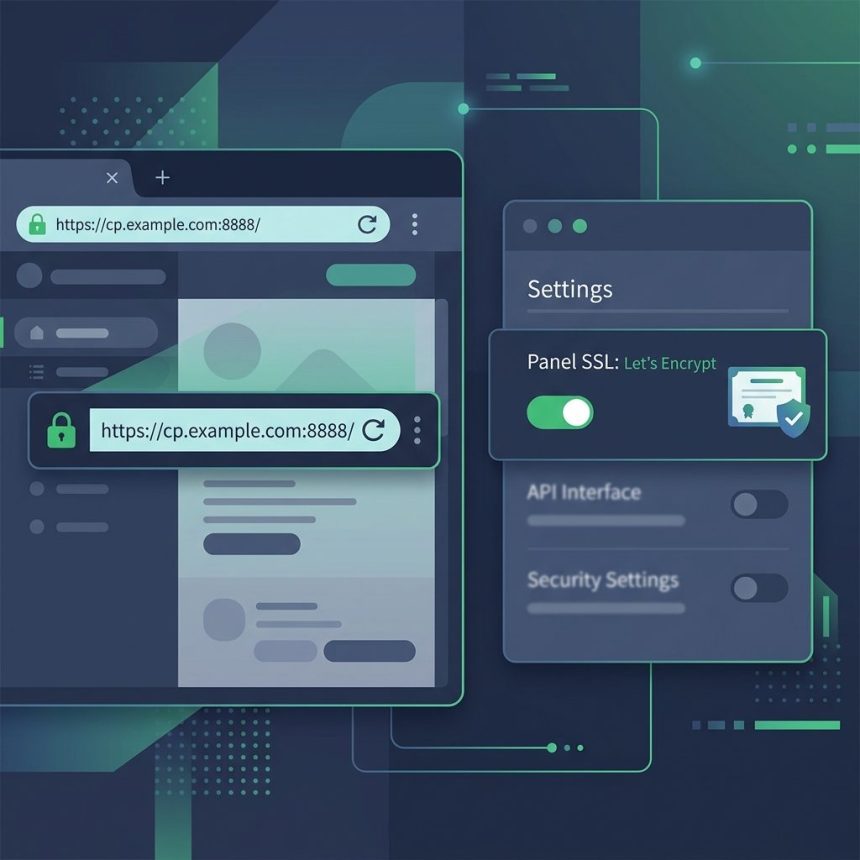
To access aaPanel with a domain and SSL, you point a subdomain at the server, add it inside aaPanel’s settings, and enable Let’s Encrypt. Chrome stops blocking the panel, and you get a real certificate instead of the self-signed one. This guide walks through the four-step setup, plus the symlink trick that makes the panel SSL auto-renew (it doesn’t by default).
Last verified: 2026-05-17 on aaPanel 7.x running on AlmaLinux 9. Originally published 2023-01-09, rewritten and updated 2026-05-17.
TL;DR
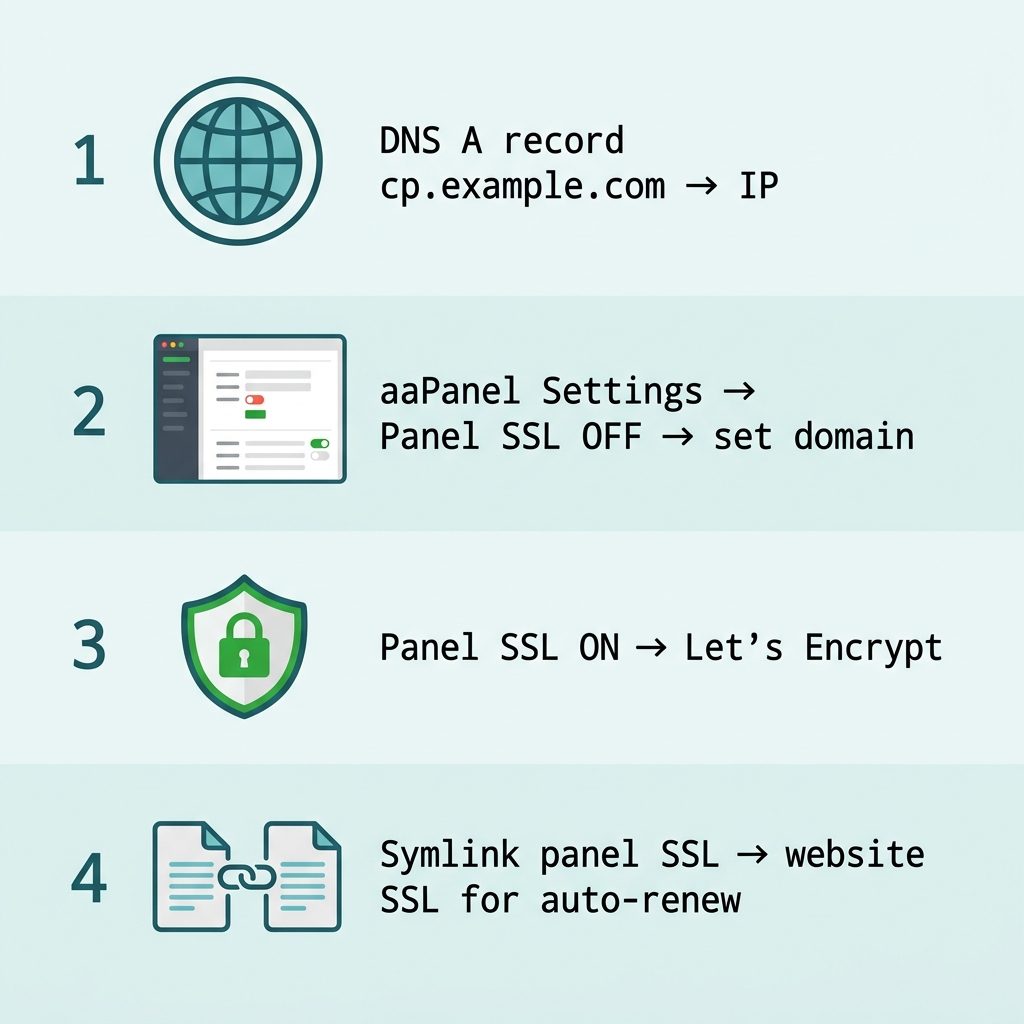
- Add an A record:
cp.example.com→ server IP. If on Cloudflare, set it to DNS Only (grey cloud). - In aaPanel: Settings → Panel SSL → disable SSL, enter
cp.example.comin the domain field. - Re-enable Panel SSL → choose Let’s Encrypt. Issue the cert.
- Open
https://cp.example.com:<port>/. Chrome should now show the lock icon.
Step 1 — DNS record for the panel subdomain
Decide on a subdomain for the panel (cp.example.com is the common pattern — short for “control panel”). Add an A record at your DNS provider pointing it to the server’s public IP. The record propagates in a minute or two on most providers.
Cloudflare users: set this specific record to DNS Only (grey cloud, not orange). Let’s Encrypt’s HTTP-01 challenge needs to reach aaPanel directly to validate the domain; Cloudflare’s proxy can interfere. You can flip back to proxied after issuance if you want, but DNS Only is safest for the initial issuance and for renewals.
Verify propagation:
dig +short cp.example.comOutput should be your server’s IP. If it’s a Cloudflare proxy IP (something like 104.21.x.x), the orange-cloud is still on — switch it to grey before continuing.
Step 2 — Add the domain in aaPanel
Log into aaPanel (still at the IP + self-signed cert for now). Go to Settings. Find the Panel SSL section:
Step 3 — Issue a Let’s Encrypt certificate
Back in the same Panel SSL section, turn SSL on and pick the Let’s Encrypt option. aaPanel runs the HTTP-01 challenge, fetches the certificate, and applies it. If the challenge fails, the most common causes are:
- DNS hasn’t propagated yet (run
digfrom step 1 first). - Cloudflare proxy is still on (orange cloud).
- Port 80 is firewalled. Open it:
sudo firewall-cmd --permanent --add-service=http && sudo firewall-cmd --reloadon RHEL family, orsudo ufw allow 80/tcpon Debian/Ubuntu.
Once issuance succeeds, open https://cp.example.com:<your-port>/<your-entry> in Chrome. You should see the lock icon and a valid certificate from Let’s Encrypt.
Step 4 — Make the panel SSL auto-renew
Here’s the catch: aaPanel’s auto-renew job only renews website certificates, not the panel’s own cert. The panel SSL lives in /www/server/panel/ssl/ and isn’t touched by the renewal cron. Workaround: create a regular website in aaPanel using the same domain as the panel, enable SSL on the website (which does auto-renew), then symlink the panel SSL files to the website’s cert files.
- In aaPanel, create a website using
cp.example.comas the domain. - Enable Let’s Encrypt SSL for that website. (Same domain, separate cert.)
- SSH into the server.
- Go to the panel SSL directory:
cd /www/server/panel/ssl- Back up the existing panel certificates:
sudo mkdir -p /root/backup-panel-ssl
sudo mv * /root/backup-panel-ssl/- Create symlinks to the website’s cert:
sudo ln -s /www/server/panel/vhost/cert/cp.example.com/privkey.pem privateKey.pem
sudo ln -s /www/server/panel/vhost/cert/cp.example.com/fullchain.pem certificate.pem- Restart aaPanel so it picks up the new cert files:
# If using systemd
sudo systemctl restart bt

# Or the legacy init script
sudo /etc/init.d/bt restart
Now every time aaPanel renews the website certificate (default: 30 days before expiry), the symlinks pick up the new key and chain automatically — no manual intervention needed.
Troubleshooting
Panel inaccessible after restart
Restore the backup and restart:
sudo cp /root/backup-panel-ssl/* /www/server/panel/ssl/
sudo systemctl restart bt
Browser still warns “Not Secure”
Two common causes: (1) you’re still hitting the IP instead of the domain — make sure you typed https://cp.example.com:port/, not the IP. (2) The symlinks point at the wrong path — verify with ls -la /www/server/panel/ssl/, the targets should both resolve to files under /www/server/panel/vhost/cert/cp.example.com/.
Frequently asked questions
Modern Chrome refuses connections to admin panels protected only by a self-signed certificate, and increasingly blocks raw-IP HTTPS as well, because both are common phishing vectors. The fix is to give aaPanel a real domain name (or subdomain — cp.example.com works) and put a real Let’s Encrypt certificate on it. Once the cert is publicly trusted, Chrome stops complaining.
A subdomain like cp.example.com is the standard pattern — it keeps the control panel separate from your main website, lets you run a regular website on the apex domain, and makes it easier to revoke / rotate the panel later without touching production. Apex works but locks the apex domain to the panel; not recommended unless this is a dedicated panel server.
If Cloudflare’s orange-cloud proxy is on, requests to cp.example.com go through Cloudflare first, which then re-encrypts to aaPanel. Let’s Encrypt’s HTTP-01 challenge needs to reach aaPanel directly on port 80 to verify domain ownership, and Cloudflare’s proxy can interfere with that handshake. Switching to grey-cloud (DNS Only) routes the challenge straight to your server. Once the cert is issued, you can turn the proxy back on if you want — but DNS Only is safer for renewals.
Because aaPanel’s auto-renew job operates on website certificates, not the panel’s own certificate. The panel’s SSL files live in /www/server/panel/ssl/ and aren’t part of the website-cert renewal flow. The symlink trick in step 7 below makes the panel point at a website certificate that does auto-renew — so the panel inherits the renewals indirectly.
rm * in /www/server/panel/ssl/? Only after backing up. Step 5 (mv * /root/backup) ensures you can roll back if the symlinks misbehave. If something does go wrong and the panel becomes unreachable, restore the backup files into /www/server/panel/ssl/ and restart aaPanel: /etc/init.d/bt restart (or systemctl restart bt depending on the install).
Related guides
- How to Install Docker on AlmaLinux
- How to Install Discourse on AlmaLinux with Docker
- Fix Nginx “recv() failed (104: Connection reset by peer)” with FastCGI
References
aaPanel official documentation: aapanel.com/new/document.html. Let’s Encrypt rate limits and challenge types: letsencrypt.org/docs/rate-limits.