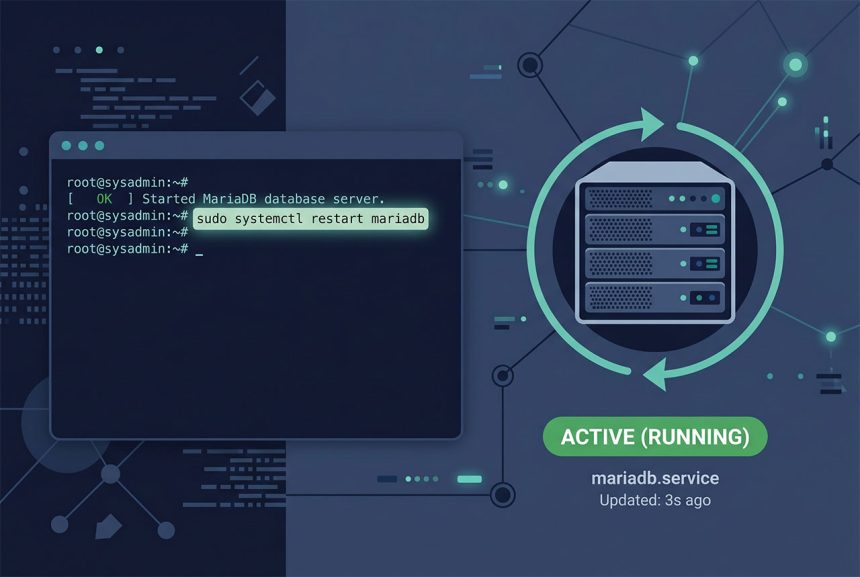
To mariadb restart on a modern Linux system, run sudo systemctl restart mariadb. If the service is called mysql or mysqld on your distribution, swap the name. The legacy service mariadb restart wrapper still works — it forwards to systemctl. This guide covers every form, when to reload instead of restart, and how to verify the service came back up.
Last verified: 2026-04-23 on Ubuntu 22.04, AlmaLinux 9, and CentOS 7 (EOL). Originally published 2022-12-31, rewritten and updated 2026-04-23.
TL;DR
# Modern (systemd)
sudo systemctl restart mariadb

# If the service is named differently
sudo systemctl restart mariadb.service
sudo systemctl restart mysql
sudo systemctl restart mysqld

# Legacy wrapper (still works, forwards to systemctl)
sudo service mariadb restart
sudo service mysql restart
sudo service mysqld restart
Pick the right service name
- Ubuntu / Debian with MariaDB package —
mariadb. - Ubuntu / Debian with MySQL package —
mysql. - CentOS / RHEL / AlmaLinux / Rocky —
mariadb(ormysqldon older installs). - Amazon Linux 2 —
mariadb.
Not sure which name to use? List all three:
systemctl list-unit-files | grep -E 'mariadb|mysql'The one marked enabled is the service that starts on boot — that’s the one to restart.
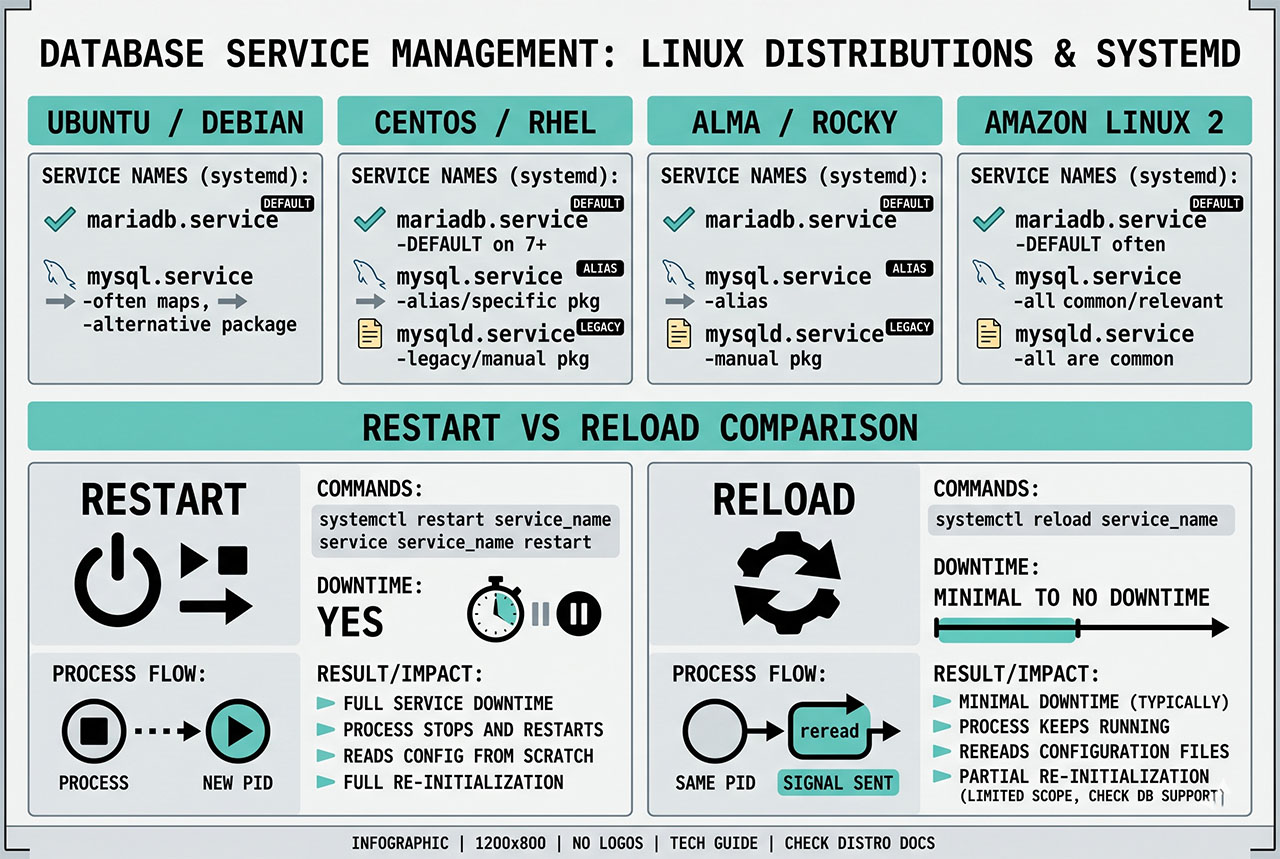
Restart vs reload
# Full stop + start — drops connections, ~seconds downtime
sudo systemctl restart mariadb

# Keep connections alive, re-read config — faster, no downtime
sudo systemctl reload mariadb
reload is faster and keeps existing connections alive but only works for config changes that MariaDB can apply live. Most system variables do work; changing the InnoDB buffer pool size, loading/unloading a plugin, or swapping the data directory all require restart. When in doubt, check SHOW VARIABLES LIKE '...' after a reload to confirm the new value took effect — if it didn’t, go back and restart.
Verify it’s back up
# Service-level check
sudo systemctl status mariadb

# Expect "Active: active (running)" in green, no failed units.

# Connection-level check
mysql -u root -p -e 'SELECT VERSION();'
Both checks are quick. If systemctl says active but mysql -u root -p hangs, the server is listening but not accepting queries — usually a data-directory corruption that needs the log: journalctl -u mariadb -n 100 --no-pager.
When a restart isn’t enough
If systemctl restart returns quickly but MariaDB is still unavailable, you’re into troubleshooting territory — config syntax errors, disk full, orphaned PID files, port conflicts. See troubleshooting a MariaDB that won’t start for the triage checklist.
Frequently asked questions
sudo systemctl restart mariadb. That’s the canonical form on every distribution using systemd (Ubuntu 16.04+, Debian 8+, CentOS 7+, RHEL 7+, AlmaLinux, Rocky). The legacy service mariadb restart wrapper also works and just forwards to systemctl on modern systems.
mysql or mysqld? MariaDB shipped as a drop-in MySQL replacement, and some distributions kept the original service names for compatibility. On CentOS/RHEL the service is called mariadb; on some Debian/Ubuntu packages it’s mysql; on older Red Hat derivatives you’ll find mysqld. systemctl status mariadb mysql mysqld — whichever returns ‘loaded’ is the one running.
restart or reload? restart fully stops and starts the service — every connection is dropped. reload is lighter: it signals the running process to re-read its config without killing connections. Reload works for most my.cnf changes that don’t require a fresh server instance. Restart is necessary for changes to InnoDB buffer pool size, plugin loading, or anything that needs the engine re-initialized.
sudo systemctl status mariadb — the output shows ‘active (running)’ in green if it’s up. The log excerpt underneath (or journalctl -u mariadb -n 50) reveals any startup errors. For a connection-level check, mysql -u root -p -e 'SELECT VERSION();' confirms the server is accepting queries.
systemctl restart fails? Check the log with journalctl -u mariadb -n 100 --no-pager. Common causes: syntax error in /etc/mysql/my.cnf (typos, missing quotes), disk full (df -h), orphaned PID file (/var/run/mysqld/mysqld.pid), or a port conflict. See troubleshooting MariaDB not starting for the full triage.
Related guides
- How to Troubleshoot MariaDB Not Starting — what to do when
restartfails. - How to Install MySQL on Ubuntu — a fresh install where the service starts out clean.
- How to Connect to a Remote MySQL Database from Ubuntu — companion connectivity guide.
- How to Create Users and Grant Privileges in MySQL 8 — post-restart user admin.
References
systemd service docs: freedesktop.org/software/systemd/man/systemctl. MariaDB restart: mariadb.com/kb/en/starting-and-stopping-mariadb-automatically.