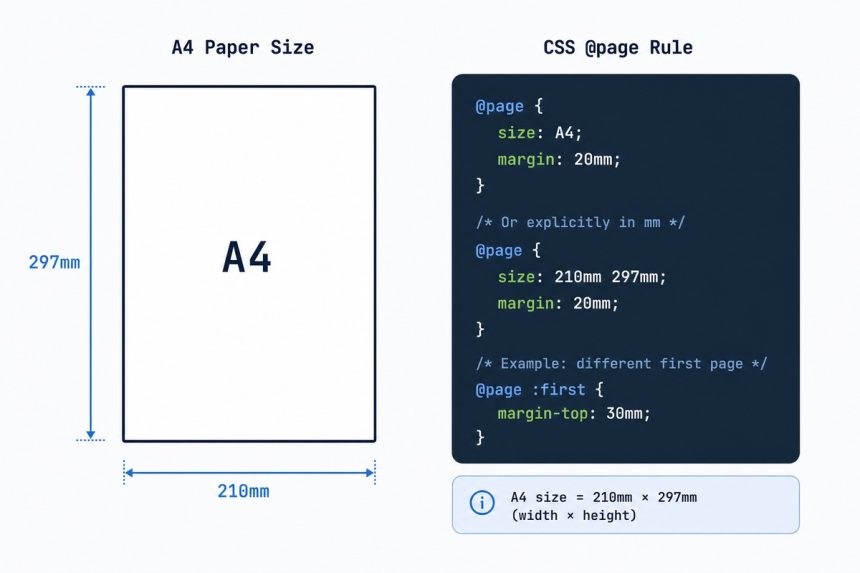
To set A4 paper size in CSS for printing, declare @page { size: A4; } at the top of your stylesheet. Pair it with a @media print block that sets the body’s width and height to A4 dimensions (210mm × 297mm) so the layout matches the paper. Browsers honor this when printing or exporting to PDF.
Last verified: 2026-05-17 in Chrome 124, Firefox 125, Safari 17. Originally published 2022-10-20, rewritten and updated 2026-05-17.
The CSS
@page {
    size:   A4;
    margin: 0;
}

@media print {
    html, body {
        width:   210mm;
        height:  297mm;
        margin:  0;
        padding: 0;
    }
}@pagedefines the printed page’s box — paper size and margins.size: A4is the keyword the browser maps to 210 × 297 mm.margin: 0removes the browser’s default printable-area margin so content fills the sheet edge-to-edge (most printers still keep a small unprintable border).@media printsets explicit dimensions on the layout root, so your content’s measurements match the page. Useful when the on-screen design uses different sizes.
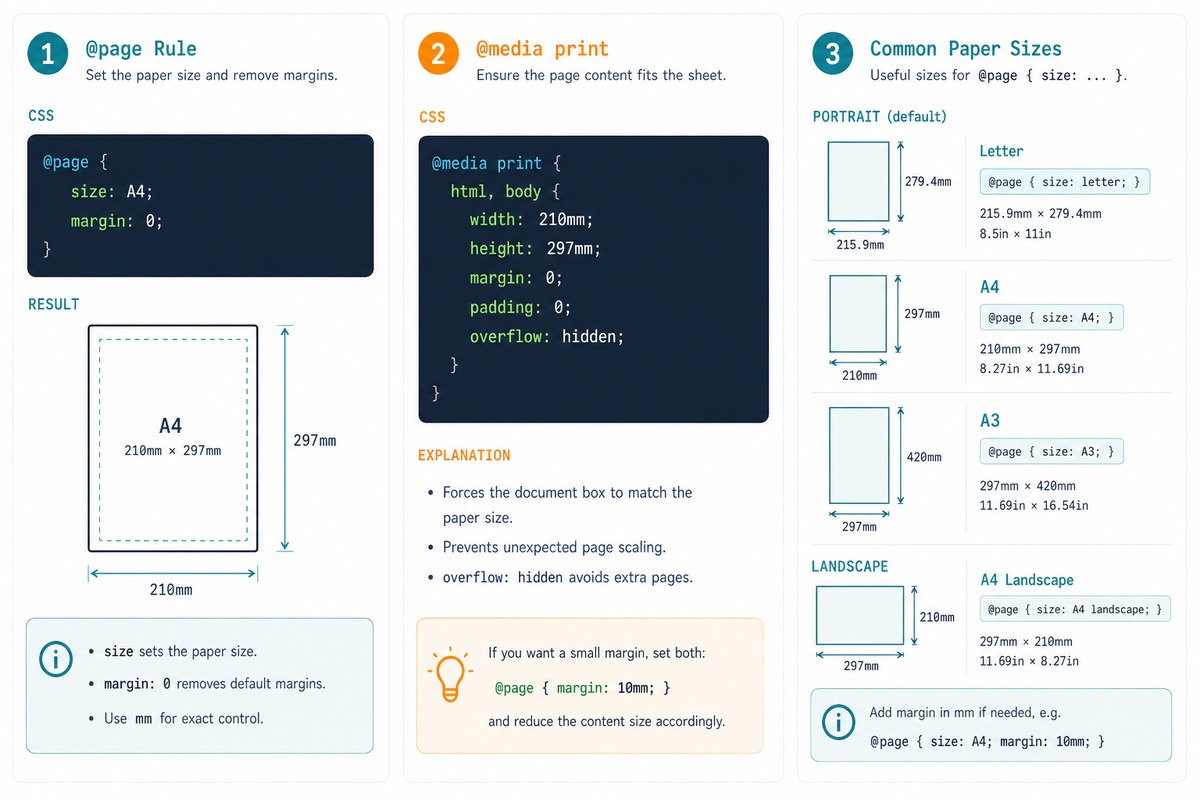
Other common paper sizes
@page { size: A4; }          /* 210 × 297 mm   — international standard */
@page { size: Letter; }      /* 8.5 × 11 in    — US/Canada */
@page { size: Legal; }       /* 8.5 × 14 in    — US legal */
@page { size: A3; }          /* 297 × 420 mm */
@page { size: A5; }          /* 148 × 210 mm */
@page { size: A4 landscape; }/* A4 sideways */

/* Custom — explicit dimensions */
@page { size: 100mm 150mm; }
Sensible print margins
@page {
    size:   A4;
    margin: 20mm 15mm;       /* top/bottom 20mm, left/right 15mm */
}
For documents (not edge-to-edge invoices), keep a reasonable margin. Browsers and printers tend to give better results when the margin is set explicitly rather than left to the default.
Page breaks
/* Force a break before this element */
.new-page {
    break-before: page;
}

/* Avoid breaking inside */
.invoice-row {
    break-inside: avoid;
}

/* Avoid breaking right after a heading */
h2 {
    break-after: avoid;
}
Use break-* properties (modern names for the legacy page-break-*) to control where the printer breaks pages. Especially important for tables and multi-section documents.
Test it
- Open the page in Chrome/Firefox/Safari.
- Press Ctrl+P (Cmd+P on macOS) to open the print preview.
- Confirm “Paper size” shows A4 and the layout matches the design.
- Choose “Save as PDF” to generate a deterministic preview file you can share.
Frequently asked questions
@page work in every browser? Yes — @page with size and margin is supported in every modern browser when printing or generating a PDF via the browser’s print dialog. The keywords (A4, Letter, Legal, A3, etc.) are part of the CSS spec. The user can still override the paper size from the print dialog — your @page sets the default.
A4 as a keyword and explicit 210mm 297mm? The keyword tells the print engine “this is A4 paper” — it picks the right physical paper from the printer when a real printer is involved. The explicit dimensions only define the page layout box. For browser PDF export they’re equivalent; for physical printing the keyword is more reliable.
margin: 0 — won’t content go to the edge? Yes, intentionally — for an invoice or label that needs to fill the sheet, margin: 0 on @page removes the browser’s default print margins (usually 0.5in). Most home printers can’t actually print to the physical edge (there’s a hardware unprintable border), so you’ll still see a small white gutter. Test on the target printer.
Add it to @page: @page { size: A4 landscape; margin: 0; }. Common combos: size: A4 portrait (default), size: A4 landscape, size: Letter, size: Letter landscape. For mixed orientations within one document, use named pages with @page name { size: A4 landscape; } and apply page: name on specific elements.
Related guides
- How to Change the Background Color of a Checkbox with CSS
- Page Breaks Not Working with Tables in HTML / CSS
References
MDN @page: developer.mozilla.org/en-US/docs/Web/CSS/@page. MDN size: developer.mozilla.org/en-US/docs/Web/CSS/@page/size. MDN break-before/after/inside: developer.mozilla.org/en-US/docs/Web/CSS/break-before.