How7o
  • Home
  • Tools
  • Prank Screens
  • Learn
  • Blog
  • Contact
Reading: How to Check the Linux OS Name and Version from the Command Line
Share
How7oHow7o
Font ResizerAa
  • OS
Search
  • Home
  • Tools
  • Prank Screens
  • Learn
  • Blog
  • Contact
Follow US
© 2024–2026 How7o. All rights reserved.
How7o > Free Laravel, PHP, WordPress & Server Tutorials > Server Management > How to Check the Linux OS Name and Version from the Command Line
Server Management

How to Check the Linux OS Name and Version from the Command Line

how7o
By how7o
Last updated: May 22, 2026
4 Min Read
Check Linux OS name and version from the command line
SHARE

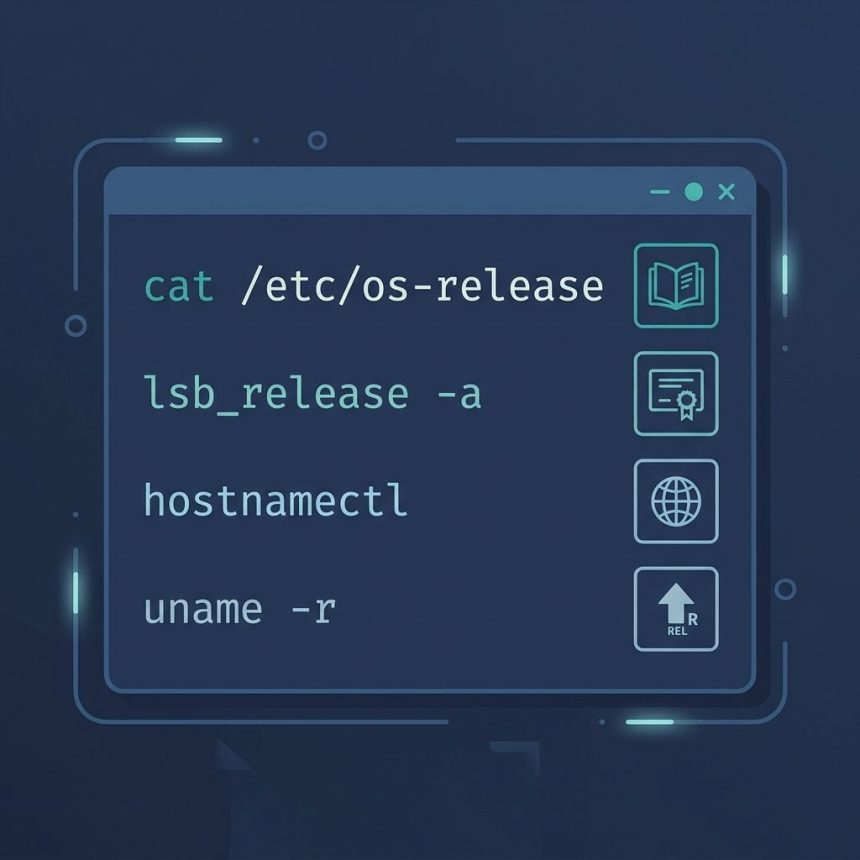
To check the Linux OS name and version from the command line, the most portable command is cat /etc/os-release — it’s a plain file present on every modern Linux. lsb_release -a and hostnamectl work too when they’re installed. For the kernel version, uname -r does the job.

Contents
  • TL;DR
  • /etc/os-release — the universal way
  • lsb_release -a — clean output, requires package
  • Kernel version with uname
  • Frequently asked questions
  • Related guides
  • References

Last verified: 2026-05-17 on AlmaLinux 9, Ubuntu 22.04, Debian 12, Fedora 40. Originally published 2022-08-18, rewritten and updated 2026-05-17.

TL;DR

# OS name + version (most portable — works on every modern Linux)
cat /etc/os-release

# Cleaner formatted output (if the lsb-release package is installed)
lsb_release -a

# System summary (OS + kernel + arch)
hostnamectl

# Kernel version only
uname -r

# Everything from uname (kernel + hostname + arch + build date)
uname -a

/etc/os-release — the universal way

cat /etc/os-release

Sample output on Ubuntu 22.04:

PRETTY_NAME="Ubuntu 22.04.4 LTS"
NAME="Ubuntu"
VERSION_ID="22.04"
VERSION="22.04.4 LTS (Jammy Jellyfish)"
VERSION_CODENAME=jammy
ID=ubuntu
ID_LIKE=debian
HOME_URL="https://www.ubuntu.com/"
SUPPORT_URL="https://help.ubuntu.com/"

The ID and VERSION_ID fields are stable, lowercase, scriptable. For shell scripts that need to branch on distro:

source /etc/os-release
case "$ID" in
  ubuntu|debian)  echo "Debian-family";;
  almalinux|rocky|rhel|centos|fedora) echo "RHEL-family";;
  *)              echo "Other: $ID";;
esac
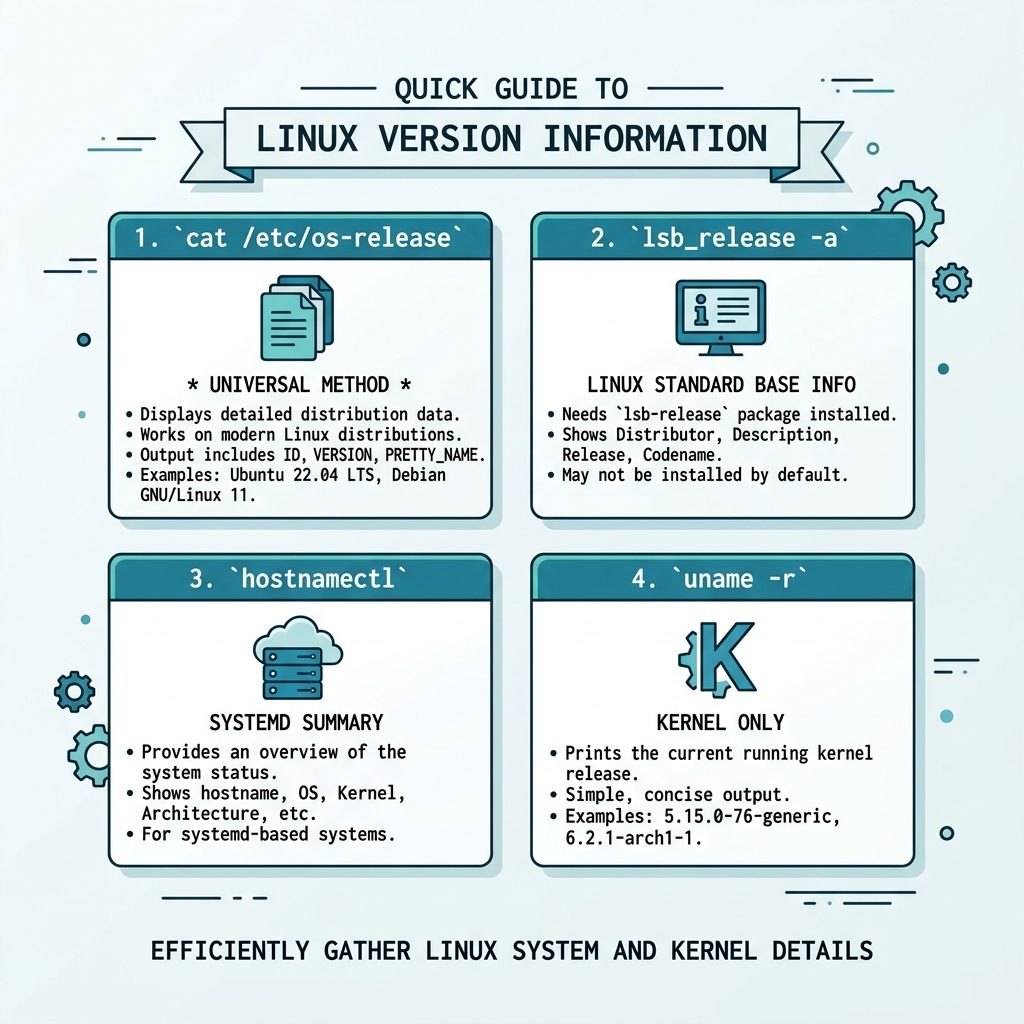
Check Linux OS version — /etc/os-release, lsb_release, hostnamectl, uname compared

lsb_release -a — clean output, requires package

lsb_release -a

Output:

Distributor ID: Ubuntu
Description:    Ubuntu 22.04.4 LTS
Release:        22.04
Codename:       jammy

If it errors with command not found, install the package (sudo apt install lsb-release on Debian/Ubuntu, sudo dnf install redhat-lsb-core on older RHEL). Newer RHEL/AlmaLinux/Rocky have moved away from lsb-release — use /etc/os-release there.

Kernel version with uname

# Just the kernel release
uname -r           # e.g. 5.15.0-105-generic

# Everything
uname -a           # kernel + hostname + arch + build date

Frequently asked questions

What’s the difference between /etc/os-release and lsb_release?

/etc/os-release is a plain file present on every modern Linux (systemd-based) — guaranteed to exist, no command needed. lsb_release is a command from the lsb-release package (sometimes not installed by default on minimal images). For a script that has to run anywhere, cat /etc/os-release is the safer choice.

Which command shows the kernel version?

uname -r for the release string (e.g. 5.15.0-105-generic), uname -a for everything (kernel, hostname, arch, build date). Note the kernel version is independent of the distro version — Ubuntu 22.04 has shipped multiple kernels over its life, all reported by uname -r.

Why does hostnamectl show ‘Operating System’ on one line and ‘Kernel’ on another?

hostnamectl consolidates information from /etc/os-release (Operating System line) and uname (Kernel line) into one tidy block. It’s a quick way to see both at once without running two commands.

Is there a single command that works on every Linux including very minimal containers?

cat /etc/os-release works on every systemd-based system, including Alpine and most slim container images. For non-systemd / pre-systemd systems (rare now), fall back to cat /etc/issue or cat /etc/*release* — one of them will have what you need.

Related guides

  • How to Check Your Ubuntu Version
  • How to List Network Devices on Linux
  • How to Add and Delete Users on a Linux Server from the Terminal

References

man os-release, man uname, man hostnamectl on any Linux. systemd os-release spec: freedesktop.org/software/systemd/man/latest/os-release.html.
TAGGED:BashconfigurationSSH

Sign Up For Daily Newsletter

Be keep up! Get the latest breaking news delivered straight to your inbox.
[mc4wp_form]
By signing up, you agree to our Terms of Use and acknowledge the data practices in our Privacy Policy. You may unsubscribe at any time.
Share This Article
Facebook Copy Link Print
Previous Article Check if an element is hidden or visible with jQuery How to Check if an Element Is Hidden or Visible with jQuery
Next Article Check Ubuntu version — terminal and Settings How to Check Your Ubuntu Version
Leave a Comment

Leave a Reply Cancel reply

You must be logged in to post a comment.

FacebookLike
XFollow
PinterestPin
InstagramFollow
Most Popular
Set vi as the default editor in Ubuntu — a terminal opening the vim editor
How to Set vi (Vim) as the Default Editor in Ubuntu
June 8, 2026
rsync says ALL DONE but files are missing — a terminal showing ALL DONE next to an empty folder
rsync Says “ALL DONE” but Files Are Missing: How to Verify
June 8, 2026
Migrate a website to a new server with rsync — files copying from an old server to a new one over SSH
How to Migrate a Website to a New Server With rsync
June 8, 2026
Bun runtime — faster JS toolkit replacing npm in Laravel projects
How to Install Bun Runtime on Ubuntu (And Use It in a Laravel Project)
May 24, 2026
Tailscale mesh — peer-to-peer connections between devices, coordination server
How to Install Tailscale on Ubuntu (Zero-Config Mesh VPN for Self-Hosters)
May 24, 2026

You Might Also Like

Nginx subdirectory configuration with alias and PHP-FPM
Server Management

How to Configure Nginx for a Subdirectory

5 Min Read
PHP Bangladeshi number format — 1,00,23,456.79 grouping
Web Development

Format Numbers in Bangladeshi / Indian Style with PHP

6 Min Read
Run a Node.js application from a Windows .bat file
OS

How to Run a Node.js Application from a Windows .bat File

5 Min Read
WordPress disable revision and autosave — wp-config constants and wp_print_scripts dequeue
Web Development

How to Disable Revisions and Autosave in WordPress

8 Min Read
How7o

We provide tips, tricks, and advice for improving websites and doing better search.

Tools

  • Age Calculator
  • Word Counter
  • Image Upscaler
  • Password Generator
  • QR Code Generator
  • See all tools→

Pranks

  • Fake Blue Screen Prank
  • Hacker Typer
  • Fake iMessage Generator
  • Windows XP Crash Prank
  • Windows 11 Update Prank
  • See all prank screens →

Company

  • About Us
  • Blog
  • Contact
  • Privacy Policy
  • Terms of Service
  • Sitemap
© 2024–2026 How7o. All rights reserved.
Welcome Back!

Sign in to your account

Username or Email Address
Password

Lost your password?