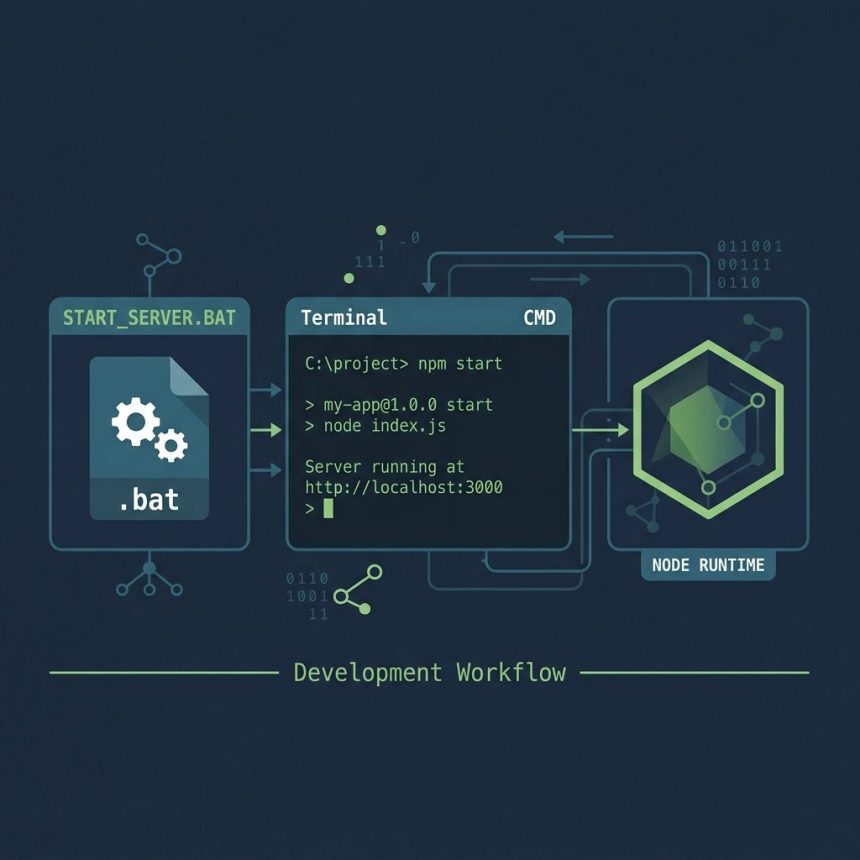
To run a Node.js application from a Windows .bat file so non-technical users can double-click to start it, create a one- or two-line batch script that cds into your project directory and runs npm start (or node server.js). A desktop shortcut to the .bat gives users a single click to launch.
Last verified: 2026-05-17 on Windows 11 with Node 20 LTS. Originally published 2022-10-13, rewritten and updated 2026-05-17.
The simplest .bat
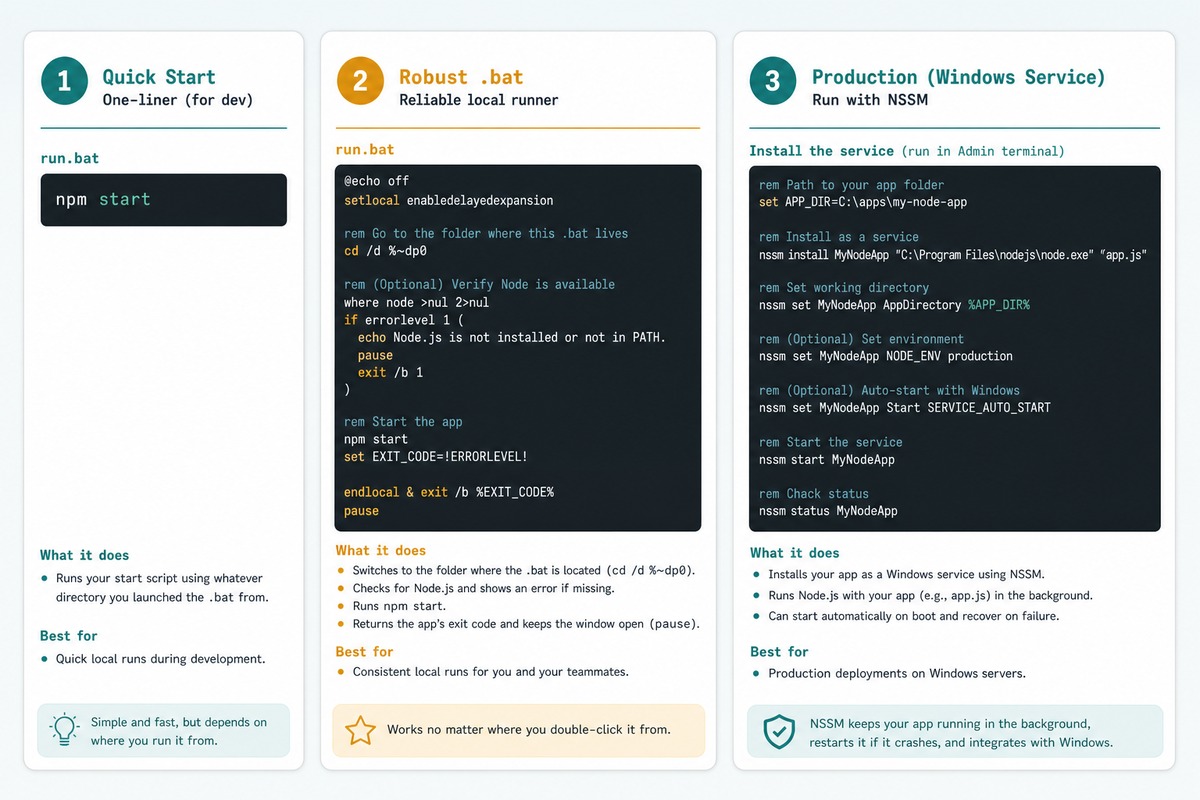
npm startSave as start.bat inside your project directory (next to package.json) and double-click. A command prompt opens, runs npm start, and stays open as long as your server runs.
Robust version (works from anywhere)
@echo off
cd /d "%~dp0"
echo Starting application...
npm start
pause
@echo off— hides command echoing (the script lines themselves) so the user sees clean output.cd /d "%~dp0"— changes to the directory the.batlives in.%~dp0expands to the script’s path;/dallows switching drives. Now the user can place the.batanywhere and it still works.pause— keeps the window open after npm exits so the user can read error messages. Drop it for long-running servers that don’t normally exit.
Run a specific script or file
@echo off
cd /d "%~dp0"

REM A specific npm script
npm run dev

REM Or call node directly
node server.js

REM Or with arguments
node server.js --port 4000 --env production

pause
Create a desktop shortcut
- Right-click the
.batfile → Send to → Desktop (create shortcut). - Right-click the new shortcut → Properties.
- Optionally change the icon under Change Icon… to something prettier than the default
.baticon.
The user now has a desktop icon they can double-click to start the app — no command-line knowledge needed.
For production — install as a Windows service
REM Download nssm.exe from https://nssm.cc/ first
nssm install MyNodeApp "C:\Program Files\nodejs\node.exe" "C:\path\to\app\server.js"
nssm set MyNodeApp AppDirectory "C:\path\to\app"
nssm start MyNodeApp
NSSM turns any console process into a Windows service. The app runs in the background, starts on boot, and restarts if it crashes — much better than a .bat for long-running servers in production.
Frequently asked questions
.bat close immediately after running? If npm start exits (because there’s no long-running server or it errored out), the command prompt closes the moment the script ends and you don’t see why. Add pause as the last line of the .bat — the window stays open until you press a key, so you can read any error messages.
Use %~dp0 at the top — that’s the directory the .bat itself lives in. cd /d %~dp0 changes to that directory before running npm. Without it, double-clicking from a shortcut on the desktop starts in %HOMEDRIVE%%HOMEPATH% and npm start can’t find package.json.
Wrap it with start /B /MIN to start minimized, or use a VBScript wrapper that calls the .bat with no window. For a long-running server, the cleanest option is to install your app as a Windows service with nssm (the Non-Sucking Service Manager) — it runs in the background, starts on boot, and restarts on crash.
For a few internal users a .bat + desktop shortcut is fine. For external distribution, consider packaging the app with pkg or nexe (single-binary Node), or wrap it in an Electron-style installer. The .bat approach assumes the user already has Node.js installed and a working npm in PATH.
Related guides
- How to Install the Latest Node.js on Ubuntu
- How to cd to a Different Drive in Windows
- How to Automatically Start Apache and MySQL with XAMPP on Windows
References
Microsoft batch reference: learn.microsoft.com/en-us/windows-server/administration/windows-commands. NSSM (Non-Sucking Service Manager): nssm.cc. Node.js docs: nodejs.org/en/docs.