How7oHow7o
  • Home
  • Tools
    • All Tools
    • Image Tools
    • Text & String Tools
    • Video Tools
    • Developer Tools
    • PDF Tools
    • Calculators & More
  • Prank Screens
  • Learn
  • Blog
  • Contact
Reading: How to cd to a Different Drive in Windows
Share
Notification Show More
Font ResizerAa
How7oHow7o
Font ResizerAa
  • Tools
  • Prank Screens
  • Learn
  • Blog
Search
  • Home
  • Tools
    • All Tools
    • Image Tools
    • Text & String Tools
    • Video Tools
    • Developer Tools
    • PDF Tools
    • Calculators & More
  • Prank Screens
  • Learn
  • Blog
  • Contact
Follow US
© 2024–2026 How7o. All rights reserved.
How7o > Free Laravel, PHP, WordPress & Server Tutorials > OS > How to cd to a Different Drive in Windows
OS

How to cd to a Different Drive in Windows

how7o
By how7o
Last updated: May 22, 2026
4 Min Read
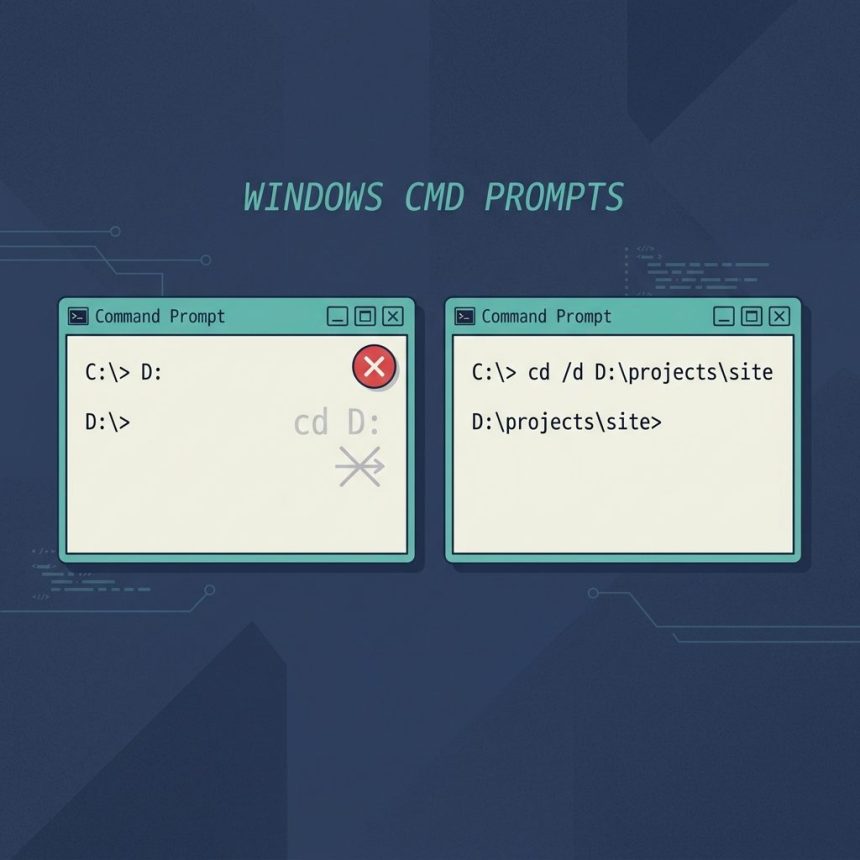
cd to a different drive in Windows — D: vs cd /d D:path
SHARE

To cd to a different drive on Windows, use either the bare drive letter (D:) or cd /d D:\path. Plain cd D:\ doesn’t switch drives — it silently updates D:’s remembered directory without leaving C:. The /d flag tells cd to change both the drive and the directory.

Contents
  • TL;DR
  • The drive-letter shortcut
  • Switch drive AND directory in one shot
  • PowerShell users — ignore all of this
  • Frequently asked questions
  • Related guides
  • References

Last verified: 2026-05-17 on Windows 11 cmd. Originally published 2022-09-30, rewritten and updated 2026-05-17.

TL;DR

:: Just switch drives, keep D:'s current directory
D:

:: Switch drive AND change directory in one go
cd /d D:\projects\site

:: cmd doesn't switch drives without /d — this is a no-op
cd D:\

The drive-letter shortcut

The fastest way to switch is to type the drive letter followed by a colon, with nothing else:

C:\Users\you> D:
D:\projects\site>

cmd switches to D: and resumes whatever directory was last current on that drive. Each drive has its own “current directory” — try cd on its own to see what cmd thinks the current directory is on the new drive.
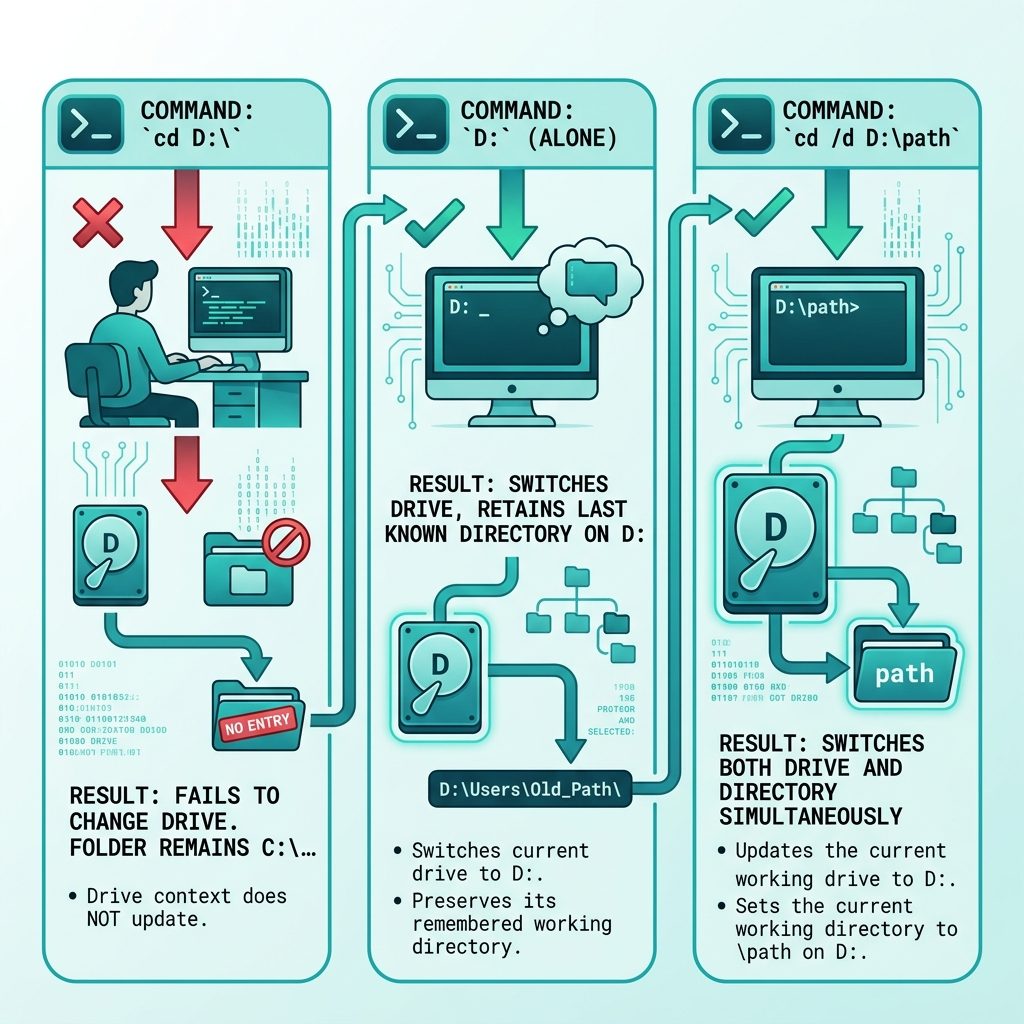
cd to different drive Windows — D: switches drive, cd /d switches both drive and directory

Switch drive AND directory in one shot

cd /d D:\projects\site

The /d flag is the only way to change both in a single cd call. Without it, cmd silently does nothing visible — exactly the behavior that trips everyone up the first time.

PowerShell users — ignore all of this

PS C:\Users\you> cd D:\projects\site
PS D:\projects\site>

PowerShell’s cd (alias for Set-Location) handles cross-drive changes natively. The /d dance only applies to classic cmd.

Frequently asked questions

Why doesn’t cd D:\ work in Windows?

Because plain cd in cmd only changes the directory on the current drive. Typing cd D:\ while sitting on C: changes what cmd remembers as D:’s current directory, but the prompt stays on C:. To actually switch drives, you either type the drive letter alone (D:) or use cd /d D:\path.

What does the /d flag do?

It tells cd to change both the drive and the directory in one command. cd /d D:\projects\site drops you straight into that path on D: regardless of which drive you started on. Without /d, cmd only changes the directory and prints nothing — a silent no-op that confuses everyone the first time.

Does PowerShell behave differently?

Yes — PowerShell’s Set-Location (alias cd) handles cross-drive changes natively: cd D:\projects works without any extra flag. The /d trick is a cmd-specific workaround. If you’re using PowerShell, just cd normally.

Can I jump to a drive that doesn’t exist or has no media?

No — cd /d X:\ with no drive X mounted returns The system cannot find the path specified. Useful as a quick check that a USB stick or network drive is actually mapped before scripts assume it’s there.

What about navigating UNC paths (network shares)?

cd by itself can’t make UNC paths (\\server\share) the current directory in cmd — that’s a long-standing cmd limitation. Workarounds: map the share to a drive letter first (net use Z: \\server\share) then cd /d Z:\, or use PowerShell where Set-Location \\server\share just works.

Related guides

  • How to Access MySQL from Command Line in XAMPP on Windows
  • Auto-start Apache and MySQL with XAMPP on Windows

References

Microsoft Learn — cd command: learn.microsoft.com/en-us/windows-server/administration/windows-commands/cd.

TAGGED:configurationwindows

Sign Up For Daily Newsletter

Be keep up! Get the latest breaking news delivered straight to your inbox.
[mc4wp_form]
By signing up, you agree to our Terms of Use and acknowledge the data practices in our Privacy Policy. You may unsubscribe at any time.
Share This Article
Facebook Copy Link Print
Previous Article Break out of a jQuery .each() loop with return false How to Break Out of a jQuery .each() Loop
Next Article CSS checkbox background color — accent-color one-liner and hide-and-replace fallback How to Change a Checkbox Background Color with CSS
Leave a Comment

Leave a Reply Cancel reply

You must be logged in to post a comment.

You Might Also Like

aaPanel domain and Let's Encrypt SSL setup — secure the control panel
Server Management

How to Access aaPanel with a Domain and Let’s Encrypt SSL

8 Min Read
Pure-FTPd add user command line — pure-pw useradd flow on Linux
Server Management

How to Add a User to Pure-FTPd from the Command Line on Linux

8 Min Read
Enable the PHP DOM extension on a Linux server
Server Management

How to Enable the PHP DOM Extension

5 Min Read
Laravel call controller from another controller — app() and constructor injection patterns
Web Development

How to Call a Controller Method from Another Controller in Laravel

8 Min Read
How7oHow7o

Free browser-based tools, prank screens, and step-by-step tech tutorials. No signup, nothing uploaded.

  • Private by design — your files never leave your device
  • Instant — no signup, no install, no waiting
  • Always free — no trials, no watermarks, no paywalls

Tools

  • PDF Editor
  • Image Upscaler
  • JPEG Compressor
  • Password Generator
  • QR Code Generator
  • Video Trimmer
  • See all tools →

Pranks

  • Cracked Screen Prank
  • Fake Blue Screen (BSOD)
  • Fake Disk Format
  • Fake Low Battery
  • Fake Nintendo Switch Update Screen
  • Fake PlayStation Update Screen
  • See all prank screens →

Company

  • About Us
  • Blog
  • Contact
  • Privacy Policy
  • Terms of Service
  • Sitemap
© 2024–2026 How7o. All rights reserved.
Welcome Back!

Sign in to your account

Username or Email Address
Password

Lost your password?