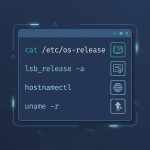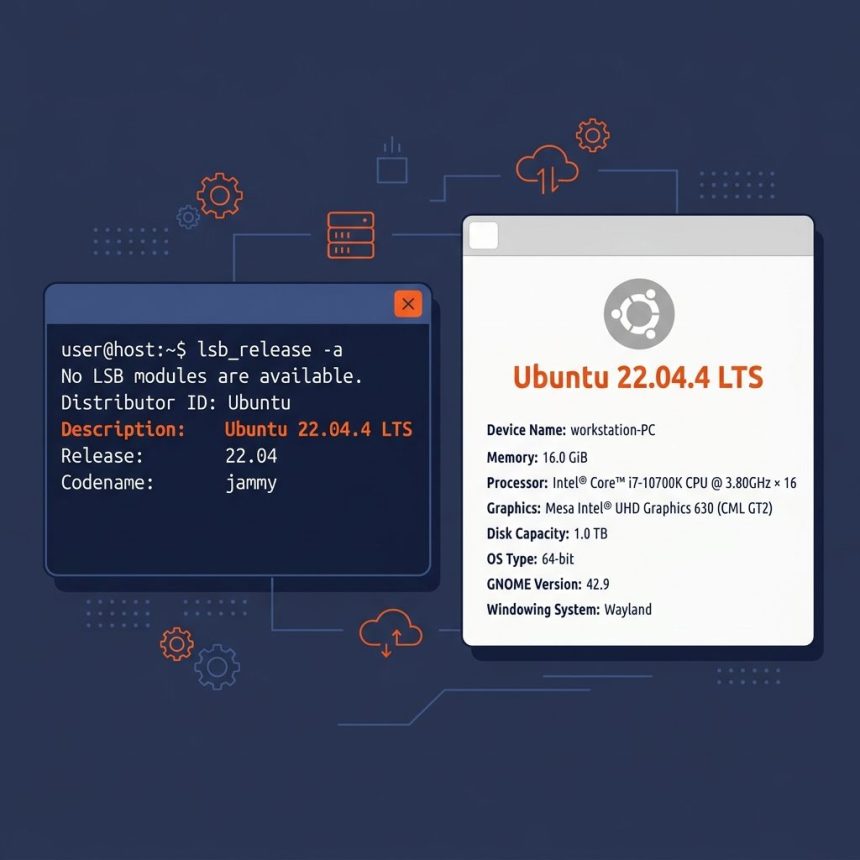
To check your Ubuntu version, the cleanest command is lsb_release -a. It prints the release number, codename, and description in four lines. For scriptable output use cat /etc/os-release, and for a one-line answer use lsb_release -d.
Last verified: 2026-05-17 on Ubuntu 22.04 and 24.04. Originally published 2023-03-01, rewritten and updated 2026-05-17.
TL;DR
# Clean human-readable output
lsb_release -a

# Just one line (description)
lsb_release -d

# Scriptable — VERSION_ID is the cleanest single value
cat /etc/os-release | grep '^VERSION_ID='

# Old-school but works
cat /etc/issue

# Systemd summary (also includes kernel)
hostnamectl
lsb_release -a — the clean answer
lsb_release -aSample output:
Distributor ID: Ubuntu
Description:    Ubuntu 22.04.4 LTS
Release:        22.04
Codename:       jammy
For a single line, ask for just the description:
lsb_release -d
# Description:    Ubuntu 22.04.4 LTS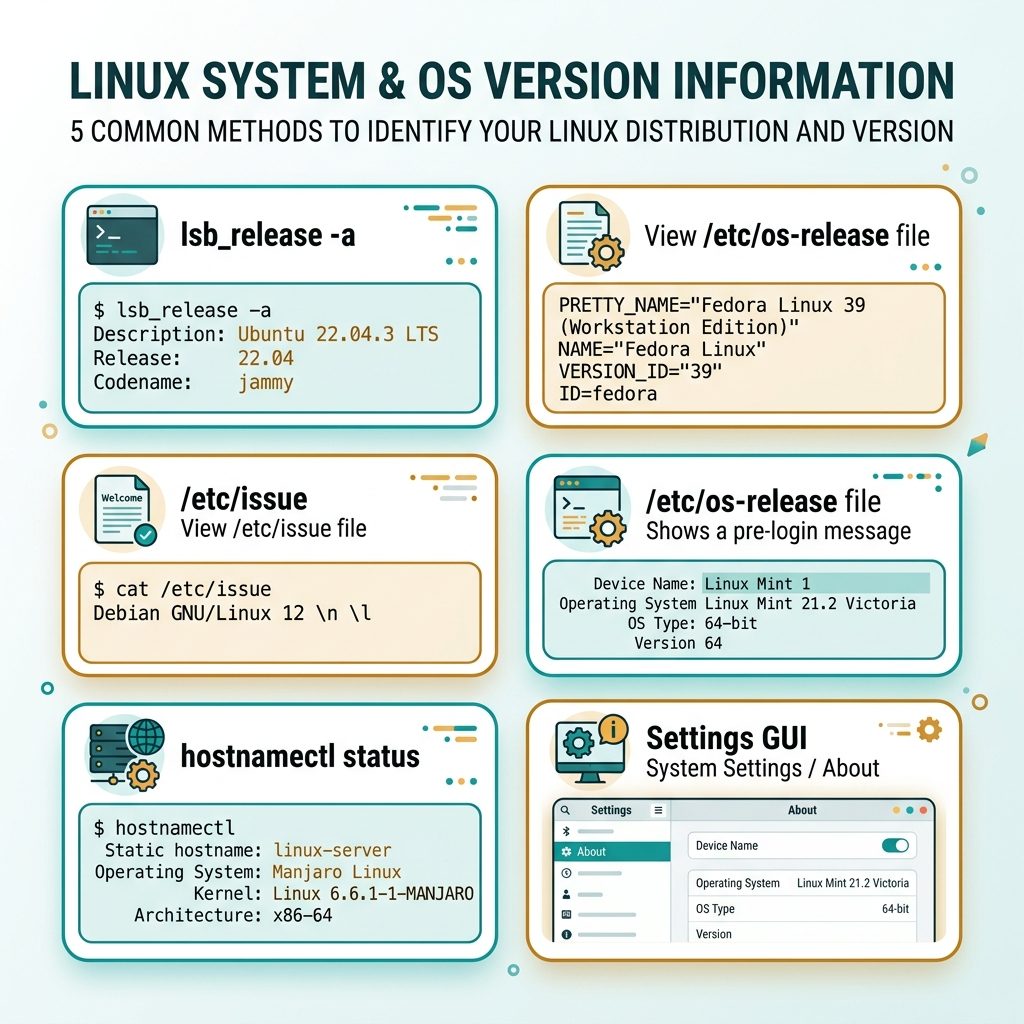
/etc/os-release — for scripts
source /etc/os-release
echo "Running Ubuntu $VERSION_ID ($VERSION_CODENAME)"
# Running Ubuntu 22.04 (jammy)
This is the safest choice inside a Bash script — /etc/os-release is guaranteed to exist on every modern Ubuntu (and every other systemd Linux), so no install step.
Old-school: /etc/issue
cat /etc/issue
# Ubuntu 22.04.4 LTS \n \l
Works without any tools installed but the format isn’t structured — \n and \l are getty placeholders, not literal newlines. Prefer /etc/os-release for anything programmatic.
GUI — Settings → About
On Ubuntu Desktop: click the system menu (top-right) → Settings → scroll to About. The OS Name and OS Version lines display the same info as lsb_release -a. For Server installs (no GUI), stick with the CLI commands above.
Frequently asked questions
The release number is YY.MM — year and month of the release (22.04 = April 2022). The codename is an alphabetical adjective + animal pair (22.04 = Jammy Jellyfish, 24.04 = Noble Numbat). They refer to the same release; some scripts use the codename (apt sources, especially), some use the number.
Look at the release year — Ubuntu LTS releases land on even years (20.04, 22.04, 24.04). Non-LTS interim releases land on odd years and at .10 (e.g. 23.04, 23.10). The PRETTY_NAME in /etc/os-release includes the LTS tag explicitly when applicable.
Yes — every command in this guide is text-only. The GUI Settings → About page is just one more way for desktop users; the CLI commands work identically on Server and Desktop variants.
cat /etc/issue sometimes show the wrong version after an upgrade? It usually doesn’t, but a few releases ago there were edge cases where /etc/issue wasn’t refreshed during do-release-upgrade. The reliable source after an upgrade is always cat /etc/os-release or lsb_release -a — both read the canonical metadata.
Related guides
- How to Check the Linux OS Name and Version from the Command Line
- How to Update Ubuntu to the Latest Kernel
- How to List Network Devices on Linux
References
Ubuntu release notes: wiki.ubuntu.com/Releases. systemd os-release: freedesktop.org/software/systemd/man/latest/os-release.html.