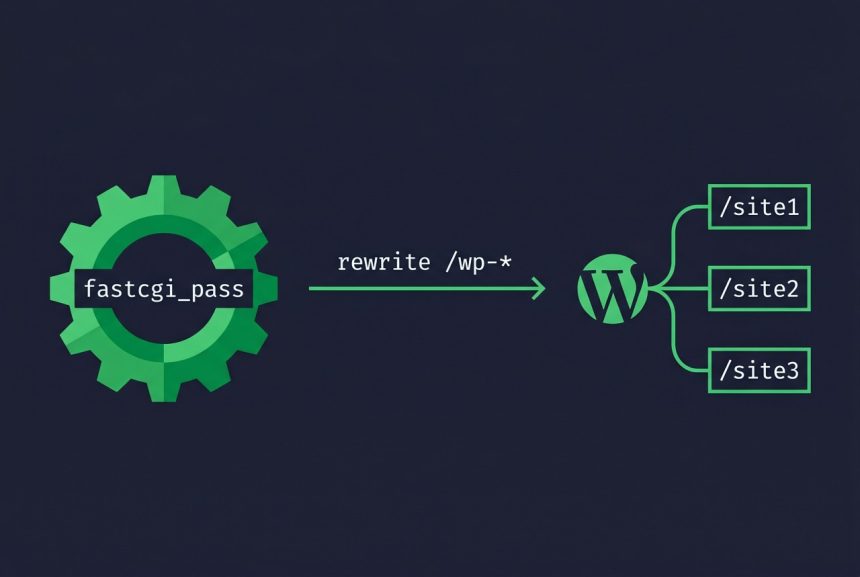
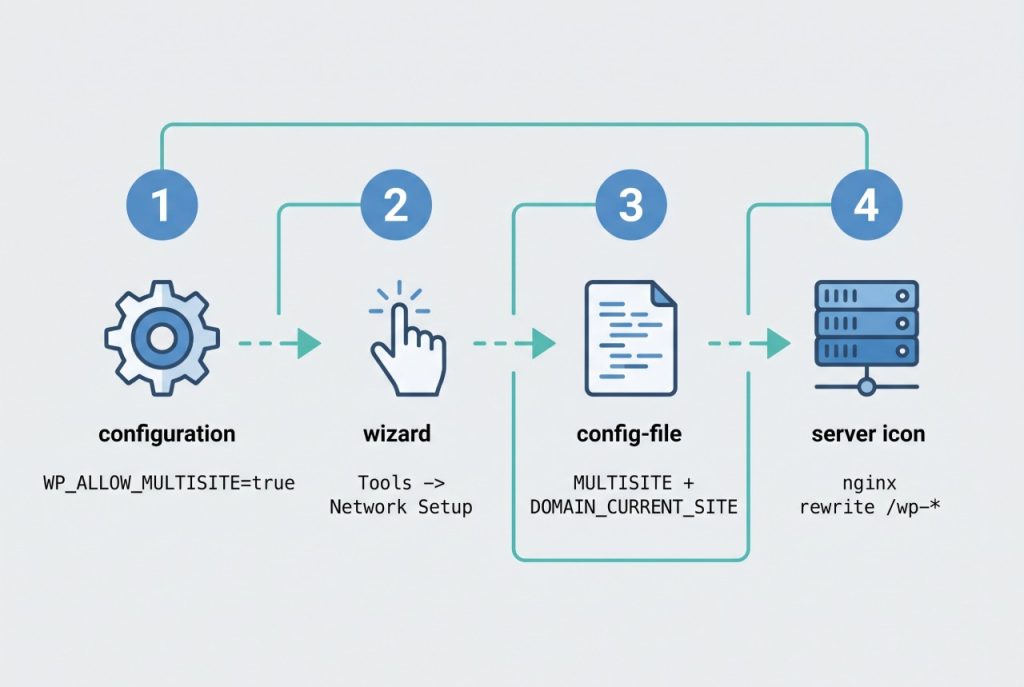
To configure WordPress multisite with subdirectories on Nginx you need three changes in the right order: enable the multisite flag in wp-config.php, run WordPress’s Network Setup wizard, and add the subdirectory-aware rewrite rules to your Nginx server block. Skip the rewrite rules and every subsite 404s the moment you visit example.com/site1/wp-admin; skip the WP_ALLOW_MULTISITE constant and the Network Setup menu item never appears. This guide walks through all three with the exact directives, explains why each line is there, and covers the gotchas (wp-admin redirects, my-db-admin exclusions, SSL) that the terse official snippets leave out.
- TL;DR
- Prerequisites
- Step 1 — Enable the multisite flag
- Step 2 — Run Network Setup and pick sub-directories
- Step 3 — Back up the current Nginx server block
- Step 4 — Add the multisite rewrite rules
- Step 5 — Test and reload
- Step 6 — Create and verify a subsite
- Troubleshooting
- 404 on /subsite1/ but the main site works
- wp-admin loads without CSS/JS
- “Sub-directories” option greyed out in Network Setup
- 502 Bad Gateway after reloading Nginx
- Uploads on subsite land in the wrong folder
- Frequently asked questions
- Related guides
- References
Last verified: 2026-04-16 on Ubuntu 22.04 with WordPress 6.5 and Nginx 1.18. Originally published 2023-04-19, rewritten and updated 2026-04-16.
TL;DR
Add define('WP_ALLOW_MULTISITE', true); to wp-config.php, run Tools → Network Setup and choose Sub-directories, paste the extra MULTISITE / SUBDOMAIN_INSTALL / DOMAIN_CURRENT_SITE constants WordPress gives you back into wp-config.php, then add the Nginx rewrite block (location /, location ~ \.php$, and the if (!-e $request_filename) rewrite trio) to your server block. Reload Nginx. Subsite URLs like example.com/site1 now resolve.
Prerequisites
- A working single-site WordPress install on Nginx. Need to set up PHP first? How to Install PHP on Ubuntu.
- A database you can write to. Fresh server? How to Install MySQL on Ubuntu.
- Root or sudo access to edit
/etc/nginx/sites-available/*and reload Nginx. - The ability to edit
wp-config.phpin the WordPress root (usually/var/www/htmlor/var/www/example.com). - A backup of both the database and the Nginx config. Multisite rewrites the
wp_optionssiteurlon activation and a bad Nginx block can 502 every site on the server — rollback should be a one-liner, not a recovery project.
Step 1 — Enable the multisite flag
Open wp-config.php in the WordPress root and add this line above the /* That's all, stop editing! */ comment:
define('WP_ALLOW_MULTISITE', true);Save, reload any admin page, and a new menu item appears under Tools → Network Setup. This constant only unlocks the setup wizard — it doesn’t turn multisite on yet. You can leave this line in place permanently; it’s a no-op once the network is live.
Step 2 — Run Network Setup and pick sub-directories
Deactivate all plugins before continuing — Network Setup refuses to run while plugins like caching or security suites are active. Go to Tools → Network Setup, choose Sub-directories, confirm the network title and admin email, and click Install.
WordPress then shows you two code blocks to paste: one for wp-config.php and one for .htaccess. On Nginx, ignore the .htaccess block entirely — Nginx doesn’t read it. Copy the wp-config.php block and paste it above /* That's all, stop editing! */:
define( 'MULTISITE', true );
define( 'SUBDOMAIN_INSTALL', false );
define( 'DOMAIN_CURRENT_SITE', 'example.com' );
define( 'PATH_CURRENT_SITE', '/' );
define( 'SITE_ID_CURRENT_SITE', 1 );
define( 'BLOG_ID_CURRENT_SITE', 1 );
Replace example.com with your primary domain. If your WordPress lives in a subdirectory (say /var/www/html/blog/ served at example.com/blog), set PATH_CURRENT_SITE to /blog/ — the trailing slash matters.
Save, then log back in. You’ll land in My Sites → Network Admin, where you can create new subsites under example.com/subsite-slug.
Step 3 — Back up the current Nginx server block
Before editing, snapshot the config so you can roll back instantly if something breaks:
sudo cp /etc/nginx/sites-available/example.com /etc/nginx/sites-available/example.com.bakOn servers managed by aaPanel or CloudPanel the file lives under /www/server/panel/vhost/nginx/ or /etc/nginx/sites-enabled/ respectively — locate it with sudo grep -rl "server_name example.com" /etc/nginx/.
Step 4 — Add the multisite rewrite rules
Inside your existing server { ... } block (the one with your server_name and SSL directives), replace or merge the following rules. If you already have a location / and a location ~ \.php$, update them in place rather than duplicating:
location = /favicon.ico {
    log_not_found off;
    access_log off;
}

location = /robots.txt {
    allow all;
    try_files $uri /index.php?$args;
}

location / {
    try_files $uri $uri/ /index.php?$args;
}

location ~ \.php$ {
    include fastcgi_params;
    fastcgi_intercept_errors on;
    fastcgi_pass unix:/run/php/php8.1-fpm.sock;
    fastcgi_param SCRIPT_FILENAME $document_root$fastcgi_script_name;
}

location ~* \.(js|css|png|jpg|jpeg|gif|ico)$ {
    expires max;
    log_not_found off;
}

if (!-e $request_filename) {
    rewrite /wp-admin$ $scheme://$host$uri/ permanent;
    rewrite ^(?!/my-db-admin)(/[^/]+)?(/wp-.*) $2 last;
    rewrite ^(?!/my-db-admin)(/[^/]+)?(/.*\.php) $2 last;
}
Three things are doing the heavy lifting here:
rewrite /wp-admin$ $scheme://$host$uri/ permanent;— forces the trailing slash on/wp-admin. Without it Nginx returns the wp-admin login as plain HTML with no styling because the browser can’t resolve relative asset URLs.rewrite ^(?!/my-db-admin)(/[^/]+)?(/wp-.*) $2 last;— strips the subsite prefix off any/site1/wp-*path so it maps to the real file at/wp-*. The(?!/my-db-admin)negative lookahead is a carve-out so any directory namedmy-db-adminat the docroot (phpMyAdmin aliases and the like) is served as-is, not rewritten. Remove the lookahead if you don’t have one; don’t blanket-remove it without checking.rewrite ^(?!/my-db-admin)(/[^/]+)?(/.*\.php) $2 last;— same carve-out, but for any other PHP file called under a subsite prefix. Catches things like/site1/xmlrpc.php.
The fastcgi_pass socket path depends on your PHP version — adjust php8.1-fpm.sock to match php -v. On some setups the PHP-FPM pool listens on TCP instead; use fastcgi_pass 127.0.0.1:9000; in that case.
Step 5 — Test and reload
sudo nginx -t
sudo systemctl reload nginx
nginx -t must print syntax is ok and test is successful. Reload only after that — a bad config on reload will refuse to apply and keep the old one, but a typo during sudo nginx -s reload without -t first can leave the server in a half-loaded state on some init systems.
Step 6 — Create and verify a subsite
In Network Admin → Sites → Add New, enter a site address (e.g. subsite1), title, and admin email. Save. Visit https://example.com/subsite1/ — you should see the default theme with a fresh homepage. https://example.com/subsite1/wp-admin/ should load the subsite dashboard.
If either 404s, jump to the troubleshooting section below. Don’t keep adding subsites until one round-trips cleanly.
Troubleshooting
404 on /subsite1/ but the main site works
The rewrite block didn’t make it into the active config. Confirm with sudo nginx -T | grep -A2 'if (!-e' — if you see no output, the block isn’t loaded. Check that you edited the enabled server block (the one symlinked from sites-enabled/), not an unused sites-available/ file.
wp-admin loads without CSS/JS
Usually a trailing-slash issue: you accessed /wp-admin without the slash and the permanent rewrite didn’t fire. Confirm the first rewrite line (rewrite /wp-admin$ ...) is inside the if (!-e ...) block, reload, and hit /wp-admin/ directly with the slash.
“Sub-directories” option greyed out in Network Setup
WordPress disables subdirectories if the install has been live for less than a month — it’s a safeguard against post-slug collisions. Wait it out, or start fresh on a new install. Subdomains stay available the whole time.
502 Bad Gateway after reloading Nginx
The fastcgi_pass socket path doesn’t match the live PHP-FPM pool. Find the real socket with sudo ls /run/php/*.sock and update the directive to match. If the pool listens on TCP (check /etc/php/*/fpm/pool.d/www.conf for the listen value), use 127.0.0.1:9000 form instead.
Uploads on subsite land in the wrong folder
Each subsite stores media under wp-content/uploads/sites/{blog_id}/. If uploads 500, the web-server user can’t write that path. sudo chown -R www-data:www-data wp-content/uploads fixes it on Ubuntu/Debian; adjust the user on RHEL-family (nginx) or custom setups.
Frequently asked questions
Yes — WordPress locks the choice when you run the Network Setup step. Subdirectories (example.com/site1) are the default and the easiest on a single domain with an existing SSL cert. Subdomains (site1.example.com) need a wildcard DNS record and a wildcard TLS certificate. Changing later means re-running network setup and rewriting URLs in the database, so decide up front.
Nginx doesn’t rewrite multisite requests the way Apache’s .htaccess does. Without the rewrite rules shown in Step 4, /site1/wp-admin/ and /site1/wp-login.php hit the filesystem, which has no such directory, and Nginx returns 404. The rewrite ^(/[^/]+)?(/wp-.*) $2 last; line is what strips the subsite prefix off admin and login requests.
Yes, but only with subdirectories. WordPress blocks the subdomain choice on sites younger than one month to prevent permalink collisions with existing posts. If you need subdomains sooner, set define('ALLOW_SUBDIRECTORY_INSTALL', true); and define('SUNRISE', 'on'); is not the fix — just wait 30 days or start fresh.
No. All subsites share the same WordPress codebase, the same wp-config.php, and the same PHP-FPM pool. Per-subsite isolation (users, content, plugins-when-network-activated-selectively) happens inside WordPress, not at the PHP or Nginx layer.
Run sudo nginx -t — it parses the full config and reports syntax errors with line numbers but doesn’t apply anything. Only when it prints syntax is ok and test is successful should you run sudo systemctl reload nginx. A broken config on reload can take every site on the server down.
The web-server user (www-data on Ubuntu/Debian, nginx on RHEL-family) needs write access to wp-content/uploads so each subsite’s media folder can be created on first upload. sudo chown -R www-data:www-data wp-content followed by sudo find wp-content -type d -exec chmod 755 {} \; and -type f -exec chmod 644 {} \; is the standard layout.
Related guides
- How to Install PHP on Ubuntu — the PHP-FPM pool the
fastcgi_passdirective points to. - How to Install MySQL on Ubuntu — the database multisite writes subsite metadata to.
- How to Install Laravel on Ubuntu — another Nginx + PHP-FPM stack, useful if you’re standing up both on the same server.
References
Official WordPress multisite guide: wordpress.org/documentation/article/create-a-network. Nginx recipe for WordPress: wordpress.org/documentation/article/nginx.