

I still remember my early Linux days—every simple task felt risky, especially deleting things. On Windows you have the Recycle Bin. On Linux, when you delete from the terminal… it’s usually gone. That “no undo button” feeling is exactly why people say Linux is hard.
- Important warning before you delete anything
- How to remove files in Linux
- 1) Remove a single file using unlink
- 2) Remove a single file using rm
- 3) Remove multiple files at once
- 4) Remove files by extension (wildcard *)
- 5) Force delete a file (rm -f)
- How to remove folders (directories) in Linux
- 1) Remove an empty directory (rmdir)
- 2) Remove an empty directory using rm -d
- 3) Remove a directory with files inside (rm -r)
- 4) Remove a directory and contents without prompts (rm -rf)
- 5) Remove multiple directories at once
- My “safe delete” habits (highly recommended)
- Conclusion
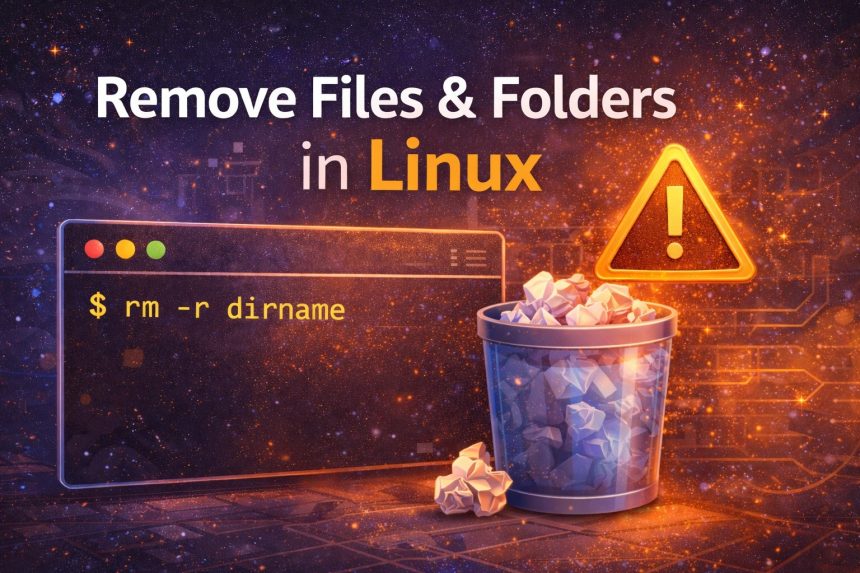
But honestly, Linux isn’t hard—most of us just don’t use it daily. Once you understand a few commands, it becomes predictable. In this guide, I’ll show you how to remove files and folders in Linux using command line the safe way. We’ll cover rm, unlink, and rmdir, with practical examples you can copy and use.
Important warning before you delete anything
When you delete files from the Linux terminal, there’s usually no trash/recycle bin. If you remove the wrong file, recovery is painful (and sometimes impossible). So I follow these two habits:
- Always run
ls(orls -la) before deleting, to confirm filenames. - If I’m deleting many files, I use interactive mode first (
rm -i) to avoid mistakes.
How to remove files in Linux
To delete a file, Linux gives you two common commands:
unlink(removes a single file)rm(removes one or many files, and can remove folders too)
1) Remove a single file using unlink
unlink is simple and strict—it deletes only one file at a time:
unlink filenameIf you need to remove multiple files, use rm instead.
2) Remove a single file using rm
rm filenameIf the file is write-protected, Linux may ask for confirmation:
rm: remove write-protected regular file 'filename'?Type y and press Enter to confirm.
3) Remove multiple files at once
List file names separated by spaces:
rm file1 file2 file34) Remove files by extension (wildcard *)
If you want to remove all files of the same type (example: all .mp4 files):
rm *.mp4
Safety tip: Before running a wildcard delete, preview what will match using: ls *.mp4
5) Force delete a file (rm -f)
If you want to delete without confirmation prompts, use -f (force):
rm -f filenameBe careful: -f is powerful and can hide mistakes, so I only use it when I’m 100% sure.
How to remove folders (directories) in Linux
For directories, you usually use:
rmdir(removes only empty folders)rm(can remove empty or non-empty folders, depending on options)
1) Remove an empty directory (rmdir)
rmdir dirnameIf the directory has files inside, rmdir will fail.
2) Remove an empty directory using rm -d
This also works for empty directories:
rm -d dirname3) Remove a directory with files inside (rm -r)
To delete a folder and everything inside it, use -r (recursive):
rm -r dirnameIf there are write-protected files, Linux may ask for confirmation for each file. That can be annoying when deleting big folders.
4) Remove a directory and contents without prompts (rm -rf)
If you want to remove a non-empty folder without being asked anything:
rm -rf dirname
Warning: rm -rf is one of the most dangerous commands on Linux. Double-check the path. A tiny typo can delete the wrong directory.
5) Remove multiple directories at once
You can remove multiple directories by listing them:
rm -r dir1 dir2 dir3Or force + recursive (no prompts):
rm -rf dir1 dir2 dir3My “safe delete” habits (highly recommended)
- Preview wildcards:
ls *.logbeforerm *.log - Use interactive delete when unsure:
rm -i filename - For folders, start with:
rm -ri dirname(recursive + interactive) - Always verify your working directory:
pwd
Conclusion
That’s it. Now you know how to remove files and folders in Linux using command line—using rm, unlink, and rmdir. The commands are simple, but they’re powerful, so always pause for two seconds before you hit Enter. Once you build the habit of checking paths and previewing wildcards, deleting files in Linux becomes easy and safe.