How7o
  • Home
  • Marketing
    MarketingShow More
  • OS
    OSShow More
    How to force quit frozen apps in Ubuntu
    Force Close an App in Ubuntu (xkill, System Monitor, kill -9)
    4 Min Read
  • Features
    FeaturesShow More
  • Guide
    GuideShow More
  • Contact
  • Blog
Reading: Force Close an App in Ubuntu (xkill, System Monitor, kill -9)
Share
Subscribe Now
How7oHow7o
Font ResizerAa
  • Marketing
  • OS
  • Features
  • Guide
  • Complaint
  • Advertise
Search
  • Categories
    • Marketing
    • OS
    • Features
    • Guide
    • Lifestyle
    • Wellness
    • Healthy
    • Nutrition
  • More Foxiz
    • Blog Index
    • Complaint
    • Sitemap
    • Advertise
Follow US
Copyright © 2014-2023 Ruby Theme Ltd. All Rights Reserved.
How7o > Blog > OS > Force Close an App in Ubuntu (xkill, System Monitor, kill -9)
OS

Force Close an App in Ubuntu (xkill, System Monitor, kill -9)

how7o
By how7o
Last updated: January 12, 2026
4 Min Read
How to force quit frozen apps in Ubuntu
SHARE

I had this happen on Ubuntu more times than I’d like to admit: an app freezes, the window won’t close, and even clicking “Close” does absolutely nothing. On Windows, I’d smash Ctrl + Alt + Del and end the task—so I went looking for the Ubuntu version of that.

Contents
  • Method 1 (fastest): Force close the frozen window using xkill
    • If xkill doesn’t work (Wayland note)
  • Method 2 (Task Manager style): Use System Monitor to end/kill the process
  • Method 3 (most reliable): Force close an app from the terminal
    • Option A: Kill by app name (pkill)
    • Option B: Find the PID and kill it
  • Which method should you use?
  • Helpful links (internal + outbound)
  • Final thoughts

The good news: Ubuntu has a few easy ways to force close an app in Ubuntu. The fastest (when it works) is xkill. If you want something more “Task Manager-like”, System Monitor is perfect. And if you’re on a server or prefer the terminal, pkill / kill gets the job done every time.
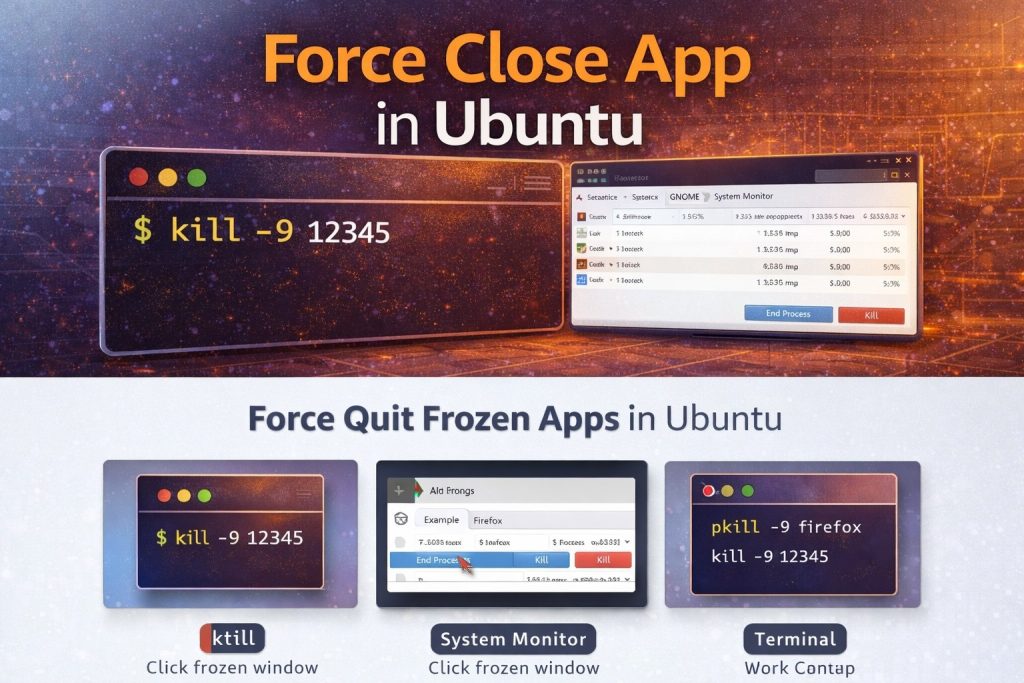
Force close app in Ubuntu using xkill and kill commands

Method 1 (fastest): Force close the frozen window using xkill

This is the closest thing to “click and kill” for a stuck GUI window.

  • Press Alt + F2 (opens the Run dialog on many Ubuntu desktop setups).
  • Type xkill and press Enter.
  • Your cursor turns into a cross / X.
  • Click the frozen app window to force close it.

Cancel tip: If you change your mind, press Esc or right-click to cancel.

If xkill doesn’t work (Wayland note)

On some Ubuntu installs (especially Wayland sessions), xkill may not show the X cursor or it might only work for some apps (usually XWayland apps). If that happens, skip to System Monitor or use the terminal method below.

Method 2 (Task Manager style): Use System Monitor to end/kill the process

If you want the most familiar approach (Windows Task Manager style), this is it.

  • Open System Monitor (search it from Activities / Applications menu).
  • Go to the Processes tab.
  • Find the app (or process) that’s stuck.
  • Click End Process.
  • If it still refuses to close, right-click it and choose Kill.

I like this method because it’s visual and safe—you can double-check you’re killing the right thing.

Method 3 (most reliable): Force close an app from the terminal

If the UI is lagging or you’re working over SSH, terminal commands are the quickest and most reliable way.

Option A: Kill by app name (pkill)

If you know the app/process name, pkill is easy:

pkill firefox

If it won’t close, go stronger:

pkill -9 firefox

Note: -9 is the “hard stop” option. It ends the process immediately, so unsaved work is usually gone.

Option B: Find the PID and kill it

If you’re not sure what the exact process name is, find it first.

ps aux | grep firefox

Or use an interactive view:

top

Once you have the PID (example: 12345):

kill 12345

If it still won’t die:

kill -9 12345

Which method should you use?

  • Quick GUI kill: use xkill
  • Safer GUI method: System Monitor (End Process / Kill)
  • Works everywhere: terminal pkill or kill -9

Helpful links (internal + outbound)

  • GNOME: Kill (close) a program immediately
  • Ubuntu manpage: xkill
  • How to change the welcome message on Ubuntu VPS
  • Set automatic logout timeout in Ubuntu terminal

Final thoughts

Now when an app hangs on Ubuntu, I don’t waste time fighting the frozen window. I try xkill first, and if that’s not available (or I’m on a setup where it doesn’t behave properly), I jump straight to System Monitor or the terminal. Once you use these a few times, it feels just as quick as Task Manager on Windows.


TAGGED:force quitfrozen appkillLinuxpkillSystem MonitorterminalUbuntuxkill

Sign Up For Daily Newsletter

Be keep up! Get the latest breaking news delivered straight to your inbox.
By signing up, you agree to our Terms of Use and acknowledge the data practices in our Privacy Policy. You may unsubscribe at any time.
Share This Article
Facebook Copy Link Print
Previous Article Debug PHP like console.log using error_log and server logs How to Debug in PHP Like console.log (echo, error_log, WordPress debug.log)
Next Article Send a simple email in Laravel using Mail::raw and SMTP How to Send a Simple Email in Laravel (Fast SMTP + Mail::raw)
Leave a Comment

Leave a Reply Cancel reply

You must be logged in to post a comment.

FacebookLike
XFollow
PinterestPin
InstagramFollow

Subscribe Now

Subscribe to our newsletter to get our newest articles instantly!
Most Popular
Find prime numbers in JavaScript thumbnail
How to Find Prime Numbers in JavaScript (1 to 100) — Fast & Simple Methods
February 6, 2026
Dynamically set site title and tagline in WordPress by country
How to Dynamically Set Site Title and Tagline in WordPress (By Country)
February 6, 2026
Capitalize all words in JavaScript with a ucwords-style function
Capitalize All Words in JavaScript (ucwords Equivalent) + First Letter Uppercase
February 6, 2026
CSS page break for printing shown in a print preview layout
CSS Page Break for Printing: How to Split a Web Page Into Multiple Printed Pages
February 6, 2026
get .env variable in Laravel using env and config
How to Get .env Variables in Laravel (Controller + Blade) Safely
February 6, 2026

You Might Also Like

Remove Files & Folders in Linux
Server Management

How to Remove Files and Folders in Linux Using Command Line (rm, rmdir, unlink)

5 Min Read
Update Ubuntu to the latest kernel version
Server Management

Update Ubuntu to the Latest Kernel Version (Safe Server Steps)

5 Min Read
Change welcome message on Ubuntu VPS server (MOTD + SSH banner)
Server Management

Change Welcome Message on Ubuntu VPS (MOTD + SSH Banner)

6 Min Read
Check if GD library is installed in PHP (phpinfo and extension_loaded)
Web Development

How to Check if GD Library Is Installed in PHP (3 Easy Methods)

5 Min Read

Always Stay Up to Date

Subscribe to our newsletter to get our newest articles instantly!
How7o

We provide tips, tricks, and advice for improving websites and doing better search.

Latest News

  • SEO Audit Tool
  • Client ReferralsNew
  • Execution of SEO
  • Reporting Tool

Resouce

  • Google Search Console
  • Google Keyword Planner
  • Google OptimiseHot
  • SEO Spider

Get the Top 10 in Search!

Looking for a trustworthy service to optimize the company website?
Request a Quote
Welcome Back!

Sign in to your account

Username or Email Address
Password

Lost your password?