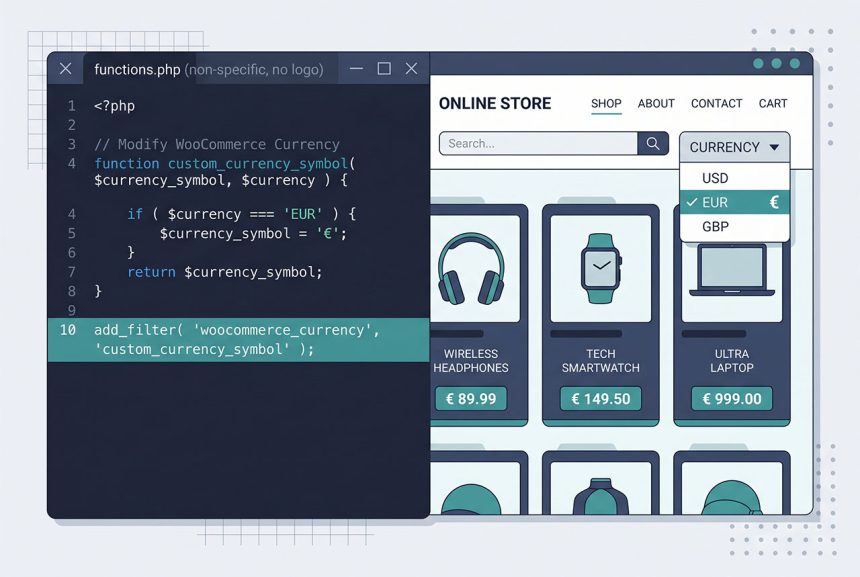
A woocommerce currency switcher is three pieces: a form or query parameter that lets the visitor pick a currency, a cookie that remembers the choice across requests, and a filter on woocommerce_currency that changes which currency WooCommerce reports everywhere. The filter handles the display side (symbol, code, formatting); it doesn’t convert prices — for that you need a multi-currency pricing layer.
Last verified: 2026-04-23 on WooCommerce 9.x with WordPress 6.5. Originally published 2023-02-10, rewritten and updated 2026-04-23.
TL;DR
// functions.php
$allowed = array( 'USD', 'EUR', 'GBP' );

// Resolve requested or stored currency
global $how7o_dynamic_currency;
if ( isset( $_GET['currency'] ) && in_array( $_GET['currency'], $allowed, true ) ) {
    $how7o_dynamic_currency = $_GET['currency'];
    setcookie( 'currency', $how7o_dynamic_currency, time() + ( 30 * DAY_IN_SECONDS ), '/' );
} elseif ( isset( $_COOKIE['currency'] ) && in_array( $_COOKIE['currency'], $allowed, true ) ) {
    $how7o_dynamic_currency = $_COOKIE['currency'];
} else {
    $how7o_dynamic_currency = 'USD';
}

// Apply it
add_filter( 'woocommerce_currency', function ( $currency ) {
    global $how7o_dynamic_currency;
    return $how7o_dynamic_currency ?: $currency;
} );
The HTML switcher
<form method="get">
    <label for="currency">Currency:</label>
    <select id="currency" name="currency">
        <option value="USD">USD</option>
        <option value="EUR">EUR</option>
        <option value="GBP">GBP</option>
    </select>
    <button type="submit">Switch</button>
</form>
A plain GET form — submits to the same URL with ?currency=XXX. The PHP snippet picks up the parameter on the next request.
Allow-list validation
$allowed = array( 'USD', 'EUR', 'GBP' );

if ( isset( $_GET['currency'] ) && in_array( $_GET['currency'], $allowed, true ) ) {
    // safe — $_GET['currency'] is one of the three
}
Never trust $_GET directly. The allow-list makes sure only known currency codes reach the cookie and the filter — preventing tampering that would plant garbage into user sessions or trigger downstream errors when WooCommerce looks up a bogus currency’s symbol.

The cookie
setcookie(
    'currency',
    $chosen,
    time() + ( 30 * DAY_IN_SECONDS ),
    '/',                // path — must be / for site-wide
    '',                 // domain — leave empty for current host
    is_ssl(),           // secure — only over HTTPS
    false               // httponly — keep false if JS reads it
);
WordPress’s DAY_IN_SECONDS constant keeps the math readable. Path '/' is critical — subpath cookies won’t reach /cart/ and /checkout/. is_ssl() flags the cookie as secure when the request came in over HTTPS.
The filter
add_filter( 'woocommerce_currency', function ( $currency ) {
    global $how7o_dynamic_currency;
    return $how7o_dynamic_currency ?: $currency;
} );
woocommerce_currency is the master filter — WooCommerce calls it whenever it needs the current currency code (for prices, cart totals, PayPal requests, etc.). Returning our stored value overrides the admin-configured default for this request only.
The conversion caveat
This filter only changes which currency is displayed. If your base currency is USD and a $10 product is shown with the EUR symbol, it’s shown as €10 — not converted. Three options for real pricing:
- Informational only — the switcher shows the currency label for staff reference, prices stay in base currency (fine for B2B where invoices are always in the base currency).
- Filter prices manually — pair
woocommerce_currencywithwoocommerce_product_get_priceand multiply by an FX rate from a config table. Doable for 3–5 currencies; brittle as the list grows. - Use a multi-currency plugin — WooCommerce Multi-Currency, WPML WCML, WooCommerce Payments built-in multi-currency. Handles per-currency pricing, rate updates, tax calculations. Right answer for production.
Frequently asked questions
Read $_GET['currency'] against an allow-list, store it in a cookie, and filter woocommerce_currency to return the stored value on subsequent requests. ~20 lines in functions.php. Changes which currency symbol and code WooCommerce emits throughout the storefront — but note this doesn’t convert the prices themselves; you still need a conversion layer or multi-currency pricing plugin for that.
woocommerce_currency filter convert prices too? No — it only changes which currency is displayed (symbol, code, ISO). Prices stay in the store’s base currency numerically unless something else converts them. For real multi-currency (EUR prices actually charged in EUR), reach for WooCommerce Multi-Currency or similar. The filter is only appropriate when prices happen to match across currencies or when you’re showing informational currency labels.
The currency switch itself isn’t a destructive action, so CSRF isn’t the main concern — but always validate the $_GET value against an allow-list (in_array($_GET['currency'], ['USD', 'EUR', 'GBP'])) so an attacker can’t force an arbitrary string into the cookie. Skipping the allow-list lets someone plant junk values that cause downstream errors.
Yes — Cloudflare sets CF_IPCountry, MaxMind GeoIP2 lookups give you a country code. Map country to currency server-side (default EUR for EU countries, GBP for UK, USD for others) and set the cookie on first visit. This works as a first-visit default but still let users override via the switcher — some UK customers browse with US pricing intentionally.
'/' — the cookie should apply site-wide, so every page honors the switch. Setting it on a sub-path (/shop/) means the cart and checkout (on /cart/ and /checkout/) wouldn’t see the cookie and would show the default currency. Always '/' unless you have a very specific reason.
Related guides
- How to Add a Custom Fee in WooCommerce — another cart-surface customization.
- How to Remove Checkout Fields in WooCommerce — simplifying what the customer sees.
- How to Display Orders Instead of Dashboard on the WooCommerce My Account Page — My Account tweak.
- Fix ERR_TOO_MANY_REDIRECTS in WordPress After Switching to HTTPS — cookie/domain configuration gotchas.
References
WooCommerce woocommerce_currency filter docs: woocommerce.com/document/add-new-currency-to-woocommerce.