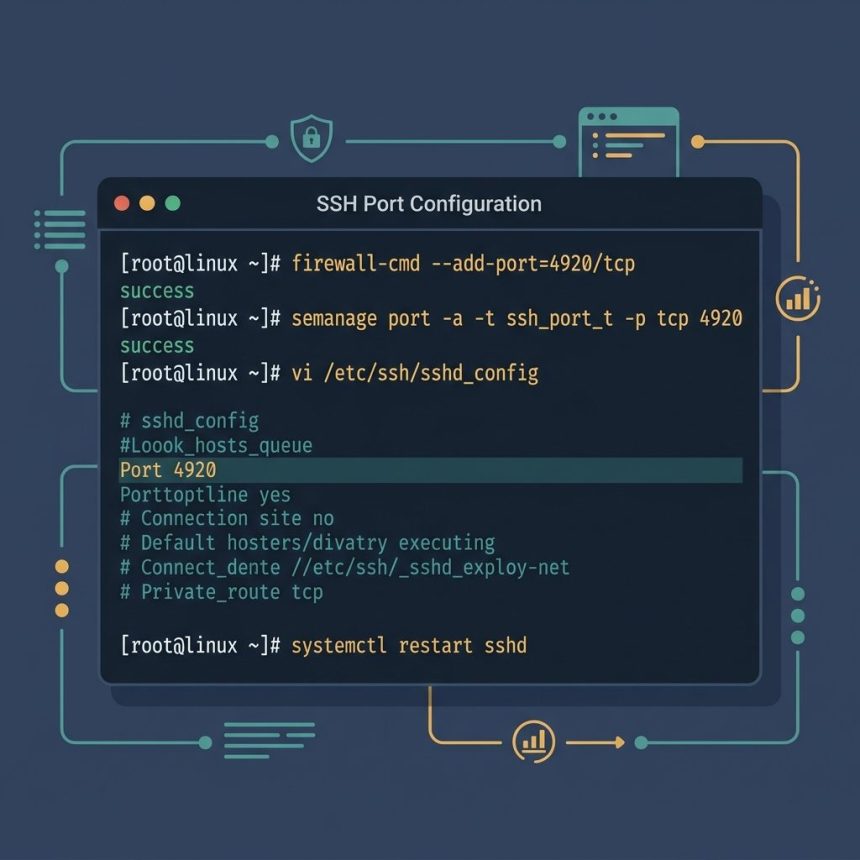
To change the default SSH port on Linux, edit /etc/ssh/sshd_config and set Port <newport>, open the new port in the firewall, register it with SELinux (on RHEL family), and restart sshd. This guide walks through all four steps without locking you out, and explains when each one is actually necessary.
Last verified: 2026-05-17 on AlmaLinux 9, Ubuntu 22.04, and Debian 12. Originally published 2023-03-04, rewritten and updated 2026-05-17.
TL;DR
# 1. Pick an unused port (1024-49151), e.g. 4920
# 2. Open it in the firewall
sudo firewall-cmd --add-port=4920/tcp --permanent && sudo firewall-cmd --reload   # RHEL family
sudo ufw allow 4920/tcp                                                            # Debian/Ubuntu

# 3. RHEL family: register the port with SELinux
sudo semanage port -a -t ssh_port_t -p tcp 4920

# 4. Edit sshd_config
sudo vi /etc/ssh/sshd_config
#  Change:  #Port 22
#  To:      Port 4920

# 5. Restart sshd
sudo systemctl restart sshd

# 6. Test from a NEW terminal (keep the old one open!)
ssh -p 4920 [email protected]
Step 1 — Pick a port and verify it’s free
Pick something between 1024 and 49151 that isn’t already in use. ss -tlnp lists bound TCP ports:
sudo ss -tlnpFor this guide I’ll use 4920; replace with your chosen number throughout.
Step 2 — Open the port in the firewall (first!)
Open the new port before changing sshd_config — that way the firewall is ready when sshd starts listening, and there’s no window where you’d be locked out.
# RHEL / AlmaLinux / Rocky / Fedora
sudo firewall-cmd --add-port=4920/tcp --permanent
sudo firewall-cmd --reload

# Debian / Ubuntu
sudo ufw allow 4920/tcp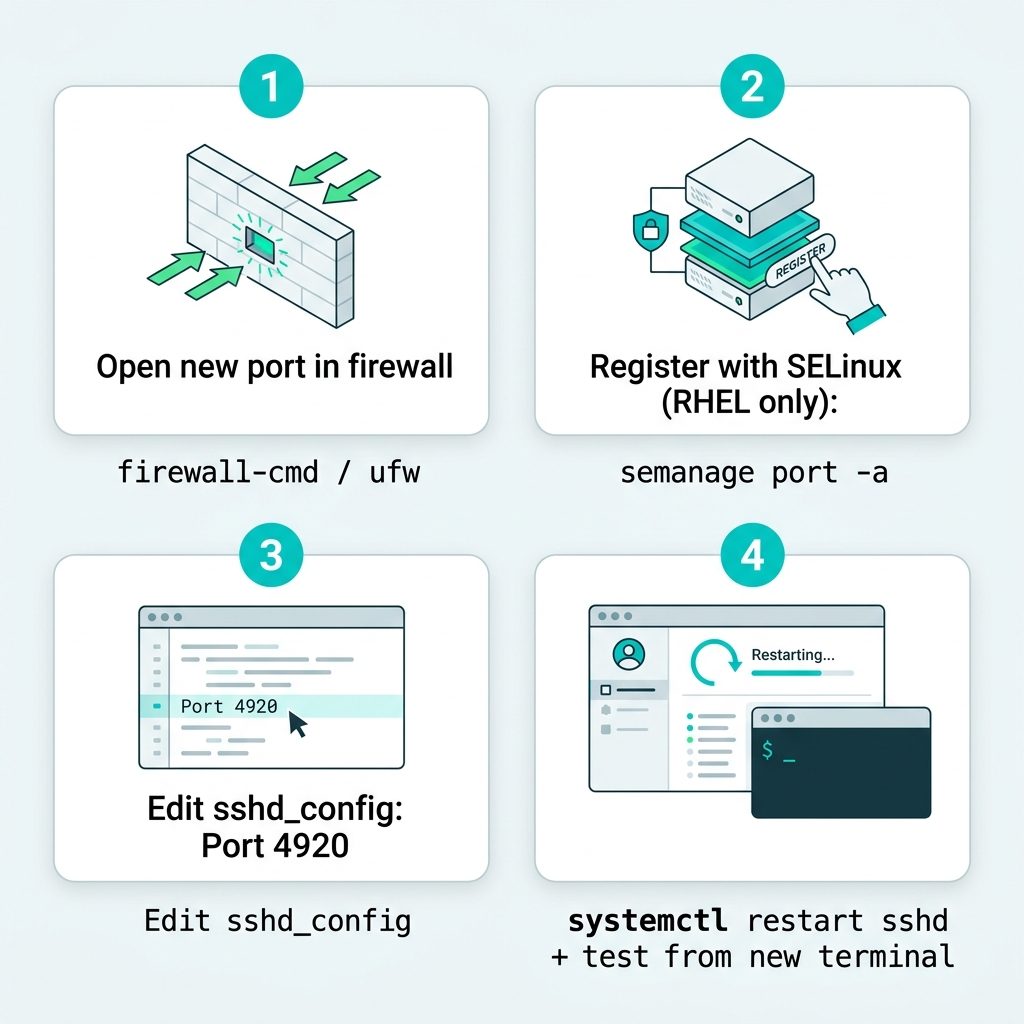
Step 3 — Tell SELinux (RHEL family only)
Check if SELinux is enabled:
sestatusIf it says Current mode: enforcing, you need to register the new port. SELinux labels port 22 as ssh_port_t; other ports need the same label or sshd is blocked:
sudo semanage port -a -t ssh_port_t -p tcp 4920

# Verify it's in the list
sudo semanage port -l | grep ssh
If semanage isn’t installed, get it from policycoreutils-python-utils on AlmaLinux/Rocky/RHEL 8+: sudo dnf install policycoreutils-python-utils. Debian/Ubuntu don’t run SELinux by default — skip this step there.
Step 4 — Edit sshd_config
sudo vi /etc/ssh/sshd_configFind the line:
#Port 22Uncomment it (remove the #) and change the number:
Port 4920Tip — keep both for one cycle: add a second Port 22 line below the new one for a single restart, so sshd listens on both. Verify the new port works, then come back and remove the Port 22 line. This is the safest pattern for production servers where a lockout is unacceptable.
Step 5 — Restart sshd
sudo systemctl restart sshdIf systemctl restart sshd errors with “job failed”, run sshd -t to syntax-check the config. Errors there usually mean a typo in the port line.
Step 6 — Test from a NEW terminal
Keep your existing SSH session open. Open a separate terminal and try the new port:
ssh -p 4920 [email protected]Logged in? Good. Now you can close the old session and remove the old port from the firewall:
# RHEL family
sudo firewall-cmd --remove-service=ssh --permanent
sudo firewall-cmd --reload

# Debian/Ubuntu
sudo ufw delete allow 22/tcp
Frequently asked questions
Marginally. Moving SSH off port 22 stops untargeted scanners and login-brute-force bots that only try the default — your log noise drops dramatically. But a targeted attacker who already knows your IP just runs nmap first and finds the new port in seconds. Real security wins come from disabling password auth (key-only logins), fail2ban, and locking AllowUsers in sshd_config. Port change is a noise-reduction technique, not a security control.
Keep the old session open while you test. After systemctl restart sshd, open a new terminal and run ssh -p <newport> user@host. If it works, you’re fine. If it doesn’t, you still have the original session to revert. Never close the original until you’ve successfully logged in with the new port.
Anything between 1024 and 49151 that isn’t already in use. Above 49151 is the ephemeral / dynamic port range — outgoing connections may try to use it, which can cause conflicts. ss -tlnp lists currently bound ports on the server. Some sysadmins pick a memorable number (like 22022 or 2222); the only requirement is that it’s not already taken and not a well-known service.
Yes — if a firewall is enabled, the new port needs to be allowed before you’ll be able to connect. RHEL family: firewall-cmd --add-port=4920/tcp --permanent && firewall-cmd --reload. Debian/Ubuntu: sudo ufw allow 4920/tcp. Add the new rule before restarting sshd if you can — it avoids the ‘service running but port closed’ window.
semanage? SELinux enforces a policy that labels each port with a type. By default, only port 22 is labeled ssh_port_t — try to start sshd on a different port and SELinux blocks it with a permission denied. semanage port -a -t ssh_port_t -p tcp 4920 adds the new port to the policy. This applies to RHEL/AlmaLinux/Rocky/Fedora; Debian/Ubuntu don’t run SELinux by default, so skip this step there.
Related guides
- How to Add and Delete Users on a Linux Server from the Terminal
- Change the SSH Welcome Message on an Ubuntu VPS
- Fix Nginx “recv() failed (104: Connection reset by peer)” with FastCGI
References
OpenSSH sshd_config reference: man.openbsd.org/sshd_config. RHEL SELinux + sshd customization: access.redhat.com/solutions/15093.
![DataTables default sort order — order: [[1, 'desc']] config](https://www.how7o.com/wp-content/uploads/2026/05/datatables-default-sort-order-featured-150x150.jpg)