How7oHow7o
  • Home
  • Tools
    • All Tools
    • Image Tools
    • Text & String Tools
    • Video Tools
    • Developer Tools
    • PDF Tools
    • Calculators & More
  • Prank Screens
  • Learn
  • Blog
  • Contact
Reading: How to Check Your Ubuntu Version
Share
Notification Show More
Font ResizerAa
How7oHow7o
Font ResizerAa
  • Tools
  • Prank Screens
  • Learn
  • Blog
Search
  • Home
  • Tools
    • All Tools
    • Image Tools
    • Text & String Tools
    • Video Tools
    • Developer Tools
    • PDF Tools
    • Calculators & More
  • Prank Screens
  • Learn
  • Blog
  • Contact
Follow US
© 2024–2026 How7o. All rights reserved.
How7o > Free Laravel, PHP, WordPress & Server Tutorials > Server Management > How to Check Your Ubuntu Version
Server Management

How to Check Your Ubuntu Version

how7o
By how7o
Last updated: May 22, 2026
4 Min Read
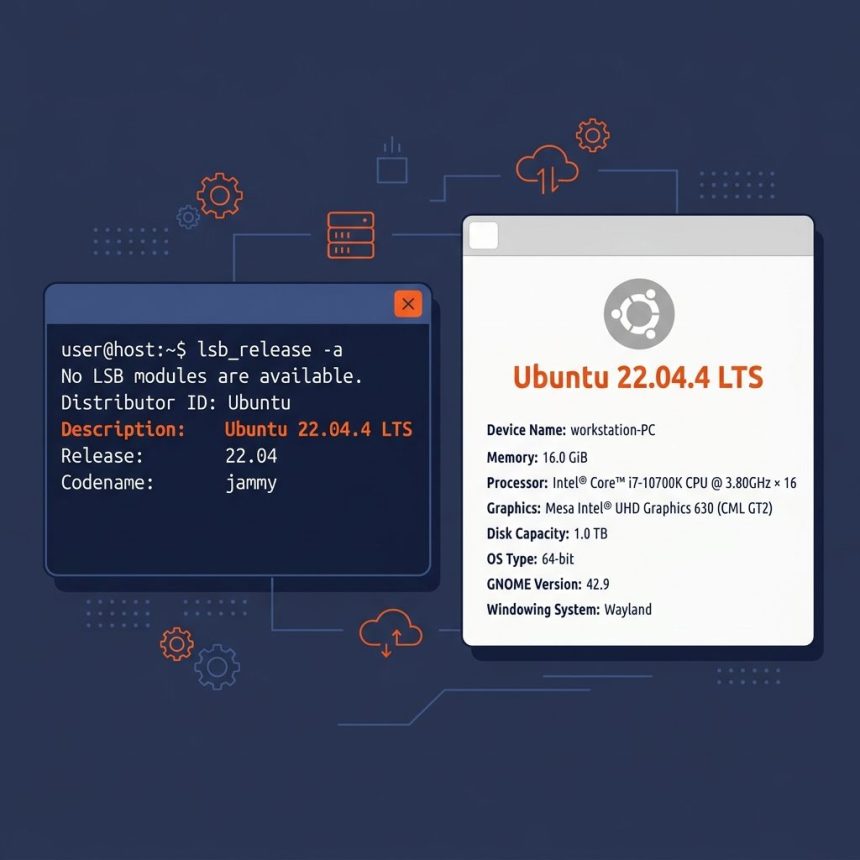
Check Ubuntu version — terminal and Settings
SHARE

To check your Ubuntu version, the cleanest command is lsb_release -a. It prints the release number, codename, and description in four lines. For scriptable output use cat /etc/os-release, and for a one-line answer use lsb_release -d.

Contents
  • TL;DR
  • lsb_release -a — the clean answer
  • /etc/os-release — for scripts
  • Old-school: /etc/issue
  • GUI — Settings → About
  • Frequently asked questions
  • Related guides
  • References

Last verified: 2026-05-17 on Ubuntu 22.04 and 24.04. Originally published 2023-03-01, rewritten and updated 2026-05-17.

TL;DR

# Clean human-readable output
lsb_release -a

# Just one line (description)
lsb_release -d

# Scriptable — VERSION_ID is the cleanest single value
cat /etc/os-release | grep '^VERSION_ID='

# Old-school but works
cat /etc/issue

# Systemd summary (also includes kernel)
hostnamectl

lsb_release -a — the clean answer

lsb_release -a

Sample output:

Distributor ID: Ubuntu
Description:    Ubuntu 22.04.4 LTS
Release:        22.04
Codename:       jammy

For a single line, ask for just the description:

lsb_release -d
# Description:    Ubuntu 22.04.4 LTS
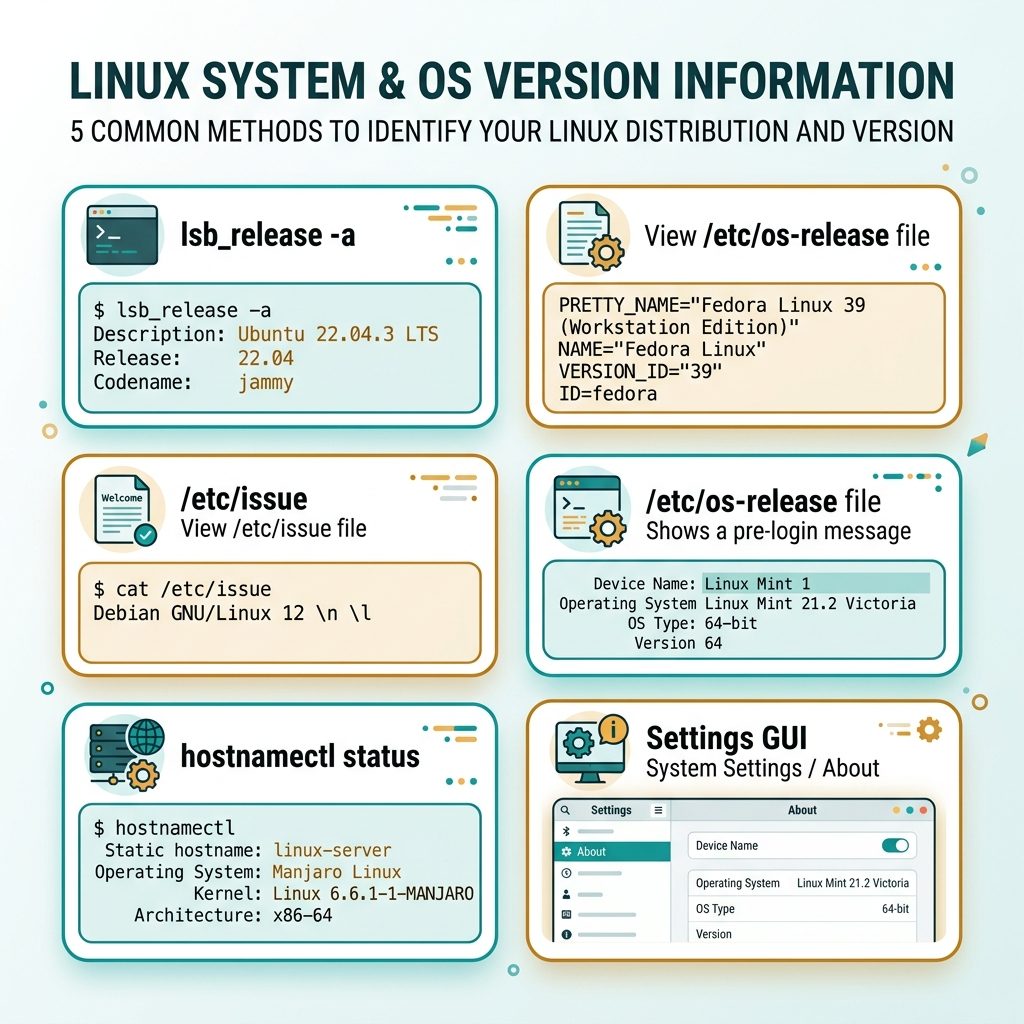
Check Ubuntu version — lsb_release, /etc/os-release, /etc/issue, hostnamectl, Settings GUI

/etc/os-release — for scripts

source /etc/os-release
echo "Running Ubuntu $VERSION_ID ($VERSION_CODENAME)"
# Running Ubuntu 22.04 (jammy)

This is the safest choice inside a Bash script — /etc/os-release is guaranteed to exist on every modern Ubuntu (and every other systemd Linux), so no install step.

Old-school: /etc/issue

cat /etc/issue
# Ubuntu 22.04.4 LTS \n \l

Works without any tools installed but the format isn’t structured — \n and \l are getty placeholders, not literal newlines. Prefer /etc/os-release for anything programmatic.

GUI — Settings → About

On Ubuntu Desktop: click the system menu (top-right) → Settings → scroll to About. The OS Name and OS Version lines display the same info as lsb_release -a. For Server installs (no GUI), stick with the CLI commands above.

Frequently asked questions

What’s the difference between Ubuntu’s release number and codename?

The release number is YY.MM — year and month of the release (22.04 = April 2022). The codename is an alphabetical adjective + animal pair (22.04 = Jammy Jellyfish, 24.04 = Noble Numbat). They refer to the same release; some scripts use the codename (apt sources, especially), some use the number.

How can I tell if I’m on an LTS release?

Look at the release year — Ubuntu LTS releases land on even years (20.04, 22.04, 24.04). Non-LTS interim releases land on odd years and at .10 (e.g. 23.04, 23.10). The PRETTY_NAME in /etc/os-release includes the LTS tag explicitly when applicable.

Does this work on Ubuntu Server (no GUI)?

Yes — every command in this guide is text-only. The GUI Settings → About page is just one more way for desktop users; the CLI commands work identically on Server and Desktop variants.

Why does cat /etc/issue sometimes show the wrong version after an upgrade?

It usually doesn’t, but a few releases ago there were edge cases where /etc/issue wasn’t refreshed during do-release-upgrade. The reliable source after an upgrade is always cat /etc/os-release or lsb_release -a — both read the canonical metadata.

Related guides

  • How to Check the Linux OS Name and Version from the Command Line
  • How to Update Ubuntu to the Latest Kernel
  • How to List Network Devices on Linux

References

Ubuntu release notes: wiki.ubuntu.com/Releases. systemd os-release: freedesktop.org/software/systemd/man/latest/os-release.html.
TAGGED:BashconfigurationUbuntu

Sign Up For Daily Newsletter

Be keep up! Get the latest breaking news delivered straight to your inbox.
[mc4wp_form]
By signing up, you agree to our Terms of Use and acknowledge the data practices in our Privacy Policy. You may unsubscribe at any time.
Share This Article
Facebook Copy Link Print
Previous Article Check Linux OS name and version from the command line How to Check the Linux OS Name and Version from the Command Line
Next Article Comment in a .gitignore file with the # character How to Comment in a .gitignore File
Leave a Comment

Leave a Reply Cancel reply

You must be logged in to post a comment.

You Might Also Like

Fix XAMPP MySQL shutdown unexpectedly error
Server Management

How to Fix “Error: MySQL Shutdown Unexpectedly” in XAMPP

5 Min Read
List network devices on Linux — ip a and nmcli output side by side
Server Management

How to List Network Devices on Linux

5 Min Read
Fix missing PHP Authorization header on Apache and cPanel
Server Management

How to Fix Missing Authorization Header in PHP Requests

5 Min Read
Laravel get config variable — config() helper and Config facade resolving dotted keys
Web Development

How to Get Config Variables in Laravel

7 Min Read
How7oHow7o

Free browser-based tools, prank screens, and step-by-step tech tutorials. No signup, nothing uploaded.

  • Private by design — your files never leave your device
  • Instant — no signup, no install, no waiting
  • Always free — no trials, no watermarks, no paywalls

Tools

  • PDF Editor
  • Image Upscaler
  • JPEG Compressor
  • Password Generator
  • QR Code Generator
  • Video Trimmer
  • See all tools →

Pranks

  • Cracked Screen Prank
  • Fake Blue Screen (BSOD)
  • Fake Disk Format
  • Fake Low Battery
  • Fake Nintendo Switch Update Screen
  • Fake PlayStation Update Screen
  • See all prank screens →

Company

  • About Us
  • Blog
  • Contact
  • Privacy Policy
  • Terms of Service
  • Sitemap
© 2024–2026 How7o. All rights reserved.
Welcome Back!

Sign in to your account

Username or Email Address
Password

Lost your password?