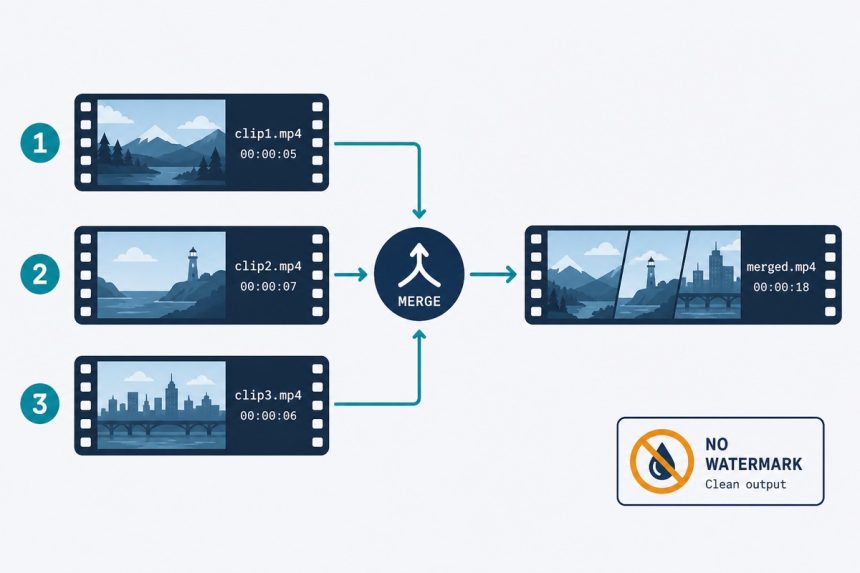
You’ve got four phone clips of the same moment from different angles, or six dashcam segments you want as one file, or a tutorial recorded in chunks that needs stitching. The 2026 way to merge videos online doesn’t involve installing software or uploading to anyone’s server — it runs in your browser. Here’s how.
TL;DR
Open how7o’s video merger, drop your clips on in the order you want them, click Merge, download. No upload, no watermark, no signup. Identical-format clips merge in seconds via stream-copy; mismatched clips auto-re-encode to a common format.
How browser video merging actually works
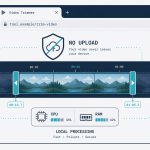
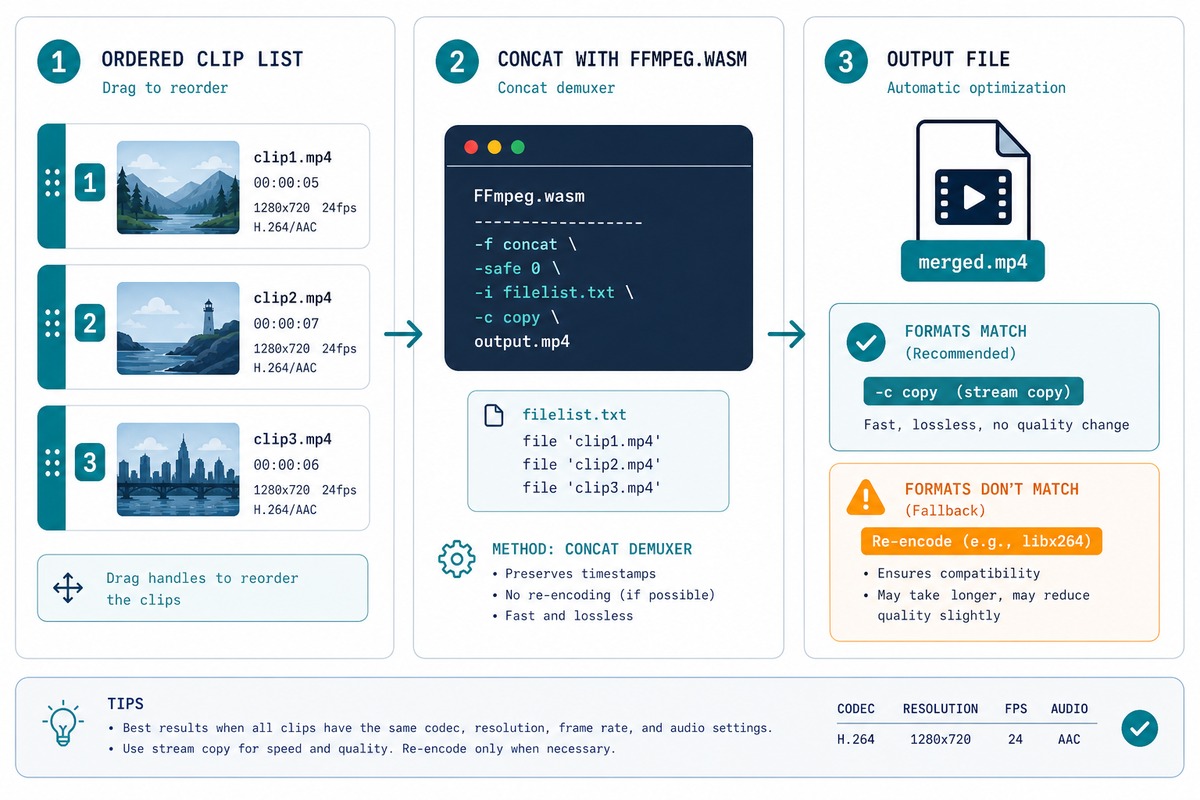
The tool uses FFmpeg.wasm — FFmpeg compiled to WebAssembly. When all your clips share the same codec, resolution, and framerate, FFmpeg’s concat demuxer can splice the byte streams end-to-end without decoding anything. That’s why merging four 200MB clips finishes in about 4 seconds. Mismatched clips force a re-encode to a common format, which is slower but still fully local.
Files stay on your device the entire time. The “online” in “online video merger” here means in-browser, not in-cloud.
Step-by-step
- Open /video-merger.
- Drop your clips onto the page. They appear as a list in load order.
- Drag to reorder. The merged file will follow this exact sequence.
- Click Merge. The tool detects whether stream-copy is possible. If not, it warns you and offers to re-encode.
- Download the merged file. Filename defaults to
merged-{timestamp}.mp4.
When clips don’t match
Two clips can be visually identical (1080p, 30fps, MP4) and still refuse to stream-copy because their internal H.264 profile differs by one byte. The tool flags this and you’ll see one of three suggestions:
- Re-encode — works always, costs you one generation of quality loss and 30–60 seconds of processing per minute of video.
- Normalize first — re-encode each clip to a common format individually, then merge stream-copy. Two-step but lossless on the final merge.
- Use desktop FFmpeg — for very large or unusual files, the native binary handles things browser memory can’t.
Troubleshooting
“The audio in clip 3 disappeared after merging”
Stream-copy requires every clip to have the same audio track count and codec. If one clip has stereo AAC and another has mono Opus, the merged audio sometimes drops on the mismatched section. Re-encode mode normalises all tracks to stereo AAC, which fixes it.
“The order is wrong even though I dragged them”
The tool’s reorder action only takes effect when you release the mouse — drop-target highlighting can be misleading on touch screens. Double-check the list before hitting Merge. On phones, long-press and drag is more reliable than a quick swipe.
“My phone clips won’t merge with my drone clips”
Phone clips are typically 1080p/30fps; drones often shoot 4K/60fps. They can’t stream-copy. Either re-encode the drone clips down to 1080p/30fps first (smaller, faster final merge) or accept the re-encode at output time.
Preparing mismatched clips: normalize before you merge
The fastest merge is always stream-copy, and stream-copy requires every clip to share resolution, framerate, audio sample rate, and codec profile. When clips come from different sources — phone, drone, screen recording, downloaded clip — they almost never match. You have two practical paths.
Path 1: normalize each clip first, then merge stream-copy
Re-encode each clip individually to a common target — 1080p, 30fps, H.264 video, AAC stereo audio at 48kHz is the safe default for almost any destination. The tool’s settings panel exposes all four. Once every clip matches, the final merge is stream-copy and lossless.
Slower end-to-end because you re-encode N times, but each clip is encoded once. For a small number of clips that’ll be archived or republished, this is the cleaner option.
Path 2: skip the prep, let the merge re-encode
Drop everything in, hit Merge, accept the re-encode prompt. The tool transcodes inline to a common output. Fewer total passes, faster end-to-end, slightly lower quality on the merged section because the source clips were encoded once already and now get encoded again.
Honest call: for one-off social posts and screen-share clips, Path 2 is fine. For anything you’ll keep or republish, Path 1 preserves quality and is worth the extra five minutes.
Ideally yes — clips with the same codec, resolution, and framerate merge instantly via stream-copy (no quality loss). Mismatched clips trigger automatic re-encoding to a common format, which works but is slower and adds one generation of compression.
No. Browser-based tools have no business model that requires watermarking — the processing happens on your device, not the tool maker’s server. Watermarks on free video tools are how cloud services pay for upload bandwidth.
Not in stream-copy mode — that just concatenates the files end-to-end. For crossfades, dips to black, or wipe transitions, you need a full editor like DaVinci Resolve (free) or CapCut. Browser merging is for fast assembly, not creative editing.
Practically, around 50 clips in one operation before browser memory runs out. The constraint is the combined file size — keep the merged output under 2GB and you’re fine on most laptops.
Related guides
- Video merger — the tool above.
- Video trimmer — cut the boring bits out before merging.
- Audio booster — raise the volume on the merged file if it’s too quiet.
- Video to MP3 — if you just need the audio of the merged result.
- Trim a video online without uploading — to clean each clip before merging.
- Boost audio in a quiet video — when one of the merged clips has lower audio than the rest.
For the technical detail on FFmpeg’s concat demuxer, the FFmpeg concatenation wiki is the canonical reference.