How7o
  • Home
  • Tools
  • Prank Screens
  • Learn
  • Blog
  • Contact
Reading: How to Get the Selected Radio Button Value in jQuery
Share
How7oHow7o
Font ResizerAa
  • OS
Search
  • Home
  • Tools
  • Prank Screens
  • Learn
  • Blog
  • Contact
Follow US
© 2024–2026 How7o. All rights reserved.
How7o > Free Laravel, PHP, WordPress & Server Tutorials > Web Development > How to Get the Selected Radio Button Value in jQuery
Web Development

How to Get the Selected Radio Button Value in jQuery

how7o
By how7o
Last updated: May 22, 2026
3 Min Read
Get the selected radio button value with jQuery
SHARE

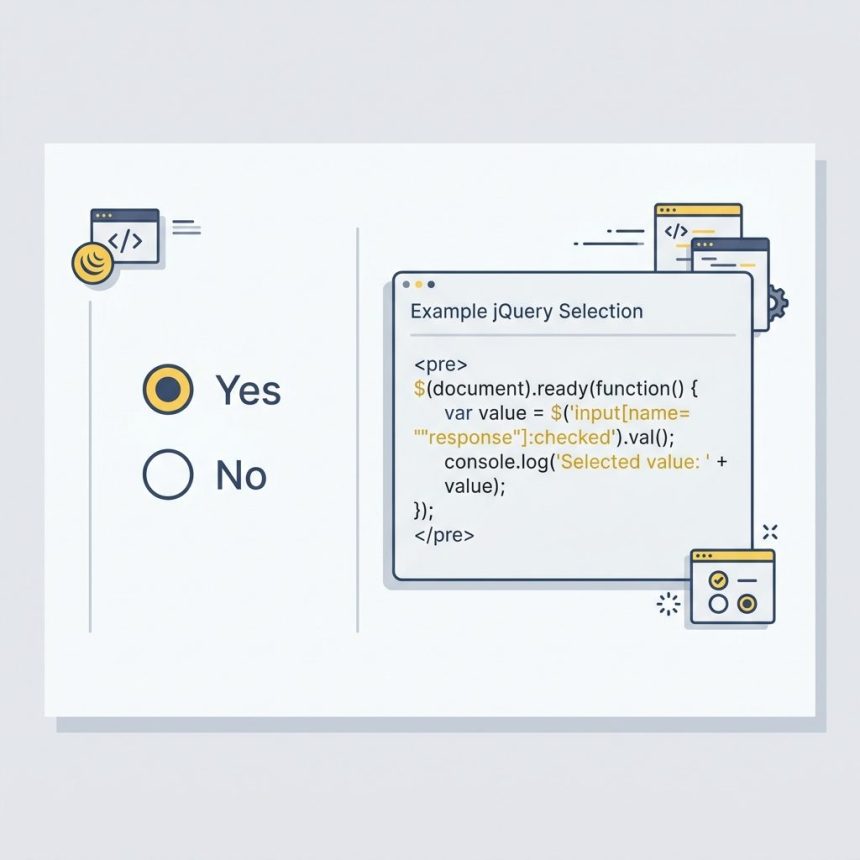
To get the selected radio button value with jQuery, combine the name attribute selector with the :checked pseudo-class: $('input[name="radio_button"]:checked').val(). Returns the value of whichever radio is currently selected, or undefined if none is.

Contents
  • The markup
  • The one-liner
  • React to selection changes
  • Default when nothing is selected
  • Vanilla equivalent
  • Frequently asked questions
  • Related guides
  • References

Last verified: 2026-05-17 with jQuery 3.7. Originally published 2022-08-28, rewritten and updated 2026-05-17.

The markup

<input type="radio" name="radio_button" value="1" /> Yes
<input type="radio" name="radio_button" value="0" /> No

The one-liner

const value = $('input[name="radio_button"]:checked').val();
// "1" or "0", or undefined if nothing is selected

:checked matches the radio (or checkbox) that’s currently on; the bracket selector limits the match to the named group. .val() returns the value attribute as a string.
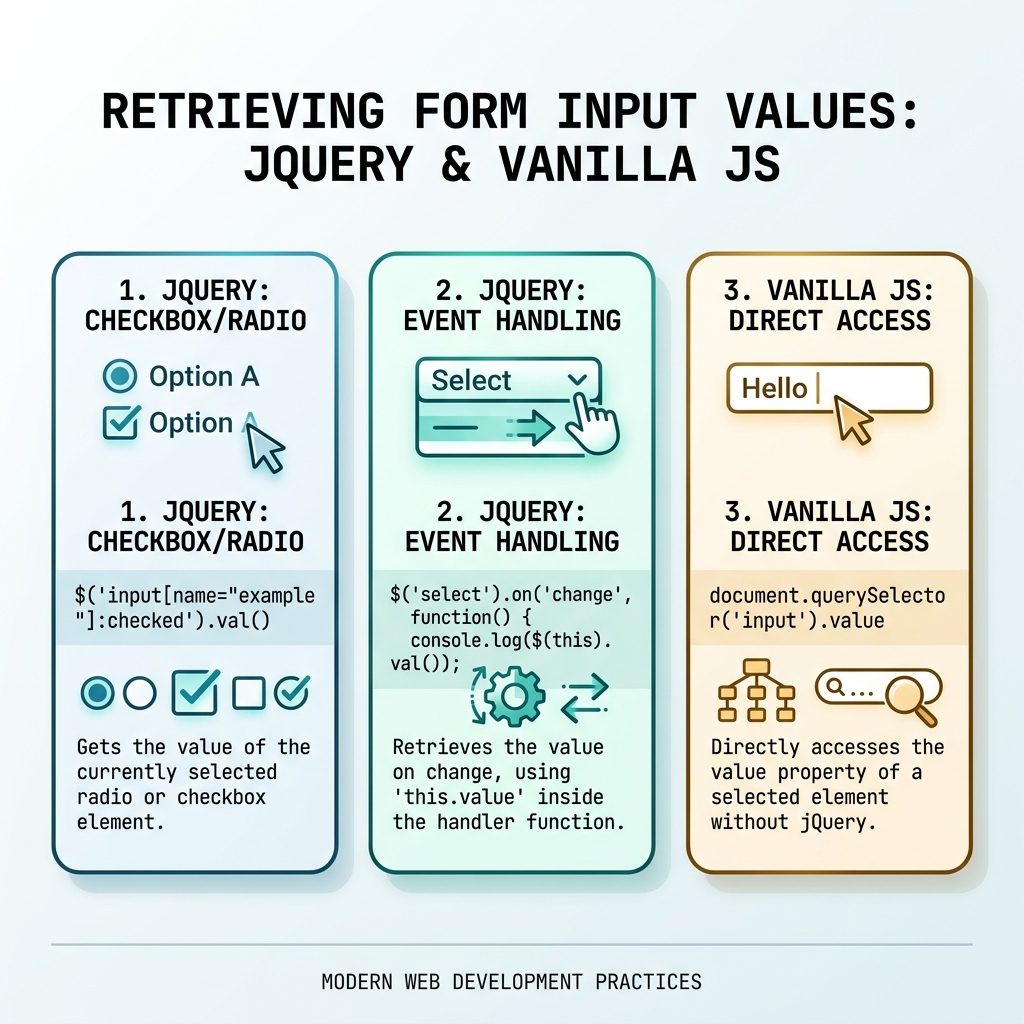
jQuery selected radio value — :checked selector, change handler, vanilla equivalent

React to selection changes

$('input[name="radio_button"]').on('change', function () {
    console.log('Selected:', this.value);
});

The change event fires on the newly-selected radio. Inside the handler, this is that radio element — read its value directly via this.value without re-querying the DOM.

Default when nothing is selected

// Falsy-default (treats empty string as "no selection" too)
const value = $('input[name="radio_button"]:checked').val() || '0';

// Strict-default (only kicks in when truly undefined)
const value = $('input[name="radio_button"]:checked').val() ?? '0';

Use ?? (nullish coalescing) when an empty string is a valid selection that you don’t want overridden. Use || when any falsy value should fall back to the default.

Vanilla equivalent

const selected = document.querySelector('input[name="radio_button"]:checked');
const value    = selected?.value;

?. short-circuits when nothing is selected, so value is undefined instead of throwing. Works on every modern browser without jQuery.

Frequently asked questions

What if no radio button is selected — what does .val() return?

undefined. The :checked selector returns an empty jQuery set when nothing matches, and calling .val() on an empty set returns undefined. Use a default with ? or ||: const v = $('input[name="x"]:checked').val() ?? '';.

How do I run code whenever the selection changes?

Attach a change handler to the radio inputs by name. The change event fires on the newly-selected radio: $('input[name="radio_button"]').on('change', function () { console.log(this.value); });. Inside the handler, this is the selected radio, so this.value reads its value directly.

Is the bracket selector [name="x"] case-sensitive?

Yes for the attribute value. HTML attribute names are case-insensitive (NAME and name match), but the value side is case-sensitive: [name="Radio_Button"] and [name="radio_button"] are different selectors. Keep your name= attributes consistent across HTML and JS.

What’s the vanilla-JS equivalent?

document.querySelector('input[name="radio_button"]:checked')?.value. The ?. safely short-circuits when nothing is selected. Works identically to the jQuery version in every modern browser, no library needed.

Related guides

  • How to Check if a Checkbox Is Checked with jQuery
  • How to Disable or Enable an Input with JavaScript or jQuery
  • How to Add a Required Attribute to Input Fields in jQuery

References

jQuery :checked selector: api.jquery.com/checked-selector. jQuery .val(): api.jquery.com/val. MDN :checked: developer.mozilla.org/en-US/docs/Web/CSS/:checked.

TAGGED:formsJavaScriptjQuery

Sign Up For Daily Newsletter

Be keep up! Get the latest breaking news delivered straight to your inbox.
[mc4wp_form]
By signing up, you agree to our Terms of Use and acknowledge the data practices in our Privacy Policy. You may unsubscribe at any time.
Share This Article
Facebook Copy Link Print
Previous Article Get the last item from a PHP array How to Get the Last Item from an Array in PHP
Next Article Fix MySQL CONCAT returning NULL with COALESCE or CONCAT_WS How to Handle MySQL CONCAT Returning NULL
Leave a Comment

Leave a Reply Cancel reply

You must be logged in to post a comment.

FacebookLike
XFollow
PinterestPin
InstagramFollow
Most Popular
Set vi as the default editor in Ubuntu — a terminal opening the vim editor
How to Set vi (Vim) as the Default Editor in Ubuntu
June 8, 2026
rsync says ALL DONE but files are missing — a terminal showing ALL DONE next to an empty folder
rsync Says “ALL DONE” but Files Are Missing: How to Verify
June 8, 2026
Migrate a website to a new server with rsync — files copying from an old server to a new one over SSH
How to Migrate a Website to a New Server With rsync
June 8, 2026
Bun runtime — faster JS toolkit replacing npm in Laravel projects
How to Install Bun Runtime on Ubuntu (And Use It in a Laravel Project)
May 24, 2026
Tailscale mesh — peer-to-peer connections between devices, coordination server
How to Install Tailscale on Ubuntu (Zero-Config Mesh VPN for Self-Hosters)
May 24, 2026

You Might Also Like

Laravel run project from GitHub — git clone through artisan serve pipeline
Web Development

How to Run a Laravel Project from GitHub

8 Min Read
Install Node.js on Ubuntu — terminal with NodeSource setup_22.x curl command and Node.js hexagon icon
Web Development

How to Install Node.js on Ubuntu (22.04 & 24.04): Step-by-Step

11 Min Read
Fix CSS page breaks not working with HTML tables
Web Development

Why CSS Page Breaks Don’t Work in HTML Tables (and How to Fix It)

5 Min Read
MySQL remove string from column — REPLACE and REGEXP_REPLACE patterns
Web Development

How to Remove a Specific String from a Column in MySQL

6 Min Read
How7o

We provide tips, tricks, and advice for improving websites and doing better search.

Tools

  • Age Calculator
  • Word Counter
  • Image Upscaler
  • Password Generator
  • QR Code Generator
  • See all tools→

Pranks

  • Fake Blue Screen Prank
  • Hacker Typer
  • Fake iMessage Generator
  • Windows XP Crash Prank
  • Windows 11 Update Prank
  • See all prank screens →

Company

  • About Us
  • Blog
  • Contact
  • Privacy Policy
  • Terms of Service
  • Sitemap
© 2024–2026 How7o. All rights reserved.
Welcome Back!

Sign in to your account

Username or Email Address
Password

Lost your password?