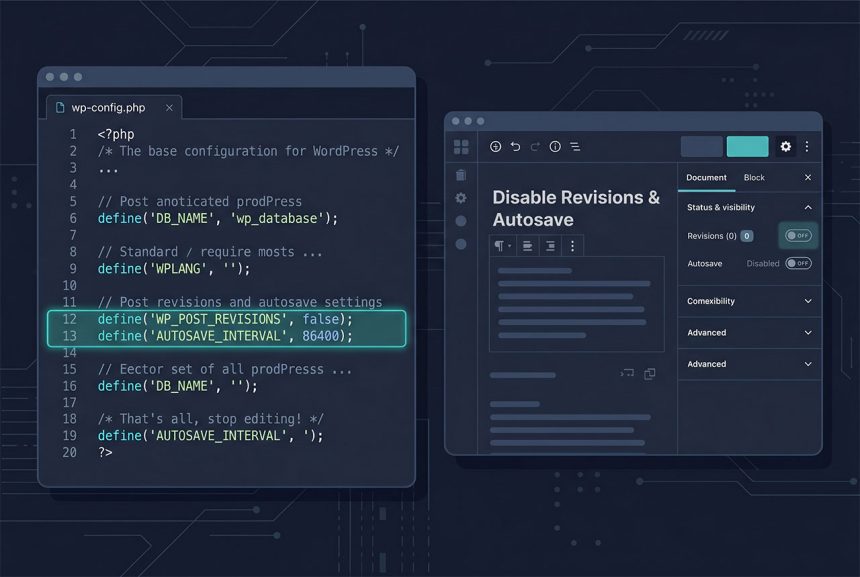
To wordpress disable revision and autosave, add two define() lines to wp-config.php: one sets WP_POST_REVISIONS to false (or a small integer if you want a cap instead of off), the other pushes AUTOSAVE_INTERVAL to a very large number. For the classic editor you can also dequeue the autosave script from functions.php. This guide covers both, the trade-offs to think about before disabling either, and how to clean up existing revision rows.
Last verified: 2026-04-23 on WordPress 6.5 and PHP 8.3. Originally published 2023-12-18, rewritten and updated 2026-04-23.
TL;DR
// wp-config.php — add above the "That's all, stop editing!" line
define( 'WP_POST_REVISIONS', false );
define( 'AUTOSAVE_INTERVAL', 86400 );
Option 1 — wp-config.php constants
define( 'WP_POST_REVISIONS', false );
define( 'AUTOSAVE_INTERVAL', 86400 );
WP_POST_REVISIONS accepts three kinds of value:
false— revisions fully off. No revision row is written for any post.- An integer like
5— keep at most the last 5 revisions per post. The older ones are pruned automatically on each save. true(default) — unlimited revisions. Fine for small sites; a silent disk hog on long-running blogs with many edits.
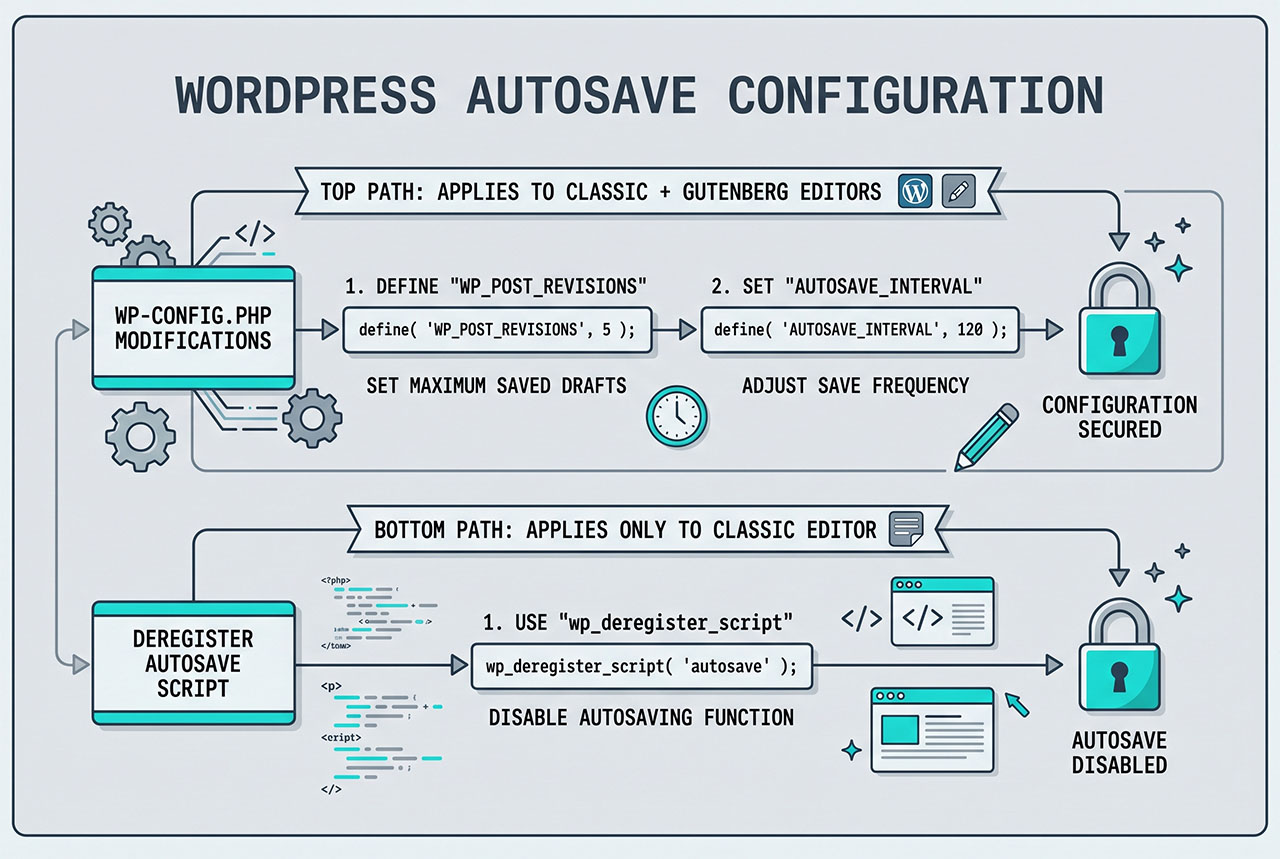
AUTOSAVE_INTERVAL is in seconds, default 60. Setting it to 86400 (one day) effectively turns autosave off for any normal editing session because the next autosave wouldn’t fire until 24 hours had passed. The constant is respected by both the classic and block editor.
Option 2 — Dequeue the classic-editor autosave script
add_action( 'wp_print_scripts', function () {
    wp_deregister_script( 'autosave' );
} );
Add to functions.php. This unregisters the classic-editor autosave script so it never enqueues. The caveat is that Gutenberg (the block editor) doesn’t rely on that script — it has its own autosave mechanism — so the dequeue pattern only affects classic-editor screens. For block-editor sites, rely on the wp-config.php constants in Option 1.
Autosave and revisions are separate features in WordPress. Dequeuing the autosave script affects autosave only; the WP_POST_REVISIONS constant still governs revisions independently.
Per-post-type control (the cleaner middle ground)
add_filter( 'wp_revisions_to_keep', function ( $num, $post ) {
    // No revisions on products, keep default (e.g. 5) on everything else
    if ( $post->post_type === 'product' ) {
        return 0;
    }
    return $num;
}, 10, 2 );
Site-wide WP_POST_REVISIONS is a blunt instrument. The wp_revisions_to_keep filter lets you return a per-post cap — 0 to disable, any integer to cap, or the passed-in default to leave it alone. Common pattern: keep revisions on posts and pages, turn them off on high-volume imported content (products, listings) where each save would write an extra row.
Clean up existing revision rows
Disabling revisions going forward doesn’t remove the backlog. For a database already bloated with old revisions:
# WP-CLI (safest — handles meta cleanup properly)
wp post delete --force $( wp post list --post_type=revision --format=ids )

# Or raw SQL — back up first
# DELETE FROM wp_posts WHERE post_type = 'revision';
# DELETE FROM wp_postmeta WHERE post_id NOT IN (SELECT ID FROM wp_posts);
The WP-CLI form is the one to reach for — it also removes orphaned postmeta rows for the deleted revisions. The raw-SQL variant works but leaves dangling meta unless you run the second DELETE manually, and makes a mess if the schema ever diverges. Always take a database backup before either.
Trade-offs worth thinking about
- Revisions — disabling them removes the safety net for editorial mistakes. On a multi-author site, keep a small cap (3–5) instead of
false. - Autosave — disabling it removes the “browser crashed mid-edit, content recovered” behavior. If your editors write long-form content, keep the default 60-second interval on.
- Disk pressure — the main reason people reach for this is a bloated
wp_poststable on a shared host. Cleaning up the existing backlog is often more impactful than disabling future saves.
Frequently asked questions
Disabling revisions removes the safety net for editorial mistakes — no “restore to yesterday’s version” option. For a small personal blog with a single author that’s probably fine. For a multi-author publication or a client site, keep revisions on and cap the number with define('WP_POST_REVISIONS', 5) so you get the safety net without unbounded database growth. Set to false only when you’ve weighed the tradeoff.
AUTOSAVE_INTERVAL actually do? It’s the interval in seconds between background autosave attempts. Default is 60. Setting it very high (86400, a full day) effectively disables autosave in any normal editing session — the browser would have to stay open for 24 hours before the next fire. The cleaner “off” is dequeuing the autosave script, which the second pattern in this post does.
WP_POST_REVISIONS to false? The false setting only affects revisions created going forward. Existing revision rows stay in wp_posts with post_type = 'revision'. To clean up the backlog: WP-CLI wp post delete --force $(wp post list --post_type=revision --format=ids), or a one-off SQL DELETE FROM wp_posts WHERE post_type = 'revision';. Always back up first.
Yes — filter wp_revisions_to_keep with a two-argument signature: add_filter('wp_revisions_to_keep', fn ($num, $post) => $post->post_type === 'product' ? 0 : $num, 10, 2). Returns 0 for the types you want to skip and the default number for everything else. Cleaner than a site-wide WP_POST_REVISIONS constant when you want different behavior per post type.
It disables the classic-editor autosave JavaScript, which the block editor doesn’t use for its main autosave (Gutenberg has its own internal autosave mechanism for block state). So the dequeue does nothing useful on block-editor screens. If you’re on Gutenberg and want to disable autosave there, the right path is the WP_POST_REVISIONS + AUTOSAVE_INTERVAL pair in wp-config.php, which both editors respect.
Related guides
- How to Apply pre_get_posts on Custom Post Types in WordPress — another hook-driven WordPress customization.
- How to Retrieve the Last Inserted Row ID in WordPress —
$wpdbpatterns for direct DB work. - How to Order Posts by Meta Value in WordPress — the
pre_get_postscousin of the filter pattern. - How to Change a User Profile Picture in WordPress Without a Plugin — another theme-level customization.
References
WordPress revisions and editor options: developer.wordpress.org/advanced-administration/wordpress/revisions.