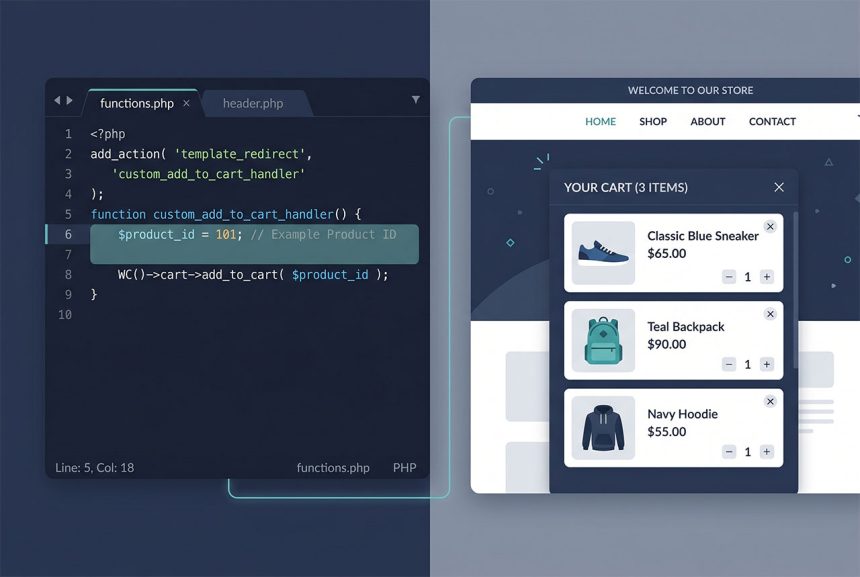
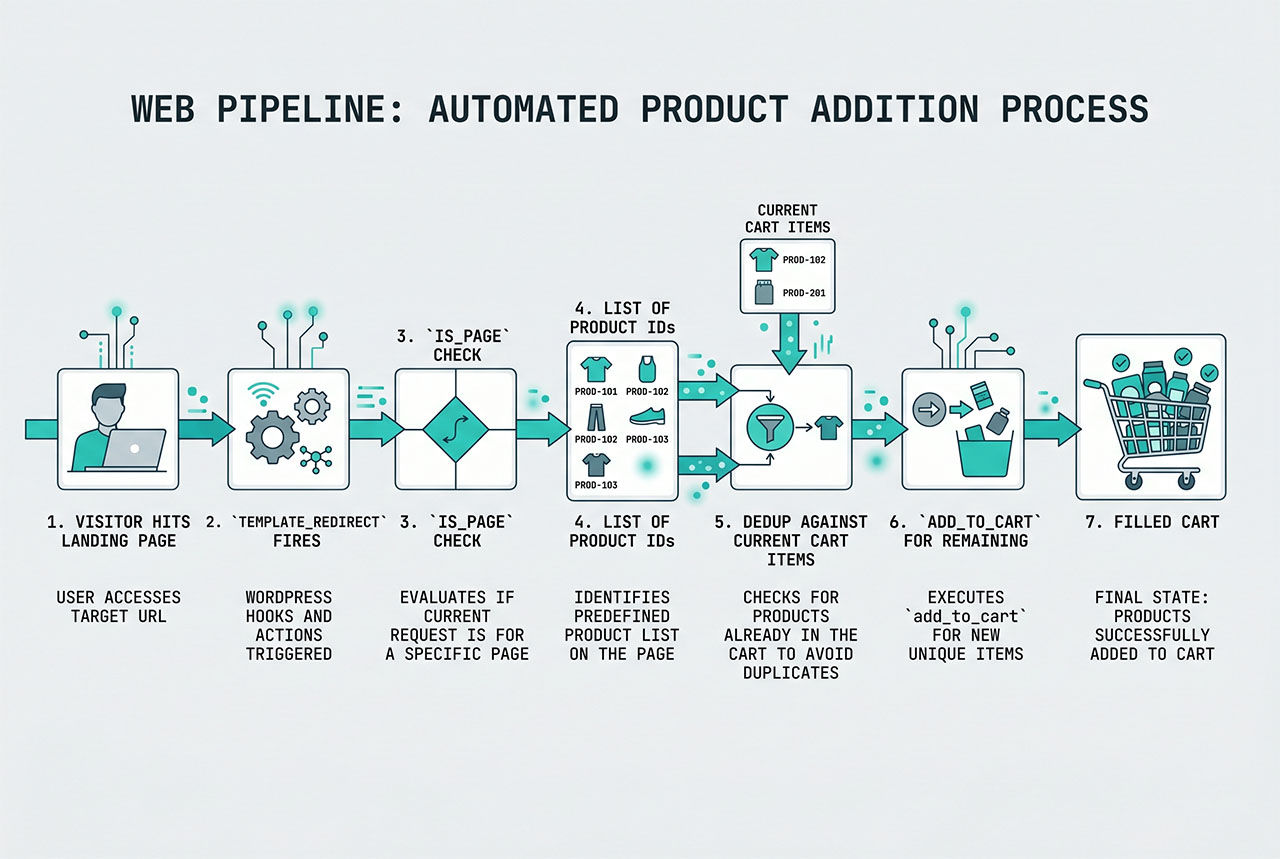
WooCommerce auto add to cart on a specific page is a template_redirect hook plus WC()->cart->add_to_cart(). The pattern: check if we’re on the right page, figure out which product IDs should be in the cart, skip any that are already there, add the rest. This guide covers the hook, the dedup logic that keeps refreshes from stacking duplicates, and the meta-flag variant when you want to manage the product list without editing code.
Last verified: 2026-04-23 on WooCommerce 9.x with WordPress 6.5. Originally published 2023-06-25, rewritten and updated 2026-04-23.
TL;DR
add_action( 'template_redirect', 'how7o_auto_add_products_to_cart' );

function how7o_auto_add_products_to_cart() {
    if ( ! is_page( 'start' ) ) {
        return;
    }

    $product_ids = array( 10, 12, 15 );

    // Drop IDs already in the cart
    foreach ( WC()->cart->get_cart() as $item ) {
        $key = array_search( $item['data']->get_id(), $product_ids, true );
        if ( $key !== false ) {
            unset( $product_ids[ $key ] );
        }
    }

    foreach ( $product_ids as $id ) {
        WC()->cart->add_to_cart( $id );
    }
}
Why template_redirect is the right hook
The sequence on a typical request:
init— WordPress boots. WooCommerce is partially loaded; the cart object may not be ready.wp— the main query has run;$wp_queryexists.template_redirect— WooCommerce is fully initialized,is_page()/is_product()work correctly, and no output has been sent yet so redirects and cart changes still apply.wp_head— output has started.
template_redirect is the last safe stop where you can mutate the cart and have the changes reflect on the rendered page.
The dedup logic
$product_ids = array( 10, 12, 15 );

foreach ( WC()->cart->get_cart() as $item_key => $item ) {
    $existing_id = $item['data']->get_id();
    $key         = array_search( $existing_id, $product_ids, true );

    if ( $key !== false ) {
        unset( $product_ids[ $key ] );
    }
}

foreach ( $product_ids as $id ) {
    WC()->cart->add_to_cart( $id );
}
The dedup loop walks the cart’s existing items, and for every item that’s already in our “to add” list, removes it. After the loop, $product_ids contains only the products that aren’t in the cart yet. Without this check, a page refresh would call add_to_cart() again and the item’s quantity would climb each visit.
array_search‘s strict flag (true) matters — get_id() returns an int, and loose comparison against strings from the product list would silently mismatch.
Meta-flag variant — marketing-managed list
add_action( 'template_redirect', function () {
    if ( ! is_page( 'start' ) ) {
        return;
    }

    $query = new WP_Query( array(
        'post_type'      => 'product',
        'posts_per_page' => -1,
        'fields'         => 'ids',
        'meta_key'       => '_add_product_to_cart',
        'meta_value'     => 'yes',
    ) );

    $product_ids = $query->posts;

    foreach ( WC()->cart->get_cart() as $item ) {
        $key = array_search( $item['data']->get_id(), $product_ids, true );
        if ( $key !== false ) {
            unset( $product_ids[ $key ] );
        }
    }

    foreach ( $product_ids as $id ) {
        WC()->cart->add_to_cart( $id );
    }
} );
Products tagged with the custom meta _add_product_to_cart = 'yes' get auto-added on the landing page. Marketing can toggle the meta from the product edit screen (with a custom meta box or via ACF) — no code changes needed to change which product the flow promotes.
Note: 'fields' => 'ids' returns just an array of post IDs, which saves instantiating full WP_Post objects when you only need the IDs. See ordering posts by meta value for the WP_Query pattern behind this.
Variable products
WC()->cart->add_to_cart(
    $parent_id,
    1,
    $variation_id,                                 // specific variation
    array( 'attribute_pa_color' => 'red' )         // attribute selections
);
Variable products need the variation ID, quantity, and attribute array. Passing only the parent ID adds the parent product — which has no price and breaks the cart. If you’re auto-adding a variable product, the marketing-managed meta-flag variant needs to know which variation to pick; usually easier to list the variation IDs directly in the $product_ids array.
Frequently asked questions
template_redirect — it runs after WordPress has resolved which template will render but before the template actually outputs. That’s the right window to modify the cart: WooCommerce is fully loaded, the page context is known, and redirects still work if you need them. Hooking earlier (init) risks the cart not being ready; hooking later (wp_head) means you’ve already committed to rendering.
WC()->cart->add_to_cart() is additive — call it twice and the product ends up with quantity 2, not 1. On a landing-page pattern where the user might refresh or come back, you want the auto-added product in the cart exactly once. Iterating the existing cart items, removing already-present IDs from the to-add list, then adding the rest, gives you that “once” guarantee.
Yes — wrap the whole thing in an is_page('landing-slug') or is_page_template('landing.php') check. For a coupon-landing flow you might only want to auto-add on /start/; for a lead-magnet download, only on /ebook-bonus/. Without a scope check, the cart is auto-populated on every page load — which is almost never what you want.
Two options. Hardcode an array ($product_ids = [10, 12, 15]) when the list is static. Or query products by a custom meta flag — for example _add_product_to_cart => 'yes' — so marketing can manage the list from the product admin without editing code. The source post shows both shapes.
WC()->cart->add_to_cart($product_id) with a parent ID adds the parent — which won’t have a price and will break the cart. Pass the variation ID instead: add_to_cart($parent_id, 1, $variation_id, $attributes). The fourth argument is the attribute array (['attribute_pa_color' => 'red']). For simple products, the first two args are enough.
Related guides
- How to Add a Custom Fee in WooCommerce — another cart-modification pattern.
- How to Remove Checkout Fields in WooCommerce — simplify the flow after auto-populating the cart.
- How to Display Orders Instead of Dashboard on the WooCommerce My Account Page — post-purchase flow.
- How to Order Posts by Meta Value in WordPress — WP_Query meta_key pattern behind the meta-flag variant.
References
WooCommerce “Automatically add product to cart on visit”: woocommerce.com/document/automatically-add-product-to-cart-on-visit.