How7o
  • Home
  • Tools
  • Prank Screens
  • Learn
  • Blog
  • Contact
Reading: How to Auto-start Apache and MySQL with XAMPP on Windows
Share
How7oHow7o
Font ResizerAa
  • OS
Search
  • Home
  • Tools
  • Prank Screens
  • Learn
  • Blog
  • Contact
Follow US
© 2024–2026 How7o. All rights reserved.
How7o > Free Laravel, PHP, WordPress & Server Tutorials > OS > How to Auto-start Apache and MySQL with XAMPP on Windows
OS

How to Auto-start Apache and MySQL with XAMPP on Windows

how7o
By how7o
Last updated: May 22, 2026
5 Min Read
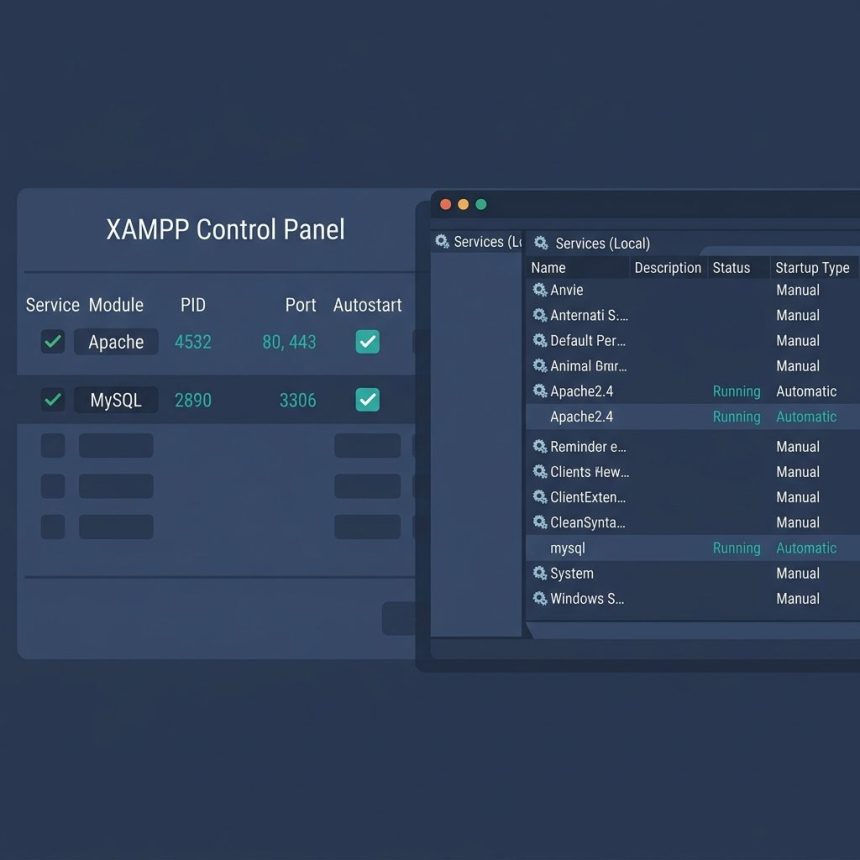
XAMPP autostart Apache and MySQL on Windows — XAMPP Control Panel and services
SHARE

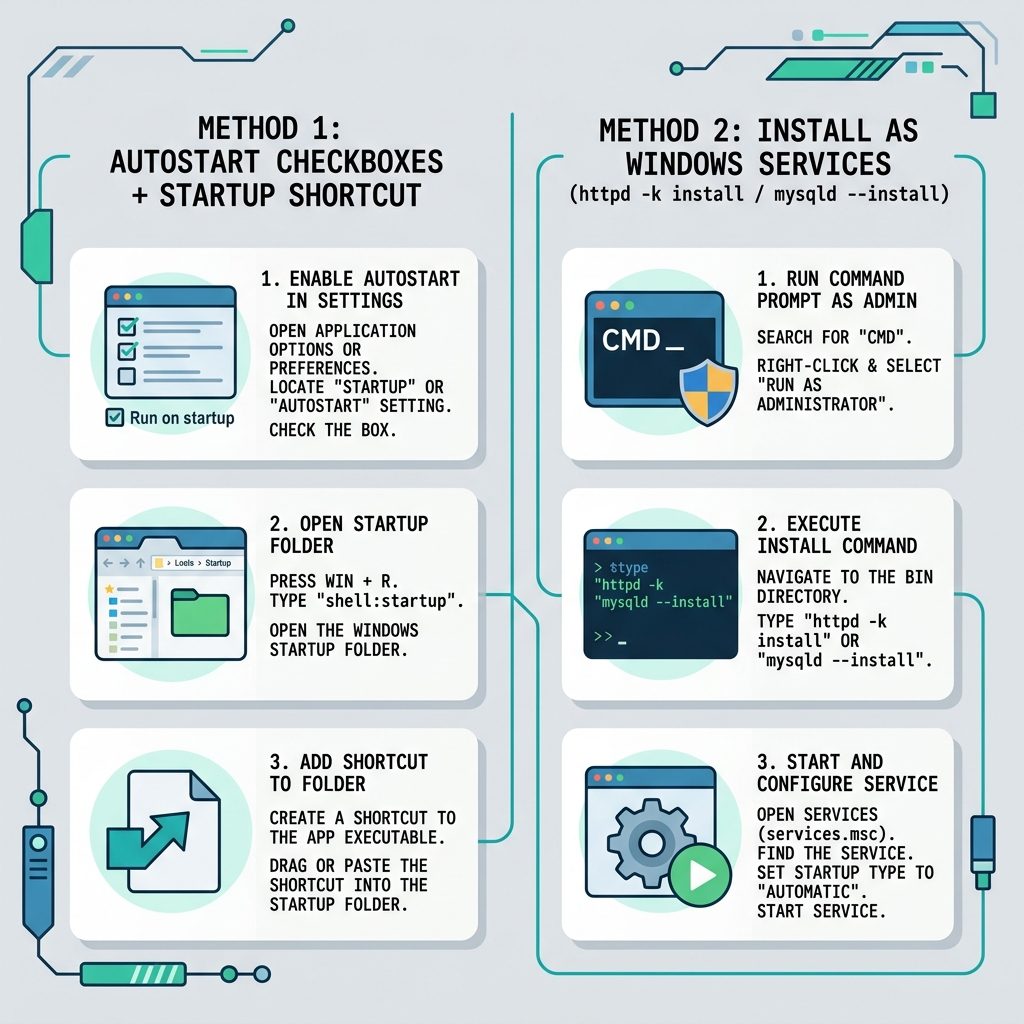
To auto-start Apache and MySQL with XAMPP on Windows, you have two options: enable the Autostart checkboxes in the XAMPP Control Panel (plus a startup shortcut), or install Apache and MySQL as proper Windows services. Both work; services are more bulletproof because they start before login and survive logouts. This guide covers both methods, plus how to undo each.

Contents
  • Method 1 — Autostart inside the XAMPP Control Panel
  • Method 2 — Install Apache and MySQL as Windows services
  • Undo Method 2
  • Frequently asked questions
  • Related guides
  • References

Last verified: 2026-05-17 with XAMPP for Windows 8.2.x. Originally published 2022-12-10, rewritten and updated 2026-05-17.

Method 1 — Autostart inside the XAMPP Control Panel

  1. Right-click the XAMPP Control Panel shortcut → Run as administrator (required so XAMPP can save the config).
  2. Click the Config button (top right of the panel).
  3. Under Autostart of modules, tick Apache and MySQL.
  4. Click Save.

Apache and MySQL will now start every time you launch the XAMPP Control Panel. To also launch the panel when Windows starts:

  1. Press Win+R, type shell:common startup, hit Enter.
  2. A Startup folder opens.
  3. Right-click a blank area → New → Shortcut → point it at C:\xampp\xampp-control.exe → Finish.
  4. Right-click the shortcut → Properties → Advanced → tick Run as administrator.

Reboot. The Control Panel launches and starts Apache + MySQL automatically.
XAMPP autostart Apache and MySQL on Windows — two methods compared

Method 2 — Install Apache and MySQL as Windows services

Cleaner, more bulletproof: register both as proper Windows services. They start before any user logs in and run under the SYSTEM account.

First, stop both modules in the XAMPP Control Panel (you can’t install a service while the binary is already running).

Open cmd as Administrator:

:: Install Apache as a service
cd C:\xampp\apache\bin
httpd.exe -k install

:: Install MySQL as a service
cd C:\xampp\mysql\bin
mysqld.exe --install

Either reboot, or open services.msc and start Apache2.4 and mysql manually. After that they’ll auto-start on every boot. The XAMPP Control Panel will show a green check next to the Service column once each is registered.

Undo Method 2

:: Run cmd as Administrator
cd C:\xampp\apache\bin
httpd.exe -k uninstall

cd C:\xampp\mysql\bin
mysqld.exe --remove

Frequently asked questions

Service install vs. Autostart checkbox — which should I pick?

If you want Apache and MySQL running without ever opening the XAMPP Control Panel, install them as Windows services (Method 2). They’ll start before login, run under the SYSTEM account, and survive logouts. If you’d rather see the XAMPP control panel and have it auto-start the modules when you log in, use the Autostart checkbox method (Method 1) plus the shell:common startup shortcut. Both are valid; services are the ‘set it and forget it’ option.

My Apache or MySQL service won’t start after install — what now?

Most often, another service is already bound to the port (80/443 for Apache, 3306 for MySQL). Skype, IIS, World Wide Web Publishing Service, or a previous MySQL install are typical culprits. Run netstat -ano | findstr :80 and netstat -ano | findstr :3306 to find the PID using the port, then stop or uninstall the offender. Restart the XAMPP service afterwards.

Do I need to run as Administrator?

Yes for the install steps (httpd.exe -k install and mysqld.exe --install) — service registration requires admin privileges. After install, the services run as SYSTEM, so day-to-day use doesn’t need admin. The Autostart checkbox in the XAMPP control panel also needs admin to be saved persistently.

How do I uninstall the services later?

Run cmd as Administrator. For Apache: cd C:\xampp\apache\bin then httpd.exe -k uninstall. For MySQL: cd C:\xampp\mysql\bin then mysqld.exe --remove. The XAMPP control panel’s Service column will go back to the red X afterwards.

Will the autostart still work after a Windows update?

The services persist across normal Windows updates and reboots. Feature updates (Windows version upgrades) sometimes reset Service start-types to Manual — if the modules stop auto-starting after a big update, open services.msc, find Apache2.4 and mysql, and set Startup type back to Automatic.

Related guides

  • How to Access MySQL from Command Line in XAMPP on Windows
  • How to cd to a Different Drive in Windows

References

XAMPP on Windows FAQ: apachefriends.org/faq_windows.html. Apache httpd.exe service options: httpd.apache.org/docs/2.4/platform/windows.html.

TAGGED:Apacheconfigurationmysqlwindowsxampp

Sign Up For Daily Newsletter

Be keep up! Get the latest breaking news delivered straight to your inbox.
[mc4wp_form]
By signing up, you agree to our Terms of Use and acknowledge the data practices in our Privacy Policy. You may unsubscribe at any time.
Share This Article
Facebook Copy Link Print
Previous Article Select2 auto-focus on page load — .select2('open') How to Auto-focus a Select2 Dropdown on Page Load
Next Article Break out of a jQuery .each() loop with return false How to Break Out of a jQuery .each() Loop
Leave a Comment

Leave a Reply Cancel reply

You must be logged in to post a comment.

FacebookLike
XFollow
PinterestPin
InstagramFollow
Most Popular
Run Laravel queue workers with Supervisor
How to Run Laravel Queue Workers in Production with Supervisor
May 23, 2026
Nginx as a reverse proxy for a Node.js app on Ubuntu
How to Set Up Nginx as a Reverse Proxy for Node.js on Ubuntu
May 23, 2026
Install and configure Redis on Ubuntu for Laravel and WordPress
How to Install and Configure Redis on Ubuntu (for Laravel & WordPress)
May 23, 2026
Harden a fresh Ubuntu VPS with UFW, Fail2Ban, and SSH key auth
How to Harden a Fresh Ubuntu VPS: UFW + Fail2Ban + SSH Key Auth
May 23, 2026
Set up Let's Encrypt SSL with Certbot on Ubuntu
How to Set Up Let’s Encrypt SSL with Certbot on Ubuntu (Apache & Nginx)
May 23, 2026

You Might Also Like

XAMPP MySQL command line on Windows — fixing 'mysql' not recognized
OS

How to Access MySQL from Command Line in XAMPP on Windows

7 Min Read
WordPress disable revision and autosave — wp-config constants and wp_print_scripts dequeue
Web Development

How to Disable Revisions and Autosave in WordPress

8 Min Read
Fix CORS policy blocked origin errors in PHP and Apache
Web Development

How to Fix “CORS Policy Blocked Origin” Errors

5 Min Read
Change SSH port on Linux — firewall, SELinux, sshd_config, systemctl restart
Server Management

How to Change the Default SSH Port on Linux

7 Min Read
How7o

We provide tips, tricks, and advice for improving websites and doing better search.

Tools

  • Age Calculator
  • Word Counter
  • Image Upscaler
  • Password Generator
  • QR Code Generator
  • See all tools→

Pranks

  • Fake Blue Screen Prank
  • Hacker Typer
  • Fake iMessage Generator
  • Windows XP Crash Prank
  • Windows 11 Update Prank
  • See all prank screens →

Company

  • About Us
  • Blog
  • Contact
  • Privacy Policy
  • Terms of Service
  • Sitemap
© 2024–2026 How7o. All rights reserved.
Welcome Back!

Sign in to your account

Username or Email Address
Password

Lost your password?