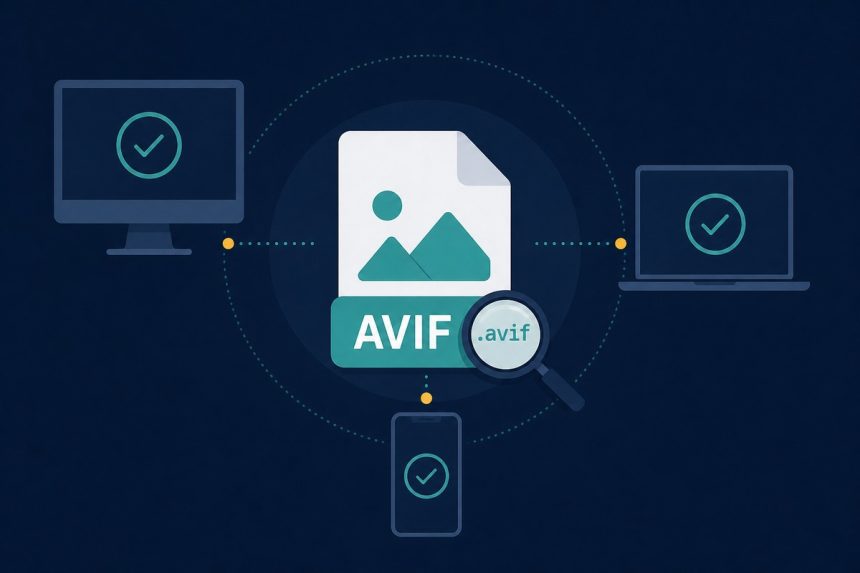
You downloaded an image from a modern website and your computer is asking what to open it with. The file extension is .avif. If you’ve never heard of it, you’re not behind — AVIF only crossed the 90% browser-support mark in 2023, and operating systems are still catching up. Here’s how to open AVIF files on Windows, Mac, iPhone, and Android in 2026 — and how to convert them to JPG when nothing else works.
TL;DR
Any current browser will display AVIF if you drag it onto a tab. If you need to edit or send it somewhere that doesn’t understand AVIF, run it through our AVIF to JPG converter — browser-based, no upload, instant.
What AVIF actually is
AVIF stands for AV1 Image File Format. It packages a single frame of AV1 video encoding into an image container. The result: roughly half the size of an equivalent-quality JPEG, with support for 10-bit colour, HDR, transparency, and animated sequences. It’s open and royalty-free, which is why every browser implemented it inside two years (compared to a decade for HEIC).
The trade-off: encoding is slow. A WebP encode takes maybe 100ms, an AVIF encode at the same quality takes 1–3 seconds. That’s why CDNs serve AVIF from prebuilt caches, not on-the-fly.
Open AVIF on Windows 10 and 11
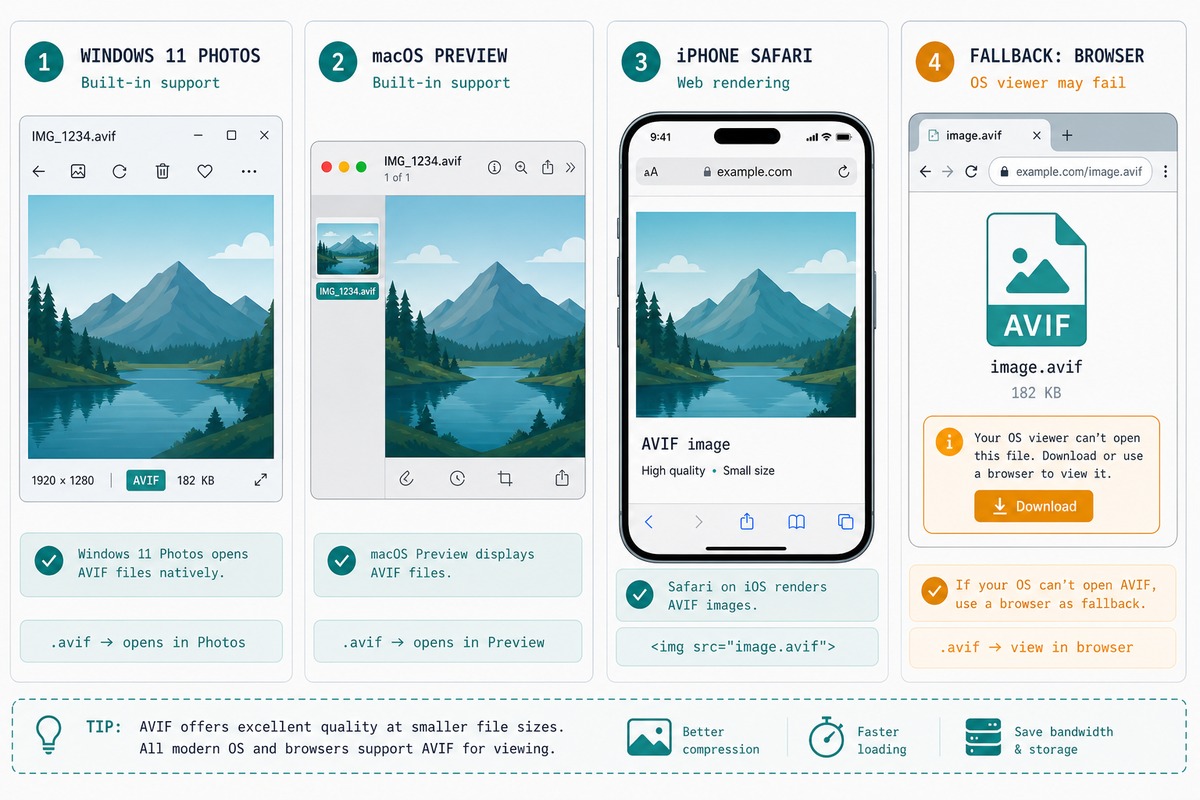
Windows 11: double-click the file. Photos opens it directly since the 22H2 update. Windows 10: install the free AV1 Video Extension from the Microsoft Store (yes, “video” — it covers AVIF images too). After install, Photos and File Explorer thumbnails work.
If you want to edit, Paint.NET supports AVIF via the AvifFileType plugin. Photoshop 25.0+ handles it natively.
Open AVIF on macOS
macOS Ventura (13) and later: double-click. Preview opens it, Quick Look thumbnails work, Finder shows previews. macOS Monterey: you’ll need to either upgrade or convert. The 12-to-13 jump is free, so upgrade is the practical answer.
Open AVIF on iPhone and Android
iOS 17+ Safari, Chrome, Files, and Mail all preview AVIF without intervention. Pre-iOS 17 iPhones can view AVIF in any browser but can’t save it to the Photos app — convert to JPG first.
Android: every version since Android 12 includes AVIF decoder support in the system image library, so Files, Photos, Drive, and Gmail all handle it. Older Android: open in Chrome, share-sheet → “Save as PNG”.
When you just need to convert
If the destination app refuses AVIF (most upload forms still do), convert first. Browser path:
- Open /avif-to-jpg.
- Drag the AVIF onto the page. Multiple files at once is fine.
- Adjust the JPEG quality slider (default 85 — good for almost everything).
- Download. The file lands in your Downloads folder with the
.jpgextension.
Troubleshooting
“My converter says the file is corrupt”
Some early AVIF encoders produced files that newer decoders flag as malformed (mostly 2021-vintage Cloudflare image-resize output). If the file opens in a browser but not in the converter, screenshot it from the browser — the screenshot is a clean PNG you can compress from there.
“The JPG is larger than the AVIF”
Expected. AVIF is more efficient than JPG by design — a 200KB AVIF turning into a 450KB JPG is normal. Run the result through our JPEG compressor to claw some bytes back.
Browser support is universal in 2026 — Chrome, Edge, Firefox, and Safari all decode AVIF natively. The gap is the OS image viewers. Windows 10 needs the AV1 Video Extension from the Microsoft Store (free since 2024). macOS handles AVIF in Preview since Ventura. Linux generally works through libavif via your distro’s image viewer.
For new web content, yes — AVIF is 20–30% smaller than equivalent-quality WebP and supports HDR, wide colour, and 10-bit depth. For tooling and library support, WebP is still ahead. The pragmatic answer: serve AVIF with WebP and JPEG fallbacks, which is the standard pattern every major CDN uses.
Photoshop and Affinity Photo opened AVIF natively in their 2024 updates. Older editors won’t — convert to JPG or PNG first using our AVIF to JPG converter, edit, then re-encode if you need AVIF back.
Safari started caching some images as AVIF in its image cache from iOS 17. Long-pressing a web image to save it still gives you the original format the site served, but screenshots of an AVIF-rendered image will be HEIC.
Related guides
- AVIF to JPG converter — the tool referenced above.
- JPG to WebP — for serving optimised images on your own site.
- WebP to JPG — for the other modern format you’ll meet often.
- HEIC to JPG — iPhone’s default, with the same compatibility issues.
- Convert HEIC to JPG — Apple’s modern format with the same OS-compat problem.
- Convert WebP to JPG — the third modern image format you’ll see daily.
For the format specification and current browser-support matrix, the AV1 Image File Format specification at AOMedia is canonical.