How7o
  • Home
  • Tools
  • Prank Screens
  • Learn
  • Blog
  • Contact
Reading: Fix: Terminal Won’t Open in Ubuntu on VirtualBox
Share
How7oHow7o
Font ResizerAa
  • OS
Search
  • Home
  • Tools
  • Prank Screens
  • Learn
  • Blog
  • Contact
Follow US
© 2024–2026 How7o. All rights reserved.
How7o > Free Laravel, PHP, WordPress & Server Tutorials > OS > Fix: Terminal Won’t Open in Ubuntu on VirtualBox
OS

Fix: Terminal Won’t Open in Ubuntu on VirtualBox

how7o
By how7o
Last updated: May 23, 2026
4 Min Read
Fix Ubuntu terminal not opening on VirtualBox
SHARE

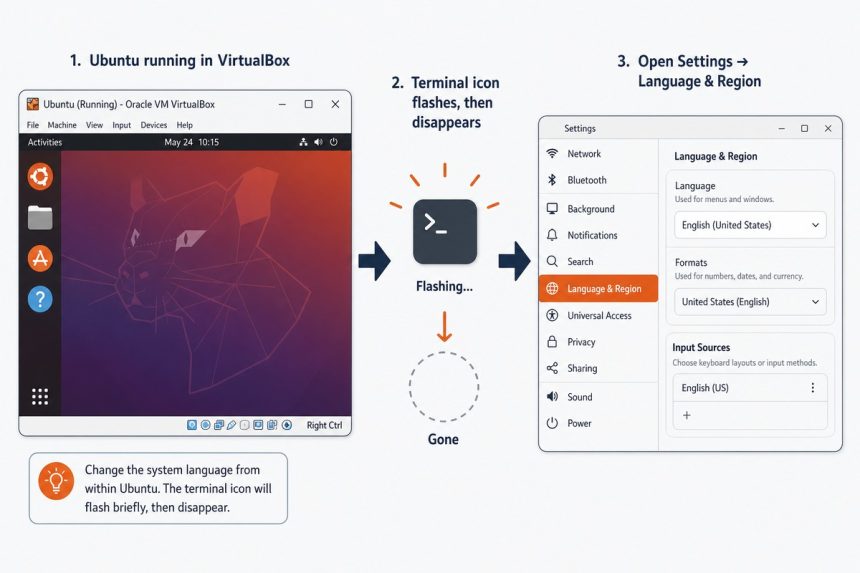
If the terminal won’t open on Ubuntu 22.04+ running inside VirtualBox — the launcher name flashes in the top-left and then disappears with no terminal window — the cause is a malformed locale, usually from VirtualBox 7’s unattended installer. The quickest fix is to change the system language to a different locale and back, which regenerates the locale files.

Contents
  • Fix via the GUI
  • Fix from a TTY (if no terminal works at all)
  • Prevent it during install — skip unattended mode
  • Confirm the fix
  • Frequently asked questions
  • Related guides
  • References

Last verified: 2026-05-17 on Ubuntu 24.04 in VirtualBox 7.1. Originally published 2023-03-02, rewritten and updated 2026-05-17.

Fix via the GUI

  1. Open the Settings app in Ubuntu.
  2. Sidebar → Region & Language (older releases: Language & Region).
  3. Click the Language button and pick a different language — e.g. British English instead of American English.
  4. Apply, then change it back to your preferred language. Apply again.
  5. Reboot the VM.
  6. Open the terminal — it should launch normally now.

Toggling the language regenerates the locale files that were left incomplete during the install. Once they exist, the terminal launcher can resolve LANG and start cleanly.
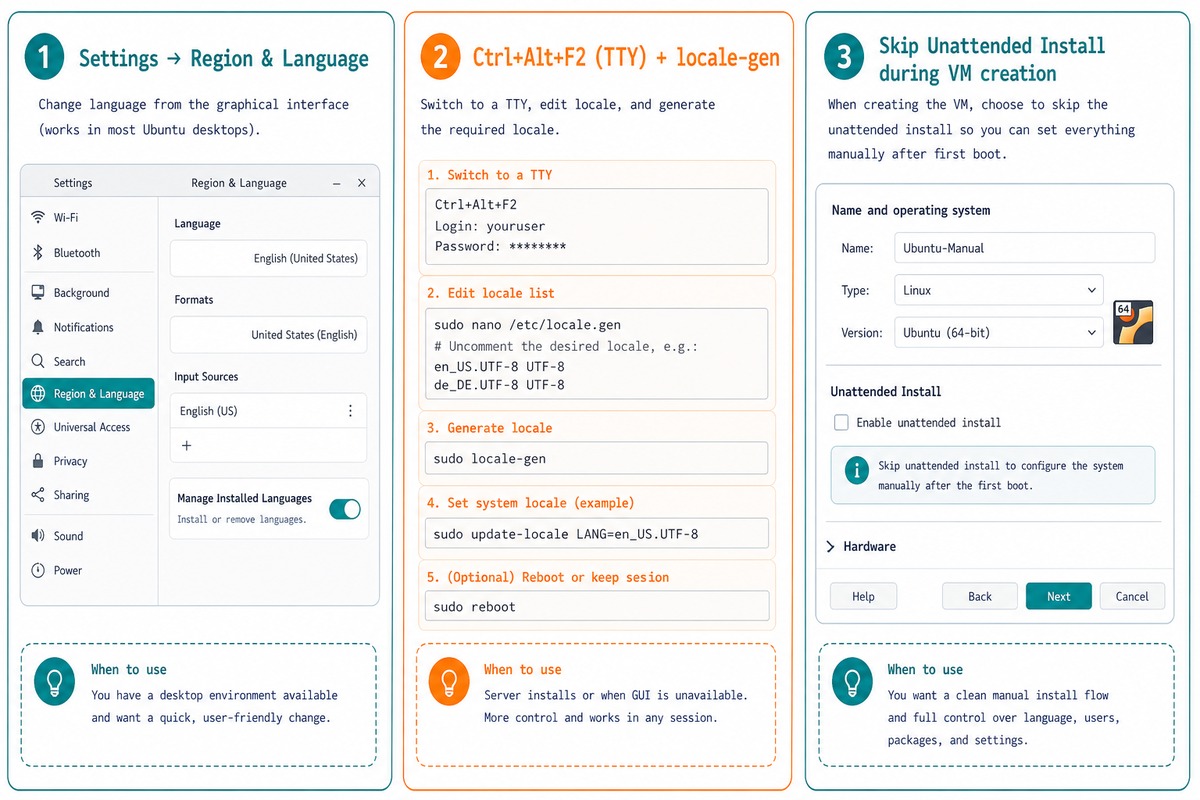
Ubuntu terminal not opening in VirtualBox — toggle Region & Language, locale-gen via TTY, skip unattended install

Fix from a TTY (if no terminal works at all)

# Switch to a TTY: Ctrl+Alt+F2 (or F3/F4). Log in.
sudo locale-gen en_US.UTF-8
sudo update-locale LANG=en_US.UTF-8

# Back to the desktop with Ctrl+Alt+F1 (or F7), then reboot
sudo reboot

Pure-CLI alternative — useful when the GUI terminal launcher refuses to open and you can’t get to Settings from the desktop. The TTY (text-only console) is always available.

Prevent it during install — skip unattended mode

If you’re installing a fresh VM, untick Skip Unattended Installation‘s opposite — that is, check “Skip Unattended Installation” — in VirtualBox’s new-VM dialog. You’ll click through the regular Ubuntu installer instead of letting VirtualBox auto-fill the answers. Slightly more clicks, but the locale comes out correctly configured and you avoid the terminal-launcher bug entirely.

Confirm the fix

locale
# Should print en_US.UTF-8 (or whatever you set) on every LANG_* line,
# with no warnings about "Cannot set LC_ALL to default locale"

echo $LANG
# en_US.UTF-8

Frequently asked questions

Why does changing the language fix this?

The terminal launcher reads the locale from LANG / LC_ALL. On fresh Ubuntu installs (especially via VirtualBox’s “unattended” auto-installer), the locale can land in a half-configured state — en_US.UTF-8 is declared but the locale files weren’t generated. The terminal application errors out silently on launch when it can’t find the locale. Selecting a different language and applying it regenerates the locale files, fixing the launch.

Can I fix the locale without changing the language?

Yes — regenerate it from the terminal you can reach (e.g. Ctrl+Alt+F2 for a TTY): sudo locale-gen en_US.UTF-8 then sudo update-locale LANG=en_US.UTF-8, then reboot. Same effect as the GUI Language & Region toggle, faster if you’re comfortable with a TTY.

Why does “Skip Unattended Installation” prevent this?

VirtualBox 7’s unattended installer answers Ubuntu’s setup wizard automatically but uses a minimal locale config that triggers the bug. Skipping unattended mode lets you walk through the regular installer, which configures the locale fully. Trade-off: you have to click through the install dialog manually.

Does this affect bare-metal Ubuntu installs?

Rarely — the bug is mostly tied to VirtualBox 7’s unattended installer. Bare-metal Ubuntu installs (or other VM hypervisors) usually configure the locale correctly. If you do hit it elsewhere, the locale-gen fix is the same.

Related guides

  • How to Check Your Ubuntu Version
  • How to Check the Linux OS Name and Version from the Command Line
  • How to List Network Devices on Linux

References

Ubuntu Locale documentation: help.ubuntu.com/community/Locale. VirtualBox documentation: virtualbox.org/manual.

TAGGED:configurationLinuxUbuntuvirtualbox

Sign Up For Daily Newsletter

Be keep up! Get the latest breaking news delivered straight to your inbox.
[mc4wp_form]
By signing up, you agree to our Terms of Use and acknowledge the data practices in our Privacy Policy. You may unsubscribe at any time.
Share This Article
Facebook Copy Link Print
Previous Article Laravel Blade @foreach vs @forelse comparison Laravel Blade: Difference Between @foreach and @forelse
Next Article Set up Let's Encrypt SSL with Certbot on Ubuntu How to Set Up Let’s Encrypt SSL with Certbot on Ubuntu (Apache & Nginx)
Leave a Comment

Leave a Reply Cancel reply

You must be logged in to post a comment.

FacebookLike
XFollow
PinterestPin
InstagramFollow
Most Popular
Set vi as the default editor in Ubuntu — a terminal opening the vim editor
How to Set vi (Vim) as the Default Editor in Ubuntu
June 8, 2026
rsync says ALL DONE but files are missing — a terminal showing ALL DONE next to an empty folder
rsync Says “ALL DONE” but Files Are Missing: How to Verify
June 8, 2026
Migrate a website to a new server with rsync — files copying from an old server to a new one over SSH
How to Migrate a Website to a New Server With rsync
June 8, 2026
Bun runtime — faster JS toolkit replacing npm in Laravel projects
How to Install Bun Runtime on Ubuntu (And Use It in a Laravel Project)
May 24, 2026
Tailscale mesh — peer-to-peer connections between devices, coordination server
How to Install Tailscale on Ubuntu (Zero-Config Mesh VPN for Self-Hosters)
May 24, 2026

You Might Also Like

Zip multiple files and directories on Linux — zip -r command
Server Management

How to Zip Multiple Files and Directories on Linux

5 Min Read
Disable binary logging in MySQL or MariaDB
Server Management

How to Disable Binary Logging in MySQL or MariaDB

5 Min Read
Run a Linux cron job as a non-root user
Server Management

How to Run a Cron Job as a Non-Root User

5 Min Read
Laravel global variable for views — View::share in AppServiceProvider and View::composer wildcard patterns
Web Development

How to Set a Global Variable for Laravel Views

7 Min Read
How7o

We provide tips, tricks, and advice for improving websites and doing better search.

Tools

  • Age Calculator
  • Word Counter
  • Image Upscaler
  • Password Generator
  • QR Code Generator
  • See all tools→

Pranks

  • Fake Blue Screen Prank
  • Hacker Typer
  • Fake iMessage Generator
  • Windows XP Crash Prank
  • Windows 11 Update Prank
  • See all prank screens →

Company

  • About Us
  • Blog
  • Contact
  • Privacy Policy
  • Terms of Service
  • Sitemap
© 2024–2026 How7o. All rights reserved.
Welcome Back!

Sign in to your account

Username or Email Address
Password

Lost your password?