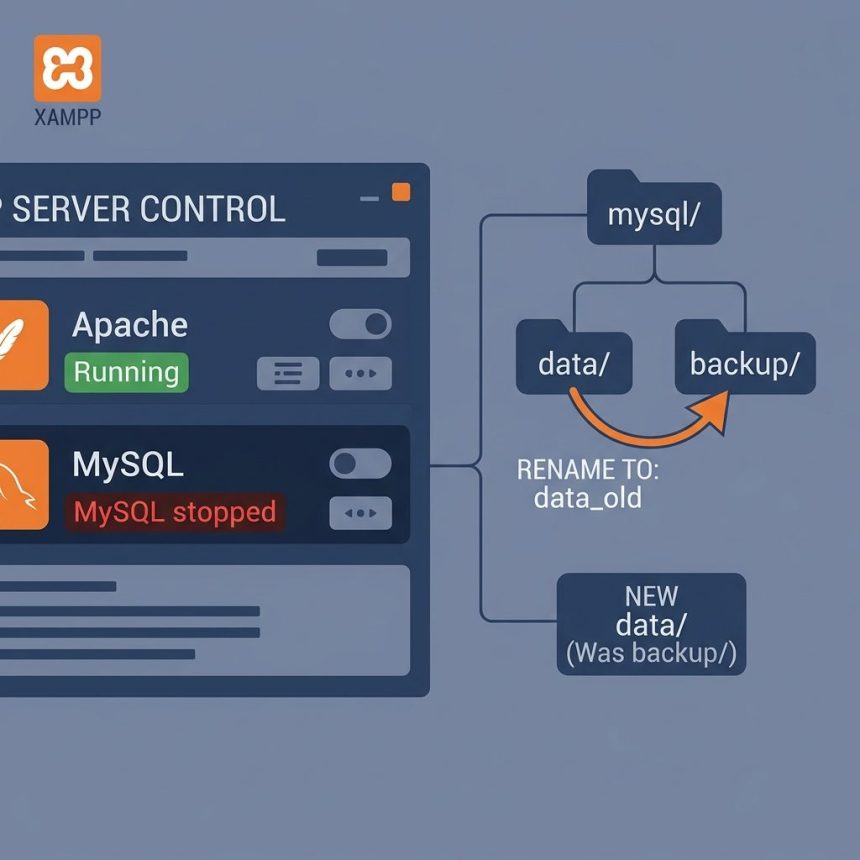
To fix the “Error: MySQL shutdown unexpectedly” message in XAMPP, recover the data directory using the known-good system schema in mysql/backup. Rename the broken mysql/data, copy backup over as the new data, then put your application databases (plus ibdata1) back from the old folder. MySQL starts again with a clean system catalog and your real data intact.
Last verified: 2026-05-17 on XAMPP 8.2 (MariaDB 10.4) on Windows 11. Originally published 2023-03-14, rewritten and updated 2026-05-17.
Before you touch anything — back up
Copy C:\xampp\mysql (the whole folder) somewhere safe. The recovery below is non-destructive (it renames rather than deletes), but the cost of a backup is small and the cost of losing your dev databases isn’t.
The XAMPP recovery recipe
- Stop MySQL in the XAMPP Control Panel (if it’s even partially running).
- Open the XAMPP install directory:
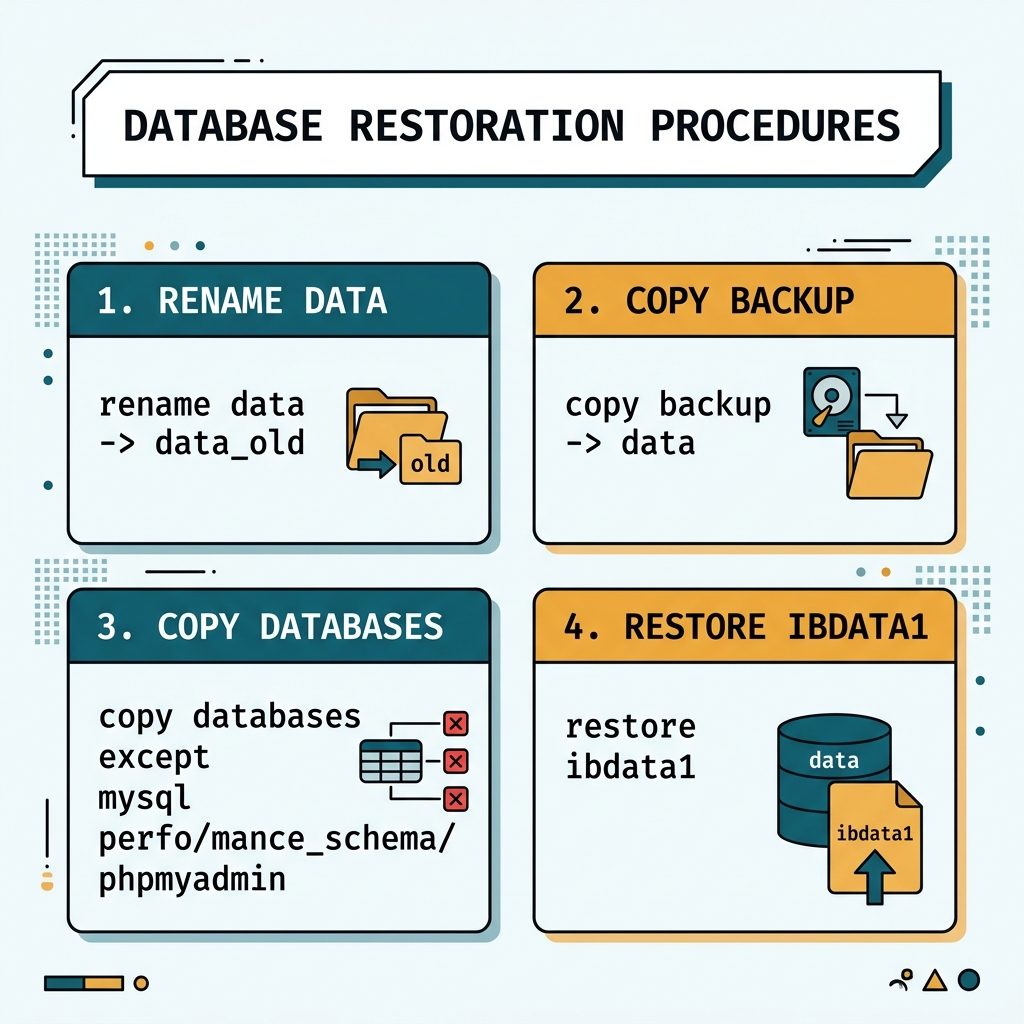
C:\xampp\mysql- Rename
mysql\datatomysql\data_old. - Make a copy of
mysql\backupand name the copymysql\data. - Copy every database folder from
mysql\data_oldinto the newmysql\data— except formysql,performance_schema, andphpmyadmin. Those three live inside the fresh copy already. - Copy
mysql\data_old\ibdata1intomysql\data\, replacing the one that came frombackup. - Start MySQL from the XAMPP Control Panel.
- Open phpMyAdmin and confirm every database is listed and openable.
Why the file dance works
mysql/backupis a clean copy of the system schema that XAMPP ships with — freshmysql(privileges),performance_schema, andphpmyadminfolders. Using it gives MySQL a working system catalog to boot against.ibdata1is the shared InnoDB tablespace — table dictionary, undo logs, sometimes data. Restoring yours instead of the empty one inbackupis what lets your InnoDB tables come back online.- Excluding the three system folders from the per-database copy keeps the new fresh system schema in place instead of overwriting it with the (possibly-broken) old one.
If it still won’t start
- Check port 3306 is free. Run
netstat -ano | findstr :3306in cmd. Another MySQL service or Skype/IIS/Docker may be holding it. - Read
mysql\data\<hostname>.err— the very last lines tell you what blew up. “Plugin ‘InnoDB’ init function returned error” usually meansibdata1still doesn’t match the table files. - Last resort: nuke and re-import. Export every database from
data_oldusing a portable MySQL command-line client, reset XAMPP’smysql\databack tobackup, and import the SQL dumps back in.
This recovery is a get back online fast procedure, not a long-term fix. Once MySQL is starting again, dump your databases to .sql files and consider re-installing XAMPP cleanly — the underlying file damage may resurface.
Frequently asked questions
The most common trigger is a hard shutdown while MySQL was writing (power loss, force-quit, blue screen). InnoDB’s ibdata1 ends up out of sync with the on-disk table files, and MySQL refuses to start to avoid further damage. Less common causes: another service on port 3306 (another MySQL install, Skype, Docker mapping), Windows file permissions after a Windows update, or antivirus locking files in mysql/data/.
mysql/data with mysql/backup? Only if you’ve renamed the existing mysql/data to something else first (the recipe renames it to data_old). That keeps your real databases intact — the recovery just restores a clean system catalog and then copies your databases back on top. Never delete data_old until you’ve confirmed every database is accessible after the recovery.
mysql, performance_schema, and phpmyadmin folders when copying? Those are MySQL’s system schemas — the user table, privileges, internal metadata. They’re tightly bound to the MySQL build, and copying old versions back can re-introduce the same corruption you’re trying to recover from. Use the fresh ones from mysql/backup and only restore your own application databases.
No — the mysql/backup folder is XAMPP-specific (XAMPP ships it as a known-good copy of the system schema). On a standalone MySQL/MariaDB install, recovery looks different: read the error log first (err.log in the data dir), try innodb_force_recovery=1 through 6 in my.cnf, and dump tables out while in recovery mode.
Related guides
- How to Automatically Start Apache and MySQL with XAMPP on Windows
- How to Access MySQL from the Command Line in XAMPP on Windows
- How to Troubleshoot MariaDB Not Starting
References
XAMPP project page: apachefriends.org. MySQL InnoDB recovery: dev.mysql.com/doc/refman/8.0/en/forcing-innodb-recovery.html.