How7o
  • Home
  • Tools
  • Prank Screens
  • Learn
  • Blog
  • Contact
Reading: How to Remove the “Other Favorites” Button in Microsoft Edge
Share
How7oHow7o
Font ResizerAa
  • OS
Search
  • Home
  • Tools
  • Prank Screens
  • Learn
  • Blog
  • Contact
Follow US
© 2024–2026 How7o. All rights reserved.
How7o > Free Laravel, PHP, WordPress & Server Tutorials > OS > How to Remove the “Other Favorites” Button in Microsoft Edge
OS

How to Remove the “Other Favorites” Button in Microsoft Edge

how7o
By how7o
Last updated: May 22, 2026
4 Min Read
Remove the Other Favorites button on the Microsoft Edge favorites bar
SHARE

To get rid of the “Other Favorites” button on the Microsoft Edge favorites bar, you have to empty the Other Favorites folder — Edge hides the button automatically once the folder is empty. There’s no setting to hide the folder while keeping its contents.

Contents
  • The steps
  • Why this is the only way
  • Keep the Favorites Bar tidy after moving
  • Frequently asked questions
  • Related guides
  • References

Last verified: 2026-05-17 on Microsoft Edge 124. Originally published 2023-02-15, rewritten and updated 2026-05-17.

The steps

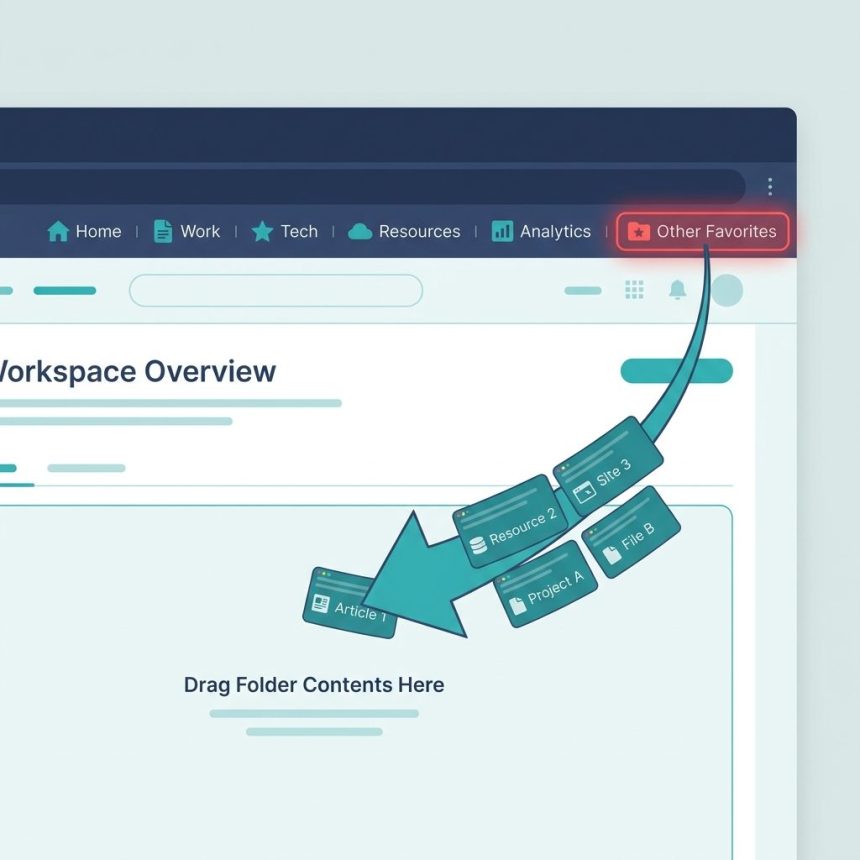
  1. Open the Favorites manager. Either click the three-dot menu → Favorites → Manage favorites, or press Ctrl+Shift+O.
  2. In the left sidebar, click the Other Favorites folder.
  3. Select every bookmark inside (Ctrl+A).
  4. Drag the selection to Favorites Bar (or to any subfolder under Favorites). Don’t delete — just move.
  5. Once Other Favorites is empty, the button vanishes from the favorites bar.
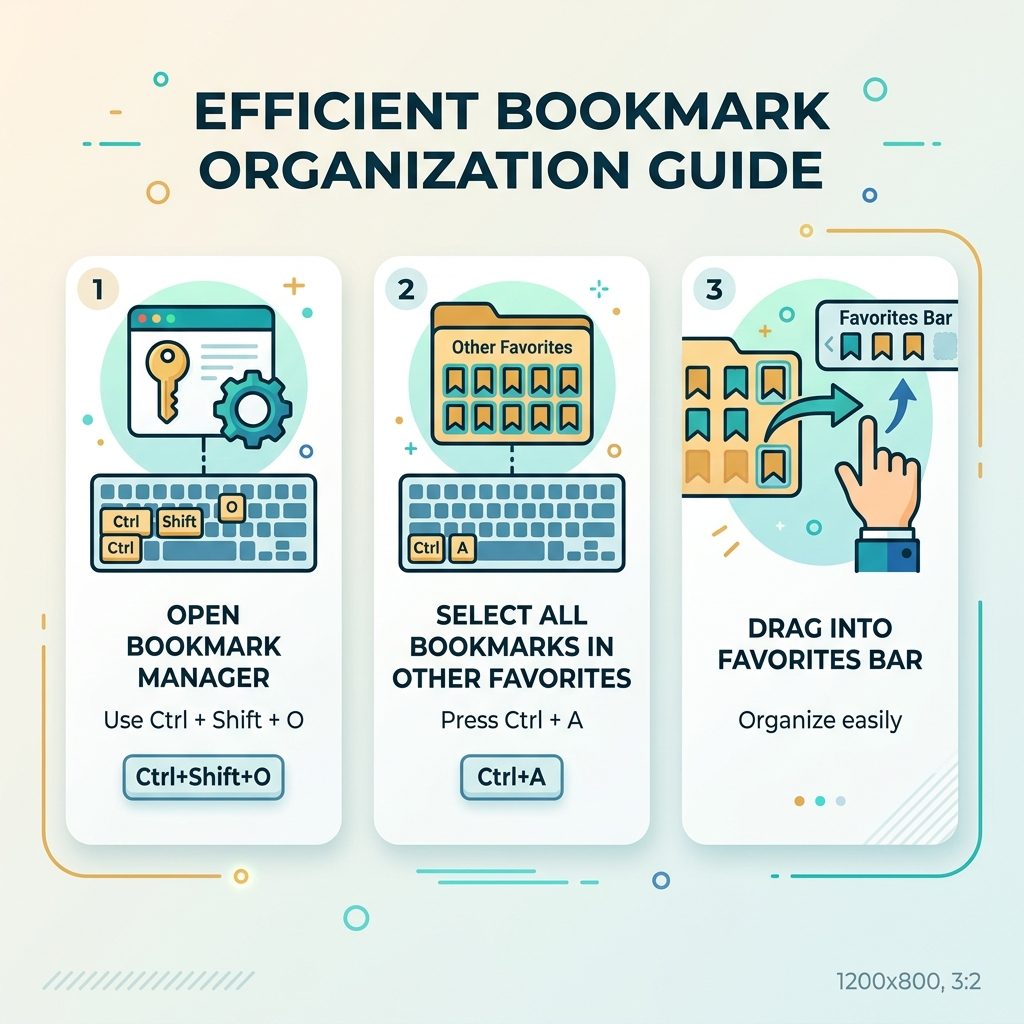
Microsoft Edge Other Favorites — open manager, select all, drag to Favorites Bar

Why this is the only way

Edge treats the Other Favorites folder as a special bookmark category that’s always reachable when it has contents. Unlike custom folders, there’s no Hide option on it. The visibility is tied directly to whether the folder contains any bookmarks — empty it, and the UI element disappears.

Keep the Favorites Bar tidy after moving

  • Use folders. Right-click an empty spot on the bar → Add folder. Drop related bookmarks into each folder. Clicking a folder on the bar opens a dropdown — fast access without clutter.
  • Drop the titles. Right-click a bookmark on the bar → Edit → clear the name. With an empty name, the bookmark shows only its favicon, packing more onto the bar.
  • Show on new tab only. Settings → Appearance → Show favorites bar → Only on new tabs hides the bar while you’re on a page and shows it on the new-tab page.

Frequently asked questions

Where do bookmarks that aren’t on the Favorites Bar end up?

Anywhere outside the Favorites Bar folder. The Other Favorites button is a shortcut to bookmarks in the top-level Favorites root (not in any subfolder, not in the Favorites Bar). When you import from Chrome, anything from Chrome’s “Other Bookmarks” lands there by default.

Can I move bookmarks out of Other Favorites without losing them?

Yes — open the Favorites manager (Ctrl+Shift+O or the three-dot menu → Favorites → Manage favorites), then drag everything out of Other Favorites into the Favorites Bar or into a custom folder under Favorites. Once the Other Favorites folder is empty, the button disappears from the bar.

Is there a setting or registry tweak to hide the button without emptying the folder?

Not in current Edge builds — there’s no Settings toggle for it and no documented registry/policy key that hides the folder while keeping its contents. The empty-the-folder workaround is the only reliable method short of a browser extension.

If I move bookmarks to the Favorites Bar, won’t it get cluttered?

Create subfolders. The Favorites Bar can hold folders, and clicking a folder opens a dropdown. Group related bookmarks into folders (“Work”, “News”, “Tools”) and the bar stays clean while still giving you fast access.

Related guides

  • How to Get a Website’s Favicon URL with JavaScript
  • How to Reduce High Memory Usage on Windows 11

References

Microsoft Edge Favorites support: support.microsoft.com.
TAGGED:configurationedgewindows

Sign Up For Daily Newsletter

Be keep up! Get the latest breaking news delivered straight to your inbox.
[mc4wp_form]
By signing up, you agree to our Terms of Use and acknowledge the data practices in our Privacy Policy. You may unsubscribe at any time.
Share This Article
Facebook Copy Link Print
Previous Article Get N elements from a JavaScript array with slice for pagination How to Get N Elements from an Array in JavaScript
Next Article Get the first character of a JavaScript string How to Get the First Character of a String in JavaScript
Leave a Comment

Leave a Reply Cancel reply

You must be logged in to post a comment.

FacebookLike
XFollow
PinterestPin
InstagramFollow
Most Popular
Run Laravel queue workers with Supervisor
How to Run Laravel Queue Workers in Production with Supervisor
May 23, 2026
Nginx as a reverse proxy for a Node.js app on Ubuntu
How to Set Up Nginx as a Reverse Proxy for Node.js on Ubuntu
May 23, 2026
Install and configure Redis on Ubuntu for Laravel and WordPress
How to Install and Configure Redis on Ubuntu (for Laravel & WordPress)
May 23, 2026
Harden a fresh Ubuntu VPS with UFW, Fail2Ban, and SSH key auth
How to Harden a Fresh Ubuntu VPS: UFW + Fail2Ban + SSH Key Auth
May 23, 2026
Set up Let's Encrypt SSL with Certbot on Ubuntu
How to Set Up Let’s Encrypt SSL with Certbot on Ubuntu (Apache & Nginx)
May 23, 2026

You Might Also Like

Nginx subdirectory configuration with alias and PHP-FPM
Server Management

How to Configure Nginx for a Subdirectory

5 Min Read
Fix missing PHP Authorization header on Apache and cPanel
Server Management

How to Fix Missing Authorization Header in PHP Requests

5 Min Read
Get a remote file size from URL in PHP with get_headers
Web Development

How to Get a Remote File’s Size from a URL in PHP

4 Min Read
Install MySQL on Ubuntu 22.04 — terminal with apt command and database cylinder icon
Server Management

How to Install MySQL on Ubuntu 22.04: Step-by-Step Guide

9 Min Read
How7o

We provide tips, tricks, and advice for improving websites and doing better search.

Tools

  • Age Calculator
  • Word Counter
  • Image Upscaler
  • Password Generator
  • QR Code Generator
  • See all tools→

Pranks

  • Fake Blue Screen Prank
  • Hacker Typer
  • Fake iMessage Generator
  • Windows XP Crash Prank
  • Windows 11 Update Prank
  • See all prank screens →

Company

  • About Us
  • Blog
  • Contact
  • Privacy Policy
  • Terms of Service
  • Sitemap
© 2024–2026 How7o. All rights reserved.
Welcome Back!

Sign in to your account

Username or Email Address
Password

Lost your password?