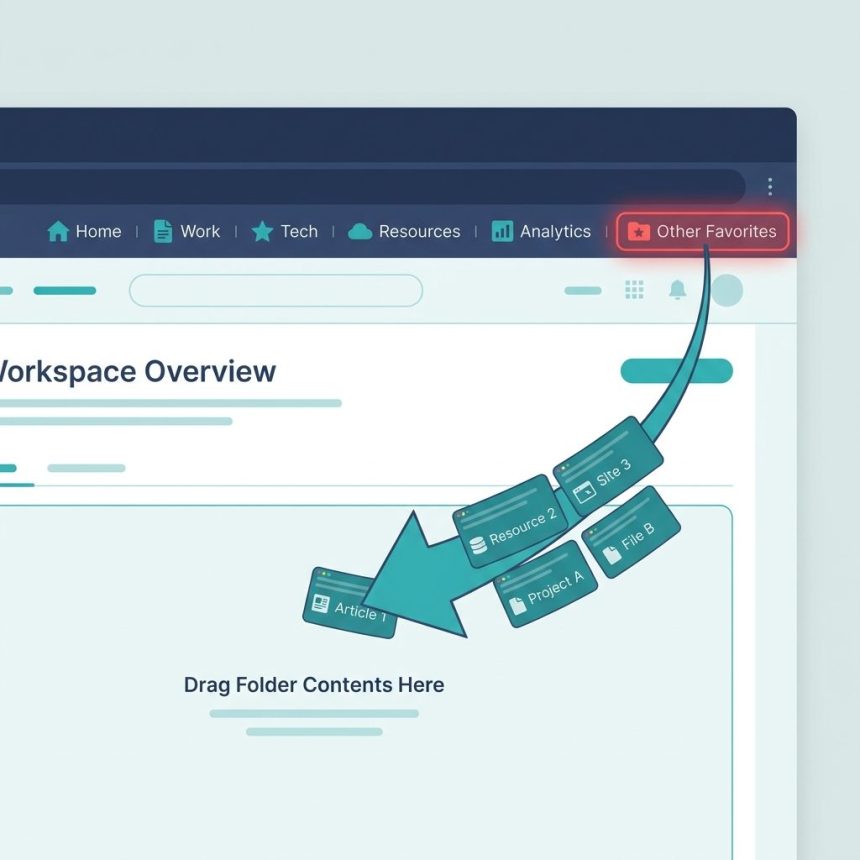
To get rid of the “Other Favorites” button on the Microsoft Edge favorites bar, you have to empty the Other Favorites folder — Edge hides the button automatically once the folder is empty. There’s no setting to hide the folder while keeping its contents.
Last verified: 2026-05-17 on Microsoft Edge 124. Originally published 2023-02-15, rewritten and updated 2026-05-17.
The steps
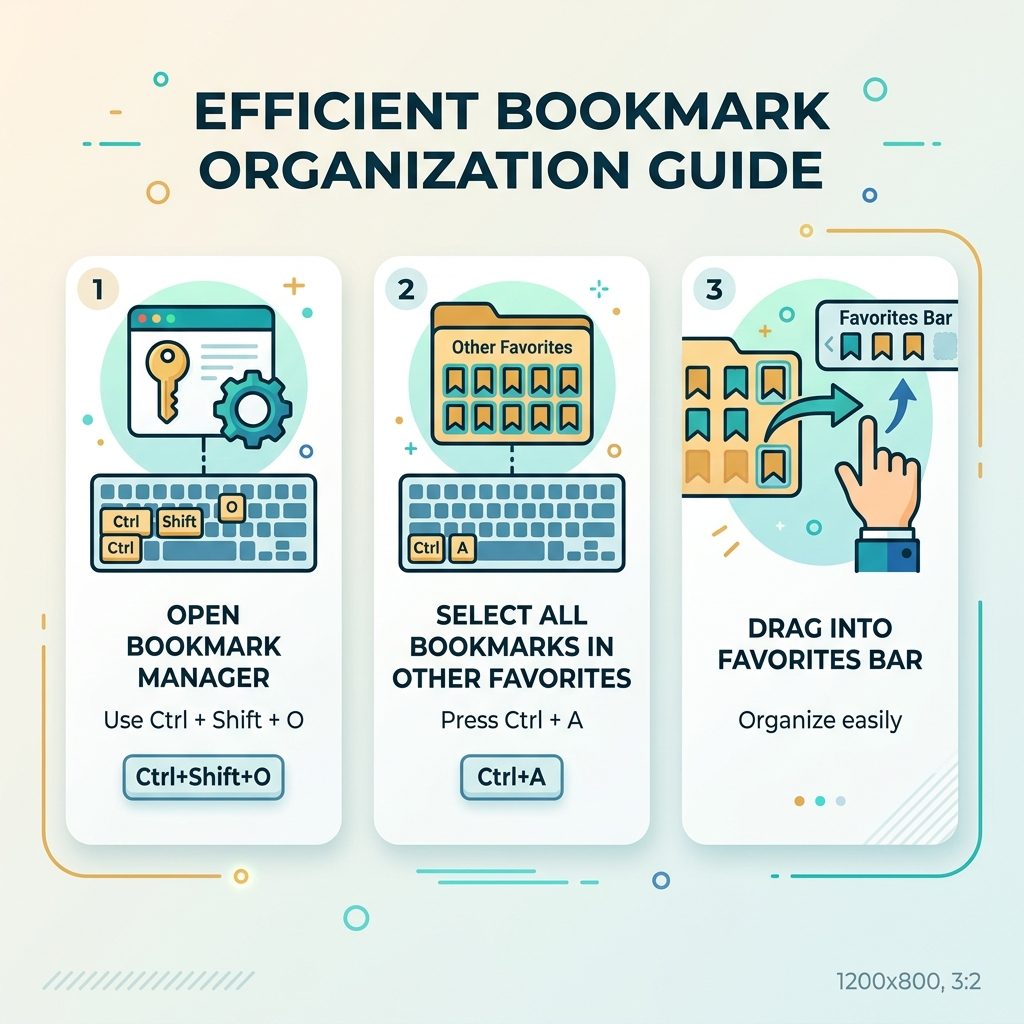
- Open the Favorites manager. Either click the three-dot menu → Favorites → Manage favorites, or press Ctrl+Shift+O.
- In the left sidebar, click the Other Favorites folder.
- Select every bookmark inside (Ctrl+A).
- Drag the selection to Favorites Bar (or to any subfolder under Favorites). Don’t delete — just move.
- Once Other Favorites is empty, the button vanishes from the favorites bar.
Why this is the only way
Edge treats the Other Favorites folder as a special bookmark category that’s always reachable when it has contents. Unlike custom folders, there’s no Hide option on it. The visibility is tied directly to whether the folder contains any bookmarks — empty it, and the UI element disappears.
Keep the Favorites Bar tidy after moving
- Use folders. Right-click an empty spot on the bar → Add folder. Drop related bookmarks into each folder. Clicking a folder on the bar opens a dropdown — fast access without clutter.
- Drop the titles. Right-click a bookmark on the bar → Edit → clear the name. With an empty name, the bookmark shows only its favicon, packing more onto the bar.
- Show on new tab only. Settings → Appearance → Show favorites bar → Only on new tabs hides the bar while you’re on a page and shows it on the new-tab page.
Frequently asked questions
Anywhere outside the Favorites Bar folder. The Other Favorites button is a shortcut to bookmarks in the top-level Favorites root (not in any subfolder, not in the Favorites Bar). When you import from Chrome, anything from Chrome’s “Other Bookmarks” lands there by default.
Yes — open the Favorites manager (Ctrl+Shift+O or the three-dot menu → Favorites → Manage favorites), then drag everything out of Other Favorites into the Favorites Bar or into a custom folder under Favorites. Once the Other Favorites folder is empty, the button disappears from the bar.
Not in current Edge builds — there’s no Settings toggle for it and no documented registry/policy key that hides the folder while keeping its contents. The empty-the-folder workaround is the only reliable method short of a browser extension.
Create subfolders. The Favorites Bar can hold folders, and clicking a folder opens a dropdown. Group related bookmarks into folders (“Work”, “News”, “Tools”) and the bar stays clean while still giving you fast access.
Related guides
References
Microsoft Edge Favorites support: support.microsoft.com.