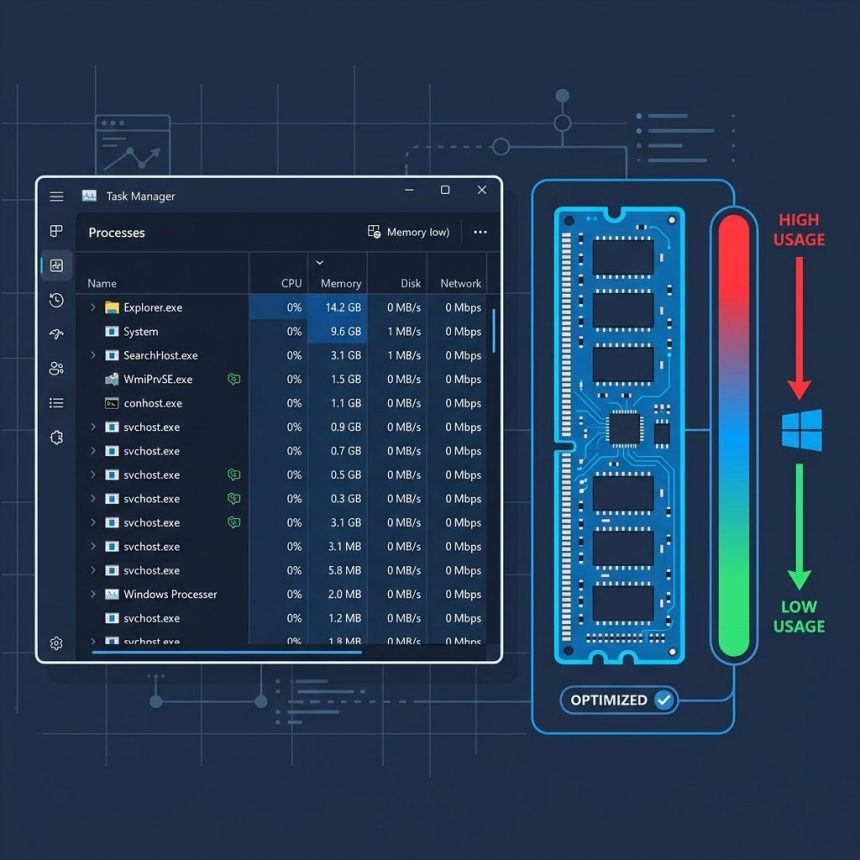
To reduce high memory usage on Windows 11, start in Task Manager to find which processes are using the most RAM, then attack the biggest contributors: close unneeded apps, disable startup programs you don’t use, optionally disable SysMain on SSDs, and as a last resort increase the page file. Below is the same set of fixes in order of impact.
Last verified: 2026-05-17 on Windows 11 24H2. Originally published 2023-02-18, rewritten and updated 2026-05-17.
Check what’s using RAM
- Press Win+X and choose Task Manager.
- Switch to the Processes tab.
- Click the Memory column header to sort processes by RAM use, largest at the top.
- Note the overall percentage at the top of the column — that’s total system memory in use.
If one or two processes account for most of the use (browser with many tabs, an IDE, a game still running in the tray), close those first — that’s almost always the biggest single win.
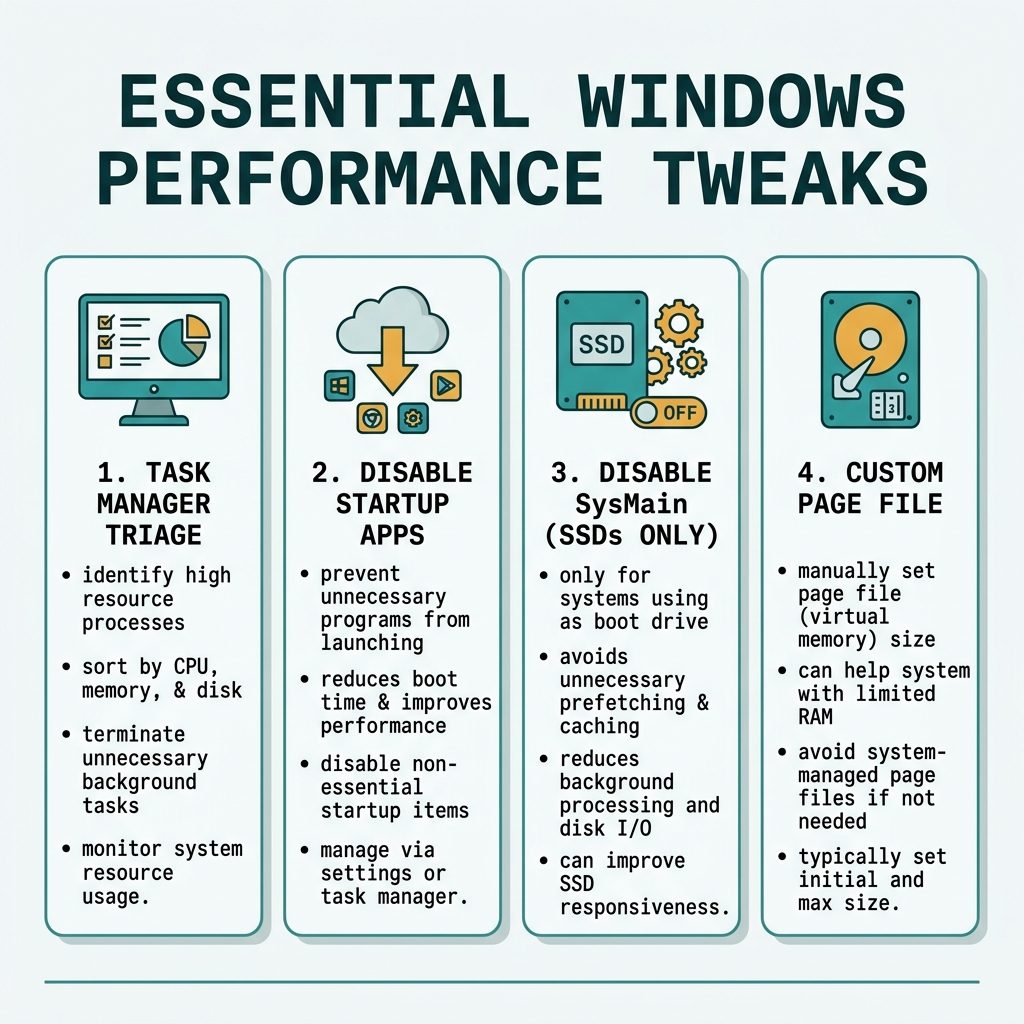
Disable unneeded startup apps
- In Task Manager, open the Startup apps tab (or Startup on older builds).
- Look at the Startup impact column — sort by High.
- Right-click anything you don’t need running at boot and choose Disable.
Common offenders: chat apps (Teams, Slack), gaming launchers (Steam, Epic), cloud sync clients (Dropbox, OneDrive — keep them if you actually use them). Disabling means they won’t auto-launch; you can still open them manually.
Disable SysMain (SSD only)
- Press Win+R and run
services.msc. - Scroll to SysMain (called Superfetch in older docs).
- Double-click it; set Startup type to Disabled.
- Click Stop, then Apply, then OK.
SysMain preloads frequently used apps into RAM to speed up launches. On a fast SSD the speed-up is negligible, and on a slow SSD the constant background reads can show as high disk + memory use. On a mechanical hard drive, leave SysMain on — disabling it noticeably slows app launches.
Adjust visual effects for performance
- Search the taskbar for
sysdm.cpland open it. - Switch to the Advanced tab.
- Under Performance, click Settings.
- Choose Adjust for best performance, click Apply, OK.
This turns off shadows, animations, and visual polish. The memory savings are modest (tens of MB) but it can noticeably help on older systems and laptops on battery.
Increase virtual memory (page file)
- Search for View advanced system settings, open it.
- On the Advanced tab, click Settings under Performance.
- Switch to the Advanced tab inside that dialog, then click Change under Virtual memory.
- Uncheck Automatically manage paging file size for all drives.
- Select your system drive, choose Custom size, and set an initial and maximum size (a common starting point is 1.5× to 2× your physical RAM, capped at 8–16 GB).
- Click Set, then OK, and reboot.
A larger page file lets Windows commit more memory than you have physically — it prevents out-of-memory crashes but does not speed up programs (RAM is orders of magnitude faster than disk). If you’re paging routinely, the durable fix is more RAM.
Scan for malware
- Open Windows Security from the Start menu.
- Choose Virus & threat protection.
- Click Quick scan. If clean, run Scan options → Full scan.
Unexpected high memory use combined with high CPU or disk use is a classic indicator of cryptominers and other unwanted programs. The built-in Windows Defender is enough for routine checks; for second opinions, Microsoft’s Malicious Software Removal Tool (MRT) is a free additional scan.
Frequently asked questions
Microsoft’s minimum is 4 GB, but a realistic baseline for Windows 11 with the usual desktop services running is 3–4 GB of committed memory at idle. Anything past 6 GB at idle (no apps open) is worth investigating. Note that Windows aggressively caches in unused RAM — high “In use” is the metric to watch, not “Total committed.”
On HDDs, SysMain (the old SuperFetch) preloads frequently used apps to speed up launches; turning it off measurably hurts those launches. On SSDs the benefit is small to none, and on slower SSDs the constant background reads can show up as high disk usage. If you’re on an SSD and seeing SysMain at the top of resource graphs, disabling it is reasonable; on an HDD, leave it on.
Sort of — a bigger page file lets Windows commit more memory than you have physical RAM, which prevents out-of-memory errors. It does not make the system faster; reading from the page file is orders of magnitude slower than RAM. If you’re routinely paging, the right fix is more RAM, not a bigger page file.
Use Task Manager’s Details tab, add the Memory (private working set) column, and sort. A process that climbs steadily over hours without ever releasing memory is leaking. A process that’s just large but stable (Chrome, IDEs, Docker) isn’t leaking — it’s using what it asked for. Get-Process | Sort-Object WS -Descending in PowerShell gives the same view if you’d rather script it.
Related guides
- How to cd to a Different Drive in Windows
- How to Automatically Start Apache and MySQL with XAMPP on Windows
- How to Fix “MySQL Shutdown Unexpectedly” in XAMPP
References
Microsoft Task Manager guide: support.microsoft.com. Microsoft virtual memory docs: learn.microsoft.com/en-us/troubleshoot/windows-client/performance/introduction-to-the-page-file.