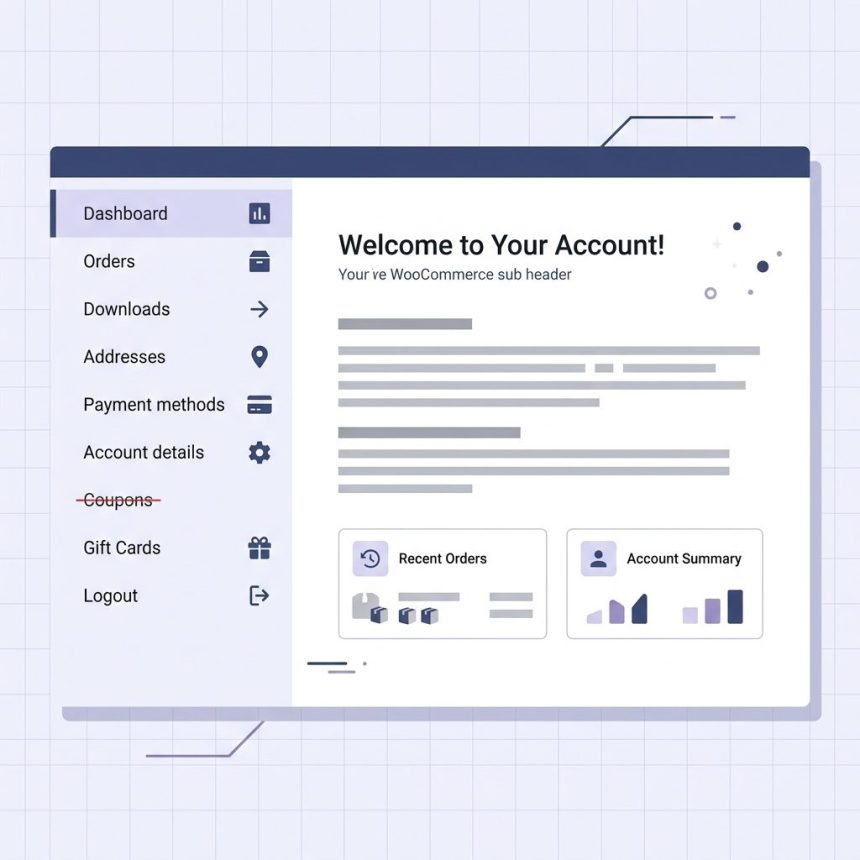
To rename a menu item on the WooCommerce “My Account” page, hook the woocommerce_account_menu_items filter and replace the label by its key. The example below renames the “Coupons” item (used by WooCommerce Smart Coupons) to “Gift Cards” — the same pattern works for any menu item by changing the key.
Last verified: 2026-05-17 on WooCommerce 9.0 + WordPress 6.5. Originally published 2024-03-23, rewritten and updated 2026-05-17.
The filter
add_filter( 'woocommerce_account_menu_items', function ( $items ) {
    if ( isset( $items['wc-smart-coupons'] ) ) {
        $items['wc-smart-coupons'] = __( 'Gift Cards', 'your-textdomain' );
    }
    return $items;
}, 99 );
Put this in your child theme’s functions.php or in a small site-specific plugin. The filter runs every time WooCommerce builds the account-menu sidebar.
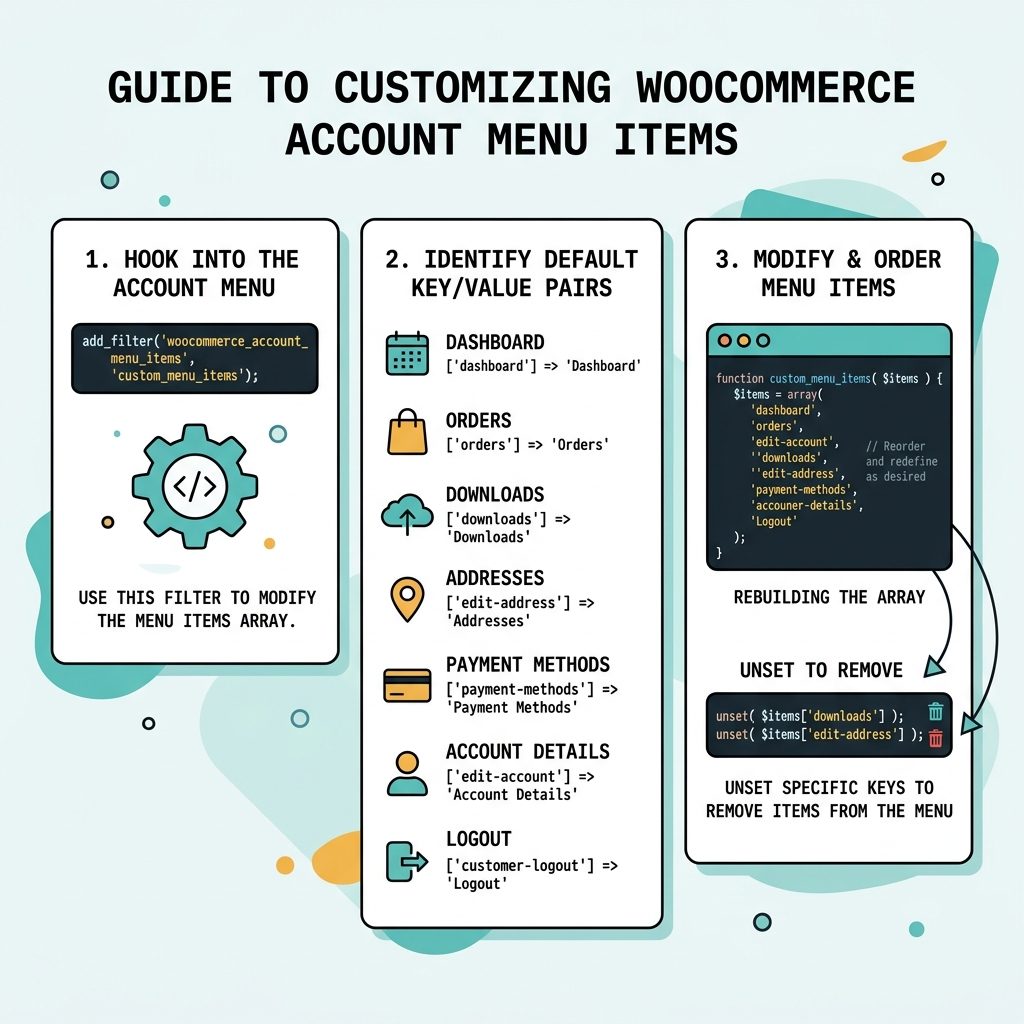
The built-in menu item keys
'dashboard'→ “Dashboard”'orders'→ “Orders”'downloads'→ “Downloads”'edit-address'→ “Addresses”'payment-methods'→ “Payment methods”'edit-account'→ “Account details”'customer-logout'→ “Log out”
Third-party plugins add their own keys — Smart Coupons uses 'wc-smart-coupons', Subscriptions adds 'subscriptions', etc. Dump the array once to see what’s available on your site:
add_filter( 'woocommerce_account_menu_items', function ( $items ) {
    error_log( print_r( $items, true ) );
    return $items;
}, 1 );
Rename multiple items at once
add_filter( 'woocommerce_account_menu_items', function ( $items ) {
    $rename = [
        'orders'          => __( 'My Orders',    'your-textdomain' ),
        'edit-account'    => __( 'Profile',      'your-textdomain' ),
        'customer-logout' => __( 'Sign Out',     'your-textdomain' ),
    ];

    foreach ( $rename as $key => $label ) {
        if ( isset( $items[ $key ] ) ) {
            $items[ $key ] = $label;
        }
    }
    return $items;
}, 99 );
Reorder or remove items
// Reorder
add_filter( 'woocommerce_account_menu_items', function ( $items ) {
    return [
        'orders'          => $items['orders'],
        'downloads'       => $items['downloads'],
        'edit-account'    => $items['edit-account'],
        'edit-address'    => $items['edit-address'],
        'customer-logout' => $items['customer-logout'],
    ];
}, 99 );

// Remove
add_filter( 'woocommerce_account_menu_items', function ( $items ) {
    unset( $items['downloads'] );
    return $items;
}, 99 );
Frequently asked questions
Hook woocommerce_account_menu_items once and var_dump($items) to see the array. The keys are stable identifiers like 'dashboard', 'orders', 'downloads', 'edit-address', 'edit-account', 'customer-logout'. Third-party plugins add their own keys (Smart Coupons uses 'wc-smart-coupons').
Build a new array in your desired order: add_filter('woocommerce_account_menu_items', fn($items) => ['orders' => $items['orders'], 'downloads' => $items['downloads'], 'edit-account' => $items['edit-account'], 'customer-logout' => $items['customer-logout']]). PHP arrays preserve insertion order, so the new ordering is what WooCommerce renders.
unset($items['downloads']); inside the same filter. WooCommerce skips missing keys gracefully — the endpoint still works if someone visits the URL directly, but the link doesn’t appear in the menu.
99, 1 at the end of add_filter do? Priority and argument count. 99 is the filter priority (higher = runs later, so this overrides earlier filters from other plugins). 1 is the number of arguments to pass to the callback. WordPress’s default is 10, 1; setting 99 is a defensive choice to win against plugins that add filters at priority 10.
Related guides
- How to Display Orders Instead of Dashboard on the My Account Page
- How to Add a Link After the Login Form in My Account
- How to Remove Checkout Fields in WooCommerce
References
WooCommerce woocommerce_account_menu_items hook: woocommerce.com/document/editing-account-endpoints. WordPress add_filter(): developer.wordpress.org/reference/functions/add_filter.