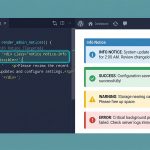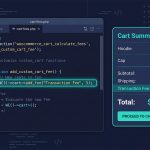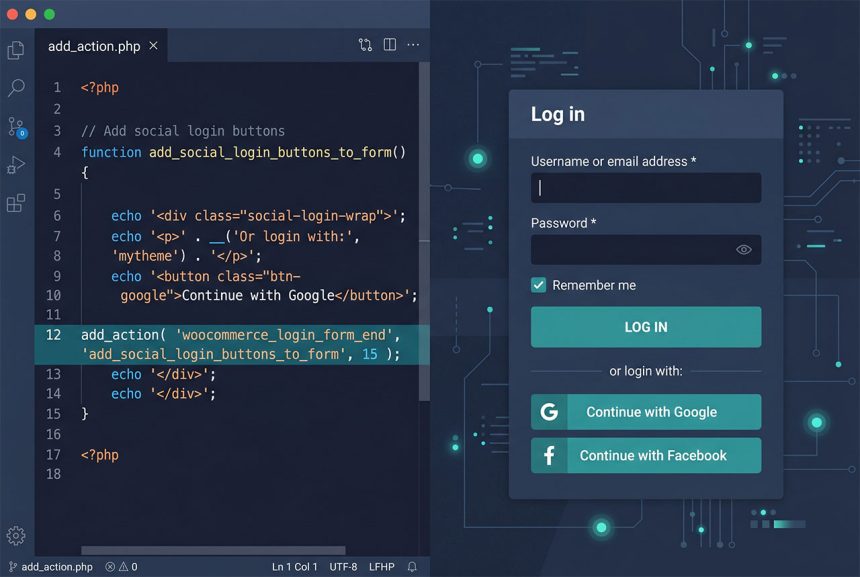
To add a link, button, or shortcode output to the WooCommerce My Account login form, hook into woocommerce_login_form action points and echo your markup. The three most useful positions are woocommerce_login_form_start (top of form), woocommerce_login_form_end (bottom, typical choice), and the bracketing woocommerce_before_customer_login_form / woocommerce_after_customer_login_form that wrap the whole form block. This guide shows each and when to reach for which.
Last verified: 2026-04-23 on WooCommerce 9.x with WordPress 6.5. Originally published 2023-06-24, rewritten and updated 2026-04-23.
TL;DR
add_action( 'woocommerce_login_form_end', 'how7o_add_social_login' );

function how7o_add_social_login() {
    echo do_shortcode( '[nextend_social_login]' );
}
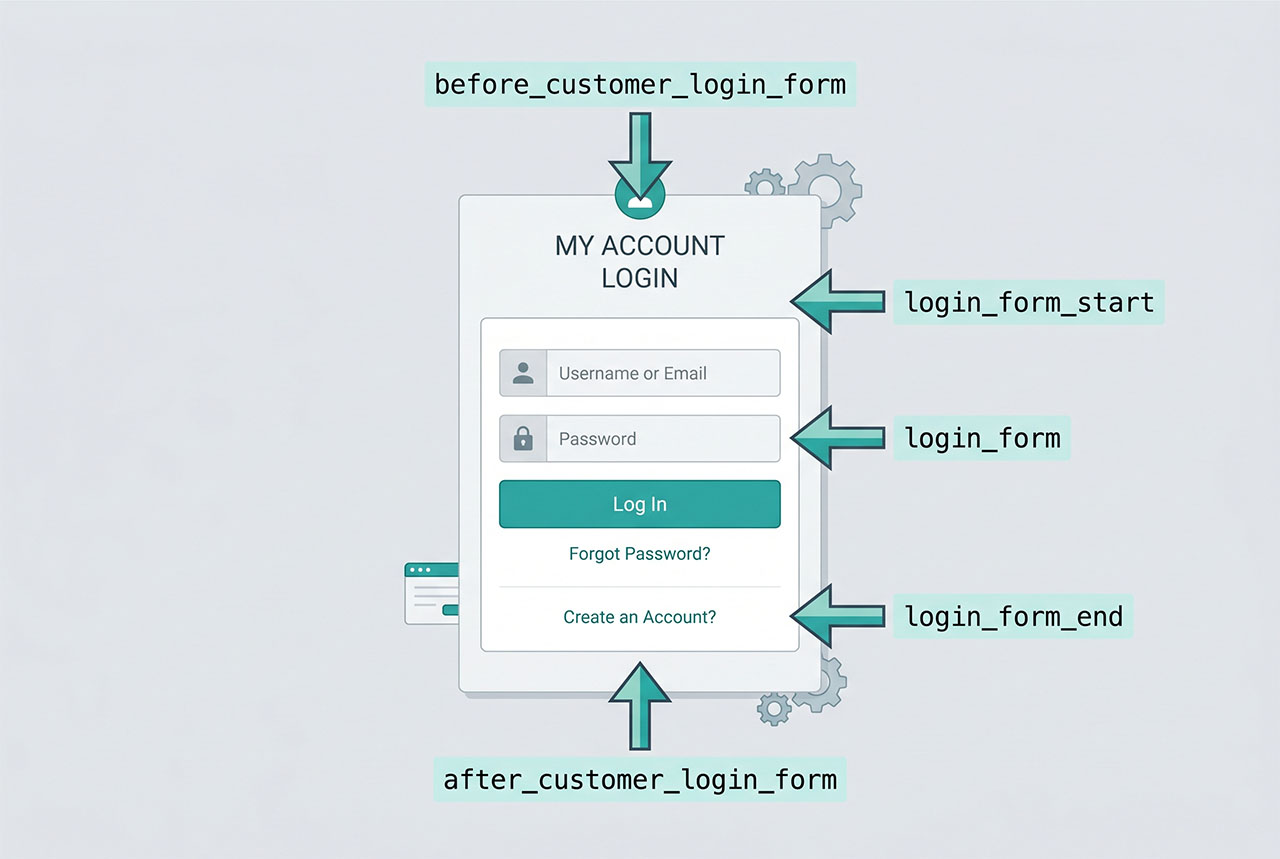
Hook positions on the My Account page
woocommerce_before_customer_login_form— before the<form>, before any “Log in / Register” headings.woocommerce_login_form_start— inside the form, before the username field.woocommerce_login_form— inside the form, between the password field and the submit button.woocommerce_login_form_end— inside the form, after the submit button. The most common slot.woocommerce_after_customer_login_form— after the form (and registration form, if shown).
Pick the position that matches your UX — social-login buttons typically sit below the native form (use woocommerce_login_form_end), a Terms notice typically sits above (use woocommerce_login_form_start).
Injecting a shortcode
add_action( 'woocommerce_login_form_end', 'how7o_add_social_login' );

function how7o_add_social_login() {
    echo do_shortcode( '[nextend_social_login]' );
}
If a plugin (Nextend Social Login, Super Socializer, etc.) provides a shortcode for its button group, do_shortcode() renders it at the hook point. No template overrides needed, no child-theme copying of WooCommerce files.
Custom HTML instead of a shortcode
add_action( 'woocommerce_login_form_end', 'how7o_add_password_reset_link' );

function how7o_add_password_reset_link() {
    printf(
        '<p class="woocommerce-lost-password"><a href="%s">%s</a></p>',
        esc_url( wp_lostpassword_url() ),
        esc_html__( 'Forgot your password?', 'how7o' )
    );
}
When you don’t have a shortcode — a custom link, a compliance notice, a call-to-action for a specific flow — echo the HTML directly. Use esc_url and esc_html on any dynamic parts so the output is safe against XSS if values ever come from translation strings or options.
Above the form or around the whole block
// Before the login form
add_action( 'woocommerce_before_customer_login_form', function () {
    echo '<div class="notice">Accounts created before 2024 require a password reset.</div>';
} );

// After the login form (and registration, if shown)
add_action( 'woocommerce_after_customer_login_form', function () {
    echo '<p class="small">By signing in you agree to our <a href="/terms">terms</a>.</p>';
} );
The before_customer_login_form / after_customer_login_form pair wrap the whole form block and don’t inject inside the <form> tag, so they’re fine for global notices, terms links, or marketing content.
Where to put the code
Child theme’s functions.php — not the parent theme. Parent themes get wiped on update and you lose the customization. If you don’t have a child theme yet, create one with:
/* wp-content/themes/parent-child/style.css */
/*
Theme Name: Parent Child
Template:   parent
*/
And an empty functions.php in the same folder. Activate the child theme in Appearance → Themes and paste your add_action calls there.
Frequently asked questions
woocommerce_login_form_end — fires right before the closing </form> of the WooCommerce login form on the My Account page. Echo whatever you want to inject there. The sibling hook woocommerce_login_form_start fires at the top of the form, and woocommerce_before_customer_login_form / woocommerce_after_customer_login_form bracket the whole form block (including the registration form if it’s shown).
add_action or add_filter? add_action — woocommerce_login_form_end is an action, not a filter. The source post uses add_filter, which works because WooCommerce calls do_action under the hood and both action and filter registrations accept the same callback signature. Still, add_action is the correct form and communicates intent better.
Yes — anything you echo inside the callback renders inline where the hook fires. Common uses: a social-login button from a plugin shortcode, a link to the password-reset page, a Terms link, a styled Google/Facebook sign-in button you built yourself. The only constraint is that the HTML is injected inside the <form> tag, so avoid nested <form> elements.
woocommerce_login_form_end is scoped to the login form only. For the registration form, use woocommerce_register_form_end with the same shape. To inject into both at once, hook woocommerce_after_customer_login_form — it fires after both forms on the My Account page.
functions.php? Always put WooCommerce customizations in a child theme (or a site-specific plugin) — never the parent. Parent themes get overwritten on update and you lose everything. If you don’t have a child theme yet, creating one is two files: style.css with the right Template: header and an empty functions.php.
Related guides
- How to Display Orders Instead of Dashboard on the WooCommerce My Account Page — another My Account customization.
- How to Remove Checkout Fields in WooCommerce — same pattern of filter-based WooCommerce tweaks.
- How to Login a User Programmatically in WordPress — what happens when SSO provider returns.
- How to Display Different Menus to Logged-In Users in WordPress — related post-login UI change.
References
WooCommerce hook reference: woocommerce.com/document/introduction-to-hooks-actions-and-filters.