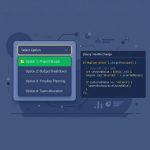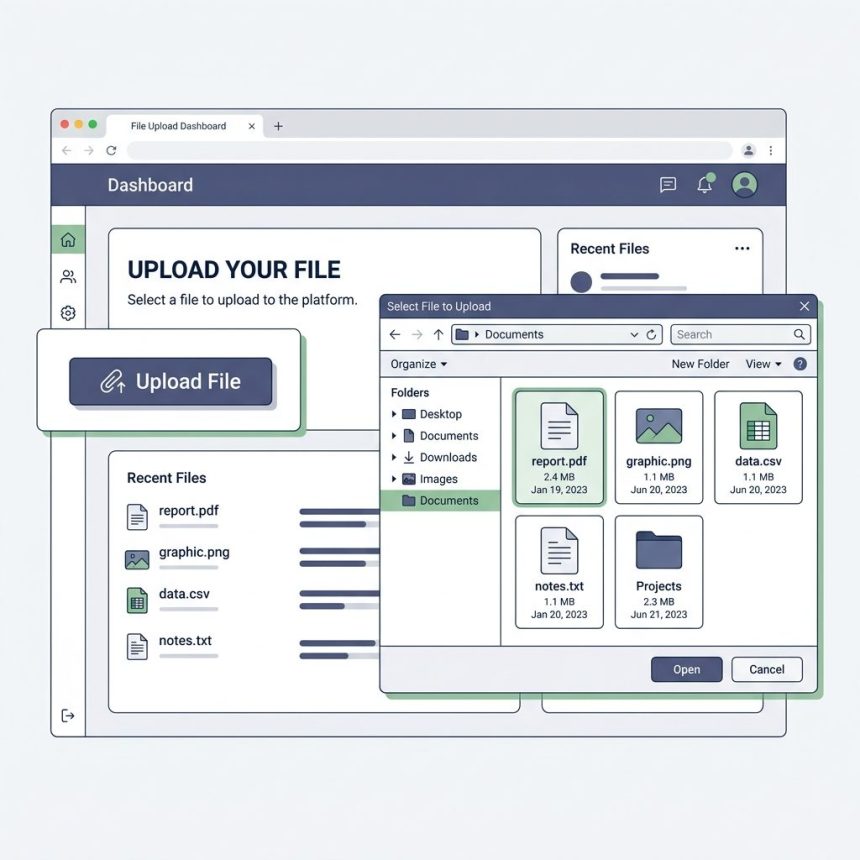
To open the file-selection dialog when a button is clicked, hide a <input type="file"> with CSS and trigger it from the button — either with a <label> wrapping (no JavaScript needed) or by calling input.click() on the hidden input.
Last verified: 2026-05-17 in Chrome 124, Firefox 125, Safari 17. Originally published 2023-07-25, rewritten and updated 2026-05-17.
Option 1 — pure HTML with a <label>
<label for="fileInput" class="upload-button">Upload File</label>
<input type="file" id="fileInput" style="display: none;">
Clicking a <label> activates its associated form control — exactly the same as if the user had clicked the input directly. No JavaScript needed, works with the keyboard and screen readers without extra ARIA. Style the label like a button with CSS.
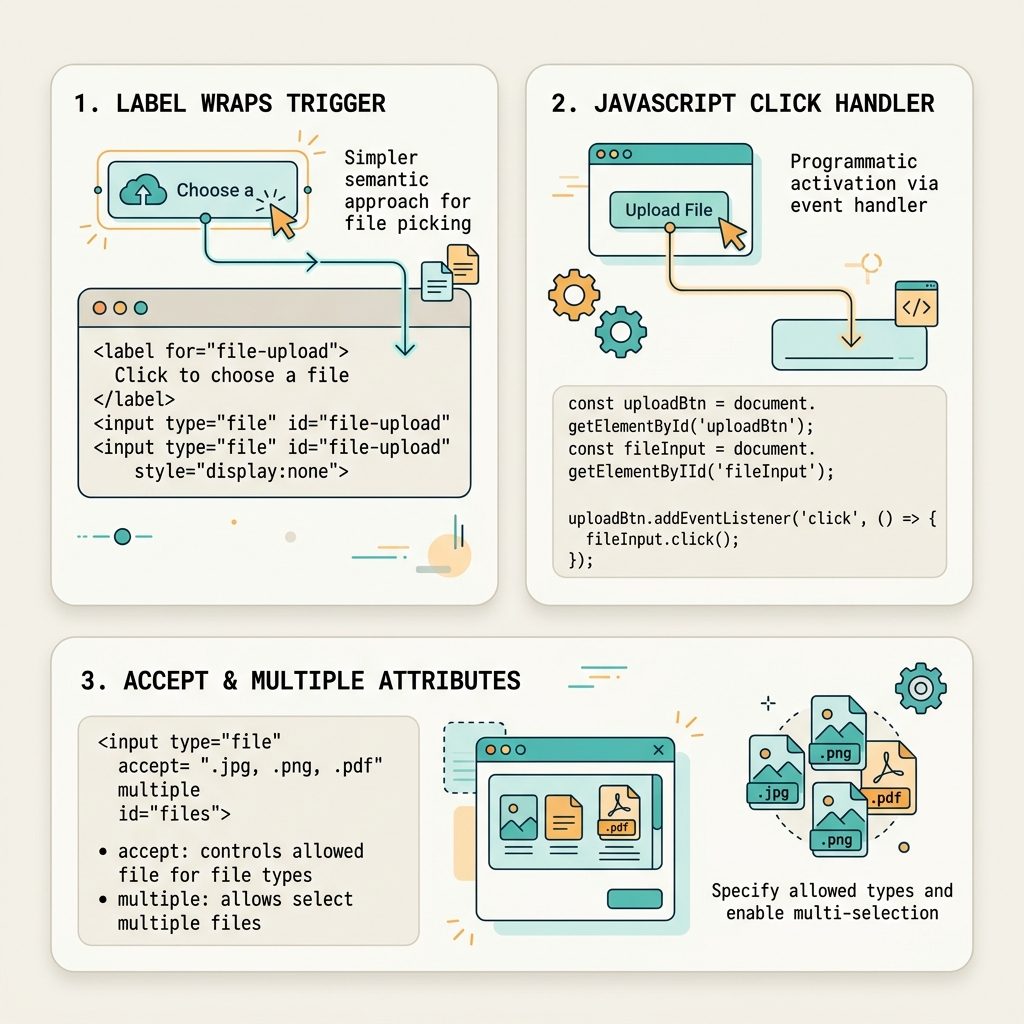
Option 2 — JavaScript click()
<button id="upload-button">Upload File</button>
<input type="file" id="fileInput" style="display: none;">

<script>
document.getElementById('upload-button').addEventListener('click', () => {
    document.getElementById('fileInput').click();
});
</script>
Programmatically clicking the hidden input opens the OS file dialog. Works on every modern browser; user-gesture restrictions mean the call must happen inside a real click handler (you can’t open the dialog from a setTimeout or page-load script).
Show the selected filename
<label for="fileInput" class="upload-button">Upload File</label>
<input type="file" id="fileInput" style="display: none;">
<span id="fileName"></span>

<script>
const input = document.getElementById('fileInput');
const name  = document.getElementById('fileName');

input.addEventListener('change', () => {
    name.textContent = input.files[0]?.name ?? 'No file chosen';
});
</script>
Multi-select and filtering
<!-- Multiple files, PDFs and any image type -->
<input type="file" id="fileInput" multiple accept=".pdf,image/*" style="display: none;">multiple— lets the user pick more than one file in the dialog.accept— hint to the OS dialog about which types to show. Accepts extensions (.pdf,.docx), MIME types (image/png,video/*), or both. The browser doesn’t enforce this strictly — always re-validate on the server.
Frequently asked questions
click()? The label is the more accessible default — keyboard and screen-reader users get correct semantics for free, and it works with JavaScript disabled. The JS click() trick is fine when you need to trigger the dialog from anywhere (e.g. a button somewhere else on the page) or in response to a different event. Both are widely used.
display: none instead of visibility: hidden or off-screen positioning? display: none removes the element from the layout entirely, which is fine here — the user never interacts with it directly. For accessibility-critical hidden inputs you’d use the “visually hidden” pattern (position: absolute; clip: rect(0 0 0 0);) so screen readers can still find it. For this pattern, display: none is the simplest and works because the label re-exposes the control to assistive tech.
Listen for the input’s change event and read input.files[0].name: fileInput.addEventListener('change', () => nameSpan.textContent = fileInput.files[0]?.name ?? ''). Update a span or div next to the button so users get visual confirmation of their pick.
Yes — add the multiple attribute for multi-select, and accept with MIME types or extensions to filter: <input type="file" multiple accept=".pdf,image/*">. The accept attribute is a hint to the OS dialog, not strict validation; always re-check on the server.
Related guides
- How to Convert an Image to a Base64 String in JavaScript
- How to Disable or Enable an Input with JavaScript or jQuery
- How to Add a Required Attribute to Input Fields in jQuery
References
MDN <input type="file">: developer.mozilla.org/en-US/docs/Web/HTML/Element/input/file. MDN HTMLElement.click(): developer.mozilla.org/en-US/docs/Web/API/HTMLElement/click.