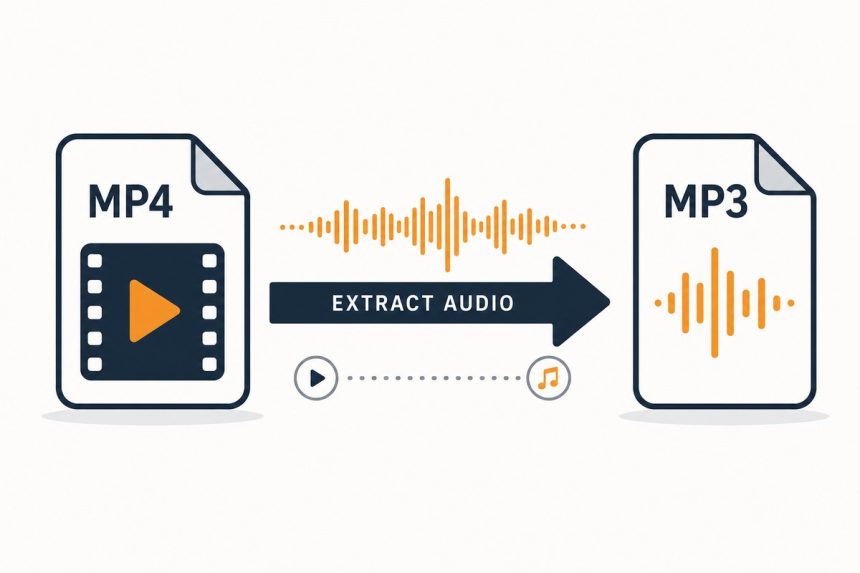
You’ve got a lecture recording, podcast episode, or interview saved as MP4 video, but you only want to listen — not watch. Stripping the audio cuts the file size by 90% and lets you play it anywhere an MP3 works. Here’s how to convert MP4 to MP3 free in your browser, no signup, no upload, no quality cliff.
TL;DR
Open how7o’s video to audio converter, drop your MP4, pick MP3 at 192kbps, download. The whole job runs in your browser via FFmpeg.wasm — the file never leaves your device. Works on any video format FFmpeg understands (MOV, MKV, WebM, AVI included).
Why extract audio in the first place
Three reasons people do this every day:
- Storage. A 90-minute MP4 lecture is 800MB. The MP3 is 60MB. The phone fits 40 lectures instead of 3.
- Battery. Audio playback uses about a quarter of the power of video playback. Long drives and long flights run longer on the audio version.
- Compatibility. Old MP3 players, car stereos, audiobook apps, transcription services — all of these eat MP3 and choke on MP4.
Step-by-step
- Open /video-to-audio.
- Drop your MP4 onto the page. Other video formats work too — the tool reads the actual file headers, not the extension.
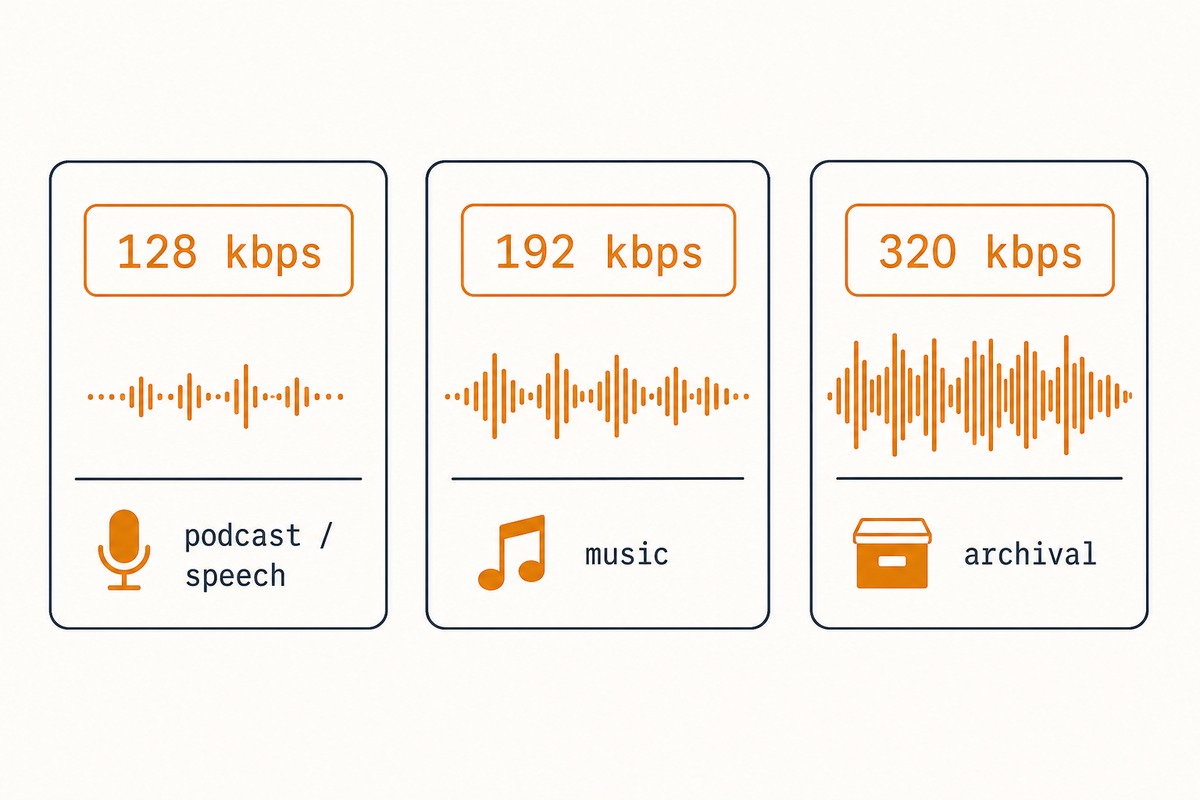
- Pick a bitrate: 128kbps for podcasts and spoken-word, 192kbps for music, 320kbps for archival.
- Click Convert. A 90-minute file takes about 30 seconds on modern hardware.
- Download. The MP3 lands with the same base filename and an
.mp3extension.
What bitrate to actually pick
The honest answer: most people overpay for bitrate.
- 96kbps — speech only. Audiobooks and dialog-heavy podcasts are fine.
- 128kbps — standard podcast quality. The default if you’re not sure.
- 192kbps — music. Anything under 192 and music starts sounding hollow on good headphones.
- 320kbps — archival or audiophile listening. Most ears can’t tell 320 from 192 in a blind test.
Troubleshooting
“The MP3 plays at the wrong speed”
This usually means the source video has a variable framerate that confused the audio extractor. Re-encoding fixes it — toggle Re-encode audio in the tool’s options, which forces a constant sample rate (typically 44.1kHz) and corrects the timing.
“Some files give a ‘no audio track found’ error”
Screen recordings sometimes save without an audio track if the OS-level capture missed system audio. Check the original — if the MP4 plays silently in any player, there’s nothing to extract.
“The output is too quiet”
Phone-recorded audio is often quiet, especially in lecture halls or windy outdoor settings. Run the MP3 through our audio booster after conversion — it raises the level without clipping the loud bits.
Tag the MP3 after conversion — 30 seconds that pays off forever
An untagged MP3 lands in your music app as “Track 01” with no album art and an alphabetical sort order that makes no sense. Thirty seconds spent on ID3 tags after conversion fixes that for every play after.
The five fields that actually matter
- Title — episode title, lecture name, interview subject.
- Artist — speaker, podcast host, lecturer.
- Album — podcast or course name. Groups related episodes together in any player.
- Track number — for a lecture series, the chronological number. Without this your audio app picks alphabetical, which is rarely what you want.
- Year — makes the file findable again in 2 years.
Tools that don’t make you fight them
Windows: Mp3tag (free, open source, the de facto standard since 2002). macOS: Music.app built in, or Kid3 for batch work. Linux: Kid3 or EasyTAG. Command line: id3v2 for one-offs, eyeD3 when you need scripting across hundreds of files.
Album art is nice but optional — most apps fall back to a generic placeholder if you skip it. For lecture, podcast, and audiobook use, the five text fields above carry 80% of the value.
It depends on the source. If the original MP4 has AAC audio at 128kbps, converting to MP3 at 192kbps is effectively lossless — the bottleneck was the source. Re-encoding always adds one generation of loss, but at sensible bitrates it’s inaudible. For archival use FLAC instead of MP3.
Because video accounts for most of an MP4’s bytes. Audio is typically 5–15% of the file. A 100MB MP4 might give you a 6MB MP3 — that’s the audio track without the picture. Same content, 95% smaller.
No — and you shouldn’t with any tool, since it violates YouTube’s Terms of Service and may violate copyright. The browser tool only works on files you already have on your device. Use it to extract audio from your own recordings, screen captures, or downloaded video.
Yes, perfectly. Drop the MP4 in, pick a bitrate (128kbps is standard for spoken-word podcasts), download the MP3. Tag it with your usual ID3 editor afterwards.
Related guides
- Video to audio converter — the tool above.
- Audio booster — for boosting the extracted MP3 to a normal listening level.
- Video trimmer — cut to just the part you want before extracting audio.
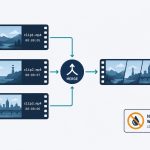
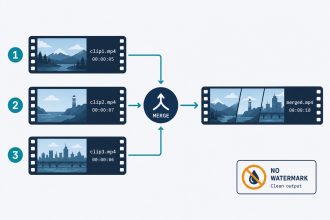
- Video merger — combine multiple recordings before extracting one long MP3.
- Boost audio in a quiet video — to raise the extracted MP3 to a comfortable listening level.
- Trim a video online — cut to just the part you want before extracting audio.
For the technical detail on MP3 encoding settings, the Hydrogenaudio wiki on LAME (the standard MP3 encoder) is the canonical reference.