How7o
  • Home
  • Tools
  • Prank Screens
  • Learn
  • Blog
  • Contact
Reading: How to Reset the LiteSpeed WebAdmin Console Password
Share
How7oHow7o
Font ResizerAa
  • OS
Search
  • Home
  • Tools
  • Prank Screens
  • Learn
  • Blog
  • Contact
Follow US
© 2024–2026 How7o. All rights reserved.
How7o > Free Laravel, PHP, WordPress & Server Tutorials > Server Management > How to Reset the LiteSpeed WebAdmin Console Password
Server Management

How to Reset the LiteSpeed WebAdmin Console Password

how7o
By how7o
Last updated: May 22, 2026
4 Min Read
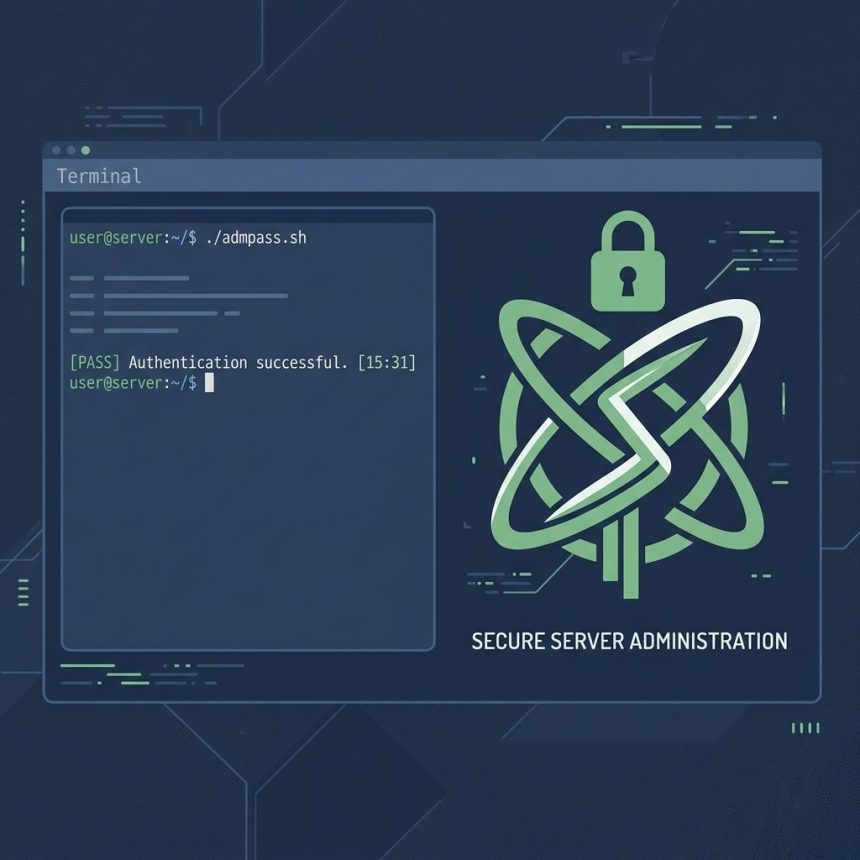
Reset the LiteSpeed WebAdmin Console password
SHARE

To reset the LiteSpeed WebAdmin Console password on cPanel (or any LiteSpeed install), SSH in as root and run the bundled admpass.sh script. It prompts for a new username and password and writes them immediately — no service restart needed.

Contents
  • Run the reset script
  • Log in to verify
  • Where the credentials live
  • If the script isn’t there
  • Frequently asked questions
  • Related guides
  • References

Last verified: 2026-05-17 on LiteSpeed Web Server 6.2 + cPanel. Originally published 2023-12-14, rewritten and updated 2026-05-17.

Run the reset script

sudo /usr/local/lsws/admin/misc/admpass.sh

The script prompts:

Please specify the user name of administrator.
This is the user name required to login the administration Web interface.
User name [admin]:                # press Enter to keep "admin"

Please specify the administrator's password.
Password:                          # type your new password (hidden)
Retype password:

Administrator's username/password is updated successfully!

The change is immediate — you can log in to the console with the new password right away.
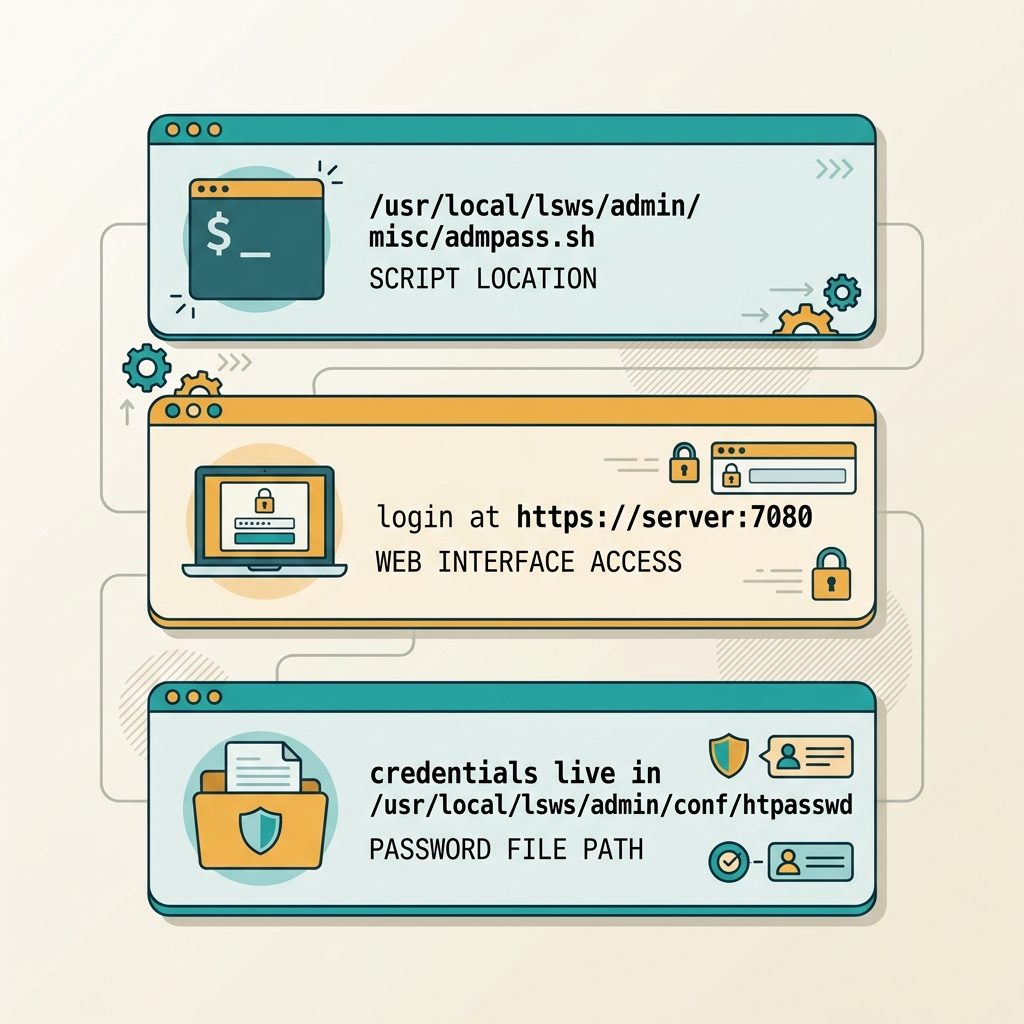
Reset LiteSpeed WebAdmin password — admpass.sh script, login at port 7080, htpasswd file location

Log in to verify

https://your-server-ip:7080/

The default LiteSpeed WebAdmin port is 7080 over HTTPS. The cert is self-signed by default, so accept the browser warning or set up a reverse proxy on a real domain.

Where the credentials live

# Credentials file (don't edit by hand)
/usr/local/lsws/admin/conf/htpasswd

# WebAdmin configuration
/usr/local/lsws/admin/conf/admin_config.conf

The password is stored as a salted hash in htpasswd. Editing the file directly works in theory (LiteSpeed accepts standard Apache htpasswd hashes) but admpass.sh is the supported path — it generates the right hash format automatically.

If the script isn’t there

Some custom LiteSpeed installs use a different prefix. Search for the script:

sudo find /usr/local -name 'admpass.sh' 2>/dev/null
# Typical location: /usr/local/lsws/admin/misc/admpass.sh

OpenLiteSpeed installs use the same script under the same relative path inside their own prefix.

Frequently asked questions

Do I need to restart LiteSpeed after running admpass.sh?

No — the script writes the new credentials immediately to disk, and the WebAdmin Console reads them on each login. No service restart needed. The change takes effect on your next login attempt.

What’s the default username and where is it stored?

The default is admin. Credentials live in /usr/local/lsws/admin/conf/htpasswd as a salted hash. admpass.sh is the supported way to update them — editing the file by hand requires generating a compatible hash and rarely worth the effort.

Is this the same as the cPanel root password?

No, completely separate accounts. The LiteSpeed WebAdmin Console password controls access to LiteSpeed-specific server tuning (graceful restart, configuration reload, virtual hosts) at https://your-server:7080. It’s unrelated to your cPanel root login, WHM credentials, or SSH key-based access.

Where can I find the WebAdmin Console URL?

Default port is 7080 over HTTPS — https://your-server-ip:7080/. The cert is self-signed by default, so browsers warn. For production access, set up a reverse proxy on a real subdomain (e.g. lsws.example.com) with a Let’s Encrypt cert, then restrict that subdomain to your office IP with firewall rules.

Related guides

  • How to Switch from LiteSpeed to Apache in WHM/cPanel
  • How to Fix Quotas in cPanel
  • How to Retrieve the MySQL Root Password in aaPanel

References

cPanel knowledge base: support.cpanel.net (LiteSpeed WebAdmin password reset). LiteSpeed admin guide: docs.litespeedtech.com/lsws.

TAGGED:configurationcPanelLinuxLiteSpeed

Sign Up For Daily Newsletter

Be keep up! Get the latest breaking news delivered straight to your inbox.
[mc4wp_form]
By signing up, you agree to our Terms of Use and acknowledge the data practices in our Privacy Policy. You may unsubscribe at any time.
Share This Article
Facebook Copy Link Print
Previous Article Replace strings in a MySQL database with UPDATE and REPLACE() How to Replace Strings in a MySQL Database
Next Article Run a Linux cron job as a non-root user How to Run a Cron Job as a Non-Root User
Leave a Comment

Leave a Reply Cancel reply

You must be logged in to post a comment.

FacebookLike
XFollow
PinterestPin
InstagramFollow
Most Popular
Run a Linux cron job as a non-root user
How to Run a Cron Job as a Non-Root User
May 22, 2026
Reset the LiteSpeed WebAdmin Console password
How to Reset the LiteSpeed WebAdmin Console Password
May 22, 2026
Replace strings in a MySQL database with UPDATE and REPLACE()
How to Replace Strings in a MySQL Database
May 22, 2026
Rename menu items on the WooCommerce My Account page
How to Rename Menu Items on the WooCommerce My Account Page
May 22, 2026
Remove unwanted characters from a PHP string with regex
How to Remove Unwanted Characters from a String in PHP
May 22, 2026

You Might Also Like

Fix XAMPP MySQL shutdown unexpectedly error
Server Management

How to Fix “Error: MySQL Shutdown Unexpectedly” in XAMPP

5 Min Read
Check Linux OS name and version from the command line
Server Management

How to Check the Linux OS Name and Version from the Command Line

4 Min Read
MySQL connect remote from Ubuntu — mysql-client + mysql -h host
Server Management

How to Connect to a Remote MySQL Database from Ubuntu

7 Min Read
Create a folder in PHP if it does not already exist
Web Development

How to Create a Folder If It Does Not Exist in PHP

5 Min Read
How7o

We provide tips, tricks, and advice for improving websites and doing better search.

Tools

  • Age Calculator
  • Word Counter
  • Image Upscaler
  • Password Generator
  • QR Code Generator
  • See all tools→

Pranks

  • Fake Blue Screen Prank
  • Hacker Typer
  • Fake iMessage Generator
  • Windows XP Crash Prank
  • Windows 11 Update Prank
  • See all prank screens →

Company

  • About Us
  • Blog
  • Contact
  • Privacy Policy
  • Terms of Service
  • Sitemap
© 2024–2026 How7o. All rights reserved.
Welcome Back!

Sign in to your account

Username or Email Address
Password

Lost your password?